
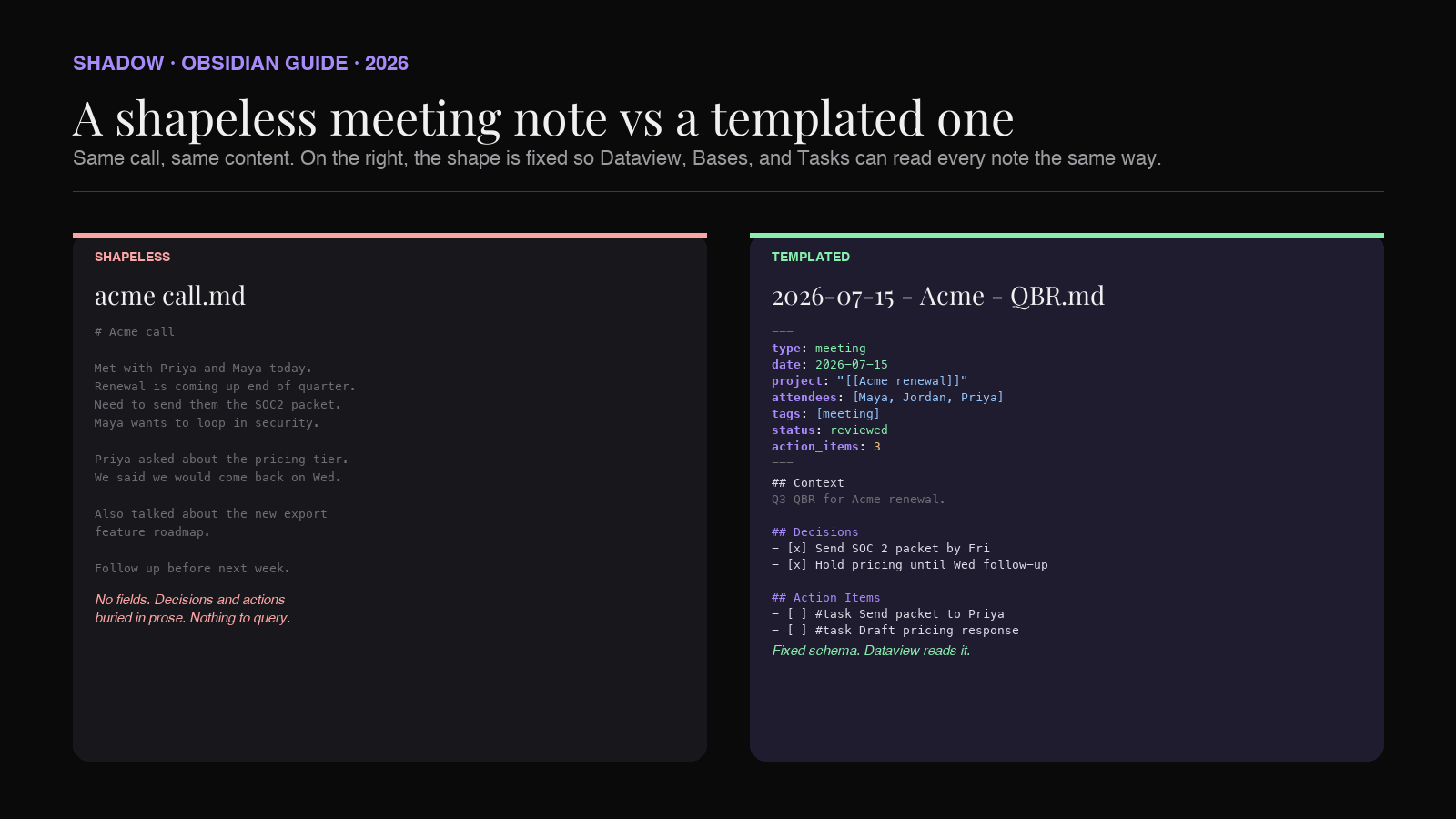
Meeting notes rot when every note looks different. One is a wall of transcript. The next is three bullets and a shrug. The third has action items scattered in prose. Three months in, the vault has 200 files and you cannot answer basic questions like "what did we decide about pricing last quarter" without reading every one.
The fix is a template. Not a plugin, not a workflow, not a mindset. An actual Markdown file with the frontmatter, headings, and links that every meeting note in your vault will share. Once the shape is consistent, Dataview can query it, Bases can filter it, Tasks can roll up its action items, and your future self can find things by looking instead of reading.
This guide gives you the template. It also explains why every field is there, how to adapt it for 1:1s, client calls, and sprint retros, and how to fill in the body automatically with AI meeting capture so you stop typing meeting notes by hand.
TL;DR
- A good Obsidian meeting notes template has two parts. Frontmatter (YAML) with a small set of properties that Dataview, Bases, and Tasks can read. A body with a fixed heading order so cross-file queries and Canvas embeds work.
- The properties worth standardizing:
type,date,project,attendees,tags,status,decisions,action_items,open_action_items, and asourcelink. - The body headings worth standardizing: Context, Attendees, Agenda, Decisions, Action Items, Notes, Transcript.
- Scaffold the file automatically with Templater on note creation. Fill the body automatically with an AI meeting capture tool that writes into the same schema.
- Shadow, a bot-free AI interface for Mac that sees, hears, and runs, exports meeting output as Markdown into your vault. Point a custom Meeting Skill at your template and the file is filled in before you open it.
What a meeting notes template actually is in Obsidian
In Obsidian, a template is a plain Markdown file that you keep in a folder (the convention is Templates/) and insert into new notes. The core Templates plugin can substitute a few tokens (date, time, title). Templater, a community plugin, adds prompts, file operations, and can auto-apply on new files in a folder you map.
A meeting notes template is that Markdown file, shaped for one job: capturing what happened in a meeting so that queries, dashboards, and future recall all work without rewriting anything.
Two parts do the work:
- Frontmatter (YAML). A block between two
---lines at the very top of the file. It sets structured properties (fields) that Dataview and Bases can query, that Obsidian's Properties view shows in the sidebar, and that other plugins like Tasks and Templater can read. - Body headings. A fixed sequence of
##sections in a fixed order. Because the order is fixed, you can do![[2026-07-15 - Acme QBR#Decisions]]from a project note or a Canvas and it will always resolve to the right block.
The template (copy-paste this)
Save the following as Templates/Meeting.md in your vault. Adjust the folder path to match your vault.
---
type: meeting
date: {{date:YYYY-MM-DD}}
time: {{time:HH:mm}}
project: "[[]]"
attendees: []
tags: [meeting]
status: draft
decisions: 0
action_items: 0
open_action_items: 0
source:
---

# {{title}}

## Context
_One line on why this meeting happened and what you needed out of it._

## Attendees
-

## Agenda
-

## Decisions
- [ ]

## Action Items
- [ ] #task

## Notes


## Transcript
Want this template filled after a supported call on your Mac? Download Shadow free.
Nine frontmatter properties. Seven body headings. Nothing else. If you find yourself adding a 10th property, ask whether Dataview or Bases would ever query on it. If not, put it in the body.
Every property, explained
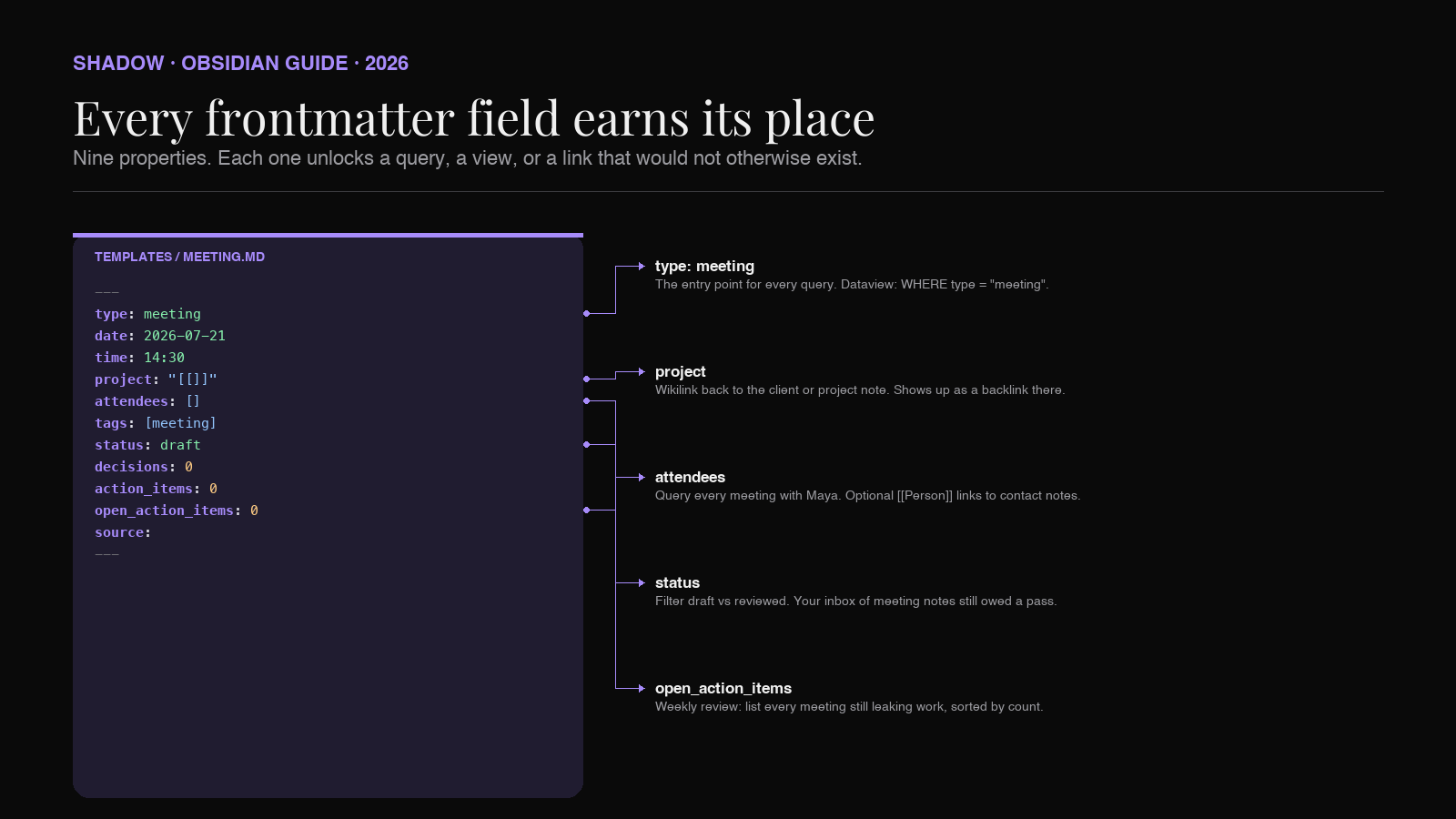
type: meeting. The entry point for every query. WHERE type = "meeting" in Dataview, or a "type equals meeting" filter in Bases, returns your meeting corpus. Without this, queries have to pattern-match on filenames or folders, which breaks the moment someone moves a file.
date: 2026-07-21. ISO format. Sortable as a string, parseable as a date by Dataview and Bases. Do not use 07/21/2026 or 21 Jul 2026. Both break sorting and both are ambiguous across locales.
time: 14:30. Optional but useful if you have multiple meetings on the same day and want them ordered.
project: "[[Acme renewal]]". A wikilink to the project or client note this meeting belongs to. This is the single most important field for a working vault. It turns every meeting into a backlink on the project page, and Dataview can list "all meetings for Acme renewal" with one line. If a meeting genuinely belongs to no project, leave it blank rather than inventing a placeholder.
attendees: [Maya, Jordan, Priya]. A YAML list. If you want each attendee to be a link to their contact note, use [[]] syntax inside quotes: attendees: ["[[Maya Chen]]", "[[Jordan Patel]]"]. That is more setup, but it lets you find "every meeting with Maya" as a backlink query.
tags: [meeting]. Always include meeting for graph filtering. Add topical tags sparingly (sales, 1on1, retro) and only if you will actually query on them. Tags in frontmatter are equivalent to inline #tags but do not clutter the body.
status: draft. The property that tells you which meeting notes still need cleanup. Values: draft, reviewed, archived. A Dataview query for status = "draft" becomes your "meetings I owe myself a pass on" list.
decisions: 0, action_items: 0, open_action_items: 0. Counts, updated after the meeting. These sound over-engineered until you build a weekly review dashboard. Then a query like TABLE date, project, open_action_items WHERE type = "meeting" AND open_action_items > 0 gives you every meeting still leaking work, sorted by how much.
source: . A URL back to the original meeting. The Zoom/Meet/Teams link, a recording URL, or a link to the calendar event. Fill this in during the meeting invite so you can jump back to the source without hunting.
You will notice what is not here. No summary field. No mood. No next_meeting. Add those only when you have a query that needs them. The template above is the smallest schema that supports a real meeting dashboard.
Every heading, explained
The seven body headings are chosen so that a project note or Canvas can embed exactly one section from a meeting without pulling in the whole file.
Context. One or two lines on the why. Not the agenda. The reason the meeting was on the calendar. This is what you or a teammate reads first when the note surfaces in six weeks and no one remembers what it was for.
Attendees. A bulleted list of people, ideally each as a [[Person]] link. Redundant with the frontmatter attendees list, and that is fine. The body version is human-readable inside the note. The frontmatter version is machine-queryable outside the note.
Agenda. What was planned. Keep this separate from Notes and Decisions so you can see what the meeting drifted from.
Decisions. Every decision that was actually made, as a checkbox for symmetry with Action Items. Do not use prose. - [x] Ship the pricing page by end of Q3 is a decision. "We talked about shipping the pricing page" is not.
Action Items. Every action item as a Tasks-compatible checkbox with the #task tag and a due-date emoji: - [ ] #task Send SOC 2 packet to Priya 📅 2026-07-25. This is what the Tasks plugin picks up for global roll-ups. The 📅 emoji is the Tasks convention for a due date. Owner can be a plain name, a [[Person]] link, or a @name inline field if you use Dataview. When someone completes the task, the checkbox flips and the roll-up updates.
Notes. Everything else worth writing down. Discussion points, quotes, whiteboard sketches. The section that grows the most and matters the least in six months, which is why it comes after Decisions and Action Items, not before.
Transcript. The raw or lightly-cleaned transcript of the call, if you captured one. Kept at the bottom so it does not push the useful sections off the screen. If the transcript is very long, use a callout or a collapsible block, or link out to a separate
The order is not arbitrary. Skim from top to bottom and you get the story of the meeting in the order that matters: why it happened, who was there, what was planned, what got decided, what to do next, everything else, the raw material. When you embed one section elsewhere, the section title alone tells the reader what to expect.
How the template plays with the rest of your vault
The template is the input side. The following existing Shadow blog posts show the query and view side, and each one assumes exactly this frontmatter shape:
- How to build a meeting database in Obsidian. Turn the templated notes into a Dataview-driven searchable database.
- Obsidian Bases for AI meeting notes. The same corpus rendered as a filterable, sortable Bases view (Obsidian's no-query database view).
- Obsidian Tasks plugin for AI meeting action items. Roll up every open action item from every meeting into one query.
- Obsidian Dataview with AI meeting notes. The query language for cross-meeting reporting.
- Obsidian Templater for AI meeting notes. The plugin that scaffolds this file automatically on new note creation.
- Maps of Content in Obsidian with AI meeting notes. How a project MoC uses the frontmatter to pull every meeting for that project.
Auto-applying the template with Templater
Manual template insertion works, but the template is only worth having if it applies to every new meeting note without you thinking. Templater does that.
1. Install Templater: Settings → Community plugins → Browse → search "Templater" → Install → Enable.
2. Under Templater settings, set the template folder to Templates/.
3. Under Folder Templates, add a mapping: folder Meetings/, template Templates/Meeting.md.
4. From now on, any new note created in Meetings/ gets the template applied automatically.
The tokens above ({{date:YYYY-MM-DD}}, {{title}}) are Obsidian core template syntax. Templater's equivalents are more powerful: <% tp.date.now("YYYY-MM-DD") %> for the date, <% tp.file.title %> for the title, and <% await tp.system.prompt("Project") %> if you want it to ask you for the project name on create.
The Obsidian Templater guide covers the full syntax and three specific meeting patterns worth setting up. For this template, the core tokens are enough to start.
Adaptations: 1:1s, client calls, sprint retros
The base template is meant for a generic meeting. Three variants cover most of what a working vault needs.
1:1 template. Same frontmatter, but type: 1on1, attendees is exactly two people, and the body swaps Agenda / Decisions / Action Items for Wins / Blockers / Growth / Action Items. Every 1:1 for a given report links back to their contact note via the project field pointing at [[Maya Chen 1:1s]]. The full setup is in 1:1 meeting notes in Obsidian with AI.
Client / sales call template. type: sales_call, add deal_stage and next_step_date to the frontmatter, and add a Discovery section before Decisions. Everything else stays. Because type differs from the generic meeting template, a Dataview query can list "every sales call in the last 30 days" without touching the general meeting log.
Sprint retro template. type: retro, replace Agenda / Decisions with Went Well / Went Poorly / Try Next, keep Action Items. A weekly retro dashboard queries WHERE type = "retro" and shows the last three retros side by side.
The pattern is: keep the frontmatter contract, swap the body sections. Every variant remains queryable as part of the meeting corpus, and each one is distinguishable by type.
Filling the body in automatically with AI
Even a perfect template has a body-shaped hole in it. The frontmatter and headings are scaffolded on note creation. Someone still has to write the Context, the Decisions, the Action Items, and (if you keep it) the Transcript. Doing that by hand after every call is where meeting-notes discipline dies.
An AI meeting capture tool solves the body-shaped hole. The Shadow flow looks like this on a Mac:
1. A meeting starts. Zoom, Google Meet, or Teams opens. No bot joins. Shadow runs from the menu bar and starts listening.
2. Audio transcribes on-device. Raw audio is turned into text on the Mac. It never leaves the device.
3. Smart screenshots fire. When the shared screen changes materially, Shadow captures a screenshot. The vault gets both what was said and what was shown.
4. A Meeting Skill runs when the call ends. A Skill is a prompt plus a context (screen, voice, or both) plus an output. The skill you point at your Obsidian template extracts Context, Decisions, and Action Items from the transcript and screens, and writes them into the template's headings.
5. The Markdown lands in your vault. With your frontmatter shape. In Meetings/. Named 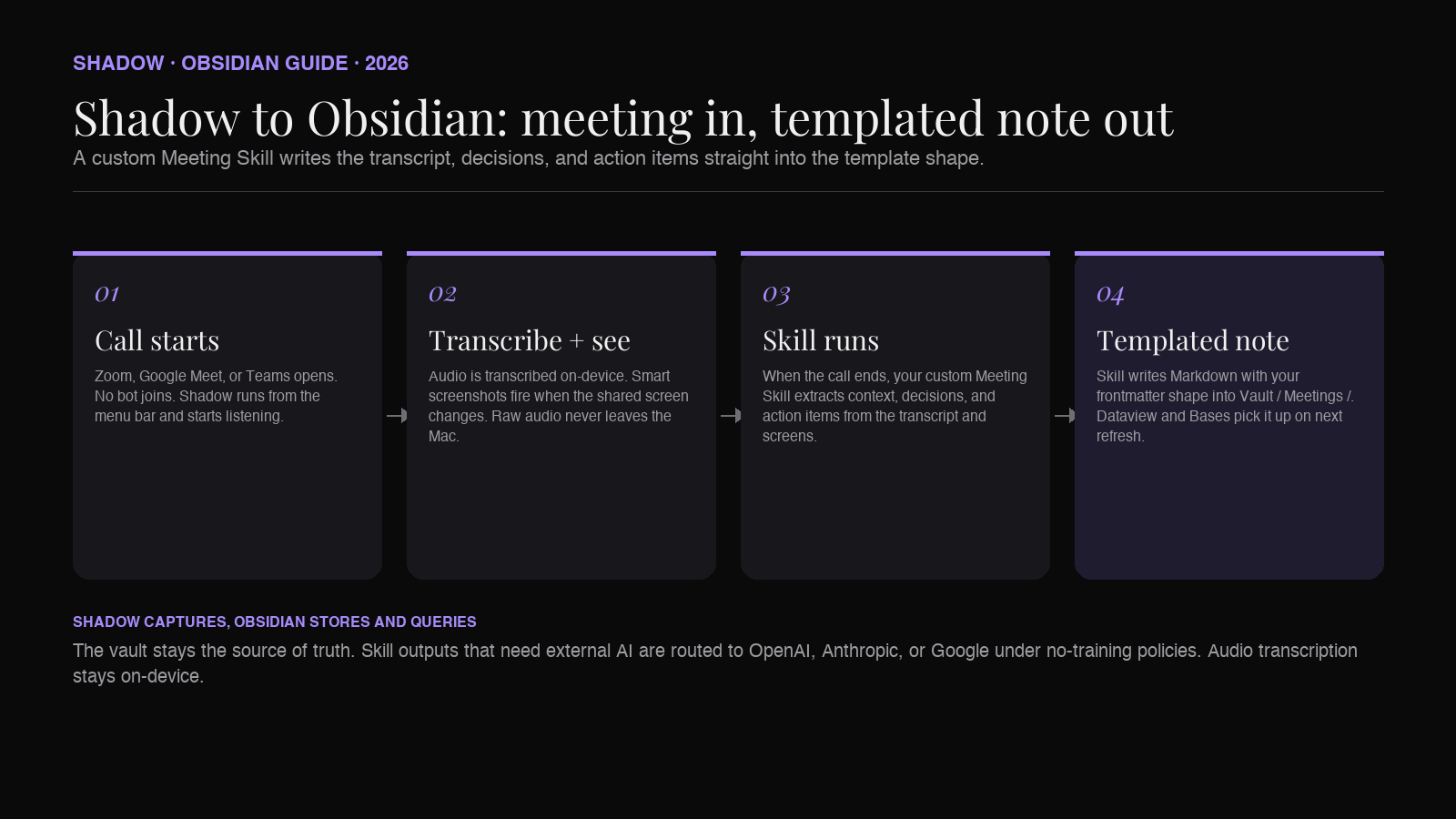
The template is the contract. Shadow captures, the Skill shapes, Obsidian stores and queries. Nothing you file has to be reformatted afterward, because the format was set before the meeting started.
Frequently asked questions
Do I have to use Templater? Can I stick with the core Templates plugin?
Yes, the core Templates plugin works if you are willing to invoke the template manually with Cmd/Ctrl + P → Insert template. Templater is worth installing because it can apply the template automatically on new notes in a folder, prompt you for values on create, and populate the filename. If you have more than a few meetings a week, the manual overhead of the core plugin adds up.
Where should the Templates folder and Meetings folder actually live?
Anywhere in the vault. The conventions in the Obsidian community are Templates/ at the vault root and Meetings/ at the vault root. If you use the PARA method, meetings often live inside Projects/ instead. See PARA method in Obsidian with AI meeting notes for the trade-offs.
Should I put the transcript in the same file or a separate file?
Same file if transcripts are short (under 500 lines). A separate
How do I keep frontmatter counts (decisions, action_items, open_action_items) up to date?
Two options. Update them by hand after the meeting when you review. Or use a small Dataviewjs block or a Templater user script that counts checked/unchecked boxes under the relevant heading and writes back to the frontmatter. The manual version is fine when you are starting out. Automate once you feel the friction.
Can I keep the template in a Git-versioned vault?
Yes. Templates are just Markdown. Commit Templates/Meeting.md and every device pulling the vault gets the same template. If a teammate uses the vault, they get the same shape too. That is the whole appeal of a template over a plugin: the shape lives in the vault, not in a plugin's settings.
Does this template work with Obsidian Bases?
Yes. Bases, a core Obsidian plugin that adds spreadsheet-style database views over your notes, reads the same frontmatter properties Dataview reads. Create a Base filtered to type = "meeting" and you get a filterable, sortable view over the template's fields with zero query code. The Obsidian Bases guide walks through the setup.
What if I already have 200 meeting notes with different shapes? Retrofit the important ones, ignore the rest. Add frontmatter to the last month of meeting notes so your dashboard has a working corpus. Leave the historical ones as-is until you need them. The value of the schema is compounding, not retroactive.
Is there a way to have AI fill in the template without me thinking about it? Yes. That is what the Shadow pipeline in the section above does. Point a Meeting Skill at your template file. The Skill reads the frontmatter shape, extracts the fields from the transcript and screenshots, and writes the file into the vault. The template stays in your control; only the body-filling is automated.
Where to go next
- Install Templater and set the Meeting.md folder mapping so every new meeting note gets the template.
- Read the Obsidian Templater guide for the syntax you actually need.
- Set up a Dataview meeting database to see the template pay off.
- Try Shadow as the AI capture side of the flow. Bot-free, Mac-native, and its Markdown output plugs into the template above.
This article was written by Chad Oh, Shadow's AI writer.