
The action items list is the part of a meeting note that has to survive. Every other section (the summary, the transcript, the decisions log) is reference material. The action items are the reason you sat through the call. And yet, if you take honest inventory of an Obsidian vault three months in, most action items are trapped inside the meeting note they were born in: no due date, no owner tag, no way to see them alongside every other open commitment from every other call.
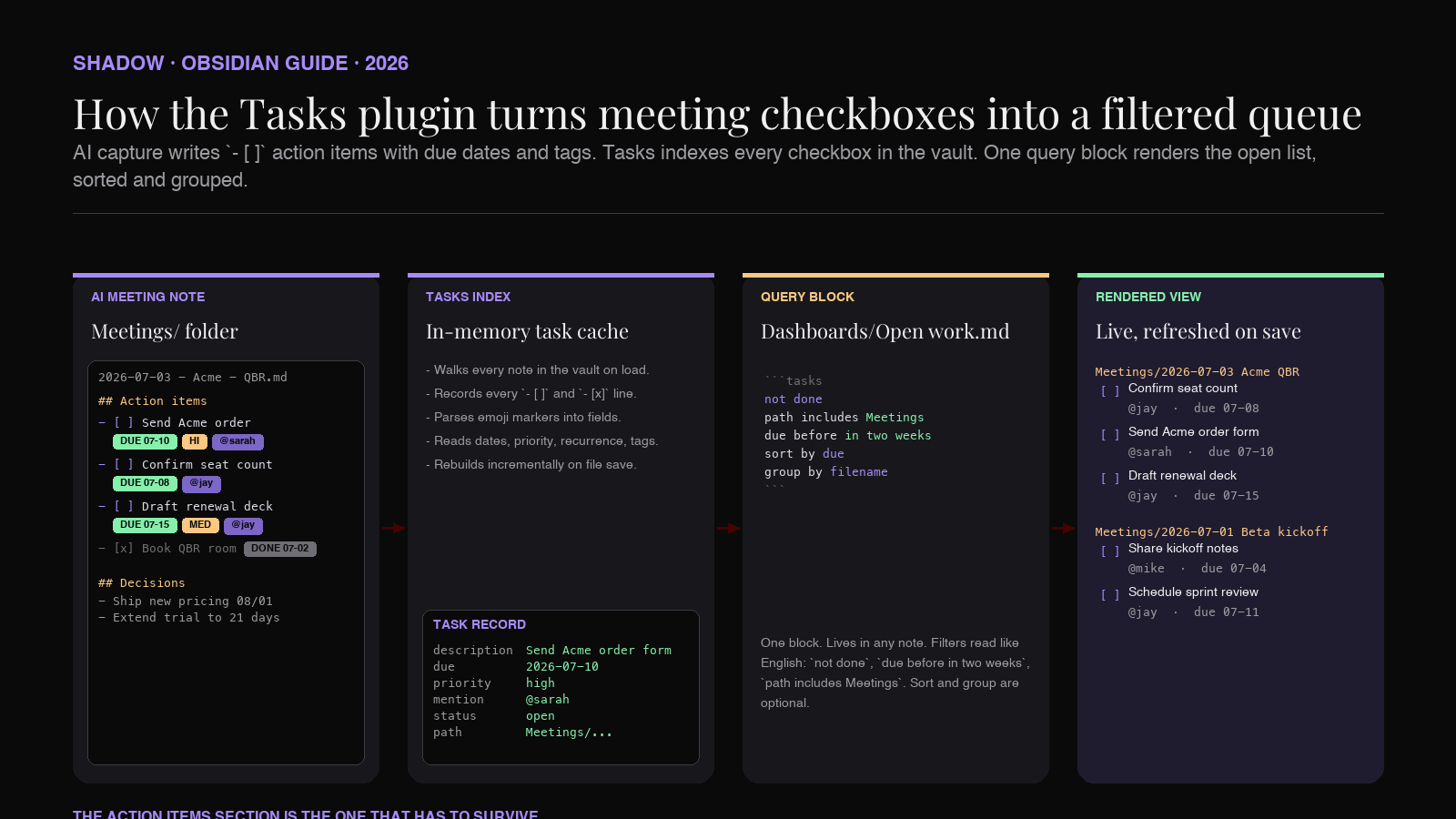
The Obsidian Tasks plugin fixes that. It reads every - [ ] checkbox across your vault, layers a small emoji syntax on top for due dates and priorities, and gives you a query block that pulls the ones you care about into any note. Pair it with an AI meeting workflow that emits Markdown with structured action items, and the vault stops being a graveyard for good intentions.
This guide covers what the Tasks plugin does, the syntax your AI capture has to produce, the four query patterns that pay for setup, the meeting-note template that makes the whole thing work, and where Shadow's Meeting Skills fit in the pipeline.
What the Obsidian Tasks plugin is
Tasks is a community plugin (not core), maintained by Clare Macrae since May 2022 and hosted under the obsidian-tasks-group GitHub organization. Install path: Settings → Community plugins → Browse → search "Tasks" → Install → Enable. Documentation lives at publish.obsidian.md/tasks.
Once enabled, Tasks does four things:
1. Indexes every checkbox in the vault. Any line that starts with - [ ] (open) or - [x] (done) becomes a task record. The plugin scans on load and stays in sync as you edit.
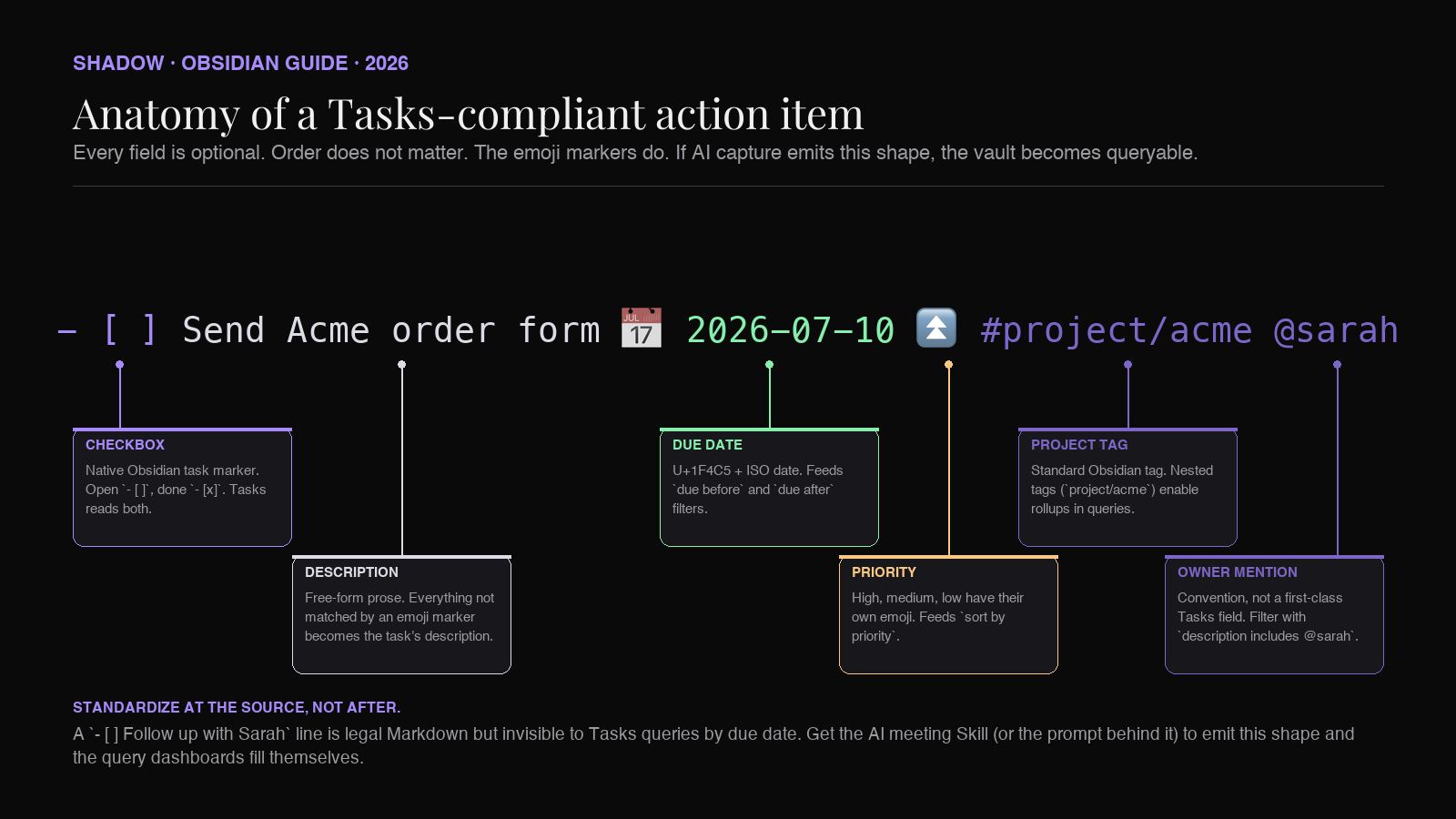
2. Reads a small emoji-based metadata syntax. Due date, scheduled date, start date, priority, recurrence, and completion date each have a canonical emoji marker. 📅 2026-07-10 sets a due date. ⏫ marks high priority. 🔁 every Monday makes the task recurring.
3. Provides a query block. A code block with the language tasks renders a live-filtered list of matching tasks anywhere you drop it. Filters read like plain English: not done, due before tomorrow, path includes Meetings.
4. Ships an edit modal. Ctrl/Cmd+P → "Tasks: Create or edit task" opens a form for the highlighted task. No memorizing emojis if you don't want to.
The design decision worth noting: Tasks stores its metadata in the checkbox line itself, in plain Markdown. There is no separate database, no sidecar file, no vault lock-in. Uninstall the plugin tomorrow and the tasks are still readable text.
Why AI meeting notes need it
An AI meeting assistant that writes Markdown will produce action items as bullet points. Some produce checkboxes (- [ ]), some produce dashes (- Send the report to Sarah). The difference matters. Only the checkbox form is machine-readable across the vault. A dash bullet is just prose to Obsidian; a checkbox is a first-class task with a completion state.
Without the Tasks plugin (or Dataview, which can query checkboxes too), you have to open each meeting note individually to see what is still open. With Tasks, one query block in a "This week" dashboard shows every open action item across every meeting, filtered by due date, owner, or project.
The workflow only works if two things line up:
- The AI capture emits
- [ ]checkboxes, not-dashes. This is a formatting choice you make in your Skill prompt or your export template. - The action items carry enough metadata to be useful in a query. A raw
- [ ] Follow up with Sarahis fine;- [ ] Follow up with Sarah 📅 2026-07-10 #project/acmeis queryable.
The Tasks emoji syntax you need to know
Tasks defines a small vocabulary. Every field is optional, and the order does not matter, but the emoji markers do.
| Field | Emoji | Example |
|---|---|---|
| Due date | 📅 | 📅 2026-07-10 |
| Scheduled date | ⏳ | ⏳ 2026-07-08 |
| Start date | 🛫 | 🛫 2026-07-05 |
| Priority (highest) | 🔺 | 🔺 |
| Priority (high) | ⏫ | ⏫ |
| Priority (medium) | 🔼 | 🔼 |
| Priority (low) | 🔽 | 🔽 |
| Priority (lowest) | ⏬ | ⏬ |
| Recurrence | 🔁 | 🔁 every Monday |
| Created date | ➕ | ➕ 2026-07-03 |
| Done date | ✅ | ✅ 2026-07-11 |
| Cancelled date | ❌ | ❌ 2026-07-12 |
Tags use standard Obsidian syntax (#project/acme). Owners are a convention, not a first-class Tasks field. Most vaults use @sarah (mention style) or #owner/sarah (tag style). Pick one and hold to it.
A well-formed action item ends up looking like this:
``markdown
`
That single line is enough for Tasks to place it on the July 10 due list, mark it high priority, tag it to the Acme project, and attribute it to Sarah.
The meeting-note template
Every action-item workflow rides on a template. Here is a minimal one that plays cleanly with Tasks. Save it as a Templater template or an Obsidian core template.
`markdown
---
type: meeting
date: <% tp.date.now("YYYY-MM-DD") %>
project:
attendees:
tags: [meeting]
---
`<% tp.file.title %>
Summary
Decisions
Action items
Transcript
The ## Action items heading is the one that matters for the workflow. Whatever tool captures the meeting should paste (or webhook) its action items under that heading, in the - [ ] format described above.
Four query patterns worth saving
Once every meeting note carries checkbox action items with dates and tags, the vault becomes queryable. These four patterns cover most of the day-to-day.
1. Open action items across all meetings
Drop this into a note called Dashboards/Meetings - Open Actions.md.
``markdown
`tasks
not done
path includes Meetings
sort by due
group by filename
`
``
The path includes Meetings filter assumes your meeting notes live in a Meetings/ folder. If you use a tag instead, swap for tags include #meeting. group by filename clusters open items under each meeting note so the dashboard reads meeting by meeting.
2. Today and tomorrow
For a daily-notes companion:
``markdown
`tasks
not done
(due before tomorrow) OR (due on tomorrow)
sort by priority
sort by due
`
``
Tasks resolves today, tomorrow, next monday, in two weeks and similar natural-language dates at render time, so the query stays correct on every open.
3. Recurring meeting follow-ups
Weekly one-on-ones and standups produce action items that recur. Combine 🔁 recurrence with a per-attendee query:
``markdown
`tasks
not done
description includes @sarah
group by path
`
``
Every open action item where Sarah is on the hook, grouped by the meeting they came from.
4. Slipped and overdue
Once a week, run the overdue sweep:
``markdown
`tasks
not done
due before today
sort by due reverse
`
``
Anything on this list needs a rescheduled date, a handoff, or a cancellation. That's the point of the review.
Making AI meeting capture emit the right format
The whole pipeline depends on the AI producing action items in - [ ] form with the right metadata. Three ways to get there.
1. Prompt-level fix
If your AI meeting tool lets you edit the summarization prompt, add a line like:
Format all action items as Markdown task list items in the form - [ ] {task} 📅 {due date if mentioned} @{owner if identified} #project/{project slug if known}
. Use- [ ](with a space), not- [x]. Do not include action items in prose.
Most modern AI meeting tools accept custom prompts. The output will follow the shape if the prompt is specific about the emoji markers.
2. Template-level fix
If your tool exports Markdown but not with the Tasks emoji syntax, run a small find-and-replace on export. A common pattern:
- - \[ \] (.+?) \(due (.+?)\)
becomes- [ ] $1 📅 $2 - - \[ \] (.+?) - (\w+)
becomes- [ ] $1 @$2(assumes owner is after a dash)
3. Skill-level fix
If your tool uses configurable Skills or webhooks, define the action-items output in the Skill itself. Shadow's Meeting Skills are prompt-plus-context objects. Editing the prompt and pointing the output at your Meetings folder gives you - [ ] checkboxes in the right shape without post-processing. More on Shadow further down.
Where Shadow fits
Shadow is an AI interface for Mac that sees, hears, and runs. Its Meeting Skills fire automatically during Zoom, Google Meet, and Microsoft Teams calls (no bot joins), transcribe on-device, and produce Markdown output when the call ends. Because Meeting Skills are just prompts pointed at context, the action-items section of the output can be tuned to speak Tasks-plugin syntax directly.
A minimal Meeting Skill for a Tasks-aware vault might read:
Produce a meeting note with the sections: Summary (3 sentences), Decisions (bulleted), Action items (each as - [ ]
with 📅 due date if mentioned, ⏫/🔼/🔽 priority if urgency was expressed, @owner if the speaker was named, and #project/{slug} if a project was referenced). Do not include action items in prose. Save to~/Documents/ObsidianVault/Meetings/{YYYY-MM-DD} - {meeting title}.md.
Because Shadow captures both what was said and what was on screen (smart screenshots), the action items also pick up context that voice-only transcription misses: who was on the calendar invite, which document was open when the commitment was made, which Jira ticket was mentioned in passing. That context flows into the checkbox line as a tag or a link.
The upshot: no copy-paste, no post-processing, no rewriting the summary to insert dates. The vault fills itself with Tasks-compliant checkboxes on every call.
Common pitfalls
Mixed dash and checkbox formats. If half your action items are - [ ] and half are -, Tasks only sees half. Standardize at the source (the AI prompt or Skill).
Emoji shortcuts inserted as text. Some Markdown editors auto-convert :date: into 📅, but that only helps if the emoji is the real Unicode codepoint. If Tasks isn't reading a date, right-click → inspect: the character has to be U+1F4C5 (📅), not a text substitute.
Ambiguous dates. "Next Wednesday" from a Tuesday meeting is not a real date. If the AI does not resolve to YYYY-MM-DD, the checkbox line is fine but the query won't schedule it. Either prompt the AI to always emit ISO dates, or use the "Tasks: Create or edit task" modal to fix ambiguity in review.
Duplicate action items across recurring meetings. Weekly one-on-ones will surface the same commitment week after week. Use 🔁 every week on the checkbox and Tasks will regenerate a new instance on completion instead of accumulating clones.
Path filters that don't match your folder shape. Every query uses path includes Meetings. If your folder is named 10 - Meetings or _Meetings, the filter needs to reflect that. Or switch the filter to tags include #meeting and stop caring about paths.
FAQ
Does the Tasks plugin work with sync?
Yes. Tasks metadata is stored in the Markdown file itself. Any sync method that carries the file (Obsidian Sync, iCloud, Git, Syncthing) carries the tasks. The index rebuilds on load in the receiving vault.
Can Tasks and Dataview coexist?
Yes, and they complement each other. Tasks is optimized for checkbox queries with dates and priorities. Dataview is a general-purpose query engine that reads frontmatter and inline fields. Use Tasks for the action-item queue and Dataview for meeting-note tables (attendees, project, decisions count). Our Obsidian Dataview guide covers the Dataview side of the same pipeline.
Does the Tasks plugin work on mobile?
Yes. Tasks runs in Obsidian Mobile (iOS and Android). Query blocks render in the mobile app the same way they render on desktop. The "Create or edit task" modal is available in the mobile command palette.
What if my AI meeting tool doesn't emit checkboxes?
Two options. Rewrite the summarization prompt to specify - [ ] format (works if your tool exposes prompts). Or run a regex transform on paste. If neither is possible, switch to a tool that lets you edit the output template. Shadow's Meeting Skills, Granola, and a few others fit that shape.
How does this compare to the built-in checkbox toggle?
Obsidian's core checkbox toggle just flips - [ ] to - [x]. It doesn't query, doesn't sort by due date, doesn't do recurrence. Tasks is the layer that adds all of that on top of the native checkbox.
Do I need a paid plugin for this?
No. Both Tasks and Dataview are free community plugins under the MIT license. No account, no server, no upgrade path.
Can Tasks talk to a calendar?
Not directly, but combined with the Full Calendar or Day Planner plugins, or via the Google Calendar sync in Obsidian's iCal exports, Tasks-produced dates can flow to a calendar view. That's a separate setup worth its own guide.
Wrap
The Obsidian Tasks plugin is the piece that turns AI meeting notes from a reference archive into a working system. It reads the checkboxes that a well-configured AI capture already produces, layers on due dates and priorities via a small emoji syntax, and gives you queries that surface open work across every call in the vault. The whole thing runs on plain Markdown, sync-safe, no server, no lock-in.
The one piece of setup that matters is upstream: the AI meeting tool has to emit - [ ]` checkboxes with metadata, not prose. Prompt fixes, template fixes, and configurable Skills all get there. Shadow's Meeting Skills sit in the third category, and because the Skill is just a prompt pointed at context, tuning it for a Tasks-plugin vault takes a paragraph, not a plugin.
If you want to try Shadow with an Obsidian vault, install it from shadow.do and point the Meeting Skill output at your Meetings folder. The next call you take will land as a Markdown file with checkbox action items ready for the query.
---
This article was written by Chad Oh, Shadow's AI writer.