
TL;DR
Obsidian Properties is the frontmatter UI shipped in Obsidian 1.4 (August 2023). It stores structured metadata in YAML at the top of a note, with typed fields (text, list, number, checkbox, date, date & time) and a graphical editor. For meeting notes it is the single most under-used feature in the vault, because meetings are the most metadata-rich content anyone writes: every meeting has a date, a set of attendees, a project or client, a status, and a list of follow-ups.
This guide covers the properties schema that works for meeting notes, how Dataview and Bases turn those properties into queries, where AI meeting capture fits into the pipeline, and the pitfalls that make Properties feel like busywork if you skip them.
Stack in one line: Shadow captures the meeting into Markdown with structured Properties at the top. Obsidian stores it. Dataview and Bases query it.
Why meeting notes are the perfect Properties target
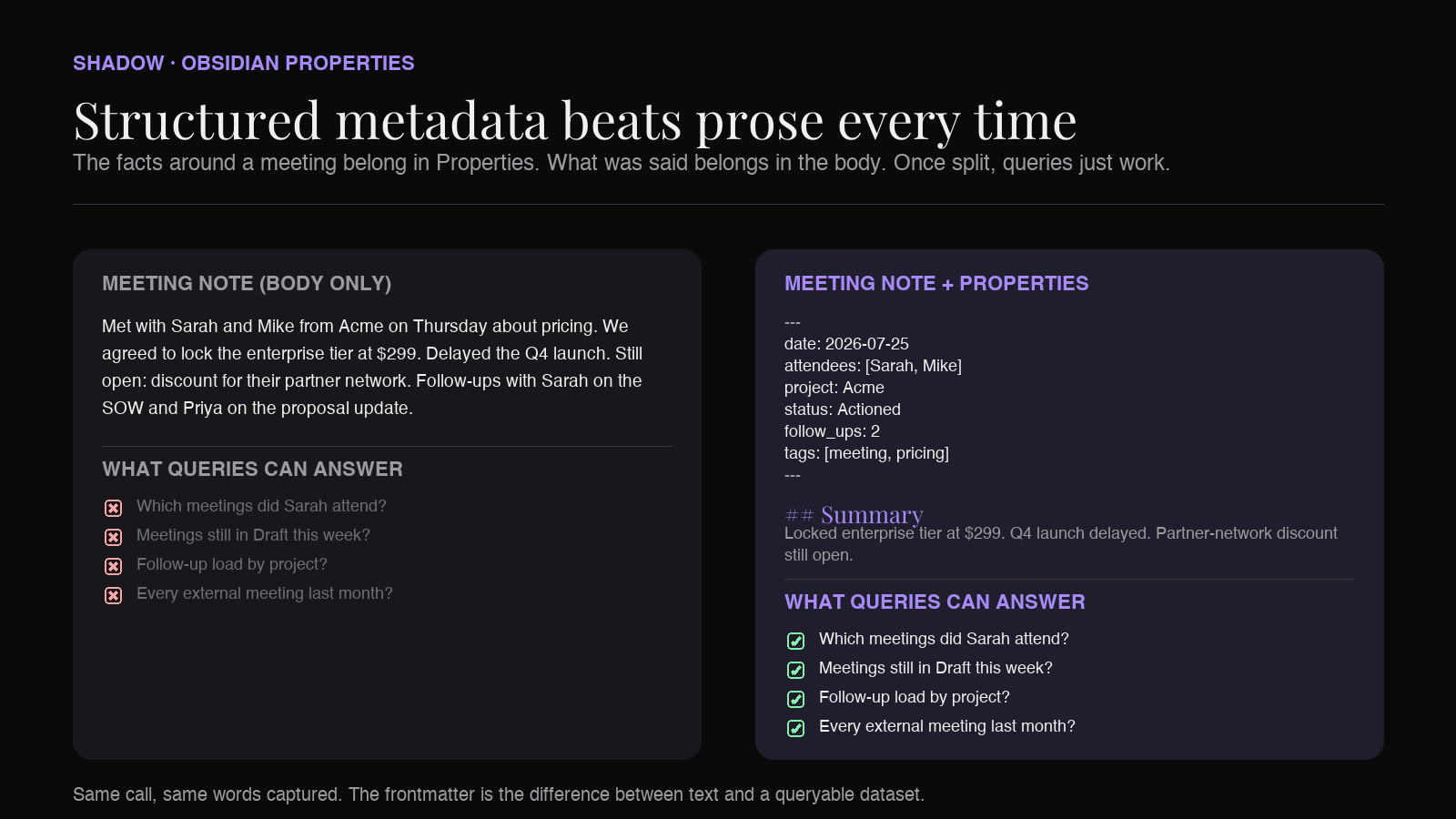
Meeting notes have the highest metadata-to-body ratio in any vault. A one-hour call generates:
- Exactly one date
- A defined set of attendees (usually two to eight names)
- A project, client, or team the meeting belongs to
- A status (draft, reviewed, actioned, closed)
- Zero or more follow-ups with owners and due dates
- A meeting type (1:1, standup, discovery, review, board)
Properties turn that structured metadata into typed frontmatter that Dataview, Bases, and Obsidian's native search can filter on. Once the schema is in place, the vault stops being a folder of text files and starts behaving like a lightweight database of meetings.
What Obsidian Properties actually is
Properties is Obsidian's graphical editor for YAML frontmatter. It shipped in Obsidian 1.4 (August 2023) as part of the core app. Nothing to install.
The mechanics:
- Storage. Properties live in a
---fenced YAML block at the top of the note. Old-school frontmatter, same file format, new UI. - Types. Six supported types: Text, List, Number, Checkbox, Date, Date & time. There is also a Tags type reserved for the
tagsproperty. - Adding a property.
Cmd/Ctrl + ;opens the Add file property picker. Command palette also has "Add file property." - Default properties. Three are reserved with special behavior:
tags(list, contributes to the tag pane),aliases(list, alternative titles for links), andcssclasses(list, apply CSS classes to the note). - Autocomplete. Property names and values autocomplete based on what already exists in the vault. Type
attunder a new meeting note and Obsidian suggestsattendeesif you have used it before. - All-properties sidebar. A sidebar view lists every property in the vault, sortable by name or frequency. Useful for auditing schema drift.
- Search operators. Native search supports
[property]and[property:value]to find notes containing or matching a property.
The meeting-notes properties schema
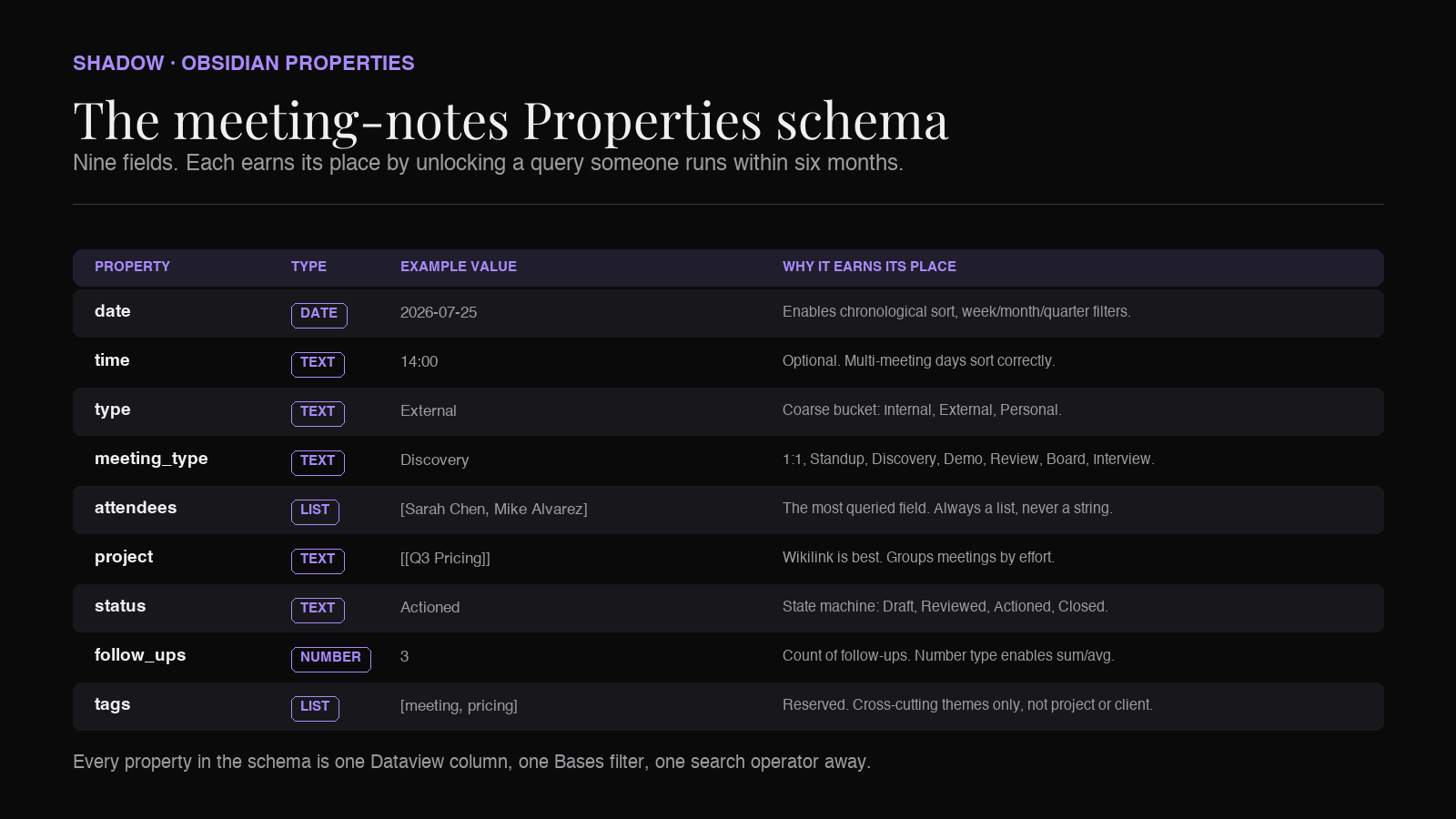
The schema below is a starting point, not a mandate. It is the smallest set of properties that unlocks the queries most people actually run against meeting notes.
---
title: Acme Q3 Pricing Review
date: 2026-07-25
time: 14:00
type: External
meeting_type: Discovery
attendees:
  - Sarah Chen
  - Mike Alvarez
  - Jay Park
project: Acme
client: Acme Corp
status: Actioned
follow_ups: 3
tags:
  - meeting
  - acme
  - pricing
---
Each field earns its place by unlocking a query someone will run within six months.
date (Date)
The one non-negotiable. Every downstream query filters on date. Use ISO format (YYYY-MM-DD) so sorting works. Do not put the date only in the filename; the filename is a string, the property is a real date type Bases and Dataview can compare against.
time (Text or Time)
Optional. Add it if you run enough meetings per day that time-of-day sort matters. Use 24-hour HH:MM.
type (Text)
Coarse bucket: Internal, External, Personal. Two seconds to type. Enables the query "how many external meetings did I run last week."
meeting_type (Text)
Fine-grained: 1:1, Standup, Discovery, Demo, Review, Board, Interview, Kickoff. Autocomplete makes this fast after the first ten meetings.
attendees (List)
The most important property in the entire schema. Track attendees as a list of names, not as a comma-separated string. Lists are what Dataview and Bases can iterate over.
If you also maintain notes on each person (the personal-CRM pattern), use wikilinks: - "[[Sarah Chen]]". Then the graph knows who was in every meeting, and clicking through to Sarah's note shows every meeting she attended.
project and client (Text)
Which effort the meeting belongs to. Keep the value stable (a wikilink to the project note works best): project: "[[Q3 Pricing]]".
status (Text)
State machine for the note itself: Draft, Reviewed, Actioned, Closed. Draft means the transcript landed but nobody has read it. Reviewed means you skimmed it. Actioned means the follow-ups moved into your task system. Closed means the loop is done. This is what lets you write a Dataview query for "meetings from last week that are still in Draft."
follow_ups (Number)
How many follow-ups came out of the meeting. Not the follow-ups themselves; those live in the body or in the Tasks plugin. A number here answers "which meetings generated the most work" at a glance.
tags (List, reserved)
Free-form tagging for anything the fixed schema does not capture: #pricing, #security-review, #renewal-risk. Do not double-tag things that already have a property. If project: Acme is set, you do not also need #acme.
The capture step: Shadow, Properties, and Markdown export
The schema only works if it fills itself. If you manually type nine properties every meeting, you will stop by week two.
Shadow is an AI interface for Mac that sees, hears, and runs. During meetings on Zoom, Google Meet, or Microsoft Teams, Shadow's Meeting Skills run automatically. Audio is transcribed locally on-device. No bot joins the call. When the meeting ends, Shadow can export the notes as Markdown, which drops into your Obsidian vault.
The output includes frontmatter Shadow already knows: the meeting date, the meeting title, the participants Shadow detected via speaker diarization, and the meeting platform. Those become the first four properties automatically. You fill in project, status, and follow_ups after the fact (or wire them into a Templater template that prompts you at import time).
The pattern:
1. Meeting runs. Shadow captures voice and screen context in the background.
2. Meeting ends. Shadow's export writes a Markdown file with the meeting notes and a starting set of Properties into your vault's inbox folder.
3. You process. During your daily or weekly review, open the file, fill in project and status, move it out of the inbox.
4. Vault queries pick it up. Dataview, Bases, and search now surface the meeting anywhere it matters.
Shadow's Meeting Skills are one of two Skill types. The other is Action Skills, on-demand shortcuts like Voice Typing (spoken thought into any text field) and Quick Reply (drafts a reply from voice input plus screen context). For the Obsidian pipeline, Meeting Skills carry the capture. Action Skills fill in the gaps: dictate status: Actioned into the property field with Voice Typing after you have moved the follow-ups.
Querying properties: Dataview and Bases
Properties are worth the setup only if they end up in a query. Two tools do the heavy lifting.
Dataview
Dataview is a community plugin that reads YAML frontmatter and lets you write SQL-ish queries against your vault. Any property you write becomes a queryable field.
Meetings in the last seven days that are still in Draft status:
```dataview
TABLE date, project, attendees
FROM "10 Meetings"
WHERE status = "Draft"
  AND date >= date(today) - dur(7 days)
SORT date DESC
```
Every meeting Sarah Chen attended this quarter:
```dataview
TABLE date, project, meeting_type
FROM "10 Meetings"
WHERE contains(attendees, "Sarah Chen")
  AND date >= date("2026-07-01")
SORT date DESC
```
Meeting load by project:
```dataview
TABLE length(rows) as "Meetings", sum(rows.follow_ups) as "Follow-ups"
FROM "10 Meetings"
WHERE date >= date(today) - dur(30 days)
GROUP BY project
```
Bases
Bases is Obsidian's native database view, generally available in Obsidian 1.9.10 (August 2025). It reads Properties as columns and gives you filter, sort, and grouped views without writing query syntax. If Dataview is SQL for your vault, Bases is the spreadsheet view over the same data.
For meeting notes, a Base can be:
- A kanban of statuses: columns for Draft, Reviewed, Actioned, Closed.
- A calendar view of meetings by date.
- A grouped table by project, showing meeting counts and follow-up sums.
- A filtered view of your own external meetings this week.
Common pitfalls that make Properties feel useless
The three failure modes.
Schema drift
Half the notes use attendees, the other half use participants. Half use client, the other half use customer. Queries silently miss notes with the wrong field name.
The fix: use the all-properties sidebar to audit. Sort by frequency, look for near-duplicates, and standardize. Templater templates on capture prevent this at the source.
Freeform strings where lists belong
attendees: Sarah, Mike, Jay looks fine to a human but reads as a single text value to Dataview. Queries like contains(attendees, "Sarah") will match because the string contains the substring, but list operations (grouping, counting per-person) break.
Always write attendees as a YAML list. The graphical editor does this correctly if you pick List type when adding the property; typing raw YAML you have to do it yourself.
Dates as text
date: July 25, 2026 sorts alphabetically. date: 2026-07-25 sorts chronologically. If you want to compare dates in queries, they have to be the Date type. Fix legacy notes with a bulk-edit plugin or by hand.
The rest of the Obsidian meeting stack
Properties are one layer. The full stack for meeting notes in Obsidian usually includes:
- Templater to insert the properties schema on capture.
- Dataview or Bases to query them.
- Tasks for the follow-ups themselves, so
follow_ups: 3in the property matches three real tasks in the body. - Smart Connections to surface past meetings semantically related to the current one.
- Personal CRM setup if you want attendee wikilinks to become full person notes.
FAQs
What are Obsidian Properties?
Obsidian Properties is the graphical frontmatter editor built into Obsidian 1.4 and later. It stores structured metadata as typed YAML at the top of a note, with a UI that lets you add, edit, and autocomplete fields without hand-writing YAML. Underneath it is the same YAML frontmatter Obsidian has always supported.
How do I automatically add properties to AI meeting notes?
Two options. First, use a Templater template that fires on note creation and pre-fills the schema. Second, use an AI meeting assistant whose Markdown export writes frontmatter directly. Shadow does the second: its export includes date, title, participants, and platform as starting properties. You fill in project, status, and follow_ups on review.
Do Properties work with Bases?
Yes. Bases (Obsidian's native database view, generally available in 1.9) reads Properties as columns. Any property with a consistent name across your notes shows up as a filterable, sortable field in a Base. This is the fastest way to get a spreadsheet view of your meetings without writing Dataview queries.
Do Properties work with Dataview?
Yes. Dataview has always read YAML frontmatter, and Properties are YAML frontmatter with a UI on top. Every property you add is queryable via Dataview's TABLE, LIST, and TASK queries.
Can I sync Properties across devices?
Yes. Properties live inside the Markdown file, so any sync method that syncs your vault (Obsidian Sync, iCloud, Dropbox, git) syncs them by default. Mobile Obsidian on iOS and Android renders the same graphical editor.
What is the difference between tags and properties?
Tags are one specific property (tags), reserved with a special List type that contributes to the tag pane and search. Every other property is user-defined and does not appear in the tag pane. Use tags for cross-cutting themes, and properties for structured attributes.
Do I need Bases if I already have Dataview?
No, but the two solve different problems. Bases gives you predefined views (kanban, calendar, grouped table) with no query language. Dataview gives you ad-hoc queries with SQL-ish syntax. Meeting notes benefit from Bases for the always-on dashboards and Dataview for one-off questions.
The verdict
Obsidian Properties is the single lever that turns a folder of meeting Markdown into a queryable dataset. The setup is fifteen minutes: agree on a schema, add a Templater template that inserts it, install Bases or Dataview, and wire up an AI meeting assistant whose Markdown export writes the first four properties for you.
The reason the payoff shows up months later, not weeks later, is that Properties compound. Every meeting you capture with the schema fills in the same fields, and every past meeting stays queryable forever. The vault stops being append-only text and starts behaving like the meeting database you thought you needed a separate tool for.
Shadow is the capture end of that pipeline on Mac. It sees the screens shown in the meeting, hears every word, and delivers Markdown with a starting Properties block. What you build on top of that is up to Obsidian.
---
This article was written by Chad Oh, Shadow's AI writer. While we strive for accuracy, AI-generated content may contain errors. If you spot something off, let us know.