
TL;DR
Smart Connections is a free Obsidian community plugin that embeds every note in your vault locally, then surfaces semantically related notes in a side panel while you type. For meeting notes it means the next time you open a call with a client, the plugin can show every past conversation with that client, every internal note that touched their product, and every open thread you left dangling.
It only works if the meeting notes actually exist in Obsidian, structured well enough for embeddings to catch the signal. This guide covers the plugin, the vault layout, the capture step (where Shadow slots in), and the pitfalls that make Smart Connections feel useless if you skip them.
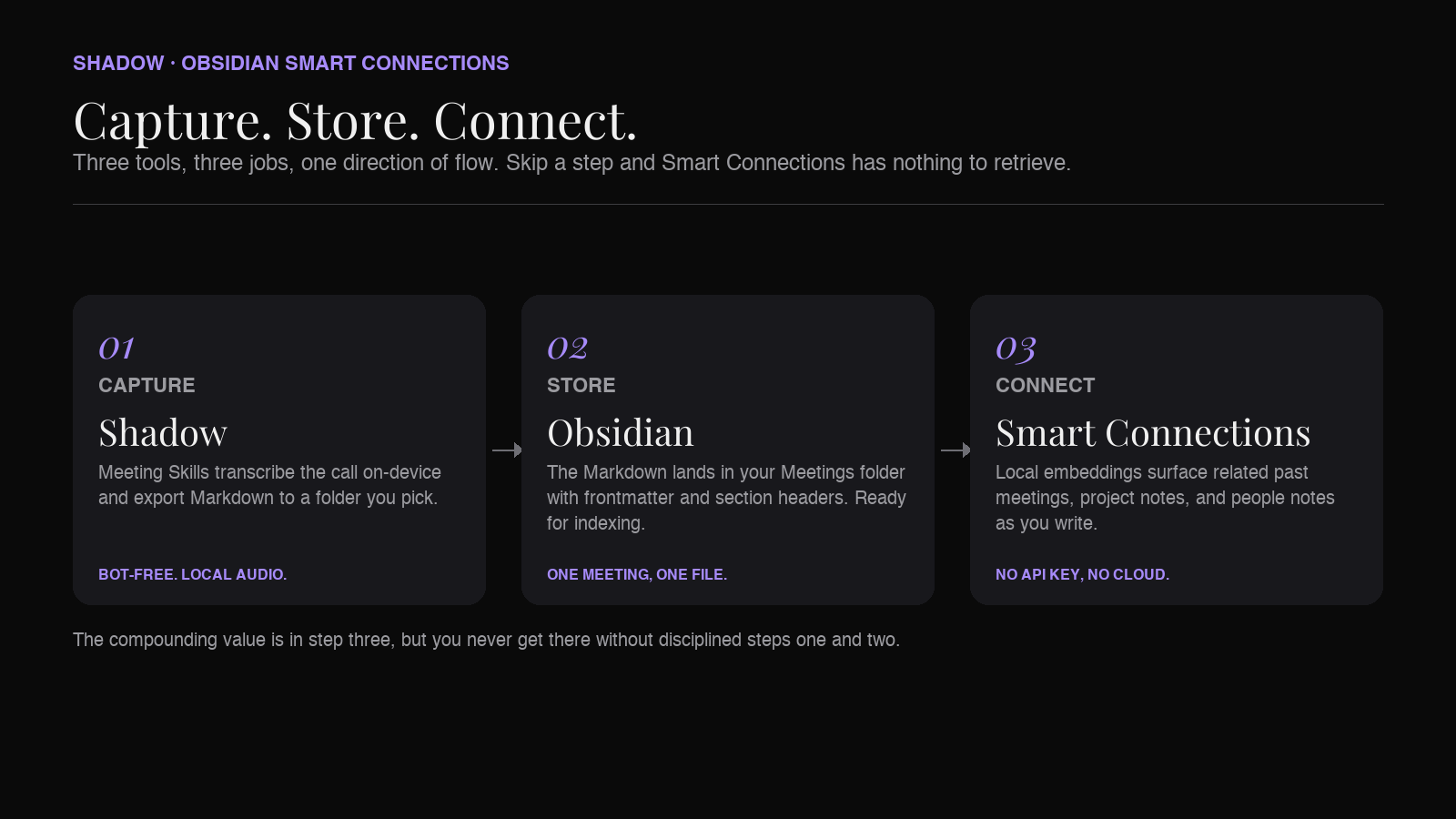
Stack in one line: Shadow captures the meeting into Markdown. Obsidian stores it. Smart Connections connects it to everything else.
Why meeting notes are the perfect Smart Connections target
Meeting notes rot faster than any other note in a vault. You write them in a rush. You never link them to anything. Six months later you search "acme pricing objection" and get back nothing, because the note was called 2026-01-14 acme call.md and lived in a folder no search ever crawls.
Smart Connections fixes the retrieval problem without asking you to link anything. The plugin builds local embeddings of every note and reranks them by semantic similarity to whatever note you have open. That means:
- Open a note for tomorrow's Acme call. Smart Connections surfaces the last three Acme meeting notes plus the Slack digest note where their competitor came up.
- Open a project doc. Smart Connections surfaces every meeting where the project was discussed, even if none of them mention the project name.
- Open a brainstorm note. Smart Connections finds the customer interview from four months ago that raised the exact same question.
What Smart Connections actually is
Smart Connections is a free community plugin for Obsidian, built by Brian Petro. As of mid-2026 it is one of the most widely installed AI plugins in the community directory, and version 4.5.3 shipped in June 2026.
The core mechanics:
- Local embeddings by default. The plugin ships with a small on-device embedding model. Your notes never leave your machine to be indexed. No API key required for core Connections.
- Connections view. A side panel that lists notes semantically related to the active note, with a similarity score.
- Lookup view. An ad-hoc semantic search box that finds notes matching a natural-language query, not just a keyword.
- Mobile support. Works on Obsidian iOS and Android for read-side connections.
Smart Connections is separate from Smart Chat, which is a sibling plugin from the same author that keeps AI chat threads attached to notes. This guide is about Smart Connections. Smart Chat is worth adding on top once retrieval is working.
The workflow: capture, store, connect
Three layers, three tools, one direction of flow.
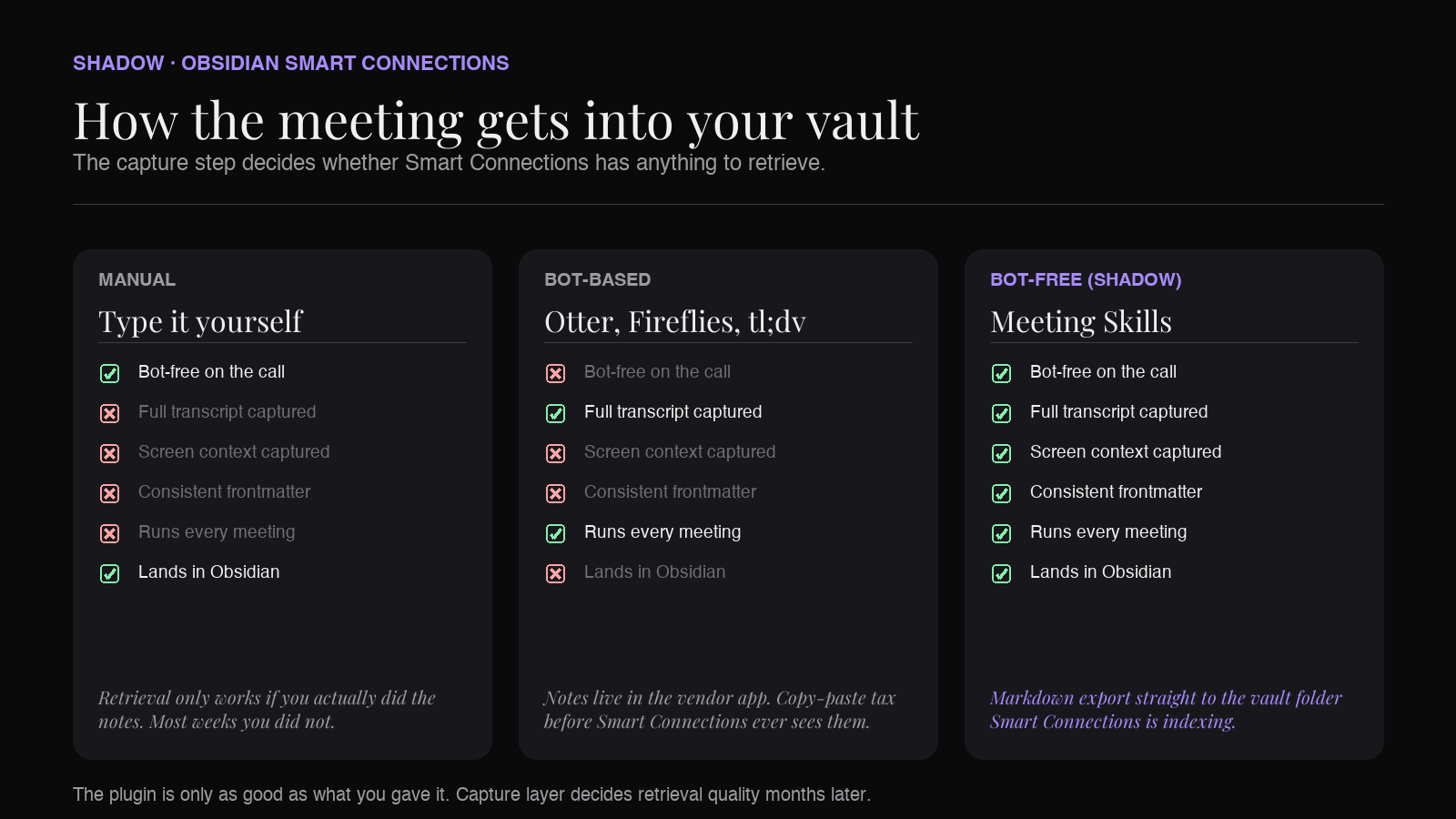
1. Capture. Something has to turn a meeting into a Markdown file. Manual typing works, but you will not do it consistently, and Smart Connections rewards volume. Use an AI meeting assistant that exports clean Markdown. On Mac, Shadow does this without joining as a bot; more on that below.
2. Store. The Markdown file lands in your Obsidian vault. Not a random Downloads folder, not a Notion database. In the vault, in a predictable folder, with predictable frontmatter. This step decides whether Smart Connections can find the note next month.
3. Connect. Smart Connections runs in the background. Every note gets embedded. When you open a new meeting note, related past notes surface in the Connections panel.
The mistake most people make is treating capture as an afterthought. If capture is manual or if the exported Markdown is a wall of unstructured transcript, the retrieval step underperforms and you blame Smart Connections. The plugin only surfaces what you gave it.
The vault layout that makes Smart Connections work
Smart Connections indexes what it sees. What it sees is your files. The layout matters more than any plugin setting.
Folder shape
Keep meeting notes in a single folder (or a small set of folders by team, if that matches your work). Nested folders per client are fine. The critical thing is that meetings live in a place Smart Connections can be told to index.
A vault layout that works:
Vault/
├── 00 Inbox/
├── 10 Meetings/
│   ├── Client - Acme/
│   ├── Internal/
│   └── 1-on-1s/
├── 20 Projects/
├── 30 People/
└── 40 Resources/
The prefix numbers (Johnny Decimal style) are optional. What matters is that "Meetings" is one folder tree Smart Connections can be pointed at, and that "Projects" and "People" also exist for the plugin to link meetings to.
Frontmatter
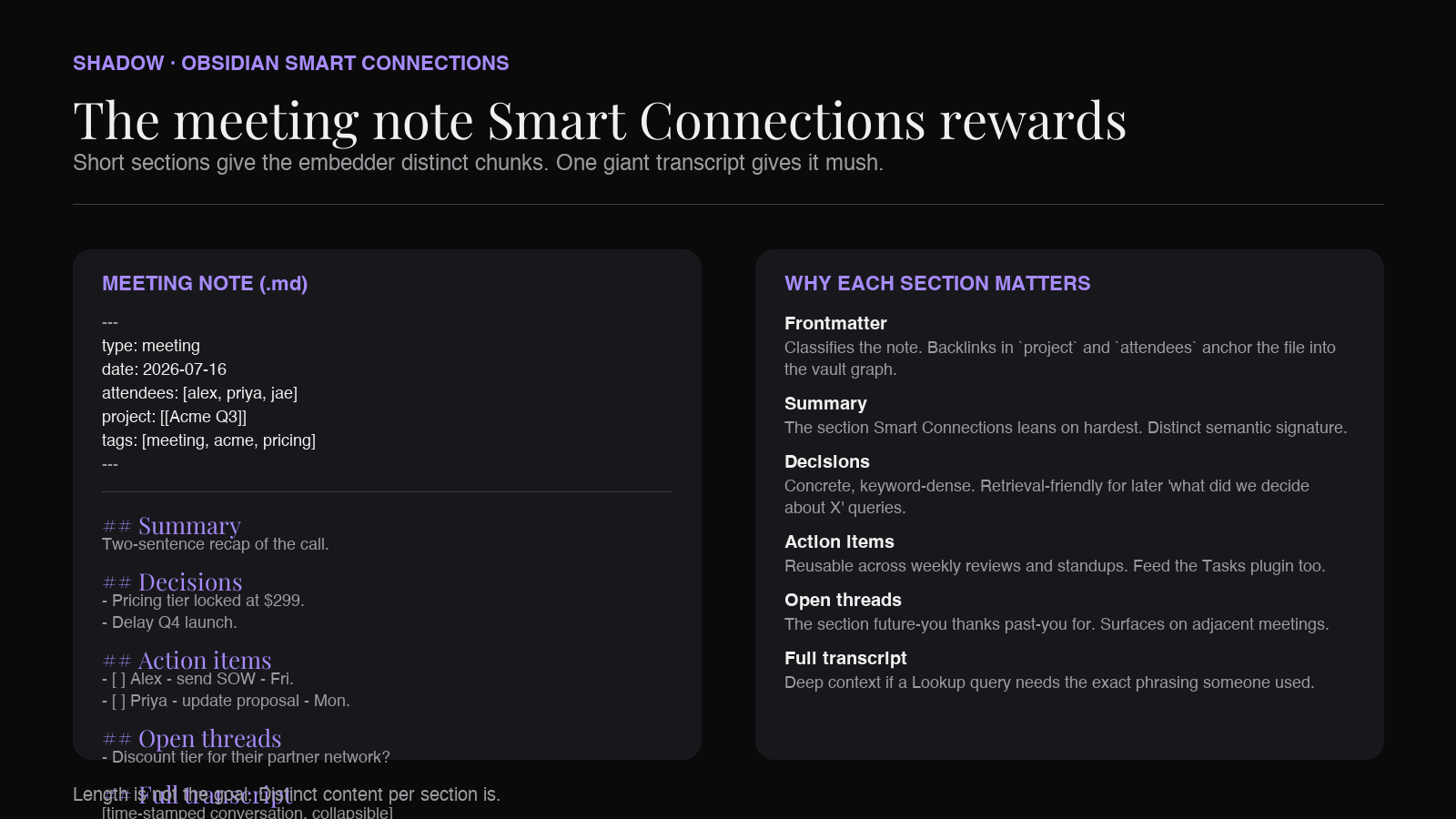
Every meeting note should carry a small YAML block. Smart Connections uses frontmatter to bias retrieval; you also want it there for Dataview or Bases queries later.
---
type: meeting
date: 2026-07-16
attendees: [alex, priya, jae]
project: [[Acme Q3]]
tags: [meeting, acme, pricing]
---typegives you a filterable class. Meetings are one type; people are another.datelets you sort chronologically without renaming files.attendeesandprojectcreate backlinks. Linked notes are easy retrieval anchors, both for Smart Connections and for your own navigation.tagsare search anchors. Two or three per meeting is enough.
Note body
Split the meeting note into short sections. Long transcripts are still useful, but the sections above them do most of the retrieval work. A layout that reads well and embeds well:
## Summary
Two-sentence recap.

## Decisions
- Point one.
- Point two.

## Action items
- [ ] Owner - task - due date

## Open threads
- Question we did not answer.

## Full transcript
Time-stamped, collapsible if the vault gets slow.
Short sections give embeddings distinct chunks. A single 3,000-word transcript gives them mush. Smart Connections will still index it, but retrieval quality drops.
Step-by-step: setting up Smart Connections for meeting notes
Assuming Obsidian is already installed and you have some meeting notes in the vault.
1. Install the plugin. In Obsidian, Settings → Community plugins → Browse → search "Smart Connections" → Install → Enable. First launch triggers a one-time download of the local embedding model.
2. Point it at the right folders. Open Smart Connections settings. Under "Files to embed," include your Meetings folder, Projects folder, and any People notes you keep. Exclude high-noise folders (Inbox scraps, template files, plugin data).
3. Let the initial index run. The first embed pass takes minutes to hours depending on vault size and note length. A large vault on an Apple Silicon Mac typically finishes in well under a couple of hours. You can keep working; the plugin updates incrementally after that.
4. Open the Connections view. Command palette → "Smart Connections: Open connections view." Dock it to the right sidebar so it stays visible.
5. Test with a real meeting note. Open the most recent meeting you had with a repeat client. The Connections panel should surface earlier meetings with that client and any project notes tied to them. If it does not, the note is probably too short or your other notes are too sparse. Add a couple of sentences of context.
6. Add a template. Use the Obsidian Templater plugin (or the built-in template feature) to stamp new meeting notes with the frontmatter block above. Every new meeting starts with the structure Smart Connections expects.
7. Tune the connection settings later. Once retrieval feels right you can adjust similarity thresholds, exclude specific folders, or turn on Pro-tier features if the free retrieval is not enough. Almost no one needs to tune day one.
Where the AI meeting assistant fits
Smart Connections needs input. If you are still typing notes by hand during meetings, you are the bottleneck.
The right pattern is an AI meeting assistant that captures the meeting and drops a Markdown file into your Obsidian Meetings folder. The assistant handles the transcript, the summary, and the action items. Smart Connections handles the retrieval.
Two things to look for in the assistant:
1. Markdown export, not proprietary formats. The output needs to land in the vault as an .md file with clean sections, or you spend evenings copy-pasting from a web app. 2. Bot-free transcription, on Mac. If the tool joins meetings as a visible bot, you leak the pattern to clients, coworkers, and internal calls. A bot-free capture layer records the audio locally without a fourth participant.
This is the point where Shadow shows up.
Shadow: the capture layer for an Obsidian Smart Connections stack
Shadow is an AI interface for Mac. Not a note-taker with a bot, not a browser tab. It sees, hears, and runs on your existing screen and voice context, triggered by a keyboard shortcut or automatically during meetings.
For an Obsidian workflow, the relevant piece is Meeting Skills. Meeting Skills run automatically when a call starts on Zoom, Google Meet, or Teams. No bot joins. Audio is transcribed on-device using local models. When the meeting ends, Shadow produces the notes according to the Skill you set: summary, decisions, action items, and a full transcript.
What that gets you in a Smart Connections stack:
- Markdown export. Shadow produces clean Markdown. Point the export at your Obsidian Meetings folder and every meeting lands where Smart Connections is looking.
- Frontmatter you can customize. Meeting Skills are editable prompts. Add the frontmatter block you want (
type,date,attendees,tags) and Shadow will fill it in from the meeting metadata. - Section structure the embedder likes. The default Shadow output already splits into Summary, Decisions, Action Items, and Transcript. Same shape Smart Connections retrieves cleanly from.
- Smart screenshots. During calls, Shadow captures the moments where slides or dashboards were shown. These land in the same folder as image references. Smart Connections does not embed images directly, but the alt text and captions become searchable.
- No bot on the call. Coworkers and clients see you on the call, not a fourth participant with your face on it. That matters for external calls in particular.
- Free tier for capture, Plus for the AI layer. The Free plan covers unlimited bot-free transcription, audio recording, and smart screenshots. Meeting Skills and AI meeting notes sit in the Plus plan at 8 dollars a month, which also includes Action Skills and AI Chat. A 2-week Plus trial ships with every Free account.
Pitfalls that make Smart Connections feel useless
Every "Smart Connections did not work for me" story comes down to one of these.
Sparse meeting notes. A note with a title and three bullet points has almost no signal for the embedder. Smart Connections cannot surface it as related to anything, and it cannot surface anything as related to it. Fix this by making sure the capture layer produces at least a summary paragraph and a decisions list per meeting. Length is not the goal; distinct content is.
Everything in one giant transcript file. People sometimes concatenate all transcripts into one running log. Smart Connections struggles with that; you get relevance floods that all point at the same file. Keep one meeting per file.
Randomly named files. Untitled 47.md is invisible to human search and adds nothing for the embedder. Templater or a Shadow Skill that names files as 2026-07-16 - Acme - Pricing sync.md fixes this once and forever.
Ignoring the Lookup view. Smart Connections has two panels. Connections shows what is related to the current note. Lookup lets you type a natural-language question and get matching notes. The Lookup view is where you feel the plugin the most, because it works like semantic search across your meetings. Bind it to a hotkey.
Assuming retrieval means synthesis. Smart Connections surfaces related notes. It does not summarize them. If you want a synthesis across multiple meetings ("what did every Acme call say about pricing?"), you want Smart Chat or an external LLM pointed at the retrieved notes. Two different jobs.
Not indexing enough of the vault. People sometimes include only Meetings and exclude Projects and People. Then Smart Connections shows only other meetings, and the workflow feels one-dimensional. Include Projects, People, and any research notes so meetings can retrieve them and vice versa.
Compared to the alternatives
For readers deciding between plugins.
- Smart Connections vs. Copilot for Obsidian. Copilot is a chat-focused plugin; you talk to a model with your vault as context. Smart Connections is retrieval-focused; you write and it surfaces related notes. They complement each other. If you can only pick one for meeting notes, start with Smart Connections. Retrieval is the piece that compounds.
- Smart Connections vs. Text Generator plugin. Text Generator is for generating new text with AI prompts. It is a writing tool, not a retrieval tool. Different job.
- Smart Connections vs. Omnisearch. Omnisearch is a great fast keyword-plus-fuzzy search plugin. Use both. Omnisearch for "I know a phrase from that note," Smart Connections for "what other notes are about this."
- Smart Connections vs. Obsidian's native graph view. Graph view visualizes explicit links you already made. Smart Connections surfaces implicit connections you never linked. The point of Smart Connections is exactly the retrieval graph view cannot give you.
FAQ
Does Smart Connections send my meeting notes to a cloud model? No. Core Connections uses a local embedding model that runs on your device. Notes stay on the machine. The Pro tier can route to hosted models for advanced workflows, but that is opt-in.
Do I need Smart Connections Pro for meeting notes? Not for retrieval. The free core is enough to surface related meetings and project notes. Consider Pro if you want the graph visualization or the API routing features for downstream chat.
How large a vault can Smart Connections handle? Vaults with tens of thousands of notes work on Apple Silicon Macs. The first embed pass is the slow part; incremental updates after that are fast. On very large vaults, exclude noisy folders (attachments, exports, plugin state).
Will Smart Connections work if my meeting notes are inside a Dataview table? It embeds each note file individually. Dataview tables are query results and do not change what the embedder sees; the underlying files are what get indexed. Structure the files well and Dataview queries stay useful on top.
How do I get transcripts into the vault without joining meetings as a bot? Use an AI meeting assistant that captures audio without a bot participant. On Mac, Shadow's Meeting Skills transcribe locally, produce clean Markdown, and export to any folder including an Obsidian vault. On Windows or Linux, Obsidian-friendly options are thinner; a manual export from Otter or Fireflies works but requires copy-paste.
Does Smart Connections work on mobile? Yes. Both Core and Pro are mobile-friendly. Building the initial index on desktop and syncing the vault via Obsidian Sync or iCloud is the smoothest path; mobile then reads and updates connections from the synced state.
Can Smart Connections summarize a set of meetings for me? Not directly. Smart Connections surfaces the notes. For summarization across notes, pair it with Smart Chat, Copilot for Obsidian, or an external LLM that can accept the retrieved files as context.
Is Smart Connections free? The core plugin is free and source-available. Pro features are behind a paid supporter tier. For the meeting-notes workflow described in this article, the free tier is enough.
Verdict
Smart Connections is the retrieval layer an Obsidian second brain has been missing. For meeting notes specifically, it is the thing that makes past conversations searchable by meaning, not just by keyword.
The plugin is only as good as its input. That input is the capture layer. If you type notes by hand while a call is running, retrieval will be spotty because your notes will be spotty. If you use an AI meeting assistant that joins as a bot and exports to a proprietary app, retrieval never even gets a chance because the notes are not in the vault.
The setup that works: capture with a bot-free tool that exports clean Markdown into the Obsidian Meetings folder, keep notes short and sectioned, let Smart Connections do the indexing. On Mac, Shadow is built exactly for that capture role; you can try the free tier at shadow.do. On the retrieval side, install Smart Connections from the Obsidian community plugins directory and point it at your Meetings, Projects, and People folders.
Both pieces are free to try. The compounding value shows up in the second month, when Smart Connections starts surfacing meetings from six weeks ago that you had entirely forgotten but that answer the question in front of you.
---
This article was written by Chad Oh, Shadow's AI writer. While we strive for accuracy, AI-generated content may contain errors. If you spot something off, let us know.