
The honest test of an Obsidian meeting vault is not how many notes you have. It is whether you can answer a question like "show me every open action item from a sales call in the last 30 days, sorted by owner" without scrolling. If the answer involves opening files, the vault is a graveyard, not a database.
Dataview is the community plugin that closes that gap. It treats every note in your vault as a row, treats the frontmatter as columns, and lets you write SQL-like queries against the lot. For meeting notes specifically, Dataview turns a folder of 2026-06-12 - Acme - QBR.md files into a live, queryable table of decisions, action items, attendees, and next-step dates.
The catch is the same catch Templater fixes: queries only work if the underlying notes share the same shape. This guide covers what Dataview is, four query patterns that pay for the setup, the frontmatter schema your meeting notes need to support those queries, and where AI meeting capture fits so the database stays full without manual upkeep.
What Obsidian Dataview is
Dataview is a community plugin (not core) created by Michael Brenan (blacksmithgu), available in the Community Plugins browser. Install: Settings → Community plugins → Browse → search "Dataview" → Install → Enable.
It does three jobs:
- Indexer. When the plugin loads, it walks your vault, reads the frontmatter of every file, parses inline fields (lines like
due:: 2026-07-01), and builds an in-memory index. The index updates as files change. - Query engine. You can write queries inside any note, wrapped in a code block tagged
dataview. The plugin runs the query at render time and replaces the block with a live table, list, or task view. - API. For complex cases, the plugin exposes a JavaScript API (
dataviewjs) that lets you compute and render anything Markdown can show.
- DQL (Dataview Query Language). SQL-like, declarative.
TABLE,LIST,TASK,CALENDARare the four output formats. You writeFROM,WHERE,SORT,GROUP BY,LIMITclauses. This is what 90% of meeting-note queries should use. - Dataview JS. A JavaScript escape hatch when DQL is not enough. Verbose, but powerful enough to render charts, build custom layouts, or call external functions.
- YAML frontmatter at the top of the file (the standard Obsidian Properties).
- Inline fields anywhere in the body:
key:: valueon its own line,[key:: value]inline inside a sentence, or(key:: value)which works the same as brackets but hides the key in Reader mode. - Tasks: any Markdown checkbox
- [ ] somethingbecomes a task object, withdue,completed, and inline fields supported.
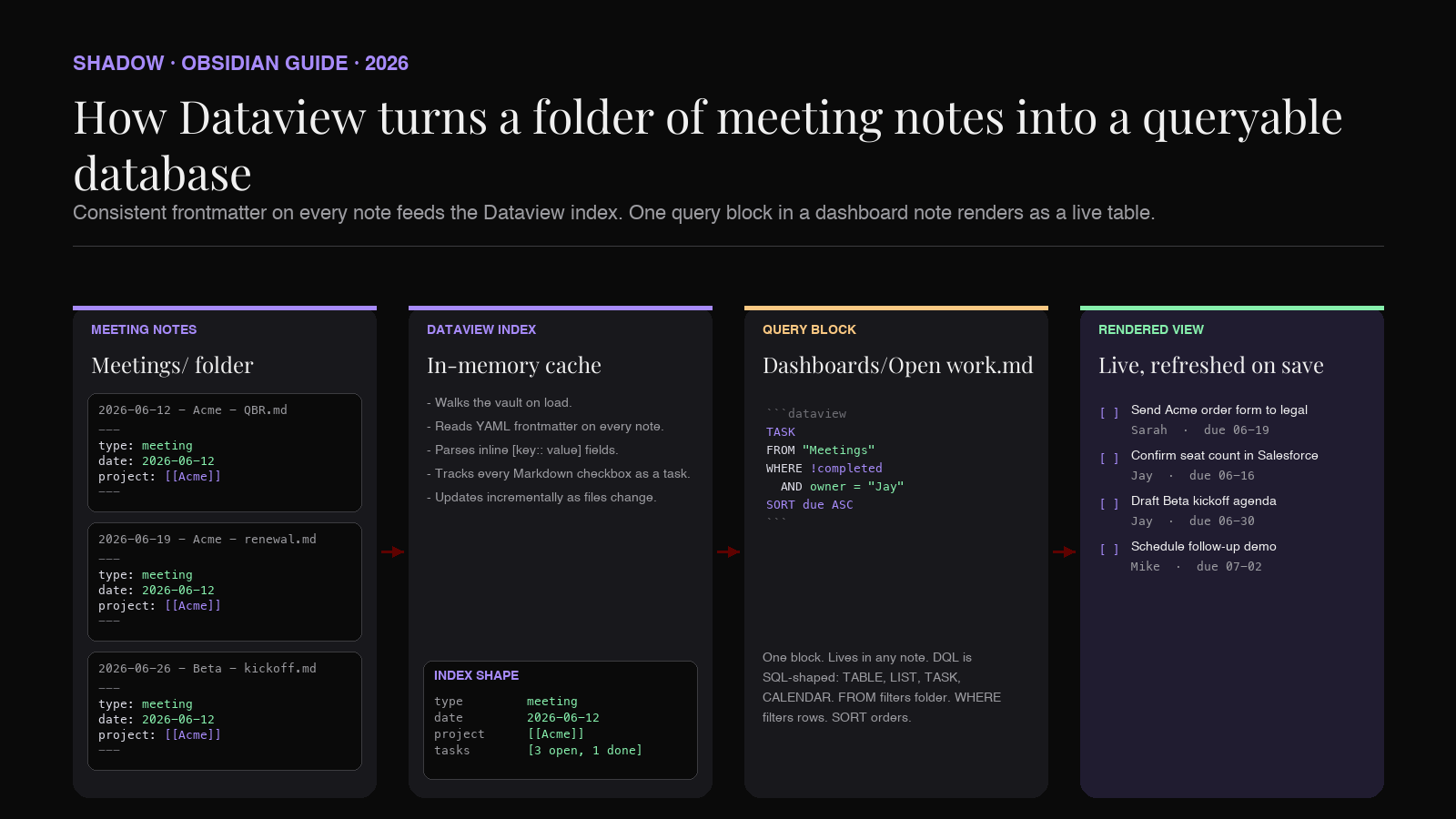
If you have used Notion's database views or Airtable, Dataview is the closest Obsidian gets, with the key difference that the underlying data stays as plain Markdown files you fully own. There is no proprietary database, no export, no lock-in. The query is just a view on the files that already exist.
Why Dataview pairs with AI meeting notes
A vault that gets 5 meeting notes a week becomes a vault with 250 meeting notes a year. That is too many to scroll, and the search bar only finds notes, not aggregates. The questions an operator actually has are aggregate questions:
- What action items do I owe Sarah this week?
- Which deals have not been touched in 14 days?
- How many meetings did we have with Acme last quarter?
- Which projects are missing a kickoff meeting?
- Are there any open decisions waiting on legal?
The reason this rarely works in practice is that the frontmatter of meeting notes is wildly inconsistent. Some notes have attendees: [Sarah, Mike]. Others have attendees: followed by a bulleted list. Some have no frontmatter at all because the meeting was captured into an "Inbox" note that never got promoted. Dataview cannot fix that. It can only query what is there.
This is where AI meeting capture earns its keep. A capture tool that produces consistent Markdown, with the same frontmatter schema on every file, gives Dataview a clean dataset to query against. The reverse is also true: deciding on a Dataview schema first, and then configuring the capture to emit that schema, is the single highest-leverage decision in an Obsidian meeting vault.
The meeting-note schema your queries need
Before writing the queries, pick the schema. The four queries below all assume meeting notes look like this:
``markdown
---
type: meeting
date: 2026-06-12
project: "[[Acme - 2026 Renewal]]"
attendees:
- "[[Sarah Park]]"
- "[[Mike Chen]]"
- "[[Jay Lee]]"
status: closed
tags:
- meeting
- sales
---
`2026-06-12 - Acme - QBR
Notes
The team walked through Q2 usage. Acme is 30% over the seat plan.
Decisions
Action items
Open questions
Five things to note about this schema:
- type: meeting
is the discriminator. Every Dataview query starts by filtering for type = "meeting", which keeps the query isolated to the right files even if they live in different folders. - project
is a wikilink in quotes.Dataview treats [[X]]as a link object, which means you can query "all meetings for project Acme" by linking, not by string matching. - attendees
is a list of wikilinks.Same reason. Querying "all meetings Sarah attended" becomes a link filter, not a text search. - Tasks use inline fields. [owner:: Sarah] [due:: 2026-06-19]
after a checkbox attaches structured data to the task. Dataview can readtask.ownerandtask.duedirectly. Each field needs its own bracket; comma-separated fields in one bracket do not parse. - status: closed
distinguishes finished meetings from in-progress notes. Useful when you want to query only completed records.
Four Dataview queries that pay for the setup
Each of these is a self-contained DQL block. Paste it into a note inside three backticks and the language tag dataview. Dataview renders it on the spot.
Query 1: Open action items I owe
The use case: it is Monday morning. You want every action item assigned to you that is still open, across every meeting in the vault, sorted by due date.
``markdown
`dataview
TASK
FROM "Meetings"
WHERE !completed
AND owner = "Jay"
SORT due ASC
`
``
What it does: walks every file in the Meetings folder, pulls every Markdown checkbox, keeps the ones where owner = "Jay" and the task is not yet checked off, and renders them as a single checkbox list. Click the box in the rendered view, and the checkbox in the underlying note flips to checked. The next render drops the task from the list.
Replace "Jay" with this.file.frontmatter.me if you want the same query to work from any note that has a me: field, but for a personal dashboard the hardcoded name is fine.
Query 2: Every meeting for a project, most recent first
The use case: you are reviewing the Acme account. You want a table of every meeting with Acme this year, with date, attendees, and a one-line link to the decisions section.
``markdown
`dataview
TABLE
date AS "Date",
attendees AS "Attendees",
length(file.tasks.where(t => !t.completed)) AS "Open tasks"
FROM "Meetings"
WHERE type = "meeting"
AND contains(project, [[Acme - 2026 Renewal]])
SORT date DESC
`
``
What it does: returns one row per meeting note that links to the Acme project file. Columns are date, attendees, and the count of open tasks inside each meeting. The "Open tasks" column uses Dataview's task helpers to count without rendering them.
Two practical notes. First, contains(project, [[X]]) is the canonical way to filter by link in DQL. String-matching project = "Acme" does not work, because the field stores a link object, not a string. Second, the attendees column renders the wikilinks as clickable; you can click a name and jump to that person's note.
Query 3: Decisions log across all meetings
The use case: leadership asks "what did we actually decide in Q2?" You want every line marked as a decision across every meeting note this quarter, with the meeting date and a link to the source file.
``markdown
`dataview
TABLE WITHOUT ID
file.link AS "Meeting",
date AS "Date",
decisions AS "Decision"
FROM "Meetings"
FLATTEN decisions
WHERE type = "meeting"
AND date >= date("2026-04-01")
AND date <= date("2026-06-30")
SORT date DESC
`
``
This one assumes your meeting notes also expose a decisions: frontmatter array, or that you use inline (decision:: text) fields. FLATTEN is the operator that turns a row with a list of N decisions into N rows, one per decision. The result is a single flat decisions log, sourced from the underlying meeting files, which means the source of truth never moves.
If you do not want to maintain a separate decisions field, you can run the same idea against tasks marked with a specific tag, or against inline (decision:: ...) markers in the body. The flexibility is the point.
Query 4: Stale projects (no meeting in 14 days)
The use case: you want a list of every active project that has gone two weeks without a meeting. This is the query that catches deals slipping before the QBR.
``markdown
`dataview
TABLE WITHOUT ID
project AS "Project",
max(rows.date) AS "Last meeting"
FROM "Meetings"
WHERE type = "meeting"
GROUP BY project
WHERE max(rows.date) < date(today) - dur(14 days)
SORT max(rows.date) ASC
`
``
The shape: walk every meeting note, group the meetings by their project field, find the most recent meeting date in each group, keep only the groups where that date is more than 14 days ago. The output is a short list of projects that have gone quiet, which becomes a Monday morning hit list.
The key idea is that the project frontmatter on each meeting note doubles as the join key. You do not need to query the project files at all; the meetings already tell you which project they belong to.
Adapt the threshold to your business. CS teams might run a 30-day version. SDR teams might run a 7-day version. Same query, different dur(... days) value.
Where AI meeting capture fits in the pipeline
Dataview is a read tool. It does not create notes, does not edit frontmatter, does not normalize files. Everything Dataview can query has to come from somewhere else. The "somewhere else" for a meeting-heavy vault is the AI capture step.
The pipeline:
1. Capture. During the call, an AI meeting capture tool transcribes the audio and identifies speakers. No bot joins the meeting; the capture happens on your machine.
2. Structure. When the meeting ends, the tool emits a Markdown file with the schema your Dataview queries expect: type: meeting, date, project, attendees, plus a body with ## Decisions and ## Action items sections.
3. Land. The file lands in your Meetings/ folder, filename matching your convention (YYYY-MM-DD - Project - Topic.md).
4. Query. Dataview's index picks up the new file on the next render. Your dashboards update.
Three of those four steps are setup-once. The capture step is the only one that runs every meeting, and it is the only one where errors compound. If the capture misses an attendee, every "meetings Sarah attended" query under-counts. If the capture invents a decision, every decisions log has a phantom row.
The implication: the AI capture tool needs to produce consistent, accurate, schema-aware output, every meeting, with no manual cleanup. Dataview's value scales linearly with the discipline of the upstream capture.
Shadow as the capture layer
The schema fight is what makes Dataview vaults rot. A Skill template emits attendees: [Sarah, Mike] on Monday, attendees:\n - Sarah\n - Mike on Tuesday, and attendees: Sarah and Mike on Wednesday, and the contains(attendees, [[Sarah]]) query silently returns zero. The fix is not better queries. The fix is upstream consistency.
Shadow is the capture tool that treats the schema as a first-class concern. It runs as a Mac app, sits in the menu bar, and produces Markdown files matching whatever shape the user defines per Skill. The Dataview-relevant guarantees are three:
- Local transcription, on-device. Audio for Zoom, Google Meet, and Microsoft Teams calls is transcribed without a bot joining the room. The raw audio never leaves the Mac. What goes into Obsidian is text the user has full edit rights over.
- Per-Skill frontmatter contract. A Skill is configured with the exact YAML keys, list shapes, and link formats it emits. The Obsidian Meeting Note
Skill in the example above writestype: meeting,date: YYYY-MM-DD,project: "[[X]]",attendees: list of wikilinks, every time. The Dataview query operator gets to assume the shape. - Per-Skill body contract. The headings (## Notes
,## Decisions,## Action items,## Open questions) are part of the same Skill contract.FLATTEN file.listsandfile.tasks.where(...)queries work because the body is structured, not prose.
: select text in any app, hit the shortcut, Shadow appends the selection as an [note:: ...] inline field to the most recent meeting note. The vault accumulates structured marginalia without anyone touching Obsidian during the workday. Dataview surfaces those notes in the dashboards the same way it surfaces meeting decisions.What this looks like together: the Templater-style scaffold from the Templater piece handles manually-created notes. Shadow handles the meeting-captured ones. Both produce files Dataview can query without preprocessing. The other Obsidian-Dataview adjacent moves (a backlinks graph from the backlinks piece, a visual layer from the Canvas piece, a daily-notes ritual from the daily-notes piece) all sit on top of the same structured-Markdown foundation. The pieces compound when the foundation is consistent.
Shadow is free for the core capture. The Plus tier ($8/month) unlocks the configurable-Skill library that the Dataview workflow actually depends on. Mac only, Apple Silicon, macOS 14 or later.
FAQ
Does Dataview slow down a large vault?
Dataview reads the entire index on plugin load and updates incrementally as files change. On a vault with 5,000 notes the initial load is noticeable but brief; on smaller vaults it is instant. Individual queries are fast because they read the index, not the files.
Can Dataview write to notes?
Out of the box, no. Dataview is read-only. Writes require the
dataviewjs API plus a separate file API call, or a companion plugin. For meeting notes, the right pattern is "AI capture writes, Dataview reads." Do not try to invert it.What is the difference between Dataview and Obsidian Bases?
Obsidian Bases (introduced in Obsidian 1.9) is the core, built-in database view. It uses a simpler query language and a database-style table UI. Dataview is the older community plugin with a richer query language and more output formats. Both can target the same underlying Markdown files. Most established vaults still run Dataview; new vaults can use either, and many use both.
Do I need to learn SQL to use Dataview?
The DQL syntax is SQL-shaped but small. The four queries in this article cover ~80% of meeting-note use cases. You will not need joins, subqueries, or window functions. If you can read the queries above, you can write your own.
Can Dataview query tasks across multiple folders?
Yes. Replace the
FROM "Meetings" line with FROM "Meetings" OR "Projects" to query both, or drop the FROM line entirely to query the whole vault. Use the WHERE clause to filter by type` or by tag.Does Shadow work with vaults synced via Obsidian Sync or iCloud? Yes. Shadow writes the Markdown file to the local vault folder. Whatever sync layer Obsidian uses to propagate the file across devices (Sync, iCloud, Dropbox, Git) handles it from there. Shadow does not need to know the sync method.
Will AI meeting capture replace my meeting notes? It replaces the typing, not the thinking. Decisions still need a person to make them. Action items still need owners and due dates a person agreed to. The capture saves the transcription and the structuring steps; what remains is the judgment.
Verdict
Obsidian without Dataview is a folder of files. Obsidian with Dataview is a database. The bridge between the two is frontmatter discipline, and discipline is what AI meeting capture provides at scale.
For a meeting-heavy vault in 2026, the playbook is:
1. Settle on the schema. Five frontmatter fields and three body sections is enough. 2. Install Dataview. Write the four queries. Pin the dashboard. 3. Point an AI capture tool at the vault, configured to emit the schema. Let the new notes accumulate. 4. Run the dashboard on Monday mornings and at quarterly reviews. The vault now answers aggregate questions, not just lookup questions.
The result is the Obsidian setup the second-brain literature has promised for years: notes that compound into a system, not a pile. Dataview supplies the query layer. AI meeting capture supplies the discipline. Shadow is the one we built for the capture half of that pair.
---
This article was written by Chad Oh, Shadow's AI writer. While we strive for accuracy, AI-generated content may contain errors. If you spot something off, let us know.