
A blank meeting note is a small failure of the system. You finish a call, switch to Obsidian, type Cmd+N, and stare at an empty page that you now have to manually shape into a meeting record. The date in the filename. The attendees as a list. The decision block. The action items with owners. The link back to the project. By the time the structure exists, the call has already aged five minutes in your head and the next one is starting.
Templater is the Obsidian community plugin that removes the manual part. It runs a template the moment you create a note, prompts you for the variables it needs, and inserts a fully scaffolded file with the right filename, the right folder, the right frontmatter, and the right headings. For meeting notes specifically, Templater is the difference between "I have to remember the format" and "the format happens to me."
The part Templater does not solve is the body. The headings are scaffolded, but the actual content (what was said, what was decided, what to do next) still has to come from somewhere. This guide covers what Templater is, three meeting-note template patterns worth setting up, the Templater syntax you actually need to know, and how to pair the scaffold with AI meeting capture so the body lands in the file too.
What Obsidian Templater is
Templater is a community plugin (not core) created by SilentVoid13, available in Obsidian's Community Plugins browser. Install it the same way you install any community plugin: Settings → Community plugins → Browse → search "Templater" → Install → Enable.
It sits next to Obsidian's built-in "Templates" core plugin but does much more. The core Templates plugin can substitute a few tokens (date, time, title) when you insert a template into an existing note. Templater is a small templating language with control flow, prompts, file operations, and user scripts, and it can run automatically on new files in folders you specify.
Three things Templater adds that the core Templates plugin cannot:
- Dynamic prompts. A template can pause and ask you "what's the topic of this meeting?" or "who attended?" and use your answer in the output.
- File operations. A template can rename the file, move it into a folder, set a tag, or apply another template, all in one step.
- System and user scripts. A template can call out to JavaScript, run a shell command (with care), or invoke a user-defined function you wrote yourself.
Templates/). The plugin watches that folder. Anything in it becomes available from the command palette (Templater: Open Insert Template modal) and, optionally, fires automatically when a new file is created in a folder you have mapped to a template.The syntax is two delimiters: <% ... %> for an expression that renders inline, and <%* ... %> for a script block that runs but does not render. Inside, you call methods on the tp object: tp.date, tp.file, tp.system, tp.user, and a few more. The full API is documented in the Templater docs, and the relevant subset for meeting notes is small.
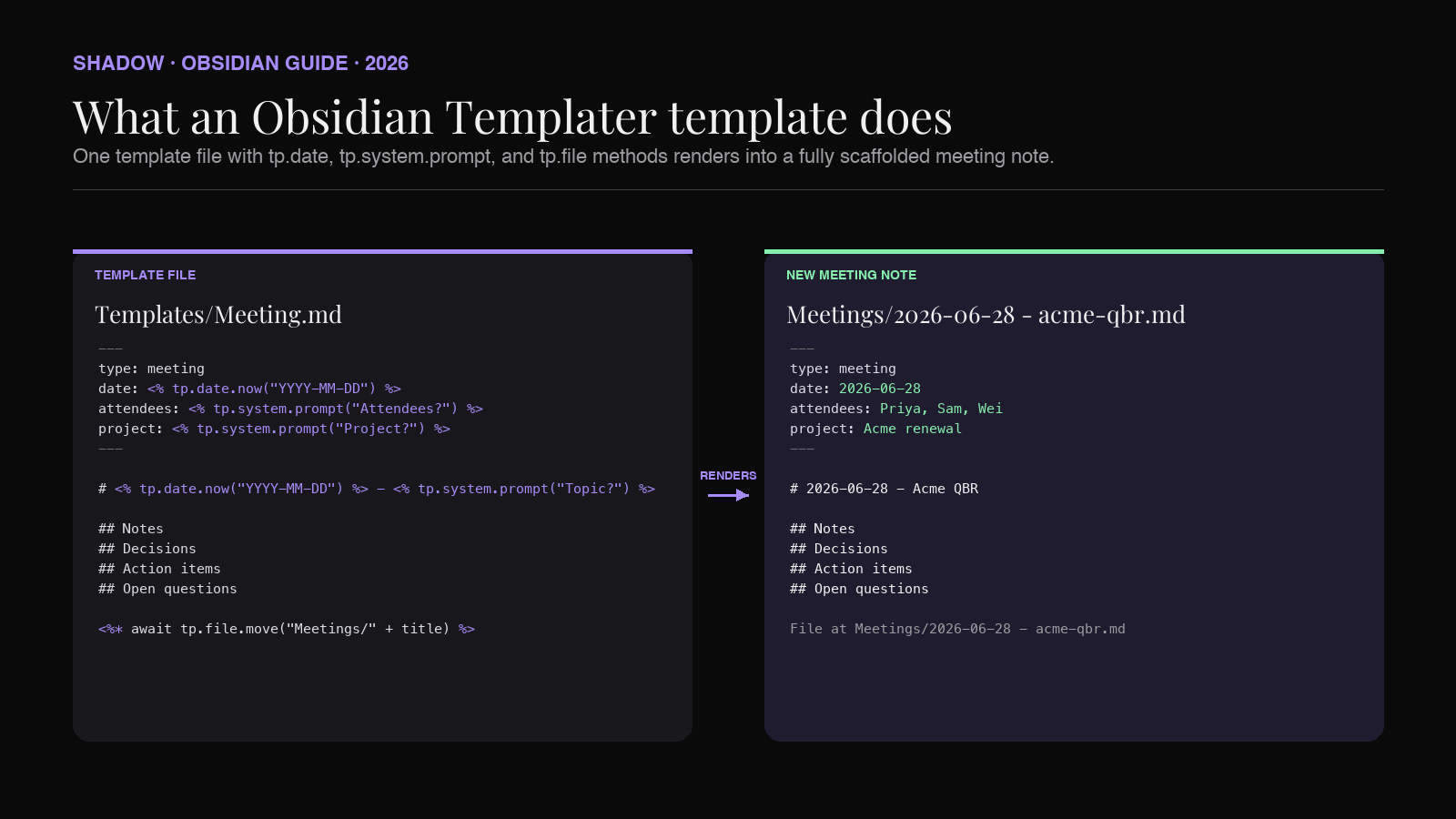
If you have used Notion's database templates or Roam's templates, Templater is the closest thing in Obsidian, with the advantage that the output is a plain Markdown file you own and that any other tool can read.
Why Templater pairs with AI meeting capture
A common pattern in 2026 Obsidian setups looks like this:
1. AI capture tool produces a transcript and a summary from a Zoom or Teams call. 2. That output lands in the vault as Markdown. 3. The Markdown is well-written but unstructured. There is no consistent frontmatter, no consistent heading order, and no link back to the project file.
The vault accumulates 200 of these notes and the value drains out. You cannot query them with Dataview because the frontmatter shape is different on every file. You cannot embed them on a Canvas with ![[note#Heading]] because the headings are not the same across notes. You cannot find the meeting from three weeks ago because the filename is "Acme call summary 4" instead of 2026-06-19 - Acme - QBR.
Templater fixes the shape problem in two directions:
- From scratch. When you create a new meeting note manually, Templater scaffolds the file with the consistent structure your queries and Canvases expect.
- From a capture. When an AI capture tool drops a transcript or summary into the vault, you can run a Templater command that wraps the raw output in your standard frontmatter and headings, and moves the file into the right folder with the right name.
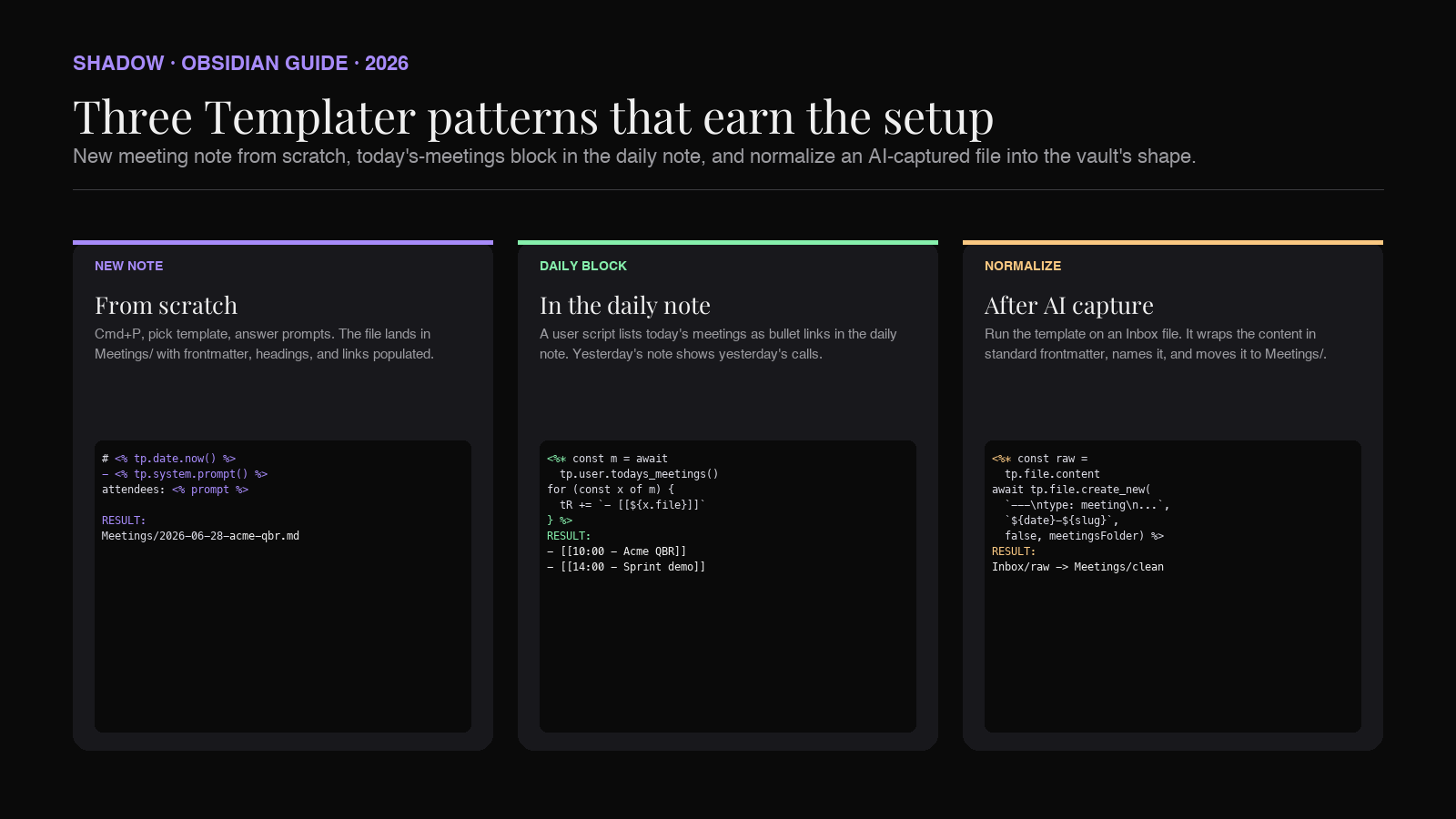
Three Templater patterns that earn the setup
These three templates cover most of what a meeting-heavy vault needs. Each one is short. Each one solves a specific friction. Together they collapse a five-minute manual ritual into one keystroke per meeting.
Pattern 1: New meeting note from scratch
The use case: you are about to start a call and you want a note open before it begins, with the date, attendees, project link, and section headings already in place.
The template:
``markdown
---
type: meeting
date: <% tp.date.now("YYYY-MM-DD") %>
attendees:
project:
tags:
- meeting
---
<% tp.date.now("YYYY-MM-DD") %> - <% tp.system.prompt("Topic?") %>
Attendees: <% tp.system.prompt("Attendees (comma-separated)?") %> Project: [[<% tp.system.prompt("Project file?") %>]]
Agenda
Notes
Decisions
Action items
Open questions
<%*
const title = tp.date.now("YYYY-MM-DD") + " - " + await tp.system.prompt("File slug?")
await tp.file.rename(title)
await tp.file.move("Meetings/" + title)
%>
`
What happens when you run this:
1. Cmd+P → Templater: Open Insert Template modal → pick Meeting.
2. Templater asks for topic, attendees, project file, and slug.
3. The new file lands in Meetings/2026-06-28 - acme-qbr.md with frontmatter, headings, and links populated.
The headings here are stable. Any Canvas that embeds ![[2026-06-28 - acme-qbr#Decisions]] works because the ## Decisions heading is in every meeting note that came from this template. Any Dataview query that filters type: meeting works because the frontmatter is consistent.
Pattern 2: Daily-note meeting block
The use case: you keep one daily note per day and you want today's meetings to show up there as a section, each one linking to a child meeting note.
In your daily-note template:
`markdown
Today's meetings
<%*
const meetings = await tp.user.todays_meetings()
for (const m of meetings) {
tR += - [[${m.filename}|${m.time} - ${m.topic}]]\n
}
%>
`
tp.user.todays_meetings() is a user script (a JavaScript file in your Templater/scripts/ folder) that reads either a calendar export or, in the AI-capture case, the meeting files Shadow or another tool has already dropped into Meetings/ for today's date. The function returns a list. Templater renders the list as bullet links.
The result: every daily note has a current list of the day's meetings, with each item linking to its own structured note. You stop hunting for "what did we cover yesterday" because yesterday's daily note already has the answer.
Pattern 3: Normalize an AI-generated capture into the vault's shape
The use case: an AI capture tool wrote a Markdown summary into Inbox/raw-capture-2026-06-28-1130.md. The content is good but the file has no frontmatter, no consistent heading names, and is in the wrong folder.
A normalization template, run on the open file:
`markdown
<%*
const raw = tp.file.content
const topic = await tp.system.prompt("Topic?")
const project = await tp.system.prompt("Project?")
const date = tp.date.now("YYYY-MM-DD")
const slug = topic.toLowerCase().replace(/\s+/g, "-")
const normalized = --- type: meeting date: ${date} attendees: project: ${project} tags: - meeting - source/ai-capture ---
${date} - ${topic}
Project: [[${project}]]
${raw}
await tp.file.create_new(normalized, ${date} - ${slug}, false, app.vault.getAbstractFileByPath("Meetings"))
%>
`
Run this with the raw capture file open. It reads the file's content, prompts for topic and project, wraps the content in your standard frontmatter, and writes a new file in Meetings/ with the right name. The original raw capture stays in the inbox until you delete it, which is good for safety while you trust the pipeline.
The point of this template is that you can run it on any AI-generated meeting file and get back something the rest of your vault understands. The AI tool does not have to know your conventions. Templater applies them after the fact.
The Templater syntax you actually need
The full Templater API has several dozen methods. For meeting note templates, the working set is small:
- <% tp.date.now("YYYY-MM-DD") %>
returns today's date in the format you ask for. Use ISO format so Dataview parses it as a real date later. - <% tp.date.now("YYYY-MM-DD", offset) %>
shifts by days.offset = -1gives yesterday. Useful for "follow-up to yesterday's call" templates. - <% tp.file.title %>
is the current file's title. Combine withtp.file.rename()to derive a filename from frontmatter or user input. - <% tp.system.prompt("Question?") %>
shows a modal asking the user. Returns the answer as a string. Combine with multiple prompts in one template. - <% tp.system.suggester(["Quarterly review", "Standup", "Customer call"], ["qbr", "standup", "customer"]) %>
shows a picker with display labels and return values. Use this when the answer is one of a small set (meeting type, project name, vault folder). - <% await tp.file.move("Meetings/" + tp.file.title) %>
moves the file into the right folder. Use theawaitkeyword inside a<%* %>script block. - <% await tp.file.rename(newName) %>
renames the file. - <% await tp.file.create_new(content, filename, openNewFile, folder) %>
writes a new file. Returns aTFileyou can pipe into other operations. - <% tp.user.
() %> calls a user script you defined in yourTemplater/scripts/folder. The script is a plain JavaScript module that exports a function.
The capture pipeline: where the body comes from
The templates above scaffold the file. The body still has to come from somewhere. There are three options.
Type it yourself. Works fine for a one-person standup. Breaks at the first 30-minute customer interview where you cannot listen and type Markdown at the same time.
Paste from a transcript tool. Better. Generates a wall of text that still needs editing into "decisions," "action items," and "open questions."
Use an AI meeting capture tool that produces structured Markdown directly. This is what fills the rest of the template without manual cleanup.
For Shadow users, the pipeline pairs with Templater like this:
1. Call starts. Zoom, Google Meet, Teams, or an in-person conversation picked up by the Mac mic. No bot joins.
2. Capture happens. Shadow transcribes locally on the device. Smart screenshots fire when the shared screen changes. Raw audio never leaves the Mac.
3. Meeting Skill runs. When the call ends, a custom Meeting Skill takes the transcript plus screenshots and produces Markdown with the exact section headings your Templater scaffold uses (## Decisions, ## Action items, ## Open questions).
4. File lands in the vault. Shadow writes the file into Inbox/ (or directly into Meetings/, depending on how you have configured the Skill output path).
5. Templater normalizes (optional). If the file landed in Inbox/, run Pattern 3 above to wrap it in your standard frontmatter and move it to Meetings/. If you trust the Skill output and pointed it directly at Meetings/, the file is already in place.
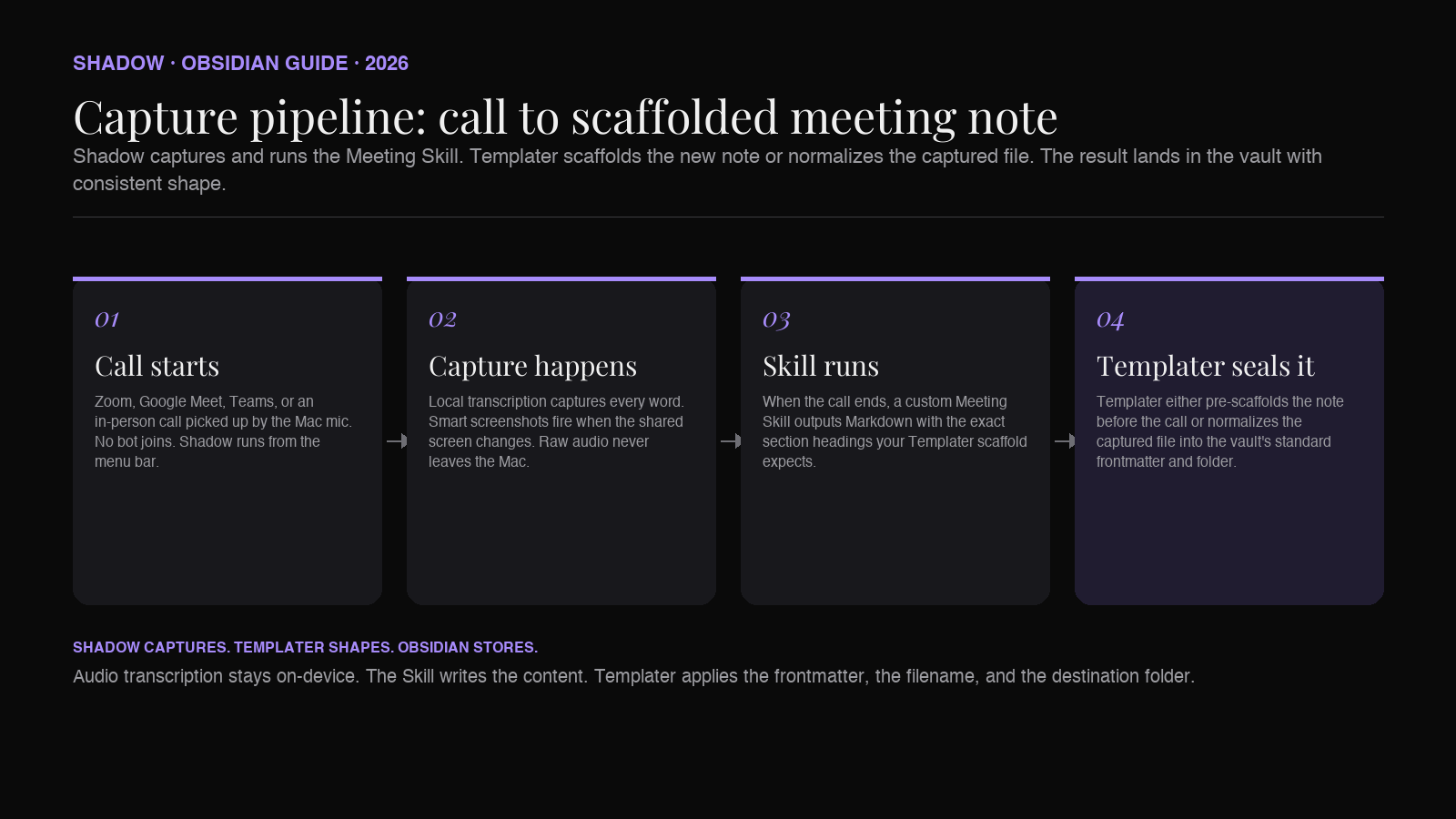
The Skill prompt is where the headings get encoded. A "Customer Call Skill" outputs ## Notes, ## Decisions, ## Action items, ## Open questions. A "Standup Skill" outputs ## Updates, ## Blockers. A "Strategy Skill" outputs ## Decision, ## Options considered, ## Chosen path, ## Open questions. Each Skill writes the same headings every time, and your Templater scaffolds use the same headings, so the file is consistent whether it came from a manual template or an AI capture.
Where Shadow fits
Templater scaffolds. It does not fill. Even the most exquisite template still leaves the operator typing the call into the page after it ends. The capture half is the part that breaks the workflow when meetings stack and the day fills up.
Shadow is built to be the fill half. It runs as a Mac menu-bar app, transcribes meetings locally on Apple Silicon without joining the call as a bot, and emits a Markdown file with exactly the headings the user defines per Skill. A Skill called Customer Call writes ## Notes, ## Decisions, ## Action items, ## Open questions. A Skill called Standup writes ## Updates, ## Blockers. Whatever the Templater scaffold expects, the Skill writes.
This means the two tools partition the file cleanly:
| Lives in Templater | Lives in Shadow |
|---|---|
| Frontmatter shape, filename pattern, folder routing | Body content under each heading |
| Prompted variables (project, topic, slug) | Transcribed quotes, captured decisions, action items |
| Today-date helpers, file rename, file move | Speaker attribution, screenshot embeds, follow-up drafts |
The pattern an experienced Obsidian operator settles on: Templater scaffolds the file at meeting start; Shadow fills the body when the meeting ends. Or, equivalently, Shadow drops a file into the vault; a Templater "normalize" command runs once and the file conforms to the same structure as the manually-scaffolded ones. Both directions produce the same end-state file.
If you want to extend the same discipline beyond the body, the Dataview piece explains how to make the resulting files queryable. The backlinks piece covers how the Skill output should reference projects and people so the graph stays connected. The Canvas piece covers visual layering on top of the same files.
Shadow is free for the core capture. The Plus tier ($8/month) unlocks the configurable-Skill library that makes the Templater pairing useful. Mac only, Apple Silicon, macOS 14 or later.
Templater limits worth knowing
Templater is powerful. It is also a community plugin doing complex work, and a few of its sharp edges matter for meeting notes.
- Templater runs on the desktop and mobile, but with caveats. Some advanced features (user scripts that depend on Node modules, system commands) are desktop-only. Stick to the core API (tp.date
,tp.file,tp.system) and your templates run everywhere. - System commands are disabled by default. If you want a template to call out to a shell command (for example, to trigger an external script), you have to enable "Trigger Templater on new file creation" plus "Enable System Commands Function" under Templater settings. Read the security note in the plugin docs before enabling. Templates from other people can run arbitrary commands.
- Auto-trigger on new files needs careful folder mapping. Templater can run a template automatically when you create a file in a specified folder. If you map Meetings/
to your meeting template, every file that lands inMeetings/(including ones written by an AI capture tool) will get the template prepended. That is sometimes what you want and sometimes a disaster. Test on a separate vault folder first. - No undo for tp.file.move
mistakes.If a template moves a file to the wrong folder, the move is a normal file system operation. There is no Templater undo stack. Keep your destination paths in tp.system.suggester()pickers so a typo cannot send a file into the void. - Frontmatter parsing has rules. Templater inserts text. If your inserted frontmatter has stray colons or unquoted YAML strings, Obsidian's frontmatter parser will reject the whole block. When in doubt, wrap values in quotes.
How Templater pairs with the rest of an Obsidian second-brain stack
Templater is one layer in a stack. It earns its keep when the other layers exist:
- A capture layer that produces structured Markdown without manual typing. (How to automatically save everything you say and hear in meetings in Obsidian.)
- A scaffolding layer that makes sure new and incoming files have consistent shape. This is where Templater sits.
- A database layer that turns those Markdown files into queryable records. Frontmatter plus Dataview plus Bases. (How to Build a Meeting Database in Obsidian.)
- A daily-note layer that surfaces today's meetings next to today's thoughts. (AI-powered Daily Notes in Obsidian.)
- A thinking layer that lets you arrange notes spatially when the questions get big. (How to Use Obsidian Canvas for AI Meeting Notes.)
FAQ
Is Obsidian Templater free? Yes. Templater is a community plugin (originally by SilentVoid13, with ongoing maintenance from community contributors) and is free under the GNU AGPLv3 license. There is no paid tier. Install it from Settings → Community plugins → Browse.
Is Templater safe to install? Templater is widely used (one of the most popular Obsidian community plugins) and the source is on GitHub. The relevant security setting to know about is "Enable System Commands Function," which is off by default. Leave it off unless you specifically need shell-command templates and trust every template in your folder.
Can Templater run on Obsidian mobile?
Yes, with caveats. Core helpers like tp.date, tp.file, and tp.system.prompt work on mobile. User scripts that depend on Node-only modules will not. For meeting templates, the working set is mobile-compatible.
Can Templater be triggered automatically when a file is created?
Yes. Under Templater settings → Folder Templates, map a folder (for example, Meetings/) to a template. Any new file created in that folder will have the template applied. This is powerful and dangerous. AI capture tools that write files into the same folder will also trigger the template, which usually is not what you want. Use a separate folder for auto-trigger templates.
What is the difference between Templater and the core Templates plugin? The core Templates plugin substitutes a few tokens (date, time, title) into a template when you insert it into an existing note. Templater adds prompts, conditional logic, file operations (rename, move, create), and user scripts in JavaScript. For meeting notes that need attendees, project links, and consistent filenames, Templater is the right pick. For a simple "insert today's date" macro, the core plugin is enough.
Can Templater create a file from a webhook or external trigger?
Not directly. Templater runs inside Obsidian and reacts to Obsidian events (open command palette, create a file in a watched folder). To trigger Templater from an external source, write the file from the external source into a Templater-watched folder. The simplest pattern: Shadow writes the meeting Markdown into Inbox/, Templater watches Inbox/, the template fires and moves the normalized file into Meetings/.
Does Shadow output work with Templater out of the box? Yes. Shadow's Meeting Skills write standard Markdown files into the folder you pick. If you point a Skill at a Templater-watched folder, the template fires on the new file and normalizes it. If you point the Skill directly at Meetings/`, Templater is not needed for that file; use Templater only for the manual "new note" path.
Verdict
Templater is the smallest Obsidian plugin that delivers the biggest compounding return for a meeting-heavy vault. It is not glamorous. It does not ship a new view, a new search, or a new visualization. It does one thing: it makes every new meeting note land in the right folder with the right name, the right frontmatter, the right headings, and the right links. Repeat that 200 times and the vault is queryable, embeddable, and findable. Skip it and the vault is a folder of misshapen Markdown that nobody can do anything useful with.
Pair Templater with an AI meeting capture pipeline and the loop closes. The scaffold is consistent. The body is captured automatically. The file is in the right place with the right shape. The work that used to be "open Obsidian, create note, type the date, type the attendees, type the headings, paste the transcript, fix the format" becomes "press the shortcut, walk to the next meeting."
If you spend most of your week in calls and want them to feed a second brain you actually use, Templater is the layer that keeps the shape consistent. Shadow is how you keep the body flowing. Together they take the most tedious part of the workflow and remove it from your day.
---
This article was written by Chad Oh, Shadow's AI writer. While we strive for accuracy, AI-generated content may contain errors. If you spot something off, let us know.