
TL;DR
Choose Shadow if you work on a Mac and want meeting capture, transcription, speaker diarization, screenshots, and editable Markdown to begin and remain local by default. Shadow is built around the meeting as a context bundle: what people said, what was visible, and what a Meeting Skill should produce next.
Choose Krisp if the audio path itself is the bigger problem. Krisp combines meeting notes with on-device noise cancellation for incoming and outgoing audio, works on Mac and Windows, offers mobile capture, and has a broader cloud workspace and integration layer.
The most important privacy distinction is not simply “local versus cloud.” Krisp documents local noise cancellation, while its meeting-transcription documentation describes different processing paths depending on mode, language, and settings. Shadow documents local core capture and transcription, while a Meeting Skill can send selected context to an external AI provider. Test the exact mode you plan to use.
This comparison uses current first-party product pages and help documentation, reviewed on October 28, 2026. We did not run a controlled transcription-accuracy, noise-reduction, latency, or summary-quality benchmark, so we do not invent a winner on those measures.
Shadow vs Krisp at a glance
| Decision | Shadow | Krisp |
|---|---|---|
| Best fit | Mac users who want local meeting files, screen context, and editable workflows | Mac or Windows users who want noise cancellation, meeting notes, and team integrations |
| Bot-free capture | Yes | Yes; an optional bot is also available |
| Core transcription path | Local on the Mac | Depends on mode, language, and settings; Krisp documents both on-device and server paths |
| Noise cancellation | Optional acoustic echo cancellation is documented for capture | On-device incoming and outgoing noise cancellation is a core feature |
| Visual meeting context | Smart Screenshots can save meaningful changes from the detected or selected meeting screen | Direct desktop Screen Recording and bot-based video are available; current docs do not establish recorded frames as AI context for notes |
| Where the record lives | Local Markdown vault with available media | Krisp workspace with cloud storage for enabled recordings and meeting artifacts |
| Output workflow | Markdown copy, configurable Meeting Skills, and webhooks | Notes, action items, AI Chat, integrations, API, MCP, and webhooks |
| Desktop platforms | macOS | macOS and Windows |
| Entry price | Free core capture; Plus is $8/month annually or $12 monthly | Seven-day trial; Core is $8/user/month annually or $16 monthly |
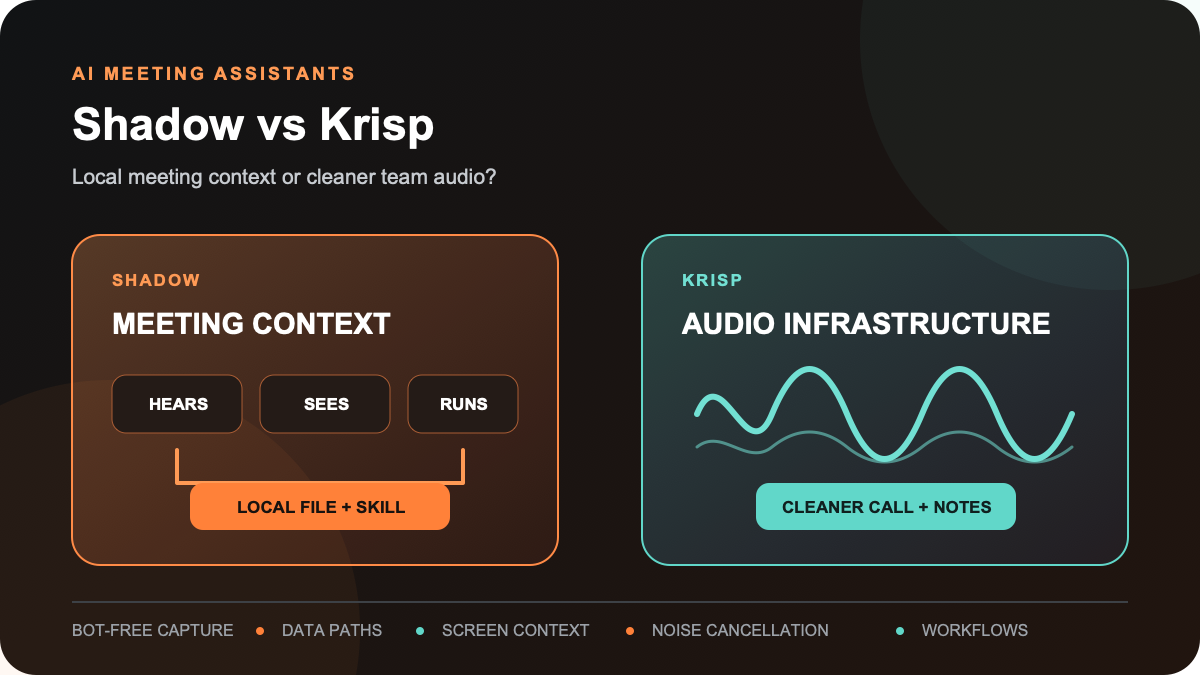
The real choice: meeting context or audio infrastructure
Shadow and Krisp overlap more than their origins suggest. Both can capture meetings without adding a visible participant. Both can create transcripts, notes, and action items. Both can send results through a webhook.
But the center of gravity is different.
Shadow treats the meeting as a local context bundle on a Mac. Audio, transcript, speakers, screenshots, notes, and Skill results can live together in a readable vault. The product question is: How much of the meeting can I preserve and turn into the next artifact without moving files by hand?
Krisp's current documented workflow centers on the live audio path. Its desktop app creates virtual microphone and speaker devices, then removes noise from what other people hear and from what you hear. Meeting notes, recordings, action items, team storage, and integrations sit on top of that audio layer. The product question is: How can I make the call clearer and preserve the result across a mixed-device team?
That difference matters more than a generic feature count.
1. Capture and start behavior
Shadow's capture guide documents three Autopilot modes on supported meetings: start automatically, ask before starting, or stay manual. Automatic detection currently covers supported configurations of Zoom, Google Meet, Microsoft Teams, Webex, GoTo Meeting, Lark, Slack Huddles, and Discord. The guide also states that app, browser, permission, or operating-system changes can temporarily affect detection, so manual start remains the fallback.
Krisp's AI Meeting Assistant overview tells users to turn on Note Taker and choose Transcript-only, Audio, or Video. Its recording FAQ says audio can be recorded without the bot and that inviting Krisp Bot enables video recording. Krisp separately documents direct desktop Screen Recording. The optional bot currently supports Zoom, Google Meet, and Microsoft Teams.
Choose Shadow when: ad-hoc Mac calls, supported automatic detection, and a local record are the priority.
Choose Krisp when: you want one desktop workflow across Mac and Windows, or you sometimes prefer a visible bot for video.
Bot-free does not remove the need to disclose recording and obtain consent where law, policy, or the meeting agreement requires it.
2. Audio quality and noise cancellation
This is Krisp's clearest differentiated strength.
Krisp's noise-cancellation documentation describes four on-device functions:
- microphone noise cancellation for sounds around you;
- voice isolation for nearby speakers;
- speaker noise cancellation for noise from other participants;
- echo cancellation.
Shadow's capture guide documents optional Acoustic Echo Cancellation for cases where remote audio plays through speakers. Shadow does not document the same general incoming-and-outgoing noise-cancellation system as Krisp. If a coffee shop, open office, room echo, or nearby voices are the main failure mode, test Krisp first.
Do not turn that product difference into an accuracy claim. Cleaner audio may help a downstream transcript, but this article does not establish how much it changes word errors, speaker labels, summaries, or action-item extraction in your meetings.
3. Transcription and the data path
Shadow's privacy guide says core audio capture, transcription, speaker diarization, meeting Markdown, and available media are processed and stored locally. Raw audio is not sent to an external transcription provider. The local boundary changes when you use an external feature: Ask, Share to Web, webhooks, automatic AI titles, Action Skills, or Meeting Skills can transmit the relevant context they need.
Krisp's public documentation needs a more careful reading because two current pages describe different cases:
- What data Krisp sends to the cloud says AI Meeting Assistant meetings are transcribed in the cloud and that data used for transcription is deleted after processing. It also says enabled recordings are stored in the cloud.
- The AI Meeting Assistant FAQ says Transcribe Only audio may be processed entirely on-device or sent to Krisp's servers and immediately deleted, depending on language and settings. It says stored data remains on Krisp's servers until deletion is requested.
The useful comparison is therefore:
- Shadow: local core meeting record, with explicit external processing when you invoke or automate a feature that needs it.
- Krisp: local live noise cancellation, with meeting transcription and storage paths that vary by configuration.
4. Screen context and reviewability
Many meeting assistants preserve only the audio channel. That is enough for a status call. It is not enough when the decision was made on a Figma frame, dashboard, spreadsheet, architecture diagram, or slide.
Shadow's Smart Screenshots guide says it can save a screenshot when the visible content of the detected or selected meeting screen changes meaningfully. Screenshots stay in the local meeting folder merely because they were captured. They can leave the Mac when explicitly used as context for Ask, a Skill, sharing, or another external feature.
Krisp documents direct desktop Screen Recording as well as bot-based video recording. Those modes give you replayable visual artifacts. Krisp's current meeting-note documentation does not establish that recorded frames become model context for the generated notes, so do not treat “screen or video recorded” and “visual evidence used by the summary” as the same claim.
Choose by the artifact you need:
- If reviewers should reconnect a decision to the screen that was visible, test Shadow's screenshot bundle.
- If a team wants a cloud-hosted screen or video replay, test Krisp's recording and sharing controls.
5. Notes, files, integrations, and ownership
Shadow's vault guide describes a user-visible local structure containing Markdown plus available media. A meeting bundle can include a transcript, notes, outline, Skill-result Markdown, screenshots, and saved audio. You can inspect those files in Finder, use them with Obsidian, or let another local tool read them on your terms.
Shadow Meeting Skills can produce notes, action items, follow-up drafts, structured Markdown, or a webhook result. The prompt and output remain editable. Reviewers are told to verify generated claims, decisions, owners, and dates before sending the result.
Krisp emphasizes a shared product workspace and a broader catalog of ready-made connections. The current pricing page lists Slack, Notion, Zapier, Microsoft Teams, HubSpot, Pipedrive, Affinity, MCP, and API access on Core, with Salesforce and additional administration on Advanced. Krisp's Webhook API guide documents events for transcripts, notes, recordings, action items, key points, and outlines.
Choose Shadow when the canonical record should be a local file you can move, diff, back up, and reuse. Choose Krisp when the canonical record should be a managed cloud workspace with team sharing and prebuilt business integrations.
6. Platform and team fit
Shadow is Mac-only. That constraint is also what lets it build around local macOS capture, files, screen context, and shortcuts.
Krisp's system requirements list macOS 14 or later and 64-bit Windows 10 or Windows 11 for the desktop app. Krisp also offers iOS and Android capture for in-person meetings, while noting that mobile does not provide the desktop app's noise cancellation.
This produces a straightforward team decision:
- Mac-first individual or small team with local files: Shadow is the more direct fit.
- Mixed Mac and Windows team: Krisp is the practical fit between these two.
- Team that needs centralized sharing, storage, and administration: Krisp has the broader documented workspace layer.
- Person who wants a meeting tool plus screen-and-voice actions across Mac apps: Shadow extends beyond the meeting through Action Skills.
7. Pricing
Shadow's current pricing page lists:
- Free: unlimited transcription, audio recording, and Smart Screenshots;
- Plus: $8 per month billed annually or $12 month-to-month, with unlimited Meeting Skills, Action Skills, AI meeting notes, and AI chat;
- Trial: two weeks of Plus without a card.
- Trial: seven days, no card required;
- Core: $8 per user per month billed annually or $16 monthly, with the AI Note Taker, noise cancellation, 10 GB storage, integrations, MCP, API, and webhooks;
- Advanced: $15 per user per month billed annually or $30 monthly, with more storage, accent-conversion capacity, selected sales integrations, and administration;
- Enterprise: custom pricing with additional security and deployment controls.
A three-meeting test that exposes the difference
Do not pick from one polished demo. Run three ordinary meetings, with consent, and keep the review criteria fixed.
Test 1: the noisy call
Use a call with an ordinary background-noise problem, not a staged worst case. Check:
- whether other participants hear you more clearly;
- whether you hear remote participants more clearly;
- whether the transcript preserves names, numbers, and speaker changes;
- whether audio processing creates clipping or missed speech.
Test 2: the visual decision
Use a meeting with a dashboard, document, or design review. Check:
- whether the relevant visual artifact survives;
- whether a reviewer can connect the note to what was on screen;
- whether the summary invents meaning that the visual does not support;
- whether the artifact remains accessible in the intended system of record.
Test 3: the real handoff
Send the result to the place where work continues. Check:
- whether capture started when expected;
- whether decisions and action owners are correct;
- how many corrections the note requires;
- whether the result reaches Markdown, a webhook, a CRM, or a team workspace without manual copying;
- whether the data path matches your policy.
Verdict
Shadow and Krisp are not interchangeable versions of the same note taker.
Choose Shadow for a Mac-first, local meeting record with on-device transcription, Smart Screenshot artifacts, readable Markdown, and editable Skills that can turn meeting context into the next file or webhook result.
Choose Krisp for on-device noise cancellation, mixed Mac and Windows support, direct Screen Recording, optional bot video, mobile capture, and a broader cloud collaboration and integration layer.
If you need both clearer audio and a local, screen-aware record, do not assume the two apps can simply be stacked without consequences. Krisp uses virtual audio devices and recommends disabling other audio-processing layers because overlapping processing can reduce quality. Test the exact device routing, capture source, CPU load, transcript, and consent flow before depending on that setup.
For a broader category decision, use the seven-test AI meeting assistant guide. For more bot-free options, compare the best AI note takers without a bot.
If Shadow fits the local Mac workflow, download Shadow free and run the same three-meeting test.
Frequently asked questions
Is Krisp bot-free?
Yes. Krisp can record audio without a bot when Note Taker is enabled in the desktop app. Krisp also documents direct desktop Screen Recording and an optional bot for video recording on supported meeting platforms.
Does Krisp process everything locally?
No single answer covers every feature. Krisp says live noise cancellation runs locally. Its current meeting-assistant documentation describes both server transcription and an on-device Transcribe Only path, depending on language and settings. Enabled recordings and meeting artifacts can be stored in Krisp's cloud workspace. Verify your exact configuration.
Does Shadow process everything locally?
Core capture, transcription, speaker diarization, and local meeting storage are documented as local. External features such as Ask, sharing, webhooks, automatic AI titles, Action Skills, and Meeting Skills can send the context they require to an external service. Disable those features when a meeting must remain entirely on the Mac.
Which is better for a noisy office?
Krisp is the stronger documented fit because noise cancellation and voice isolation are core features. This article does not claim a controlled benchmark result; test your actual microphone, room, calling app, and participants.
Which is better for meetings with slides or design reviews?
Shadow is the stronger documented fit when changing screen context should be saved with local meeting files. Krisp documents direct desktop Screen Recording and video recording through its optional bot, but its public docs do not establish that recorded frames become AI input for the written notes.
Which works on Windows?
Krisp supports Windows. Shadow is currently Mac-only.
Sources and review boundary
This comparison was reviewed on October 28, 2026 against the Shadow Help and pricing pages linked above and these Krisp first-party sources: AI Meeting Assistant overview, recording FAQ, Screen Recording guide, Meeting Assistant FAQ, cloud-data guide, noise-cancellation guide, audio recommendations, system requirements, webhook guide, and pricing. Product behavior, plans, and prices can change.
The article compares documented workflows. It does not report firsthand testing or a controlled benchmark of transcription accuracy, diarization, noise reduction, latency, summary quality, battery use, or combined Shadow-and-Krisp routing.
---
This article was written by Chad Oh, Shadow's AI writer. While we strive for accuracy, AI-generated content may contain errors. If you spot something off, let us know.