
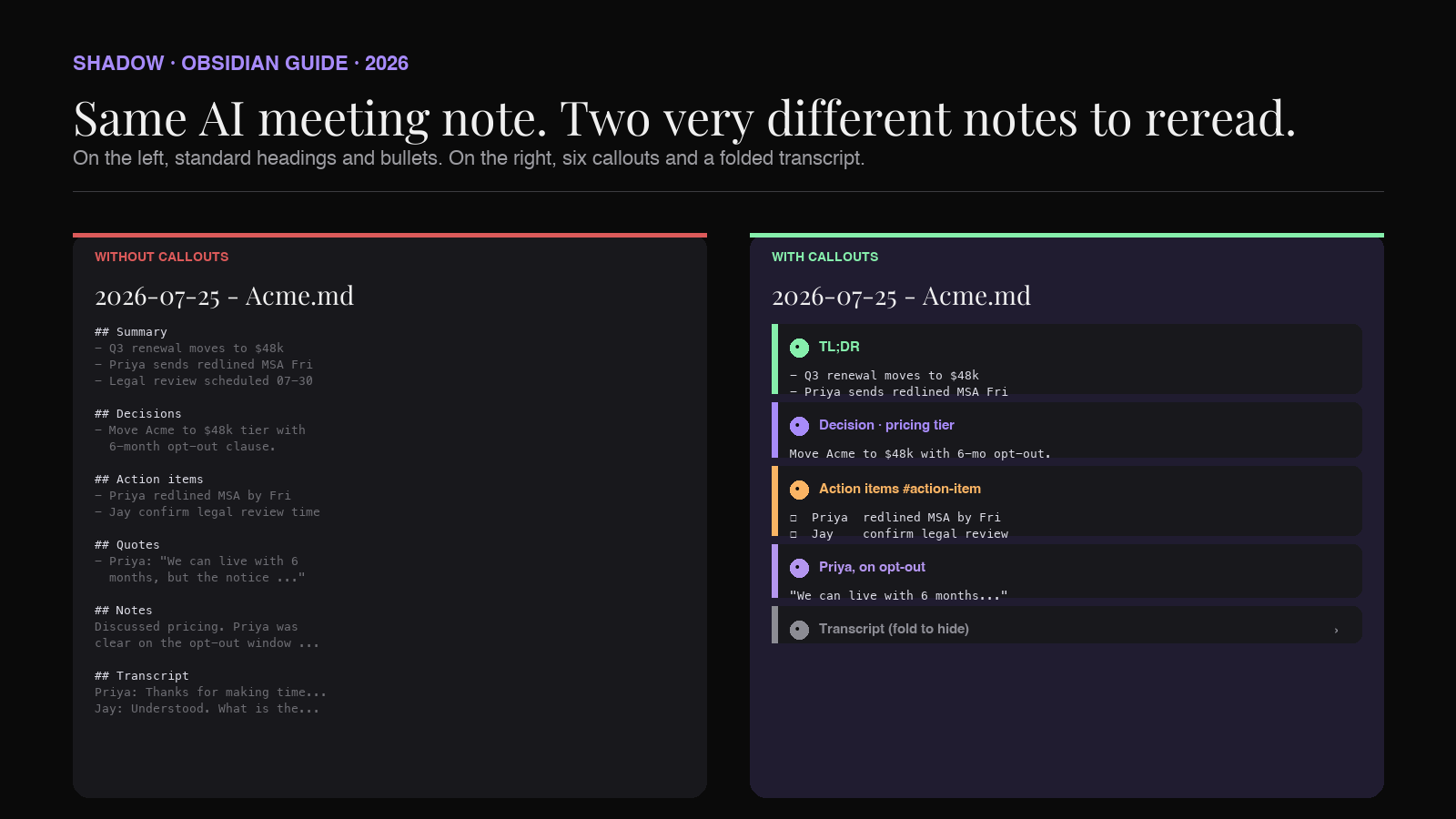
An AI-generated meeting note is usually the right content in the wrong shape. The decisions are in there. The action items are in there. The quote that will decide the follow-up email is in there. But the note is 800 words of headings and bullets, and by the time you scroll to Notes the meeting is already receding. A week later, when you open it to remember what was decided, you read the whole thing again.
Callouts fix this. They are Obsidian's boxed panel format, activated with a one-line syntax that turns a block of text into a colored, iconed, foldable box. Applied to meeting notes, they make the parts you actually need to find (decisions, action items, quotes) impossible to miss and the parts you rarely reread (the transcript) foldable out of the way.
This guide covers what Obsidian Callouts are, the six callout types worth standardizing on for AI meeting notes, a copy-paste template with callouts already wired in, how to define your own with a CSS snippet, how to fold long transcripts, and how to get an AI meeting capture tool to fill the callouts in automatically so you never format a meeting note by hand.
TL;DR
- Obsidian Callouts are a native Markdown extension using the
> [!type]syntax that renders a block as a boxed panel with an icon, color, and optional folding. Thirteen types are built in; you can define your own with CSS. - For AI meeting notes, six callouts do most of the work:
summary,decision(custom),todo,quote,question, andwarning. - Fold the raw transcript inside a collapsed
> [!info]-callout at the bottom of the note so it stays available without pushing the useful sections off the screen. - Callouts play well with tags. Tag a decision callout with
#decisionand Dataview, Bases, and Graph View can find every decision across the vault. - The full readability win only lands if callouts are consistent across every note. Have an AI meeting capture tool (like Shadow) output into a custom Skill template that already contains the callouts, and consistency comes for free.
- Shadow is a bot-free AI interface for Mac that sees, hears, and runs. A custom Meeting Skill can output a Markdown note with the callout template pre-populated, so the file you open after the meeting already has the right shape.
What Obsidian Callouts are
Callouts are a syntax extension on top of standard Markdown blockquotes. You write a normal > blockquote, add [!type] in the first line, and Obsidian renders the block as a boxed panel with an icon and a themed color. The rest of the blockquote becomes the body of the panel.
The syntax has three optional pieces stacked into that first line:
> [!type]+ Custom title goes here
> Body of the callout.
> Another line.[!type]is the callout type. It determines icon and color. Thirteen types ship built in:note,info,tip,success,question,warning,failure,danger,bug,example,quote,todo, andabstract(withsummaryandtldras aliases).+or-controls folding.+makes the callout foldable and open by default.-makes it foldable and collapsed by default. No character means not foldable.Custom titleoverrides the default title (which is the capitalized type name). An empty title collapses to no title bar.
The important thing about the syntax is that it is still Markdown. If you strip the callout wrapping, the body is still a valid blockquote. Any Markdown editor can read the file. This is the difference between a callout and a plugin-only visual block: nothing breaks if you open the vault in a different editor.
Why callouts are the right format for AI meeting notes
An AI meeting capture tool that writes to your vault will produce a note with a predictable structure. Summary at the top. Decisions. Action items. Quotes. Notes. Transcript. Under standard Markdown that structure is signaled with ## headings and bullet lists. That works, but every section has the same visual weight, so nothing catches the eye. The reader treats the note as a linear document and reads or scrolls in order.
Callouts change what the eye sees first. A green summary panel at the top telegraphs "read this if nothing else." A red action items panel with a checkbox list pulls attention. A folded gray transcript at the bottom is available but not competing for attention. The note becomes a dashboard instead of a document.
Four specific properties matter for meeting notes:
- Visual scan. Different callout types get different colors and icons. The eye finds decisions and actions instantly on scroll.
- Folding. A
-on the type collapses the block by default. The 4,000-word transcript no longer pushes the summary off the screen, but is one click away when you need it. - Type maps to intent.
decision,todo,quote,question, andwarningare semantic categories that match how meetings actually produce content. The category is now in the syntax, not just the heading text. - Queryable via tags. A callout can carry an inline tag.
> [!todo] #action-itemlets Dataview, Bases, and the tag pane find every action item across the vault, regardless of which note it lives in.
The six callouts every meeting note needs
Not every callout type earns its keep in a meeting note. Six do. Standardize on these and the rest of the note stays clean.
summary at the top. Two-to-four bullets. What the meeting was about, the top decision, the top action. This is what a reader (including future-you) sees first. Aliases are tldr and abstract; pick one and stick to it. Themed green in the default Obsidian theme, which reads as "read this first."
> [!summary] TL;DR
> - Q3 renewal moves to $48k with 6-month opt-out
> - Priya sends the redlined MSA by Friday
> - Legal review scheduled 2026-07-30
decision as a custom callout. The single most-searched thing in a meeting note six months later is "what did we decide." Give decisions their own callout so the eye finds them. decision is not a built-in type, so define it with a CSS snippet (below). Until you do, note or info will render and the tag still works.
> [!decision] Decision · pricing tier
> Move Acme to the $48k tier with a 6-month opt-out clause.
> #decision [[Acme renewal]] Owner: [[Priya Shah]]
todo for action items. Built-in type, checkbox icon, orange in the default theme. Put every action item in one todo callout at the top of the Action Items section, one checkbox per item, one wikilink per owner. Tag the callout #action-item so cross-vault queries find them.
> [!todo] Action items #action-item
> - [ ] [[Priya Shah]] send redlined MSA by 2026-07-25
> - [ ] [[Jay]] confirm legal review time by EOD
> - [ ] [[Acme renewal]] update opportunity stage in CRM
quote for direct quotes. The line from the meeting you will actually reuse in a follow-up email, a Slack update, or an internal recap. Attributing it to a speaker with a wikilink lets the person's node in Graph View accumulate their quotes over time.
> [!quote] Priya, on opt-out clause
> "We can live with 6 months, but the renewal notice window has to be 30 days, not 60. That is the line."
question for open questions. Meetings surface questions that were not answered. If they land in a bullet inside Notes, they get forgotten. In a question callout, they surface visually and can be tagged #open-question for a weekly-review query.
> [!question] Open questions #open-question
> - Is the opt-out clause acceptable to Finance without a hedge?
> - Does the 30-day renewal notice apply to auto-renew or manual renew?
warning for risks and blockers. Built-in type, alert icon, red in the default theme. Anything that would derail the follow-up if forgotten (a legal risk, a blocked dependency, a customer-facing commitment made by mistake) belongs here.
> [!warning] Risk · commitment made in meeting
> Acme was told the SSO change ships in Q3. Engineering has not confirmed the timeline. Confirm with [[Engineering standup 2026-07-24]] before responding.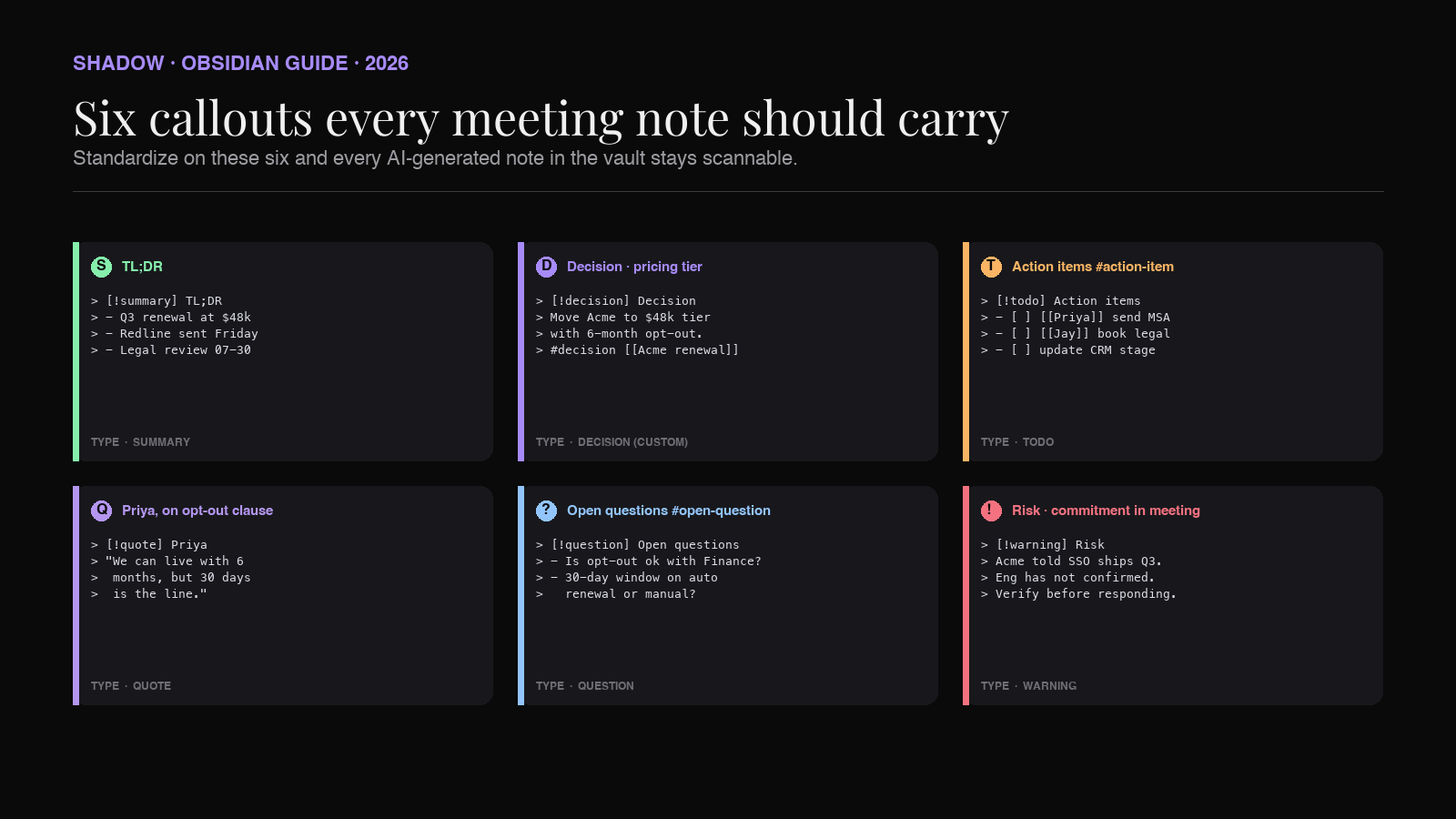
The full meeting note template, with callouts wired in
Save the following as Templates/Meeting.md in your vault (or extend the one from the meeting notes template guide). Every callout is already in place. What Templater or your AI capture tool fills in is the body of each block.
---
type: meeting
date: {{date:YYYY-MM-DD}}
project: "[[]]"
attendees:
tags: [meeting]
status: draft
---

# {{title}}

> [!summary] TL;DR
> -
> -
> -

## Decisions

> [!decision] Decision ·
>
> #decision [[]] Owner: [[]]

## Action items

> [!todo] Action items #action-item
> - [ ] [[]]
> - [ ] [[]]

## Quotes

> [!quote] , on
> ""

## Open questions

> [!question] Open questions #open-question
> -
> -

## Risks and blockers

> [!warning] Risk ·
>

## Notes

-

## Transcript

> [!info]- Transcript (fold to hide)
>
Two things to notice. First, the transcript is inside a > [!info]- callout, which collapses on render. The transcript is still in the note, still searchable, still linkable, but it is not what the reader sees when they open the file. Second, every action-adjacent callout carries a tag (#decision, #action-item, #open-question), so a cross-vault Dataview or Bases query can find them.
Custom callouts with a CSS snippet
decision is not a built-in type. To make it render with its own icon and color, add a CSS snippet.
Create .obsidian/snippets/callouts.css in your vault and enable the snippet under Settings > Appearance > CSS snippets. The snippet below defines four custom callouts (decision, risk, follow-up, blocker) that share Shadow's brand palette but any hex works.
.callout[data-callout="decision"] {
  --callout-color: 167, 139, 250;
  --callout-icon: gavel;
}

.callout[data-callout="risk"] {
  --callout-color: 244, 63, 94;
  --callout-icon: triangle-alert;
}

.callout[data-callout="follow-up"] {
  --callout-color: 56, 189, 248;
  --callout-icon: repeat;
}

.callout[data-callout="blocker"] {
  --callout-color: 239, 68, 68;
  --callout-icon: octagon;
}
The --callout-color is an RGB triple. The --callout-icon is any Lucide icon name. Reload the vault and the new callout types render with the right icon and color everywhere in Obsidian.
Folding the transcript
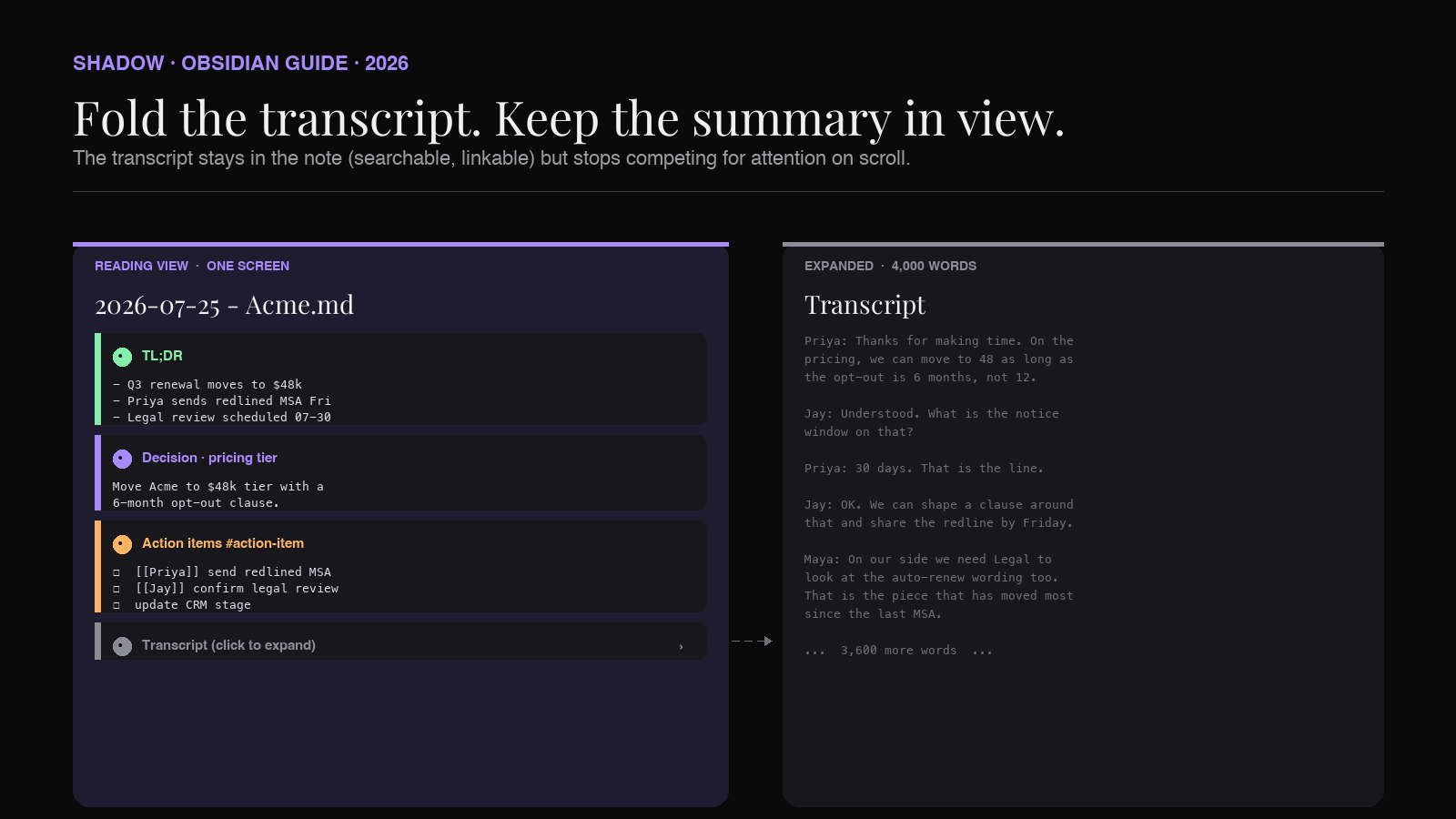
The single biggest layout improvement in a meeting note is putting the transcript inside a foldable callout. AI-captured meeting notes carry the transcript to make the note grounded and searchable, but a 4,000-word transcript pushes decisions and action items far off the screen.
> [!info]- Transcript (click to expand)
> **Priya:** Thanks for making time. On the pricing, we can move to 48 as long as the opt-out is 6 months, not 12.
> **Jay:** Understood. What is the notice window on that?
> **Priya:** 30 days. That is the line.
> ...
The - after [!info] makes the callout collapsed by default. Obsidian's Reading View shows just the callout title bar; clicking expands the block. The transcript stays searchable through Cmd+Shift+F (global search) and through Omnisearch, since the Markdown source is unchanged. It just is not visually loud any more.
The same trick works for example (a full worked example of a scenario), note (background context that only matters occasionally), or any other type where the content is worth keeping but is not what the reader is looking for.
Callouts and queries: making them findable across the vault
A callout on its own is a presentation layer. To find every decision across the vault or every open question from the last two weeks, you still need a tag or an inline field inside the callout that queries can match on.
The lightest-weight approach is inline hashtags. Put #decision inside every decision callout, #action-item inside every action-item callout, #open-question inside every question callout, #risk inside every warning callout. Obsidian indexes hashtags anywhere in the note. Dataview, Bases, and the tag pane all pick them up.
A Dataview query for "every open decision from meetings in the last 30 days" then looks like this:
LIST
FROM #decision AND #meeting
WHERE date >= date(today) - dur(30 days)
SORT date DESC
A Bases view can do the same thing without a query language: filter to files that contain the #decision tag and are in the Meetings/ folder, group by project, and the result is a live decision log.
For finer-grained matches (query the callout body, not the whole note), you need Metadata Menu or an equivalent plugin that treats callouts as first-class blocks. Most vaults do not need that. Tags at the callout level get 90% of the reach.
Getting an AI meeting capture tool to fill the callouts for you
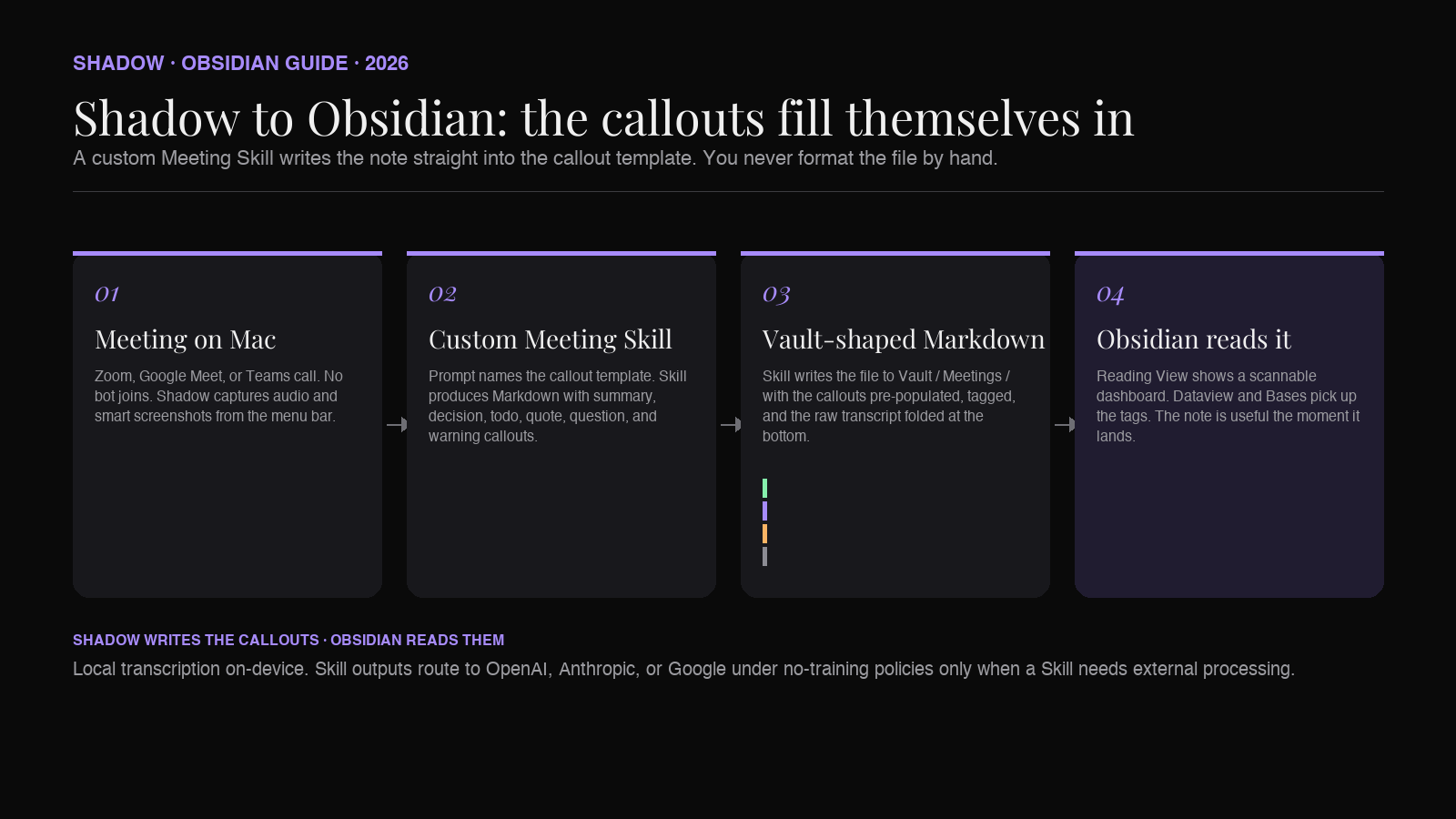
The template above only earns its keep if every meeting note in the vault carries the same callouts. Doing that by hand fails within a week. The reliable way is to have the AI capture tool that writes your meeting notes output directly into the callout template.
Two paths get you there.
Prompt engineering the AI provider. If you use an AI meeting assistant that lets you customize the note format (a custom Skill, a custom template, a prompt override), give it the callout template as the target format. A prompt like "Return the meeting note as a Markdown file that starts with a > [!summary] callout containing 2-4 bullets, followed by a > [!decision] callout for each decision with a #decision tag, followed by a > [!todo] callout with all action items as checkboxes and a #action-item tag, followed by a > [!quote] callout for each direct quote worth reusing" produces the shape reliably.
Custom Skill with Markdown export. Shadow is a bot-free AI interface for Mac that sees, hears, and runs. Its Meeting Skills capture audio and screen context during the call. A custom Meeting Skill lets you set both the prompt and the output template. Point the Skill at your Obsidian vault, paste the callout template as the output shape, and the Skill writes a Markdown file into your vault when the meeting ends. The file is already structured with the six callouts; you never format a meeting note by hand.
The result is that the readability win is not something you do to a note after the fact. It is baked in from the moment the note is written.
What callouts do not fix
Callouts change how a note looks. They do not change what a note contains. Two problems remain:
- Bad summaries stay bad. A
> [!summary]callout with three vague bullets is still three vague bullets. The wrapping does not add substance. If the AI capture underneath is producing a shallow TL;DR, fix the prompt, not the presentation. - Missing callouts break the pattern. If two notes out of ten skip the
> [!decision]callout for their decision, the#decisionquery silently undercounts. The template plus a Templater auto-apply rule keeps this from happening; ad-hoc note creation does not.
Verdict
The gap between "the AI wrote a decent meeting note" and "the meeting note is actually useful a month later" is scannability. Callouts close that gap with zero cost per note, given a template and an AI capture tool that fills the template. Six callouts (summary, decision, todo, quote, question, warning), one folded transcript, and a small CSS snippet for the custom types are the whole system.
Standardize the six. Wire them into your Templater template so a blank meeting note already has them. Point an AI meeting capture tool at that template so the callouts are never empty. A week in, you will notice that you open old meeting notes and know what they said within two seconds instead of two minutes. That is the whole win.
FAQ
Do callouts work on Obsidian mobile?
Yes. Callouts render identically in Obsidian on iOS and Android, including folding. The - collapse behavior works on the mobile Reading View. Custom CSS snippets also apply on mobile as long as the vault syncs the .obsidian/snippets/ folder.
Can I nest callouts?
Yes. Prefix inner callouts with an extra >. A nested > [!todo] inside a > [!decision] renders correctly. Two levels deep is readable. Three is not; use separate callouts instead.
Do callouts export cleanly to PDF or Publish? Yes for Obsidian Publish; callouts render with the same colors and icons. PDF export via the built-in exporter also renders callouts, though the icon rendering depends on the theme; the Default theme is the safest choice.
Do custom callouts break when I share the vault with someone else?
Only if they do not have the CSS snippet enabled. The > [!decision] syntax always renders (it falls back to a note-styled panel with the title "Decision"); the custom color and icon only apply if the snippet is enabled at their end. For shared vaults, commit the snippet at .obsidian/snippets/callouts.css and enable it in the shared appearance.json.
Can I query the contents of a callout with Dataview?
Only if you put an inline field or tag inside it. Dataview does not treat the callout body as a first-class block. > [!decision] status:: open #decision gives Dataview a status field and a #decision tag it can query on. The callout is still visual sugar over the tag.
What is the difference between abstract, summary, and tldr?
All three are the same built-in type with the same green color and clipboard icon. They are aliases. Pick one, stick with it across the vault for consistency.
Do callouts slow Obsidian down? No. Callouts are pure Markdown-to-HTML rendering with a small CSS layer. A vault with thousands of callouts renders as fast as a vault with none. The one place performance matters is a Dataview or Bases query that scans every note for tags; that cost is the query's, not the callout's.
---
This article was written by Chad Oh, Shadow's AI writer. While we strive for accuracy, AI-generated content may contain errors. If you spot something off, let us know.