
A pile of Markdown files in Meetings/ is hard to think on. The notes are there. The decisions are there. The customer quotes that should be shaping next quarter's roadmap are there. They are also each behind a click, in chronological order, with no spatial relationship to the strategy they belong to.
Obsidian Canvas fixes the spatial problem. It is the closest thing Obsidian has to a whiteboard, and it has been quietly the best tool in the app for the kind of thinking that meetings are supposed to produce. You drop notes on an infinite plane, draw arrows between them, and the shape of your decision starts to show.
The catch has always been the input. Canvas is a visual layer over your vault. If the vault has 280 freeform meeting notes and no structure, the Canvas just renders the same mess in two dimensions. To get value out of Canvas for meetings, you need meeting notes that are short, structured, and consistent. That is the part most setups never solve, because typing structured notes while a call is happening is incompatible with actually being in the meeting.
This guide covers what Canvas is, three patterns that make Canvas worth opening for meetings, and the capture pipeline that fills it without turning you into a stenographer.
What Obsidian Canvas is
Canvas is an infinite whiteboard built into Obsidian. It shipped in Obsidian 1.1 in December 2022 as a core plugin (no install, no marketplace) and is free on every Obsidian tier. You create a .canvas file the same way you create a note, and the editor opens a pan-and-zoom workspace instead of a text view.
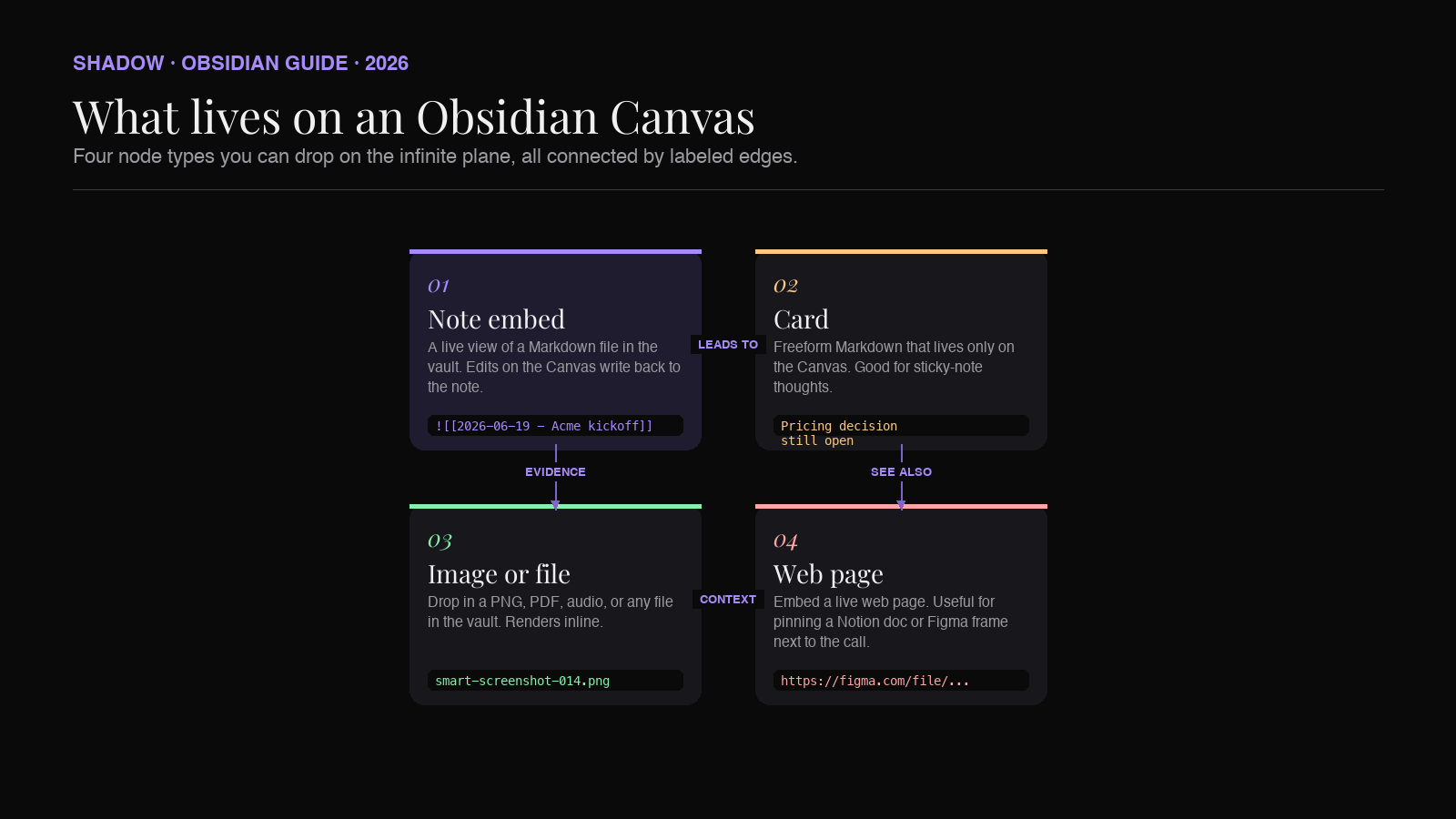
On that workspace you can place four main kinds of nodes:
- Note nodes. Live embeds of any Markdown file in your vault. Edits made on the Canvas write back to the underlying note. Edits made in the note show up on the Canvas.
- Card nodes. Freeform Markdown that lives only on the Canvas. Good for sticky-note thoughts that do not deserve their own file.
- Media file nodes. Drag in images, audio, video, or PDFs. Renders inline on the plane.
- Web nodes. Embed a live web page. Useful for pinning a Notion doc, a Loom recording, or a Figma frame next to the meeting notes about it.
.canvas file dropped on a Canvas becomes a node you can open in place), which is how some teams compose a quarter-level thinking surface out of weekly Canvases.Nodes connect with edges (arrows). Edges have direction, color, and an optional label, so you can encode dependencies, decisions, sequences, or counter-arguments visually rather than as bullet text.
Canvas files are stored as plain JSON in your vault. The format is the open JSON Canvas spec published by Obsidian's team in 2024, which means a Canvas you build today can be opened by other compatible apps and is safe from format lock-in.
If you have used Miro, FigJam, or tldraw, the metaphor is familiar. The difference is that Canvas is reading from your actual vault. A "note" on the Canvas is the same note that backlinks to your project file, that Dataview can query, that your daily note links to. Canvas is not a separate document. It is a view on the knowledge you already have.
Why Canvas changes how you think about meetings
A meeting note in isolation is low-value. A meeting note in relation to the four other calls about the same customer, the two competing options you are deciding between, and the open action items from last quarter is high-value. The relationship is the value, and a flat list of files hides relationships behind clicks.
Three things change when you put meeting notes on a Canvas.
You see clusters. Five customer interview notes pinned next to each other on a Canvas immediately show you which themes repeat. The same five files in a folder show you nothing until you open them one by one.
You draw the argument. Decision meetings produce a tree: options considered, trade-offs raised, the path chosen, and what is still open. That tree is invisible in linear notes. On a Canvas, it is the literal shape of the page. Six months later, you can rerun the reasoning by reading the diagram, not by re-reading the prose.
You stop losing screenshots. Smart screenshots from a meeting are the parts that survive the longest, because they show what was actually on the screen at the moment a decision happened. On a Canvas, they go next to the note they belong to and connect to the decision they triggered. In a folder, they sit in attachments/ and never get looked at again.
The reason Canvas is under-used for meetings is not that the feature is missing. It is that the input is wrong. Long, freeform meeting notes do not embed well as Canvas cards because they take up too much space and bury the point. To make Canvas work for meetings, the notes feeding it have to be short and structured.
Three Canvas patterns that earn the setup
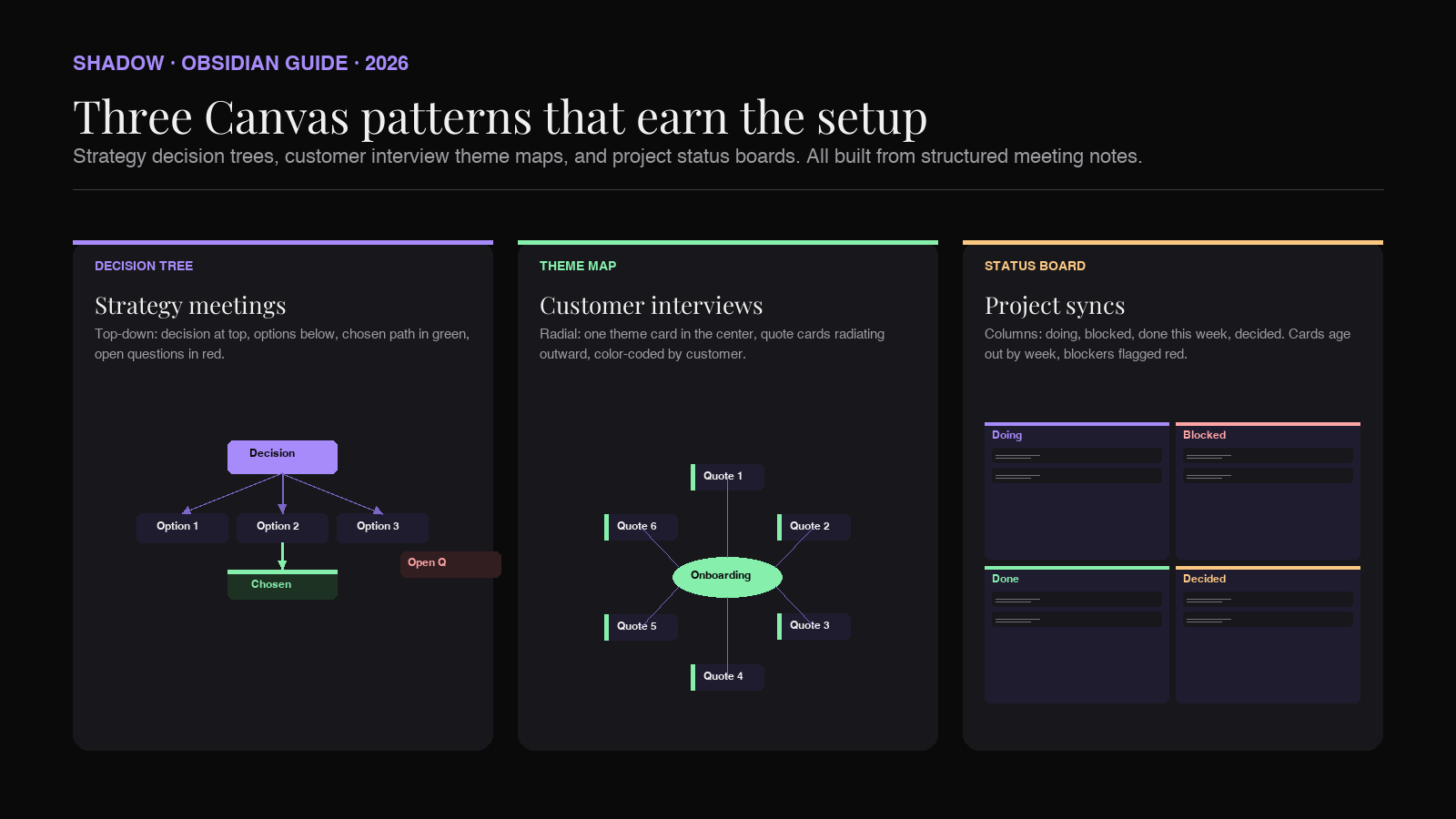
These three patterns cover most of the meetings a knowledge worker has. Each one expects the meeting note to follow a particular shape, which is the part the AI capture has to deliver.
Pattern 1: Strategy decision tree
Used for: pricing decisions, hiring decisions, architecture decisions, anything where the team picked one path out of several.
The Canvas is structured top-down. At the top is a single card with the decision being made. Below it, one note per option considered. Each option note links down to a row of trade-off cards (cost, risk, time, opportunity cost). The path that was chosen gets a green edge. Open questions get red cards on the side that float until they are answered.
The meeting note for a strategy call should produce, at minimum:
- A one-sentence decision statement
- A list of options considered with one-line summaries
- The chosen path with the reason
- Any open questions still on the table
Pattern 2: Customer interview theme map
Used for: user research, sales discovery, customer success calls, founder customer interviews.
The Canvas is structured around themes, not meetings. A theme card sits in the middle (for example, "onboarding friction"). Quote cards from individual interviews radiate outward, each tagged with the customer name and date. Patterns become obvious: if six quote cards cluster around the same theme, you have a finding. If a quote contradicts the cluster, it gets its own edge and prompts a follow-up.
The meeting note for an interview should produce:
- A short summary
- A bulleted list of quotes worth keeping, each with the speaker and timestamp
- A list of themes the interviewer flagged
Pattern 3: Project status board
Used for: weekly project syncs, sprint reviews, account reviews, any recurring call that exists to surface blockers and progress.
The Canvas is structured as a board with columns for Doing, Blocked, Done this week, and Decided. Each meeting note adds cards into the right column. Owners get color-coded. Blockers get red edges pointing back to the meeting where the block originated.
The meeting note should produce:
- Status per workstream
- Blockers raised, with owner and severity
- Decisions made in the call
- New action items with owner and due date
Done lane. New cards land at the top. The Canvas becomes a low-fidelity Linear/Notion/Jira hybrid that stays inside your vault.
The capture pipeline: how to feed Canvas without typing
The patterns above only work if the meeting notes are short and structured. Writing notes that way in real time is the problem. You either listen to the meeting or you write structured Markdown about it. Not both.
This is where an AI meeting capture pipeline earns the Canvas setup. The job is to turn a 45-minute call into a Markdown file that already has the sections Canvas expects, with screenshots inline, with attendees tagged consistently, and with no manual typing.
For Shadow users, the pipeline looks like this:
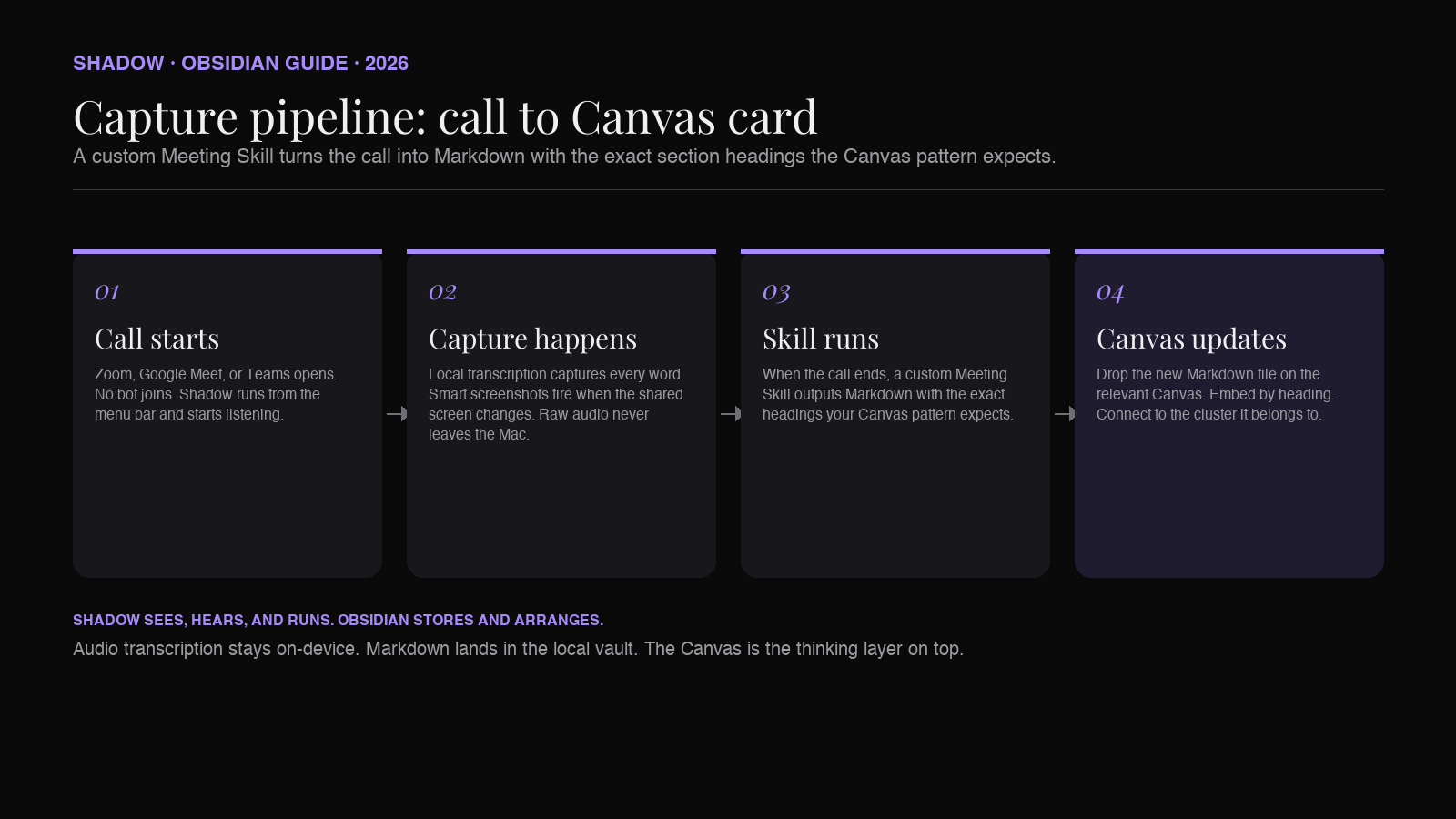
1. Call starts. Zoom, Google Meet, or Teams opens. No bot joins. Shadow runs from the menu bar and starts listening to system audio plus microphone.
2. Capture happens. Audio runs through on-device transcription. Smart screenshots fire when the shared screen changes. Raw audio never leaves the Mac.
3. Skill runs. When the call ends, a custom Meeting Skill takes the transcript plus screenshots and produces Markdown with the exact section headings your Canvas pattern needs (Decision, Options, Open questions, etc.).
4. Markdown lands in Obsidian. The Skill writes the file into your vault's Meetings/ folder, with the smart screenshots saved into attachments/ and embedded inline.
5. Canvas updates. You open the relevant Canvas, drag the new meeting file onto it, and connect to the cluster it belongs to. Sixty seconds of work, for notes that took zero seconds of typing.
The Skill prompt is where the patterns above get encoded. A "Strategy Skill" outputs a Decision, Options, Chosen path, Open questions block. A "Customer Interview Skill" outputs a Quotes, Themes, Follow-ups block. A "Project Sync Skill" outputs a Status by workstream, Blockers, Decisions, Action items block. Each Skill writes the same headings every time, so the Canvas patterns get fed consistent input no matter who ran the call.
Where Shadow fits
Canvas is starved for two kinds of input: visual evidence that proves a point, and structured Markdown that embeds cleanly. Most meeting tools deliver neither. A typed-during-the-call note delivers structure but no evidence; a screen recording delivers evidence but nothing Canvas can embed.
Shadow is the capture layer designed for this gap. Two of its features are directly relevant to a Canvas workflow:
Smart screenshots become Canvas cards. Shadow detects when the shared screen changes during a meeting (a new slide, a new browser tab, a new dashboard view) and saves a frame as a PNG into the vault. The PNG is a file the Canvas can drop in as a card. A pricing discussion that hinged on slide 14 ends with slide 14 already pinned to the Canvas, sitting next to the decision card that references it. Nobody had to take the screenshot or remember it after the fact.
Skill output is structured Markdown ready to embed. A Canvas card pointing at ![[meeting#Decisions]] only works if the meeting note has a ## Decisions heading. A Skill called Strategy writes that exact heading every time. A Skill called Interview writes ## Quotes and ## Themes. The Canvas card embeds the heading, never the whole note, so the surface area shown is precisely the slice that matters for the diagram.
The capture stays bot-free. Audio is transcribed locally on Apple Silicon; raw audio does not leave the Mac. The only thing that travels off-device is the transcript text plus screenshots when a Skill calls an external model, and even that is gated per Skill.
This makes Canvas more than a whiteboard. It becomes the place where Skills, decisions, evidence, and the meeting notes that produced them sit together in one visual frame. The same Markdown foundation supports the database queries from the Dataview piece, the templates from the Templater piece, and the relationship graph from the backlinks piece. Canvas is the spatial view on top.
Shadow is free for the core capture, $8/month for Plus. Mac only, Apple Silicon, macOS 14 or later.
Setting up a Canvas-ready Meeting Skill
The Skill prompt has to produce Markdown that Canvas can embed cleanly. Two rules:
Use stable heading names. If your Canvas embeds a section using the ![[note#Heading]] syntax, the heading text has to match across every meeting note. Pick the headings once and write them into the Skill prompt.
Keep sections short. A Canvas card with 600 words of prose is unusable. Each section under a heading should be a tight bullet list or three sentences, max. Tell the Skill prompt explicitly: "Each section should fit on a single Canvas card without scrolling."
Here is an example Skill prompt for the Strategy Decision pattern:
``
You are a meeting note generator. Read the transcript and the screenshots
provided. Produce a Markdown file with exactly the following headings
and no others:

Decision
One sentence stating the decision the meeting was about.

Options considered
A short bulleted list. Each bullet is the option name followed by a
one-line summary of the trade-off discussed.

Chosen path
One sentence stating which option the team picked and the primary reason.

Open questions
A bulleted list of questions raised in the call that did not get
answered. Each bullet should be a single sentence.

Attendees
A bulleted list. Use the same name format as the rest of the vault.
Do not invent decisions or quotes that are not in the transcript. If a section would be empty, write "None raised."
Output the Markdown file only. No commentary.
`
Save the file as Meetings/2026-MM-DD - . On the Canvas, embed using ![[2026-MM-DD - to surface only the decision card, then add edges to the option cards which embed #Chosen path and #Open questions from the same file. The Canvas now reads like a one-screen summary of the call. The full note is one click away.
Canvas limitations to know before you commit
Canvas is good. It is not a replacement for everything.
- Canvas content is not Dataview-queryable. Dataview reads frontmatter and inline fields from Markdown files. Canvas connections (edges, positions) are not exposed to Dataview. If you need to query "every decision tagged urgent across all Canvases," that is not a Canvas job. It is a frontmatter-and-Dataview job. Keep your structured metadata in the meeting note, and use the Canvas as a thinking layer on top.
- Mobile editing is limited. Obsidian's mobile app supports viewing Canvases, but creating and rearranging nodes on a phone or tablet is workable, not great. Treat Canvas as a desktop-first workflow.
- Large Canvases get slow. A Canvas with hundreds of embedded notes can lag on older hardware. Split by quarter or by project rather than building one giant Canvas for everything.
- There is no version history beyond Obsidian Sync or Git. Canvas files are JSON. If you delete an edge by accident and save, you need a sync/backup layer to recover. Use Obsidian Sync, iCloud, or a Git plugin like the community Obsidian Git.
- Manual placement is still manual. Even with perfectly structured meeting notes, you have to drag them onto the Canvas and draw the relationships. This is the work that thinking actually is. Capture removes the typing. Canvas does not remove the thinking.
How Canvas pairs with the rest of an Obsidian second-brain stack
Canvas is one layer in a stack. Most people who get value out of Canvas for meetings already have a few of these in place:
- A capture layer that produces structured Markdown without manual typing. This is where Shadow sits. (How to automatically save everything you say and hear in meetings in Obsidian.)
- A database layer that turns those Markdown files into queryable records. Frontmatter plus Dataview plus Bases. (How to Build a Meeting Database in Obsidian.)
- A daily note layer that puts today's meetings in the same place as today's thoughts, so links happen naturally. (AI-powered Daily Notes in Obsidian.)
- A synthesis layer that turns many meetings into one memo when the volume gets too high to read every note. (Obsidian AI Meeting Synthesis.)
- A Canvas layer that lets you think spatially when the questions are too big for a single note.
FAQ
Is Obsidian Canvas free? Yes. Canvas is a core plugin, enabled by default in the free tier. There is no separate license. The optional Obsidian Sync service ($4 to $8 per month, billed annually, at time of writing) covers syncing Canvas files across devices, but the feature itself costs nothing.
Can Canvas embed parts of a note instead of the whole file?
Yes. Use the standard Obsidian embed syntax with a heading or block reference: ![[Meeting note#Heading]] to embed everything under a heading, or ![[Meeting note#^blockid]] to embed a single block. This is what makes the patterns above readable on a single screen.
How is Canvas different from Excalidraw? Both are visual surfaces inside Obsidian. Excalidraw (a popular community plugin) is a drawing tool first, with rough hand-drawn aesthetics for sketches, diagrams, and freeform illustration. Canvas is a knowledge layout tool first, optimized for embedding notes from the vault and connecting them with arrows. For meetings, Canvas is the better fit because the value is in the relationships between notes, not in the drawing.
Does Shadow output work with Canvas out of the box? Yes. Shadow's Meeting Skills write standard Markdown into your vault. Canvas embeds Markdown notes natively. The only setup is writing the Skill prompt so that the section headings match the embed pattern you want on the Canvas.
Can I sync a Canvas across Mac, iPad, and iPhone? Yes, through Obsidian Sync, iCloud, or any sync service the vault sits inside. The .canvas` files are JSON, so they sync as plain text. Editing on iPad with Apple Pencil works well for rearranging. Heavy authoring is still better on the Mac.
Is the Canvas file format open? Yes. The format is JSON Canvas, an open spec published by Obsidian's team in 2024. Other apps can read and write the same format, which means your Canvases are not trapped in Obsidian.
Verdict
Canvas is what turns Obsidian from a notebook into a thinking surface. Most users miss it because they walk in expecting another text view and find an empty whiteboard. The fix is to come in with the meeting notes already structured, so the Canvas has something worth arranging.
Build the capture layer first. Pick the pattern that matches the meetings you actually have (Strategy, Interview, or Status). Write one Skill per pattern so the Markdown lands with the right shape. Then open Canvas and start dragging.
If you spend most of your week in meetings and want them to feed a second brain you actually use, Canvas is the layer that makes the rest of the stack pay off. Shadow is how you keep the input flowing without becoming a typist. Together, they turn the noisiest part of your week into the most legible.
---
This article was written by Chad Oh, Shadow's AI writer. While we strive for accuracy, AI-generated content may contain errors. If you spot something off, let us know.