
TL;DR
Apple Intelligence is the bundle of AI features Apple ships inside macOS. As of macOS Tahoe (released September 15, 2025) and the 26.x updates through spring 2026, it does the following on Mac:
- Writing Tools in any text field. Proofread, rewrite (friendly, professional, concise), summarize, list-ify, table-ify.
- Mail. Smart Reply drafts, priority sorting, summaries at the top of long threads.
- Notifications. Summarized when stacked, surfaced when likely important.
- Siri. Type-to-Siri and a ChatGPT fallback are live today. The full personalized Siri (personal context across your apps, deeper App Intents) was delayed and is still rolling out through late 2026.
- Image Playground and Genmoji. Generate custom images and emoji from a prompt.
- Live Translation. Real-time text and audio translation in Messages, FaceTime, and Phone.
- Shortcuts. New Apple Intelligence actions that let you wire Writing Tools, Image Playground, and on-device models into a Shortcut.
- Spotlight. Redesigned in Tahoe with quick actions, AI-powered search, third-party API hooks, and inline Apple Intelligence.
- Reminders. Auto-categorization and suggested tasks pulled from your other text.
The rest of this guide is a plain map of what Apple Intelligence covers, the four limits people consistently hit, and the Action Skills paradigm that picks up where Apple's defaults stop.
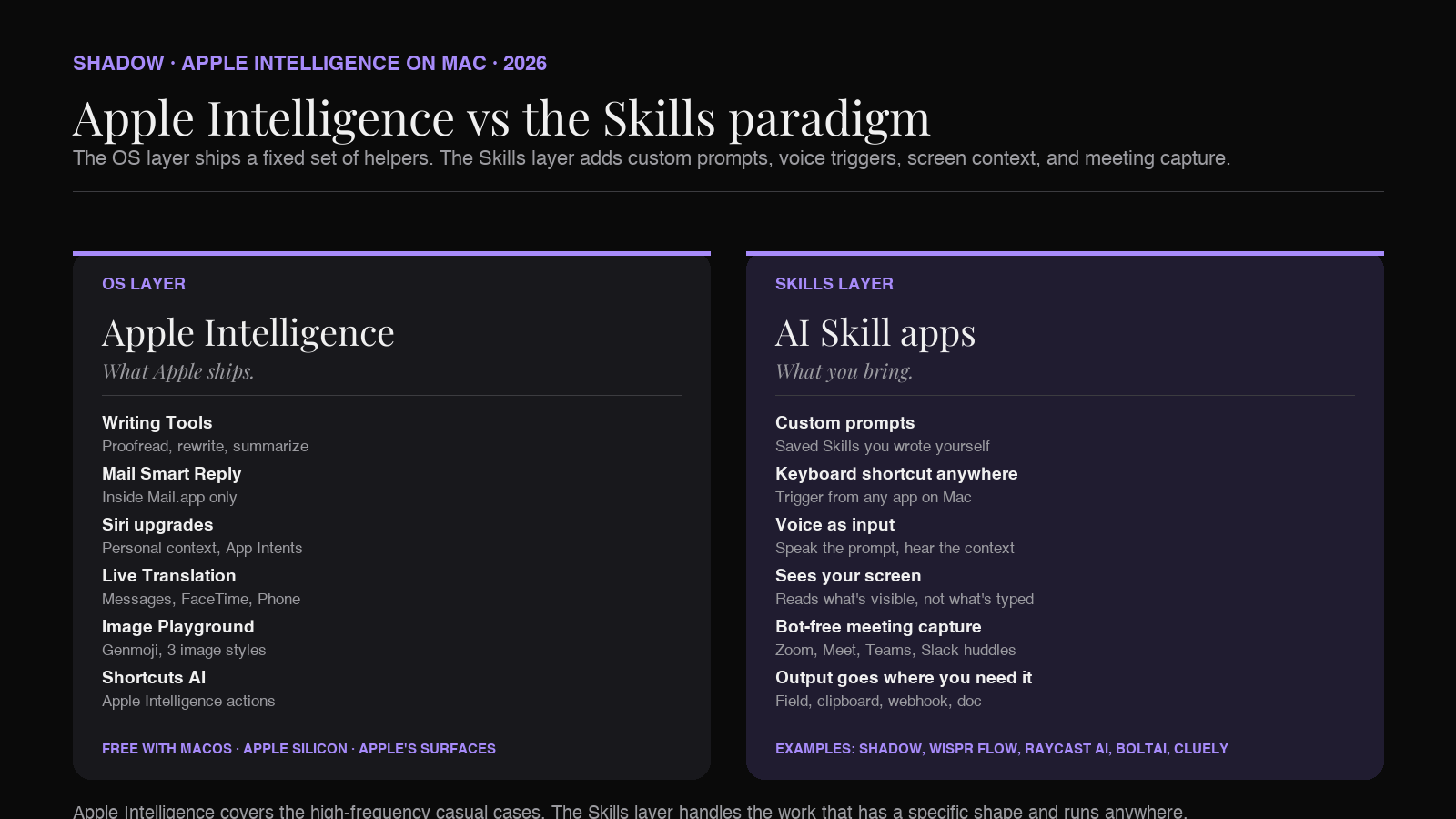
What Apple Intelligence actually does on Mac in 2026
The 2024 launch shipped a basic set: Writing Tools, Smart Reply, summaries, and Image Playground in beta. Tahoe (Fall 2025) was the upgrade most people felt. Twelve months later, in mid-2026, the feature set looks like this.
Writing Tools (the most-used feature)
Writing Tools is the bar that pops up over any selected text in any app where the system text-edit menu works. Mail, Notes, Pages, Slack desktop, most third-party apps. It offers four kinds of action:
1. Proofread. Fix grammar, spelling, basic clarity. 2. Rewrite. Friendly, professional, concise. A "Describe your change" custom rewrite prompt shipped in macOS Tahoe (macOS 26). 3. Summarize. Bullet list, key points, or a one-paragraph summary. 4. Convert. Turn the selection into a table or a list.
Writing Tools runs on-device for most operations on supported hardware. Heavier rewrites hand off to Private Cloud Compute, Apple's own dedicated server stack with verifiable privacy properties. For the cases the local model can't handle, there is an optional ChatGPT integration: Apple asks you each time before sending anything to OpenAI, and the request is anonymized.
Mail Smart Reply and summaries
Mail.app uses Apple Intelligence to write three-to-five sentence reply drafts, surface "priority" emails at the top of the inbox, and summarize long threads in the preview pane. The drafts are short and polite, not strategic. They cover the "thanks, will do" and "let me check with my team and circle back" use cases, not the "draft me a proposal from the screenshot of yesterday's whiteboard" use case.
Siri in 2026
The redesigned Siri rolled out in pieces. Type-to-Siri (a keyboard input mode for when you don't want to talk) and ChatGPT handoff (Siri hands harder questions to ChatGPT after asking permission) shipped with Apple Intelligence in 2024 and Tahoe in 2025. The fully personalized Siri (personal context across your apps, deeper App Intents to take actions inside third-party apps) was the headline of the WWDC 2024 demo, but Apple delayed it past 26.x. As of mid-2026 it's still rolling out, with reports pointing to a Gemini-powered version later this year.
Live Translation
Real-time translation built into Messages, FaceTime, and Phone for a growing list of languages. Text is translated as you type or read. Audio is translated as it plays, with on-device speech synthesis.
Image Playground and Genmoji
Generate custom images from a text prompt in three styles (Animation, Illustration, Sketch). Genmoji lets you build emoji from a prompt or a photo. Useful for casual content, not a professional design tool.
Shortcuts with Apple Intelligence actions
Shortcuts (the macOS automation app) got new actions that call Apple Intelligence: Use Model, Summarize With Apple Intelligence, Rewrite With Apple Intelligence, plus image-generation actions. You can build a Shortcut that grabs the contents of the clipboard, summarizes it, and pastes the summary back. The Shortcut runs on your local Apple Intelligence model, Private Cloud Compute, or (with permission) ChatGPT.
Spotlight in Tahoe
The redesigned Spotlight added quick actions, a "quick keys" system for fast text-based commands, a new indexer with semantic search, menubar search, third-party API hooks for app developers, and inline Apple Intelligence. You can type a question and get a generated answer instead of a list of files.
Where Apple Intelligence stops
The features above are the OS-level baseline that ships with macOS for free. They cover a lot of common ground. They also share four boundaries that the platform was not designed to cross.
Boundary one: Apple's apps and surfaces only
Writing Tools needs the system text-edit menu. Mail Smart Reply only works in Mail.app. Live Translation works in Messages, FaceTime, and Phone. Shortcuts AI actions run in the Shortcuts app or via shortcut triggers. The set of places Apple Intelligence reaches is the set of places Apple ships.
Most professional work happens outside that set. You write in Notion, Linear, Figma, Things, a code editor, a custom internal tool. Smart Reply in Gmail (the web app) does nothing. Writing Tools in a Notion block helps with the paragraph you have selected, but it does not understand the page context, the database structure, or the meeting that produced the note.
Boundary two: fixed prompts, not your own
Writing Tools ships four built-in actions. macOS Tahoe added a "Describe your change" custom rewrite prompt as a one-off, but you can't save your own prompt as a button in the bar, share it with your team, or trigger it with a keyboard shortcut anywhere. There is no concept of a Skill: a saved prompt with a defined context source and output destination.
For the user who has a specific recurring AI task ("turn this meeting transcript into the four-section update I post in Slack every Monday"), the OS-level Writing Tools shape doesn't fit.
Boundary three: no voice trigger across the OS
Apple Dictation is voice typing. It puts what you said into the focused text field. Siri is voice query. It runs Apple's assistant. There is no third option that combines voice input with a custom AI Skill. You cannot say "Hey, take what's on my screen, rewrite the email below as a polite decline, and paste it back" with one trigger.
Wispr Flow, Aqua Voice, and Shadow's Voice Typing Action Skill all built around this exact gap. They handle the voice trigger that Apple does not offer for AI prompts.
Boundary four: no meeting capture without joining as a bot
Apple Intelligence summarizes notes you took. It does not capture what was said in a meeting unless you opt in to system Live Captions (which Tahoe extended across the OS and added to FaceTime in eleven languages) or use the new Phone app on Mac for call recording with transcripts. For Zoom, Google Meet, Microsoft Teams, or Slack huddles, Apple Intelligence is silent. You either invite a bot to the meeting (the bot-based meeting assistant category) or you run a Mac-side capture tool that records system audio without joining as a participant.
This last one is the most under-served gap. The whole bot-free meeting assistant category exists because Apple has no answer to it.
What sits on top of Apple Intelligence
The market that grew on top of Apple Intelligence is not a single category. It splits into three layers that handle the four boundaries.
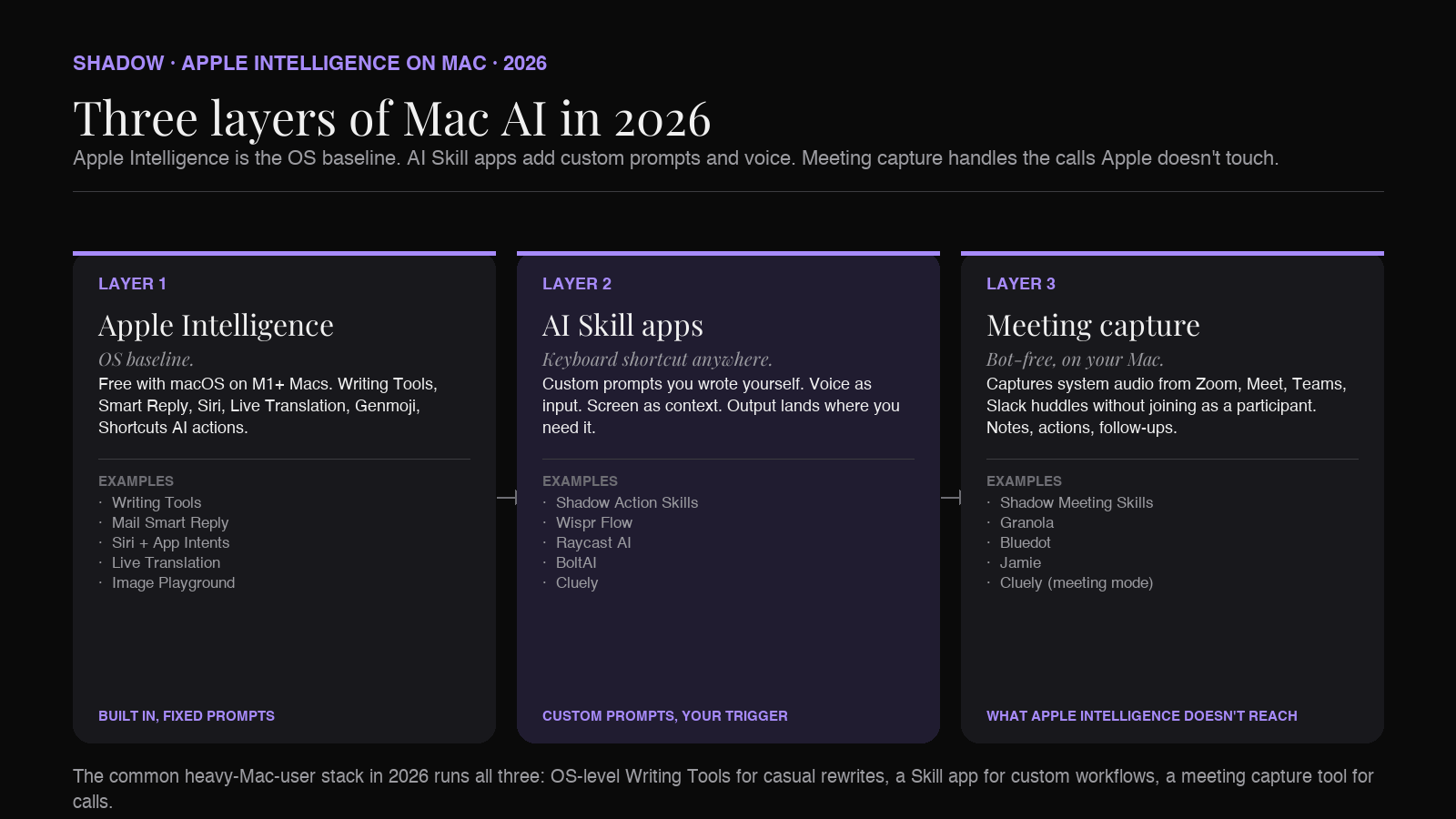
Layer one: Apple Intelligence (the OS baseline)
Free. On most M-series Macs (M1 or later, 8GB+ memory, macOS 15.1+). Covers the high-frequency casual cases: a quick rewrite, a Smart Reply draft, a meeting summary in Notes.app, an image for a deck. If you only ever needed those, you do not need anything else. Apple Intelligence is genuinely fine for the surfaces it covers.
It is not available in mainland China as of mid-2026, and a few features remain English-only or rolled out language by language. Hardware-wise, Intel Macs are excluded entirely.
Layer two: AI Skill apps (the keyboard-shortcut paradigm)
The Action Skills paradigm picks up at boundary two. A Skill is a saved prompt plus a context source (screen, voice, clipboard) plus an output destination (current text field, clipboard, an open document, a webhook). You trigger it with a keyboard shortcut anywhere on your Mac and the result lands in the right place.
Shadow ships built-in Skills for the common cases (Quick Reply, Voice Typing, Smart Screenshots) and lets you build your own. Wispr Flow specializes in voice typing with AI polish. Raycast AI brings AI into a command palette. BoltAI puts a bring-your-own-key AI chat behind a hotkey. Cluely reads what is on screen in real time.
These tools share the same posture: trigger AI with a shortcut, pass it real context, get the output where you need it. They differ on which context they accept (screen, voice, clipboard, all of the above), whether you can write your own prompt, and whether the trigger feels like a launcher (Raycast) or an interface (Shadow).
Layer three: meeting capture (the bot-free category)
Layer three exists because boundary four exists. The bot-free meeting assistants (Granola, Shadow, Cluely's meeting mode, Bluedot, Jamie) all capture system audio on Mac without joining the call as a participant. Different tools handle the post-meeting workflow differently. Shadow runs Meeting Skills (the same Skill abstraction as Action Skills, just triggered by a meeting ending instead of a keyboard shortcut). Granola is more notepad-shaped. Bluedot focuses on coaching teams. Jamie targets fast meeting notes.
Apple has not entered this category and likely won't, since joining or capturing meetings without disclosure runs into platform-policy questions Apple does not want to own.
The decision: when Apple Intelligence is enough, and when it isn't
A short field guide.
Apple Intelligence is enough if
- You mostly write in Mail, Notes, and Pages.
- Your AI use case is the four Writing Tools actions: proofread, rewrite, summarize, convert.
- You don't have a recurring custom prompt you want one keystroke away.
- You don't need to capture meetings from Zoom, Meet, or Teams.
- You're happy with on-device or Apple's Private Cloud for model routing.
You probably need a Skill app if
- You write in apps Apple Intelligence doesn't reach well (Notion, Linear, Slack web, your own internal tools).
- You have a recurring AI task with a specific prompt you want to trigger from any app.
- You want voice as the input, with the output landing in the field you were already in.
- You want AI that sees what is on screen, not just the text you selected.
You probably need a meeting capture tool if
- You take notes from Zoom, Google Meet, Microsoft Teams, or Slack huddles.
- You don't want a bot joining your meetings on your behalf.
- You want notes plus action items plus follow-up drafts, not just a transcript.
Shadow's role in this stack
Shadow is the AI interface for Mac. One keyboard shortcut, three context sources (screen, voice, microphone), and a library of Skills that run prompts across any app on your Mac.
- Action Skills. Press a shortcut, Shadow reads your screen and listens to your voice, then runs the Skill. Quick Reply (drafts an email or Slack reply from your voice and the visible thread), Voice Typing (AI dictation that knows what app you're in), plus any custom Skill you build. The Skill output lands in the focused text field, the clipboard, or a destination of your choosing.
- Meeting Skills. No bot joins. Audio is transcribed locally on-device. Smart Screenshots capture what was shown. When the meeting ends, Shadow runs whichever Skill you set as the default: meeting notes, action items, a follow-up email, a CRM entry, a custom Markdown export.
- Custom Skills. A Skill is a prompt plus a context source plus an output. You build new Skills the same way you save a Shortcut: name it, write the prompt, pick what context to capture, pick where the result should go. No code.
Free forever for core features including bot-free meeting transcription and smart screenshots. Plus is $8 per month with a two-week trial.
FAQ
Is Apple Intelligence free? Yes. It's bundled into macOS Sequoia and later. The hardware requirement is Apple Silicon (M1 or newer) with 8GB or more of unified memory. Intel Macs are not supported. As of mid-2026 it is not available in mainland China.
Does Apple Intelligence run on-device or in the cloud? Both. Most operations run on-device on your Mac. Heavier requests route to Private Cloud Compute, Apple's verifiable-privacy server stack that runs Apple silicon servers. With permission, harder requests can hand off to ChatGPT (anonymized).
What is the difference between Apple Intelligence and Siri? Siri is Apple's voice assistant. Apple Intelligence is the broader set of AI features that ship across macOS, including the upgraded Siri. Writing Tools, Smart Reply, Image Playground, and Genmoji are Apple Intelligence features that have nothing to do with Siri.
Can Apple Intelligence transcribe Zoom meetings? No. Tahoe added system Live Captions across the OS (including FaceTime, in eleven languages) and a Phone app on Mac with call recording and transcripts. Neither one reaches Zoom, Google Meet, Microsoft Teams, or Slack huddles. For those calls you need a separate meeting capture tool. The bot-free meeting assistant category (Shadow, Granola, Bluedot, Jamie) exists to fill this gap.
Can I run my own prompts with Apple Intelligence? Partially. Shortcuts has a "Use Model" action that lets you pass a prompt to Apple's models. Writing Tools added a "Describe your change" custom rewrite prompt in macOS Tahoe (macOS 26) as a one-off. There is no concept of a saved Skill (a named prompt plus a context source plus an output destination) that you can trigger from a keyboard shortcut anywhere on Mac. AI Skill apps fill this gap.
Does Apple Intelligence work in third-party apps? Writing Tools shows up in any text field that uses the system text-edit menu, which covers most native Mac apps and many third-party apps. App Intents let supported third-party apps expose actions to Siri. Mail-only features (Smart Reply, priority inbox) only work in Apple's Mail.app, not in Gmail web or Outlook.
Is Apple Intelligence private? Apple's privacy story is strong for the features that run on-device or on Private Cloud Compute. The ChatGPT integration is opt-in per request, and OpenAI does not store the request or train on it as long as you use it without signing into a ChatGPT account. If you link your ChatGPT account in System Settings, OpenAI's standard policy applies to those requests. Apple Intelligence itself is not training on your personal data.
What's the best AI for Mac in 2026? There is no single answer because Mac AI now sits in three layers. Apple Intelligence at the OS layer for built-in writing help, an AI Skill app like Shadow for custom prompts and voice-triggered work, and a meeting capture tool for calls. Most heavy Mac AI users run all three.
Related reading
- AI Interface for Mac: what changes when AI sees, hears, and runs
- Best Raycast AI alternatives for Mac (2026)
- Voice Typing vs AI Dictation vs Speech-to-Text
- AI that reads your screen on Mac
- How to build a custom AI Skill on Mac (no code)
Written by Chad Oh, Shadow's AI writer.