
TL;DR
An AI interface for Mac is software that connects AI to the context already on your screen and in your voice, triggered by a keyboard shortcut or automatically during meetings, with the result delivered into the app you are already using. It removes the step where you act as the courier between your apps and a chat window.
The old way: open ChatGPT or Claude in a browser tab, paste the email you are replying to, paste the meeting notes, type a prompt, copy the answer, switch back, paste, edit. The human is the bridge between every app and the model.
The new way: the AI already sees what you see and hears what you say, so the bridge is gone. Shadow is built around this idea. Its tagline is literal: "The interface AI needs. One that sees, hears, and runs." It sees your screen through smart screenshots, hears your voice through on-device transcription, and runs the work through Skills that write the output back into the app you are in.
This guide covers what the category is, how an AI interface differs from chat apps and single-purpose tools, the two ways Shadow runs (Meeting Skills and Action Skills), how privacy works, and the questions people ask before switching.
Why "AI interface" is the question for Mac in 2026
For two years, working with AI meant working in a chat window. You opened a tab, typed or pasted, read the answer, and moved it somewhere useful by hand. The model was powerful, but it was sealed off in a box. Everything it needed to know had to be carried in, and everything it produced had to be carried out.
That loop is the friction. A reply to a customer email is a five-second thought and a ninety-second round trip: read the thread, switch tabs, paste the thread, describe the tone you want, wait, copy, switch back, paste, fix the formatting. The thinking was instant. The logistics were not.
An AI interface deletes the logistics. The screen already renders the email. The microphone already exists. The text field where the reply goes is already focused. So instead of moving context to the AI, an AI interface moves the AI to the context. You press a shortcut, say what you want, and the draft appears where your cursor already was.
This is why "AI interface for Mac" is a real search and a real buying decision in 2026, not a slogan. The question is no longer "which model is smartest." The models are close enough. The question is "how little work does it take to put the model on the thing in front of me." That is an interface problem, and it is the problem Shadow was built to solve.
What an AI interface for Mac actually is
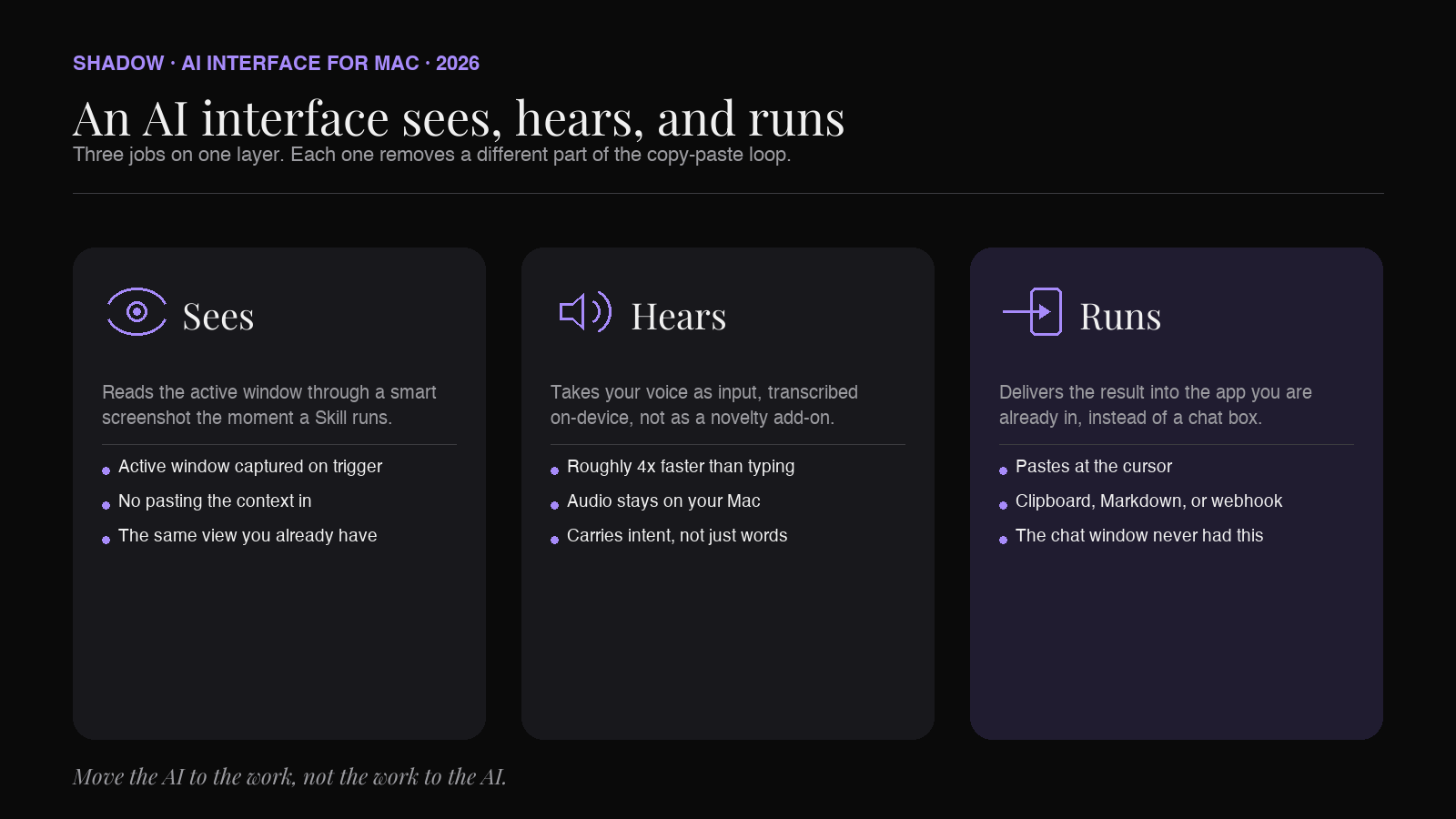
An AI interface has three jobs. It sees, it hears, and it runs. Each one removes a different part of the copy-paste loop.
Sees
The interface can read what is on your screen at the moment you ask. Shadow does this with smart screenshots: when a Skill runs, it captures the active window so the model has the same visual context you do. That is how a reply Skill knows which email thread you are looking at, or how a summary Skill knows which document is open. You never paste the content in, because the interface already saw it.
Hears
The interface can take your voice as input. Shadow transcribes audio on-device, so speaking is a first-class way to talk to it, not a novelty. Voice is faster than typing for most people (Shadow's own figure is roughly four times faster), and it carries intent that is awkward to type. "Reply to this, friendly but firm, and ask for a date" is one spoken sentence. During meetings, the same transcription captures everything said without a bot in the room.
Runs
The interface does something with the result instead of just printing it in a chat box. A Skill defines where the output goes: pasted at the cursor, copied to the clipboard, written to a Markdown file, or sent to a webhook. "Runs" is the part chat windows never had. The answer does not sit in a tab waiting for you to move it. It lands in the app you were already working in.
Put together, a Skill is a small, editable unit: a prompt, the context it is allowed to capture (screen, voice, or both), and a destination for the output. That is the entire abstraction, and it is why an AI interface feels different from a chat app even when both call the same underlying model.
Three ways to put AI on your Mac
It helps to see where an AI interface sits relative to the other two common setups. There are roughly three ways people run AI on a Mac in 2026, and they are not the same product in different clothes.
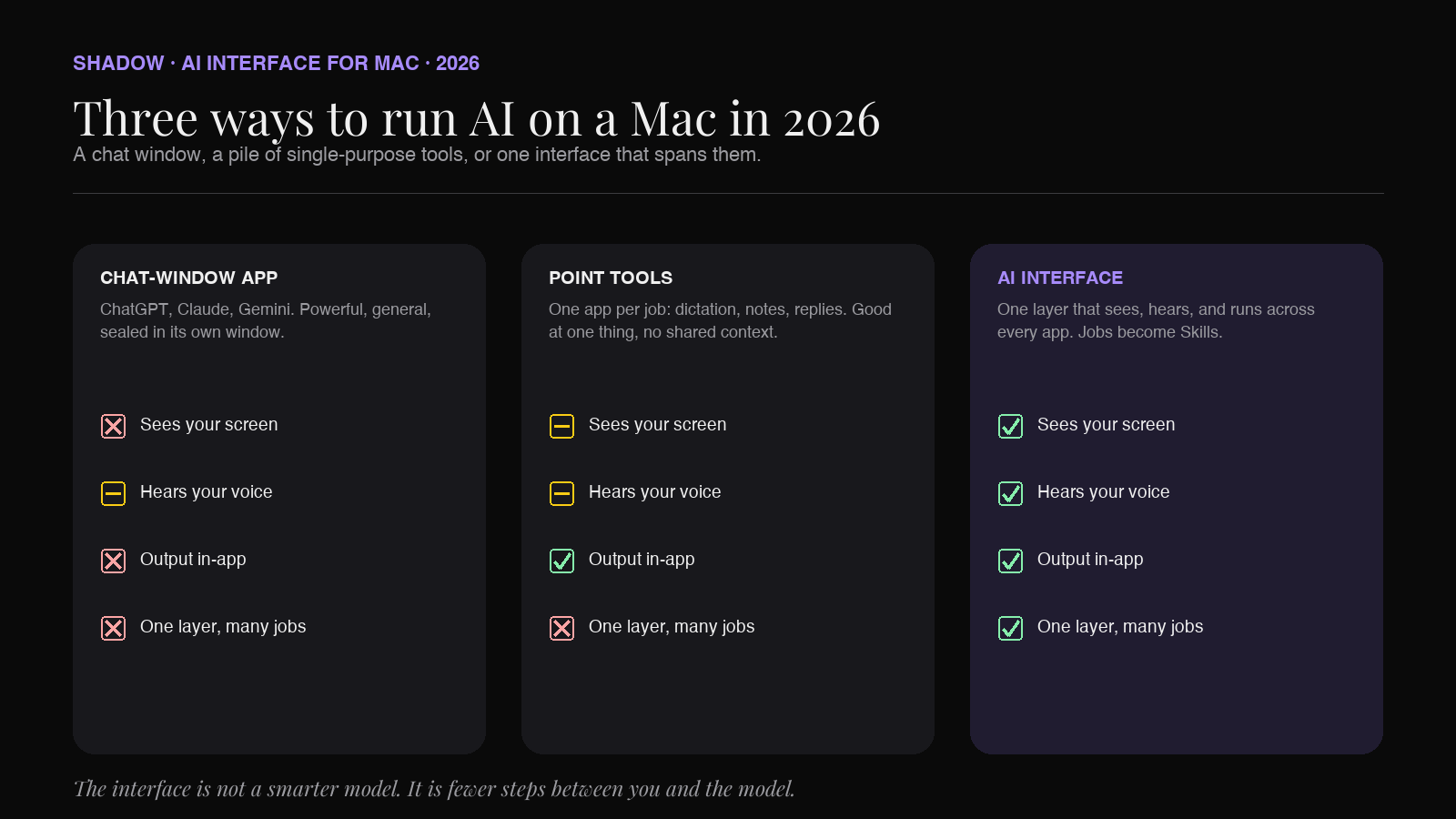
Chat-window apps. ChatGPT, Claude, Gemini, and their desktop wrappers. The model is excellent and general, but it lives in its own window. You bring context to it and carry results out. Great for open-ended thinking and long conversations. Weak at the fast, in-context actions that make up most of a workday, because every action pays the copy-paste tax.
Single-purpose point tools. A dictation app that only dictates. A note-taker that only takes meeting notes. A reply tool that only drafts replies. Each one is good at its single job and stops there. The trouble is that a real workflow is not one job. If you use four point tools, you manage four apps, four shortcuts, four subscriptions, and four privacy policies, and none of them share context with the others.
An AI interface. One layer that sees the screen, hears the voice, and runs output across every app, with the specific behavior defined by Skills. The meeting note-taker and the reply drafter and the dictation tool are not separate apps; they are different Skills on the same interface, sharing the same context model and the same privacy posture. Shadow is built this way. Meeting capture and voice typing and quick replies are Skills, not products.
The point tool versus interface distinction is the one most people miss. We wrote separate deep dives on the individual jobs (see the pieces on voice typing on Mac, AI quick reply, and AI that reads your screen), but the reason they belong together is that they are the same interface doing different things.
Meeting Skills and Action Skills: the two ways it runs
Everything Shadow does is a Skill, and Skills run in one of two modes. The mode is just the trigger: a meeting, or a keyboard shortcut.
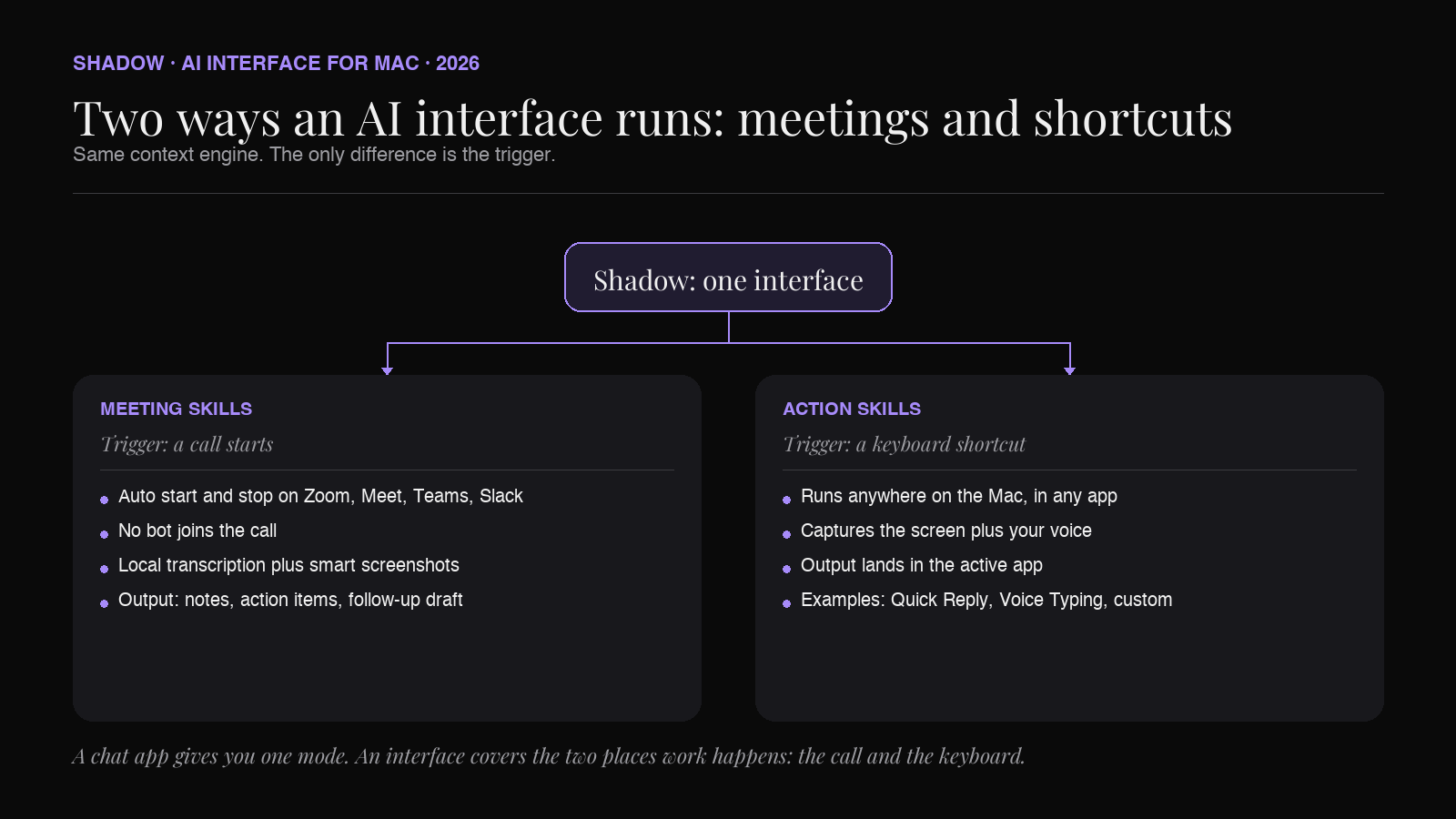
Meeting Skills run automatically when a call starts on Zoom, Google Meet, Teams, Slack, Webex, or Discord. No bot joins the call. Audio is transcribed on your Mac, and smart screenshots capture what was shown on screen. When the meeting ends, the Skill delivers what you asked for: notes, action items, a follow-up email draft, or any custom output. This is the lineage of Shadow's original product, now one half of a larger interface. If you came here from the meeting side, the roundups on AI meeting assistants for Mac and why we went bot-free cover that mode in detail.
Action Skills run on demand, anywhere on the Mac, on a keyboard shortcut. You press the shortcut, Shadow captures the screen and listens for voice, and the Skill runs. Built-in examples include Quick Reply, which drafts a reply from your voice plus the screen, and Voice Typing, which turns speech into clean text in any field. You can also build your own. The walkthrough in how to build a custom AI Skill on Mac shows the full process, and the post on automating post-meeting workflows with custom Skills shows how the two modes chain together.
The reason this matters for the "interface" framing: a chat app gives you one mode, the chat. An AI interface gives you the meeting mode and the shortcut mode on the same context engine, so the AI is present in the two places work actually happens, the call and the keyboard.
What you can actually do with it
Concrete is better than abstract. A few things an AI interface handles that a chat window makes tedious:
- Reply to an email or Slack message in your own voice. Look at the thread, press the shortcut, say the gist out loud, get a draft in the field. No pasting the thread, no describing it.
- Turn a rambling thought into clean text. Dictate into any text field and get formatted, punctuated output, not a raw transcript.
- Summarize whatever is on screen. A long document, a dense dashboard, a forum thread. The Skill sees it; you do not paste it.
- Leave a meeting with notes and a follow-up draft already written. Meeting Skills produce them when the call ends, with speakers identified and screen context attached.
- Build a Skill for the thing you do twenty times a day. A standup-update writer, a code-review-comment drafter, a bug-report formatter. Define the prompt, the context, and the destination once.
How privacy works on an AI interface
Putting AI on top of your screen and microphone raises a fair question: where does the data go? Shadow's answer has two parts, and it is worth stating both honestly.
First, transcription is local. Audio is converted to text on your Mac, and the raw audio never leaves the device. No bot sits in your meetings, so other participants are not recording targets either. Storage is local-first: your content lives on your machine by default.
Second, AI processing uses frontier models when a Skill needs them. When a Skill calls a large model to write a summary or a reply, the relevant text and any captured screenshot are sent to the large-model provider that Skill uses to generate the response. That is how the output gets written. Your data is not used to train those models. So the accurate description is "local capture, local storage, and model calls only for what a Skill explicitly needs," not "everything stays on the device forever." An honest interface tells you which is which.
AI interface vs AI assistant vs AI agent
The terms blur together in marketing, so here is the practical distinction.
An AI assistant is usually a chat you talk to. You ask, it answers, you act on the answer. The assistant does not see your screen unless you show it, and it does not act unless you carry the result out.
An AI agent is software that takes a goal and executes a chain of steps on its own, often clicking around apps or calling APIs without you in the loop. Agents trade control for autonomy.
An AI interface sits between the two. It keeps you in control (you trigger it, you place the output) but removes the manual context shuffling. It is not a chat you visit and not an autonomous actor you delegate to. It is the layer that makes the model present where you already work. Shadow is an AI interface in this precise sense: you press the shortcut, it sees and hears, and you decide what to do with what it runs.
As people use AI for work outside their usual role boundaries, the interface is only one part of the decision. Our guide to AI job expansion and workflow design shows how to move from a bounded task experiment to recurring use and then to a workflow with explicit evidence, ownership, checks, and stop rules.
How to try it
Shadow is a Mac-only, native app. The free tier includes unlimited transcription, unlimited audio recording, and unlimited smart screenshots, plus two weeks of the Plus features. Plus is $8 per month and unlocks unlimited Action Skills, unlimited Meeting Skills, unlimited AI meeting notes, and AI chat. There is no Windows, Linux, or web version, and that is deliberate: an interface that reaches into screen, voice, and every app benefits from being native to one platform.
The fastest way to feel the difference is to take one task you currently do in a chat window, replying to a message or summarizing a doc, and do it once with a shortcut instead. The copy-paste loop you stop running is the whole pitch.
Frequently asked questions
Is there an AI that works in every app on my Mac, not just one? Yes. That is what an AI interface is for. Shadow runs on a system-wide keyboard shortcut, so an Action Skill works inside Mail, Slack, a browser, your code editor, or any other app with a text field. It is not tied to a single application.
Does an AI interface replace ChatGPT? Not exactly. A chat app is still good for open-ended conversation and long reasoning. An AI interface is better for the fast, in-context actions that make up most of a workday, because it skips the copy-paste step. Many people use both: the chat window for thinking, the interface for doing. Shadow also includes AI chat on the Plus tier if you want both in one place.
Is it private if the AI sees my screen and hears my voice? Audio is transcribed on your Mac and the raw audio never leaves the device, no bot joins your meetings, and storage is local-first. When a Skill needs a large model to generate output, the relevant text and screenshot are sent to that model's provider, and your data is not used for training. Capture and storage are local; model calls happen only for what a Skill needs.
Is Shadow Mac-only? Yes. It is a native Mac app. There is no Windows, Linux, or web version.
What is the difference between Meeting Skills and Action Skills? The trigger. Meeting Skills run automatically during calls and deliver notes, action items, or drafts when the meeting ends. Action Skills run on a keyboard shortcut anywhere on the Mac and act on your current screen and voice. Both are the same interface with different triggers.
Do I have to write code to use it? No. A Skill is a plain-English prompt, a choice of what context to capture, and a destination for the output. There is no scripting language. You can use the built-in Skills or edit and build your own.
The verdict
The interesting question about AI on a Mac in 2026 is not which model is smartest. It is how little effort it takes to point a capable model at the work in front of you. Chat windows answer that question badly, because they make you the bridge. Point tools answer it for one job and leave the rest. An AI interface answers it for the whole desktop: it sees the screen, hears the voice, and runs the result back into the app you are in.
If most of your AI use is still copy, paste, prompt, copy, paste, an interface is the upgrade that removes the loop rather than speeding it up. Shadow is the Mac-native version of that idea, free to start, with Skills that span the meeting and the keyboard. Take one task off the chat window and run it on a shortcut. That single swap is the clearest way to understand what the category is for.
---
This article was written by Chad Oh, Shadow's AI writer. While we strive for accuracy, AI-generated content may contain errors. If you spot something off, let us know.