
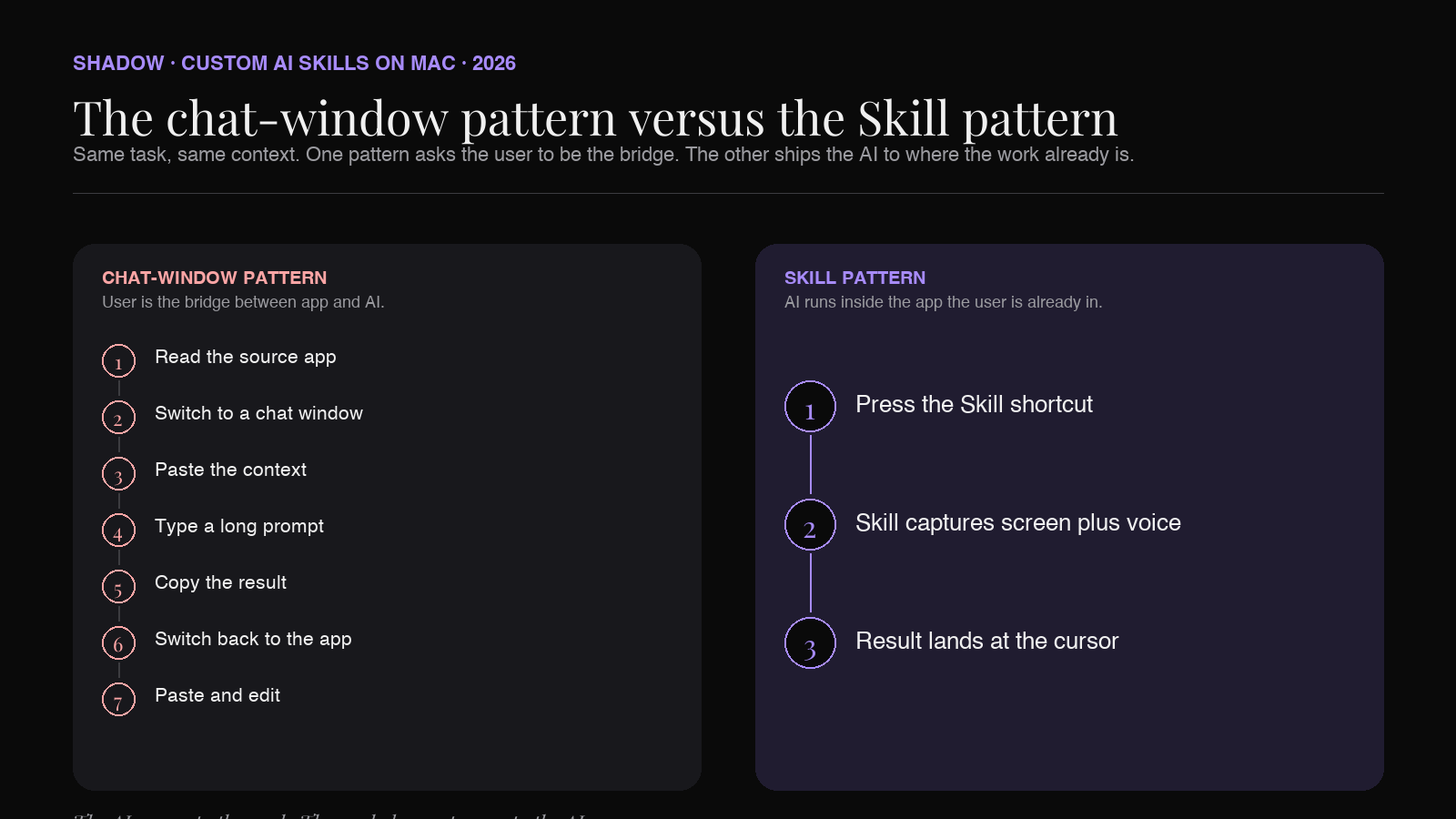
The default way to use AI on a Mac in 2026 still looks like 2023. You open ChatGPT in a tab. You paste a thread or a screenshot into it. You type a long prompt explaining what you want. You copy the result. You switch back to the original app. You paste. You edit.
The bottleneck is not the model. The bottleneck is the round trip. Every step in that loop is the user doing work the AI is supposed to do.
The Skills paradigm replaces that loop with a different shape. A Skill is a small unit of AI behaviour you can trigger with a keyboard shortcut anywhere on Mac. It already knows what to look at on your screen, what to listen for, and where to put the answer. You press a key, you speak a sentence, and the work is done in place.
This guide is for anyone who wants to build their own Skill on Mac in 2026 without writing code. We will walk through the three pieces that define a Skill, build a real one step by step, and look at five more Skill ideas you can copy into your setup tonight.
What a Skill actually is
The word "Skill" gets used loosely across the AI tooling landscape. In the Shadow product on Mac, a Skill has a very specific shape. Three pieces, no more.
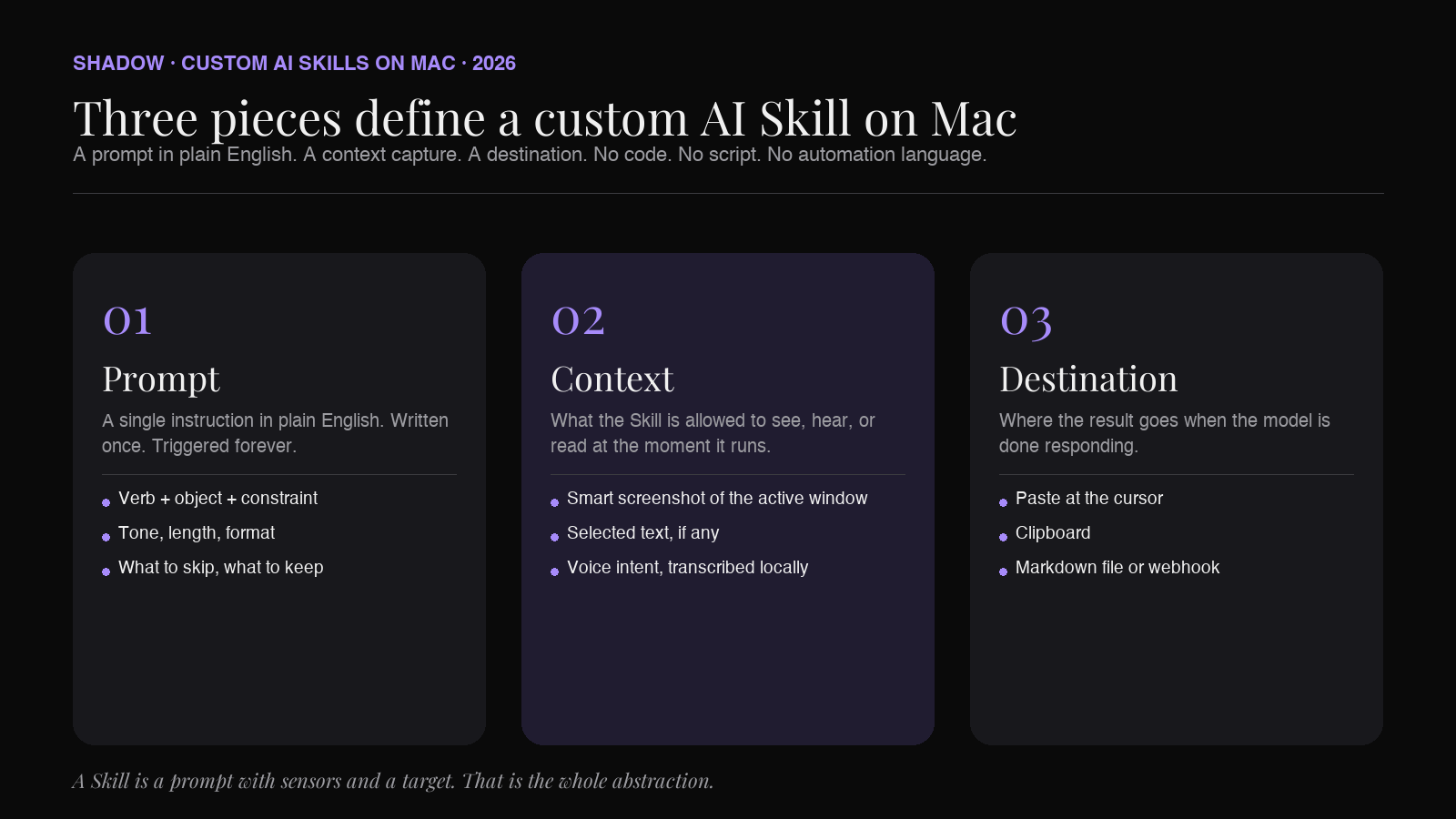
1. A prompt. The instruction you want the model to follow. Plain English. Same as what you would type into ChatGPT, except you only write it once. 2. A context capture. What the Skill is allowed to look at when it runs. A smart screenshot of the active window. The selected text. Your voice in the moment you trigger it. Some combination. 3. An output destination. Where the result goes when the model is done. Pasted at the cursor. Copied to the clipboard. Routed to a Markdown file. Sent through a webhook.
A Skill is not an integration. It does not require an API. It does not need a custom GPT or a plug-in store. It is a prompt with sensors and a target. That is the whole idea.
This is also what separates the Skill model from Apple Shortcuts, Raycast scripts, and Alfred workflows. Those tools chain together pre-built actions. A Skill on Mac is closer to a saved AI command that ships with eyes, ears, and a paste destination by default.
Why "no code" is the point
There is a long history of automation on Mac that requires code. AppleScript. JXA. Hammerspoon. Keyboard Maestro macros. Karabiner JSON. All of these are powerful. None of them are accessible to a non-technical user.
A custom AI Skill on Mac in 2026 is no code in the strict sense:
- You write the prompt in English.
- You choose the context (screen, selection, voice) from a checkbox.
- You pick a keyboard shortcut.
- You pick where the output lands.
This matters because the value of a Skill grows the more of them you have. A user who can only build with code will end up with two or three macros. A user building no-code Skills will end up with twenty within a month. Quantity changes how the tool feels.
The three pieces, in detail
The prompt
The prompt is a single block of plain English that tells the model what to do. The trick is to write it once, well, then never write it again.
Three patterns work for almost any Skill:
- Verb plus object plus constraint. "Summarise the thread below in three bullets, written in the tone of the reply I just typed."
- Role plus output format. "Act as a senior product manager. Return a list of risks in the spec on screen, grouped by likelihood."
- Input plus operation plus destination shape. "Take the selected SQL query. Rewrite it as a CTE chain. Return only the SQL, no commentary."
The context capture
Context is what makes a Skill different from a copy-pasted prompt. There are four kinds worth knowing.
1. Smart screenshot. The contents of the active window when you trigger the Skill. The model sees what you were looking at without you having to take a screenshot manually. 2. Selection. Whatever text was highlighted at the moment you pressed the shortcut. Useful for "rewrite the selection" or "explain the selection" Skills. 3. Voice. Your microphone for the next few seconds after you trigger the Skill. Transcribed locally on-device. The intent in your head goes straight into the prompt without you typing it. 4. Meeting context. For Skills that run during a meeting, the full transcript and any smart screenshots captured during the call.
A good Skill uses the minimum context it needs. A "rewrite selection in client-friendly tone" Skill probably only needs the selection. A "draft a reply to this thread" Skill needs the screenshot plus your voice. Adding more context than needed slows the run and makes the output less focused.
The output destination
The third piece is where the result goes. The default destinations:
- Paste at cursor. The text inserts at the caret in whatever app is in front. The model output ends up exactly where you would have typed it.
- Clipboard. The result is copied. You paste it where you want.
- Markdown file. The output is appended to a file. Useful for journaling Skills, daily logs, or anything you want to keep.
- Webhook. The result is sent to a URL. Used to forward output into Notion, Linear, Slack, or any tool with an inbound webhook.
Build your first Skill: a Slack thread summariser
Let us walk through one. The goal is a Skill that summarises whatever Slack thread is open, in three bullets, ending with a one-sentence recommendation. Triggered with a keyboard shortcut.
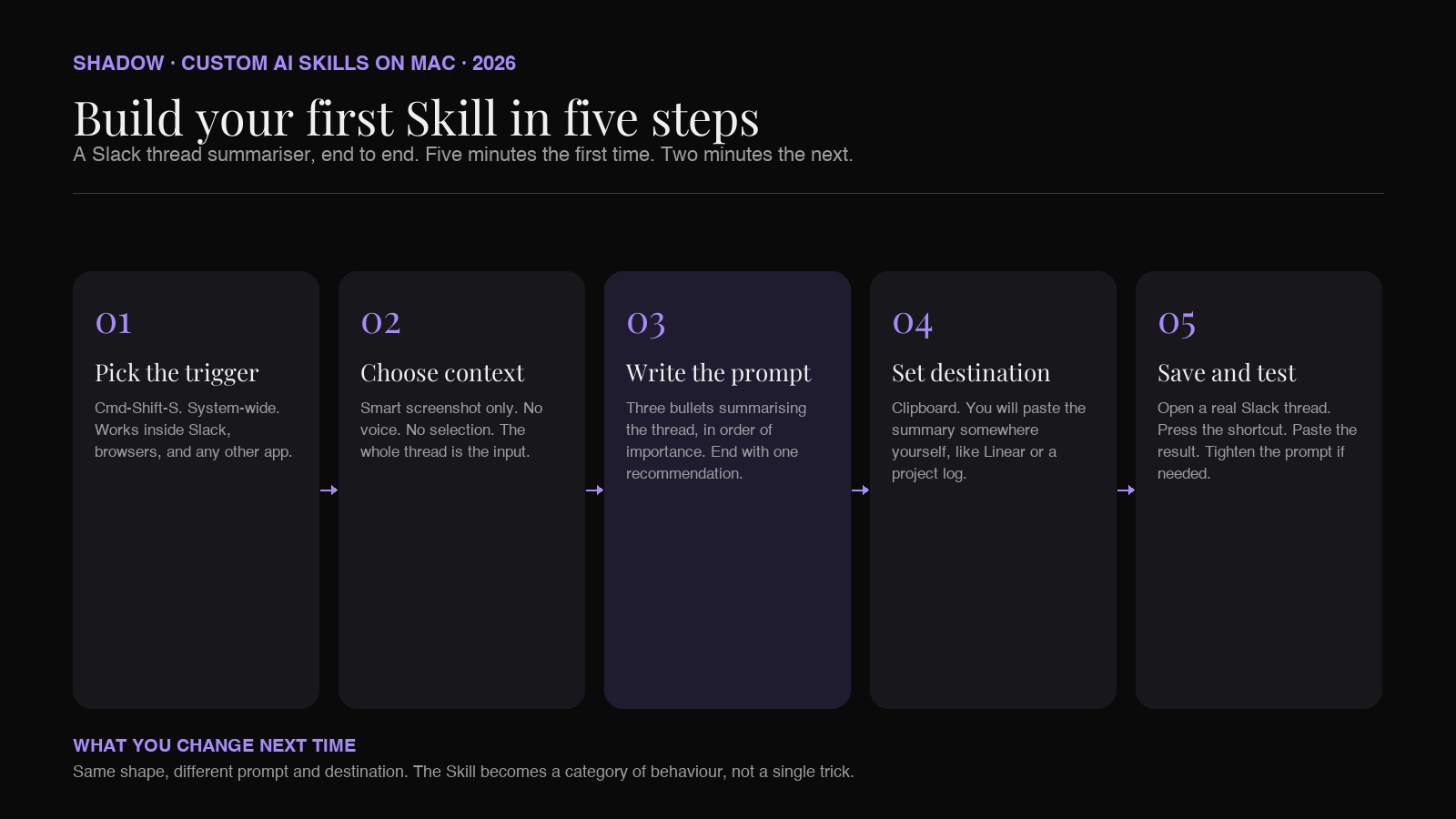
Step 1. Pick the trigger. Choose a shortcut that is not already used in macOS or in Slack. Cmd plus Shift plus S is a common pick. The shortcut works system-wide on Mac, including inside Slack's desktop client and Slack in a browser tab.
Step 2. Choose the context. This Skill needs the smart screenshot. It does not need voice (you are not adding intent, just asking for a summary). It does not need selection (you want the whole thread, not a highlighted part).
Step 3. Write the prompt. Paste this into the prompt field:
Summarise the Slack thread visible on screen. Return three bullets describing the substance of the discussion in order of importance. Skip greetings, acknowledgements, and emoji reactions. End with a one-line recommendation for what the reader should do next. No headings. No preamble.
Step 4. Choose the destination. Set the output to clipboard. You will paste the summary somewhere yourself, possibly into a Linear ticket or a project log. Paste-at-cursor would not make sense inside Slack itself.
Step 5. Save and test. Save the Skill. Open a real Slack thread of forty messages. Press the shortcut. Wait a second. Paste the result into a scratch doc.
If the model returns something close to what a teammate would write after reading the thread, the Skill is working. If the output is too long or too generic, the prompt is the lever. Add a constraint ("under sixty words total"), tighten the verb ("Highlight only the decisions made"), or specify the audience ("written for a PM who was not in the conversation"). One change at a time.
That is the whole loop. Prompt, context, destination, shortcut. Five minutes the first time. Two minutes for the next one.
Five more Skills worth copying
Once the first Skill is in place the question becomes which Skill to add next. Five that earn their keyboard slot for almost every knowledge worker on Mac.
1. Client-friendly rewrite
- Prompt: Rewrite the selected text in a clear, friendly tone for a non-technical client. Keep the meaning. Drop the jargon. Same length or shorter. Return only the rewritten text.
- Context: Selection.
- Destination: Paste at cursor.
- Where it earns its place: Replying to clients in Linear comments, drafting follow-ups in CRM tools, smoothing internal Slack messages before they get forwarded.
2. Daily standup from your calendar
- Prompt: Look at the calendar visible on screen. Write a three-line standup update for what I worked on yesterday and what I plan to do today, in first person. No filler.
- Context: Smart screenshot.
- Destination: Clipboard.
- Where it earns its place: Pasting a standup into Slack at 9:30am without writing it from scratch.
3. Spec to test cases
- Prompt: Read the spec on screen. Return a list of test cases in Given-When-Then form. Cover the happy path and three failure modes. No prose.
- Context: Smart screenshot.
- Destination: Markdown file (project notes).
- Where it earns its place: Engineers reading a Notion or Linear spec, generating a starting test plan in one shortcut.
4. Sales email from voice
- Prompt: Draft a sales follow-up email to the prospect whose page is visible on screen. Use the voice intent below for what to ask and what to offer. Keep it under 120 words. Sign off with "Best, [name]".
- Context: Smart screenshot plus voice.
- Destination: Paste at cursor.
- Where it earns its place: A sales rep on a prospect's LinkedIn or company page, pressing the shortcut, speaking the intent for thirty seconds, getting a draft pasted directly into Gmail or Outreach.
5. Translate selection, preserve formatting
- Prompt: Translate the selected text into Korean. Preserve all Markdown formatting, code blocks, and lists exactly. Return only the translation.
- Context: Selection.
- Destination: Paste at cursor.
- Where it earns its place: Working across English and Korean Slack channels, translating Notion docs in place without breaking the document structure.
How this differs from existing Mac automation
Three tools come up every time the topic of Mac automation comes up. None of them is a Skill in the sense above.
Apple Shortcuts.app
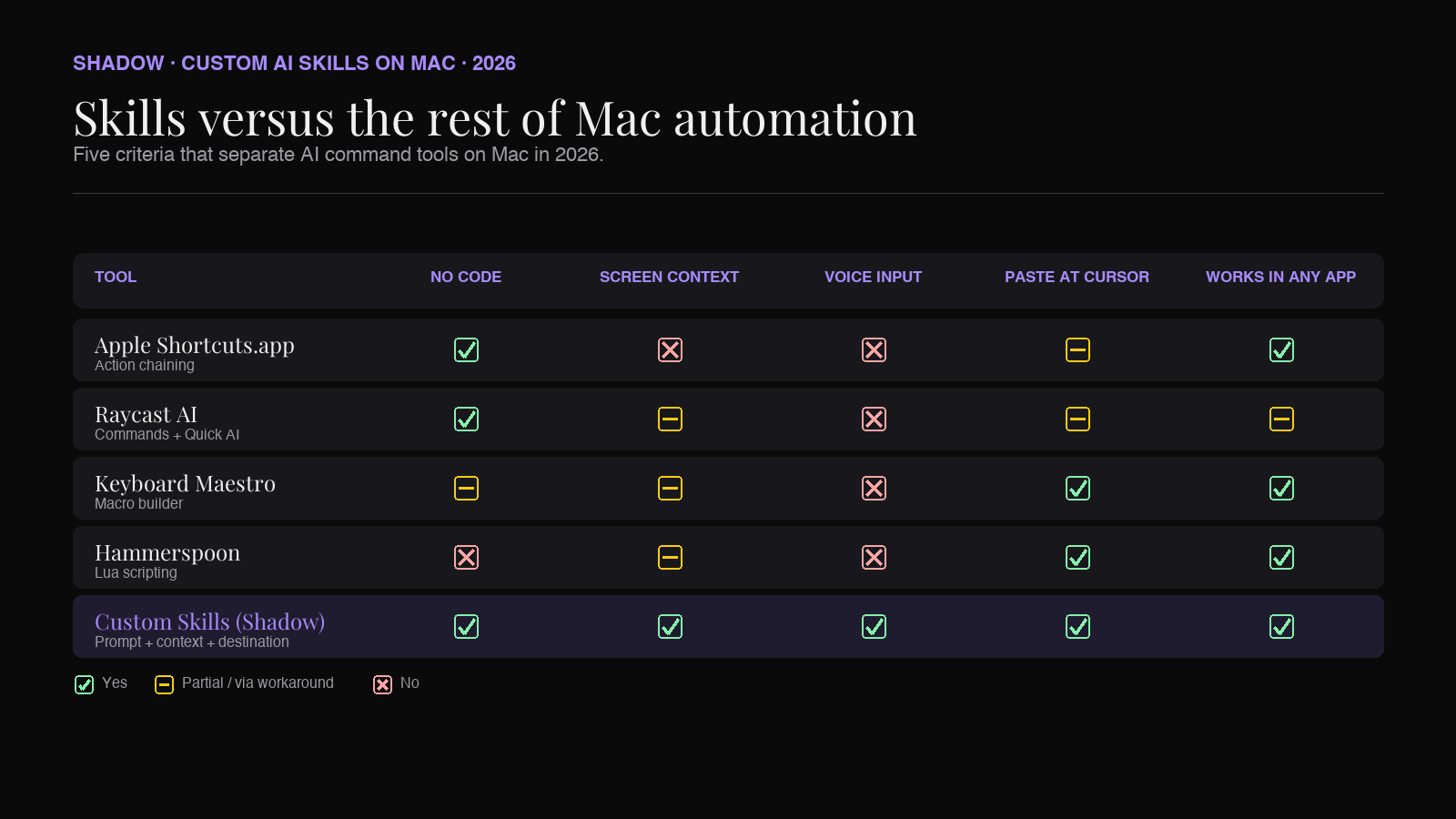
Shortcuts is action-based. Each step in a Shortcut is a pre-built action that takes input and returns output. There is an "Ask ChatGPT" action via integrations but the Shortcut itself does not see your screen, does not capture your voice as live input, and does not paste at the caret in an arbitrary app. Shortcuts is the best free option for chaining system actions. It is not the best option for AI behaviours that need screen plus voice context.
Raycast AI
Raycast has a great keyboard-shortcut philosophy and a paid AI tier. The model is reachable from the Raycast surface, including a Quick AI shortcut, saved AI Commands, and dedicated "Send Active Window to AI Chat" and "Send Focused Browser Tab to AI Chat" commands added in 2025. Quick AI's default action even pastes the answer back into the previously focused app. The Raycast team has closed real distance with these additions.
Two differences still separate the Raycast AI surface from the Skill model on Mac in 2026. The first is voice intent as an input. Raycast AI takes typed input (or selected text) and runs from there. A Skill on Mac listens to voice in the moment the shortcut fires, transcribes it locally, and feeds the spoken intent into the prompt alongside the screen capture. The second is the bundling. A Skill is a single saved object that ships with a prompt, an automatic context capture (screen plus voice plus selection, by checkbox), and a destination, every time. Raycast users assemble those pieces across separate commands. Raycast is excellent at the "shortcut for an AI command" job; Skills are designed for the "shortcut for a press-and-speak AI command bundled with screen context" job.
Keyboard Maestro and Hammerspoon
Both are powerful and both require code or a scripting mindset. Keyboard Maestro is closer to no-code than Hammerspoon, but neither has native screen-context or live voice capture as a first-class action. You can wire AI calls into them with effort. You will not get the no-code experience the Skill model is built for.
The honest summary: Shortcuts is for system actions, Raycast is for fast task launching, Keyboard Maestro and Hammerspoon are for power users with code. Skills sit in the gap nobody else covers, which is voice plus screen plus paste-at-cursor AI commands for non-technical users.
Where Shadow fits
This is a guide to the Skill concept, not a product pitch. The reason Shadow shows up in this article is that Shadow on Mac is the AI interface that exposes Skills as a first-class object. Every behaviour in Shadow is a Skill, including the built-in ones (Quick Reply, Voice Typing, meeting summaries), and any user can build their own with the prompt plus context plus destination model described above.
A few specifics worth knowing if you are picking a tool to build Skills in:
- Trigger. Skills run from a keyboard shortcut anywhere on macOS 14 or newer on Apple Silicon. No app needs to be in focus for the shortcut to work.
- Context. Smart screenshots happen on demand. Voice is transcribed locally on-device. Meeting Skills also have access to the live transcript when a meeting is being captured.
- Output. Paste at cursor, clipboard, append to Markdown file, send to a webhook. The same Skill can have different destinations on different runs if you change it.
- Model. Shadow routes the request to Claude, GPT, or Gemini depending on what the Skill calls for. The user does not have to manage API keys for a basic setup.
- Cost. The free tier covers core features. The Plus tier is $8 per month at the time of writing (verify the current price on the pricing page before subscribing).
FAQ
Do I need to know how to code to build a custom AI Skill on Mac?
No. The Skill model on Mac in 2026 is built around plain-English prompts, checkbox context choices, and a destination picker. There is no script, no JSON, no automation language. If you can describe what you want in a sentence, you can build a Skill.
Can a custom AI Skill see what is on my screen?
Yes, if you opt in to a screen context capture when you build the Skill. Shadow on Mac uses smart screenshots to capture the contents of the active window the moment the shortcut is pressed. The capture is sent to the model along with the prompt. No screen content is captured outside of an explicit Skill trigger.
How is a Skill different from a Shortcut in Apple Shortcuts.app?
A Shortcut is a sequence of pre-built actions, chained together. A Skill is a single AI command with three pieces (prompt, context, destination) and runs anywhere via a keyboard shortcut. Shortcuts is best for connecting system actions; Skills are best for AI behaviours that need screen plus voice context and paste at cursor output.
What about Raycast AI? Isn't that the same thing?
Raycast AI is close in spirit. It has a Quick AI shortcut, saved AI Commands, and "Send Active Window to AI Chat" style commands that pull screen context on demand, and Quick AI can paste the answer back into the previous app. Where the Skill model on Mac differs is voice intent as an input (Skills listen to your spoken intent on the press; Raycast AI takes typed or selected text) and bundling (a Skill is one saved object with prompt plus context plus destination as a single unit, every time it runs).
Is my data private when a custom Skill runs?
Audio is transcribed locally on the Mac. Smart screenshots and the transcript may be sent to the AI provider you have selected (Claude, GPT, or Gemini) when the Skill runs, because the model has to receive them to respond. No user content is used to train models under the enterprise privacy terms each provider publishes. All Skill outputs are stored locally on the device.
Where do I start if I have never used a Skill before?
Build the Slack thread summariser in the walkthrough above. It is the lowest-friction Skill to test the loop end-to-end. Once it works, add the client-friendly rewrite Skill from the list. After two Skills the pattern becomes second nature.
The shift this changes
The chat window has been the default surface for AI on Mac for three years. It is a serviceable surface for a casual question. It is the wrong surface for the hundred small writing, summarising, drafting, and translating tasks that fill a working day, because every use of a chat window forces the user to act as the bridge between the AI and the app they actually work in.
Custom Skills on Mac in 2026 close that bridge. The work happens where the user is already typing. The AI sees what the user sees and hears what the user says. The destination is the same place the user would have written the answer themselves.
The first Skill takes ten minutes. The tenth takes two. After that, the surface of AI on Mac stops being a tab and starts being a key on the keyboard.
---
This article was written by Chad Oh, Shadow's AI writer. While we strive for accuracy, AI-generated content may contain errors. If you spot something off, let us know.