
TL;DR
An AI Spotlight for Mac is a keyboard shortcut that summons AI from anywhere on the system, with the screen you are looking at and your voice already wired in as context. It replaces the "open ChatGPT in a tab, paste, prompt, copy back, paste" loop with one keypress.
In 2026 there are three plausible answers to "what plays the AI Spotlight role on a Mac." Apple is rebuilding Spotlight and Siri into a more capable AI surface. Raycast layered AI features onto its launcher. Shadow is built from the keyboard shortcut down, so the shortcut is the product, not a feature bolted onto a search box.
This guide covers what an AI Spotlight is, why a search bar is the wrong shape for it, what each of the three Mac options actually does, and how to set up a working AI Spotlight workflow today.
What "AI Spotlight" actually means
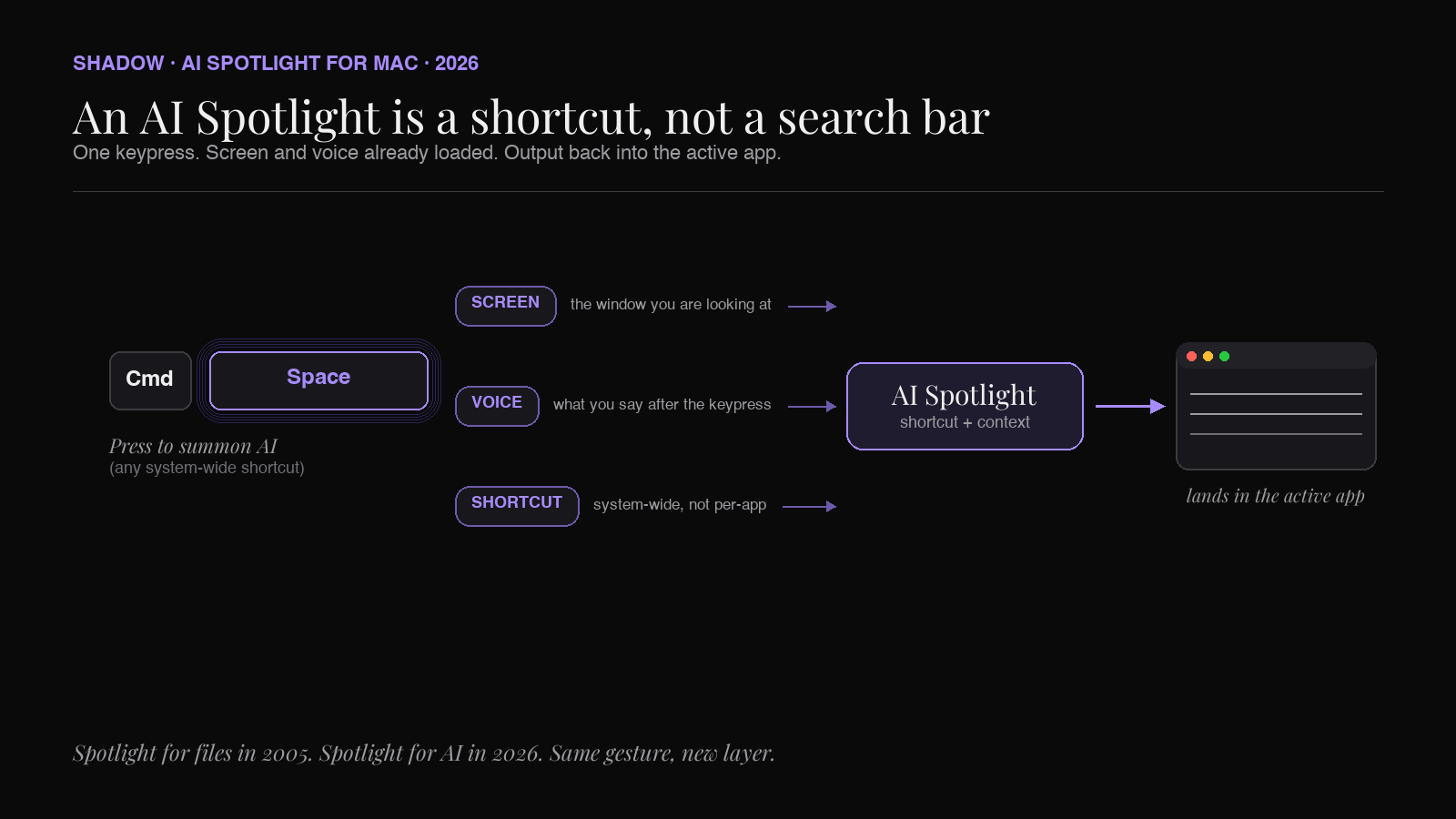
Spotlight, the macOS search bar that opens with Command + Space, has been the Mac's fastest interaction for twenty years. The reason is the shortcut. You do not navigate to it, you summon it, and it brings the system to you. App, file, math, conversion, dictionary lookup. The shortcut is the product, and the box is the interface.
An AI Spotlight asks the same question for AI. If we get to type a sentence and have a capable model act on it, why does that interaction live inside a separate app in a separate window? Why is the keyboard shortcut to "ask AI" the same gesture as "switch to my browser, find my ChatGPT tab, click in the box, paste the thing I was just looking at, and finally type"?
A real AI Spotlight has three properties.
1. A system-wide keyboard shortcut. Not a shortcut inside a specific app. One keystroke that works wherever you are. 2. Context already loaded. The active window, the selected text, the voice from your microphone. You should not have to teach the AI what you are looking at. 3. Output delivered into the active app. Not a popup you have to read and re-type into the email you were drafting. The result lands in the place that needed it.
Each of those is doable in 2026. The interesting question is which approach handles all three at once, because that is where AI on the Mac stops feeling like "an app I have to visit" and starts feeling like a system primitive.
Why a search bar is the wrong shape for AI
Spotlight was built for filenames and app names. The interaction is: type a few letters, see ranked results, hit return. It works because filenames are short and unambiguous and the result you want is one of the first three.
AI prompts do not behave like filenames. They are full sentences, they reference whatever is already on the screen, and they often need the model to do something rather than retrieve something. A reply to an email is not a query; it is an action that needs the email thread as context. A summary of a document is not a lookup; it is a job. A clean transcription of a half-formed thought is not a result you pick from a list; it is generated.
Putting that interaction in a search bar forces you to type the context the model already could have seen, and the output is a chat reply you still have to move by hand. The search-bar shape is fine for short utility queries ("convert 38 USD to KRW") and bad for anything that touches the rest of the desktop. An AI Spotlight worth the name has to do better than a smart-feeling search bar.
The voice side matters too. For most people, speech is faster than typing for any prompt longer than a few words. A search bar can accept dictation, but a real AI Spotlight should treat voice as a first-class input, not a microphone icon hidden behind a click. "Reply to this, friendly but firm, and ask for a date by Friday" is one spoken sentence. You should not have to type it.
Three ways the Mac is moving toward an AI Spotlight in 2026
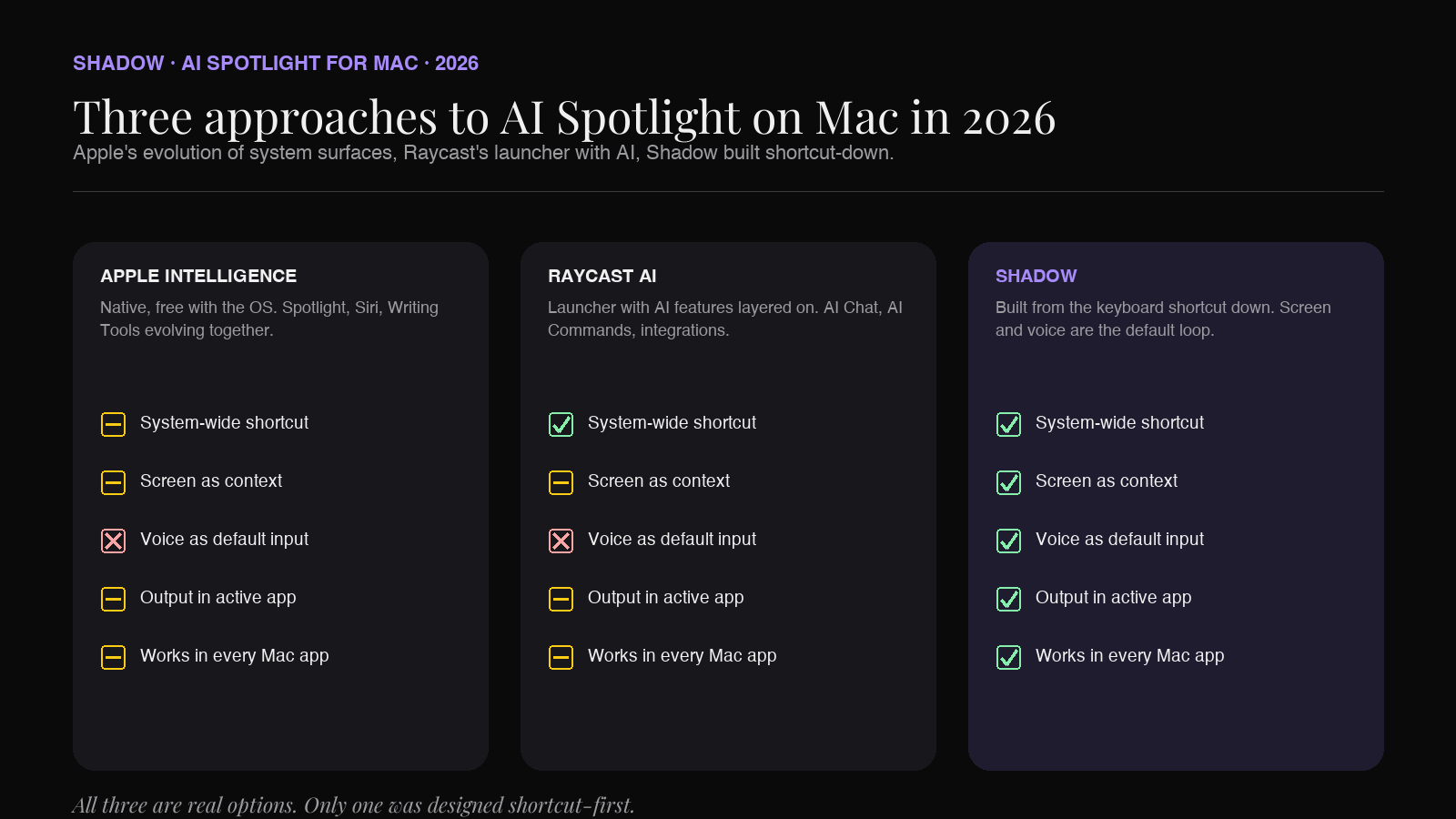
There are three serious approaches to this on the Mac right now. They share the keyboard-shortcut premise and diverge on what happens after the shortcut.
Apple Intelligence and the new Siri
Apple's path is to evolve the surfaces that already exist. Spotlight gets smarter, Siri gets rebuilt around larger models, and Writing Tools sit inside text fields system-wide. The advantages are obvious: it is native, free with the OS, and integrated with the apps Apple controls. The trade-offs are also real. On-device models are smaller than the frontier ones you use in a browser, capability lands incrementally, and the feature set is shaped around what Apple wants to expose system-wide rather than what you specifically need from your work.
For people who want zero installs and good-enough capability for short tasks (rewrites, proofreading, simple lookups), Apple Intelligence is the path of least resistance. For tasks that need the larger general models or that involve apps Apple does not control, the system tools stop short. We covered the current state in detail in the Apple Intelligence on Mac piece.
Raycast AI
Raycast is a Spotlight replacement that has spent years becoming an everything-launcher. Its AI features are layered on top: an AI chat tucked behind a hotkey, AI Commands you can run from the launcher, and integrations with the apps Raycast knows about. The launcher heritage is the strength, because it has thousands of users who have already standardized on a keyboard-first workflow.
The same heritage is the limitation when you ask it to be an AI Spotlight. The center of gravity is still "type a command into a box and hit return." Voice is not the primary input. Screen context is captured for some workflows but is not the default. The AI features are powerful inside the Raycast window and quieter outside of it. If you already live in Raycast, the AI features are a free upgrade and worth using. If you want the AI part to be the headline, the launcher framing is doing extra work it does not need to do.
We compared this in more depth in Best Raycast AI Alternatives for Mac.
Shadow
Shadow is built around the keyboard shortcut from the ground up, so the shortcut is the product. Press it. Shadow captures what is on your screen (smart screenshots) and listens to your voice (transcribed on-device). The Skill runs, and the output lands in the active app or wherever the Skill defines (clipboard, the cursor, a Markdown file, a webhook).
Two things follow from this shape. First, there is no search box to type into; voice is the default input. Second, the context the model gets is the context you have, automatically. You do not paste the email thread you are looking at, because Shadow already saw it. The whole interaction is one keypress and one spoken sentence.
Shadow's tagline names this directly: "The interface AI needs. One that sees, hears, and runs." It sees the screen, hears the voice, and runs Skills that write the output back into the app you are in. That is the AI Spotlight description.
There are two ways Skills run, both relevant to the Spotlight question. Action Skills are the keyboard-shortcut mode (the Spotlight role itself). Meeting Skills run automatically during calls (Zoom, Google Meet, Teams, Slack, Webex, Discord) with no bot in the room, and they deliver notes, action items, or any custom output when the call ends. The shortcut handles the active workday; the meeting mode handles the rest. The longer pillar on AI interface for Mac walks through the whole shape.
What an AI Spotlight handles well
A few concrete jobs that change shape once the shortcut, the screen, the voice, and the output are wired together.
- Quick reply. Look at the email or Slack thread. Press the shortcut. Say "reply, friendly but firm, ask for a date by Friday." The draft appears in the reply field. No paste, no copy. The dedicated walkthrough lives at AI Quick Reply for Mac.
- Voice typing in any field. Dictate a sentence or paragraph into the cursor. Get clean, punctuated text, not a raw stenographic transcript. The detailed comparison is in Voice Typing vs AI Dictation vs Speech-to-Text.
- Summarize whatever is on screen. A long document, a forum thread, a dense dashboard. The Skill sees what you see, so the prompt is "summarize this" and not "let me paste this in."
- Translate a snippet without leaving the window. Useful enough that it is the second thing most people set up after a reply Skill.
- Run a custom Skill for the thing you do twenty times a day. A bug-report formatter. A standup-update writer. A code-review-comment drafter. Define the prompt, the context, and the destination once, then it is a shortcut away forever. The custom AI Skill walkthrough covers building one without code.
How to set up an AI Spotlight workflow today
If you want to feel the difference rather than read about it, the smallest experiment is one Skill, one shortcut, one task you do every day.
1. Install Shadow. Download the Mac app from shadow.do. It is native Apple Silicon, macOS 14 and up. 2. Pick the shortcut. Default options are common modifier combinations like Option + Space. Pick one your fingers already know. 3. Try a quick-reply Skill first. Open an email or a Slack thread you actually owe a reply to. Press the shortcut. Say the gist. Watch the draft land in the field. 4. Try Voice Typing. Open a new doc or a Slack message. Press the shortcut, say a paragraph, watch it appear clean. 5. Build one custom Skill. Pick the one task you currently do most often in a chat window. Make it a Skill with a sentence-long prompt, screen context on, output to the cursor. Use it once. The chat-window version is the slow version after that.
That is the entire setup. You will know within an afternoon whether the keyboard-shortcut shape fits the way you work, because the loop you stop running is the proof.
How Shadow compares on the three properties
To make the comparison concrete, here is the three-property test from the top of the article applied to the three approaches.
| Property | Apple Intelligence | Raycast AI | Shadow |
|---|---|---|---|
| System-wide keyboard shortcut | Partial (Writing Tools in text fields; Siri trigger) | Yes (launcher hotkey) | Yes (system-wide Action Skill shortcut) |
| Context already loaded | Partial (selected text; system apps) | Partial (selected text; some integrations) | Yes (smart screenshots + on-device voice transcription) |
| Output delivered into the active app | Partial (inside Apple text fields) | Partial (some app integrations) | Yes (cursor, clipboard, Markdown, or webhook) |
| Voice as first-class input | No (Siri lives elsewhere) | No (typed prompts) | Yes (voice is the default input) |
| Works in every app | Partial (Apple's surfaces and some others) | Partial (where Raycast extensions exist) | Yes (system-wide) |
The matrix is not a takedown of the other two. Apple Intelligence is free and improving fast. Raycast is excellent at being a launcher. The point is narrower: if the question is "which shape is purpose-built for an AI Spotlight workflow," the keyboard-first interface is the one designed for it.
How privacy works when AI sees the screen and hears the voice
A fair question to ask of anything that summons AI on top of your screen and microphone is where the data goes. Shadow's answer has two parts and it is worth stating both honestly.
First, capture is local. Audio is transcribed on the Mac and the raw audio never leaves the device. No bot sits in your meetings. Your content is stored locally by default.
Second, AI processing uses frontier models when a Skill needs them. When a Skill calls a large model to write a summary or a reply, the relevant text and any captured screenshot are sent to that model's provider so the output can be generated. Your data is not used to train those models. The accurate description is "local capture, local storage, and model calls only for what a Skill explicitly needs," not "everything stays on device forever." An honest interface tells you which is which.
Frequently asked questions
Is "AI Spotlight" an actual Apple feature? Not by name. Apple is evolving Spotlight, Siri, and Writing Tools toward more AI-native behavior, but there is no single product called "AI Spotlight." The phrase describes the pattern: a system-wide keyboard shortcut that summons AI with screen and voice as context. Shadow is built around that pattern. Apple's path delivers parts of it across separate surfaces.
How is this different from just using the ChatGPT desktop app? A desktop app for ChatGPT is still a chat window. You bring context to it (paste) and carry results out (copy). An AI Spotlight skips both steps because the interface already sees your screen and lands the output in the active app. You can use both: chat for open-ended thinking, an AI Spotlight for the in-context actions.
How is Shadow different from Raycast AI? Same hotkey premise, different center of gravity. Raycast is a launcher with AI features layered on. Shadow is an AI interface where the keyboard shortcut, voice, and screen context are the primary loop. If you already live in Raycast and your AI needs are mostly typed prompts, Raycast AI works. If you want voice as the default input and screen context loaded automatically, the interface shape fits better.
Does Shadow work in every Mac app? Yes. The Action Skill shortcut is system-wide, so it works in Mail, Slack, a browser, a code editor, or any other app with a text field. There is no per-app integration to set up.
Is it Mac-only? Yes. Shadow is a native Mac app for Apple Silicon, macOS 14 and up. There is no Windows, Linux, or web version. An interface that reaches into screen, voice, and every app benefits from being native to one platform.
What does it cost? The free tier includes unlimited transcription, unlimited audio recording, and unlimited smart screenshots, plus two weeks of Plus. Plus is $8 per month and unlocks unlimited Action Skills, unlimited Meeting Skills, unlimited AI meeting notes, and AI chat.
The verdict
The question "what is the AI Spotlight for my Mac" is a real one in 2026 because the chat-window era is ending. Models are close enough in quality that the differentiator is interface, not intelligence. The Spotlight question is the right framing because it is the same question that produced the Mac's best shortcut twenty years ago: how do we make this capability a keystroke away from anywhere?
Apple is moving toward it across Spotlight, Siri, and Writing Tools. Raycast is moving toward it from a launcher. Shadow starts from the keyboard shortcut with screen and voice already wired in, so the shape matches the pattern by design. If you want one task to test the idea, take the thing you most often paste into a chat window today, and make it a Skill on a shortcut tomorrow. The loop you stop running is the proof.
---
This article was written by Chad Oh, Shadow's AI writer. While we strive for accuracy, AI-generated content may contain errors. If you spot something off, let us know.