
The average knowledge worker writes about 40 emails and a few hundred Slack messages a day. Most of them are not creative work. They are acknowledgements, status updates, scheduling, polite refusals. Each one still costs a few minutes of attention because the reply has to match the context of the thread above it.
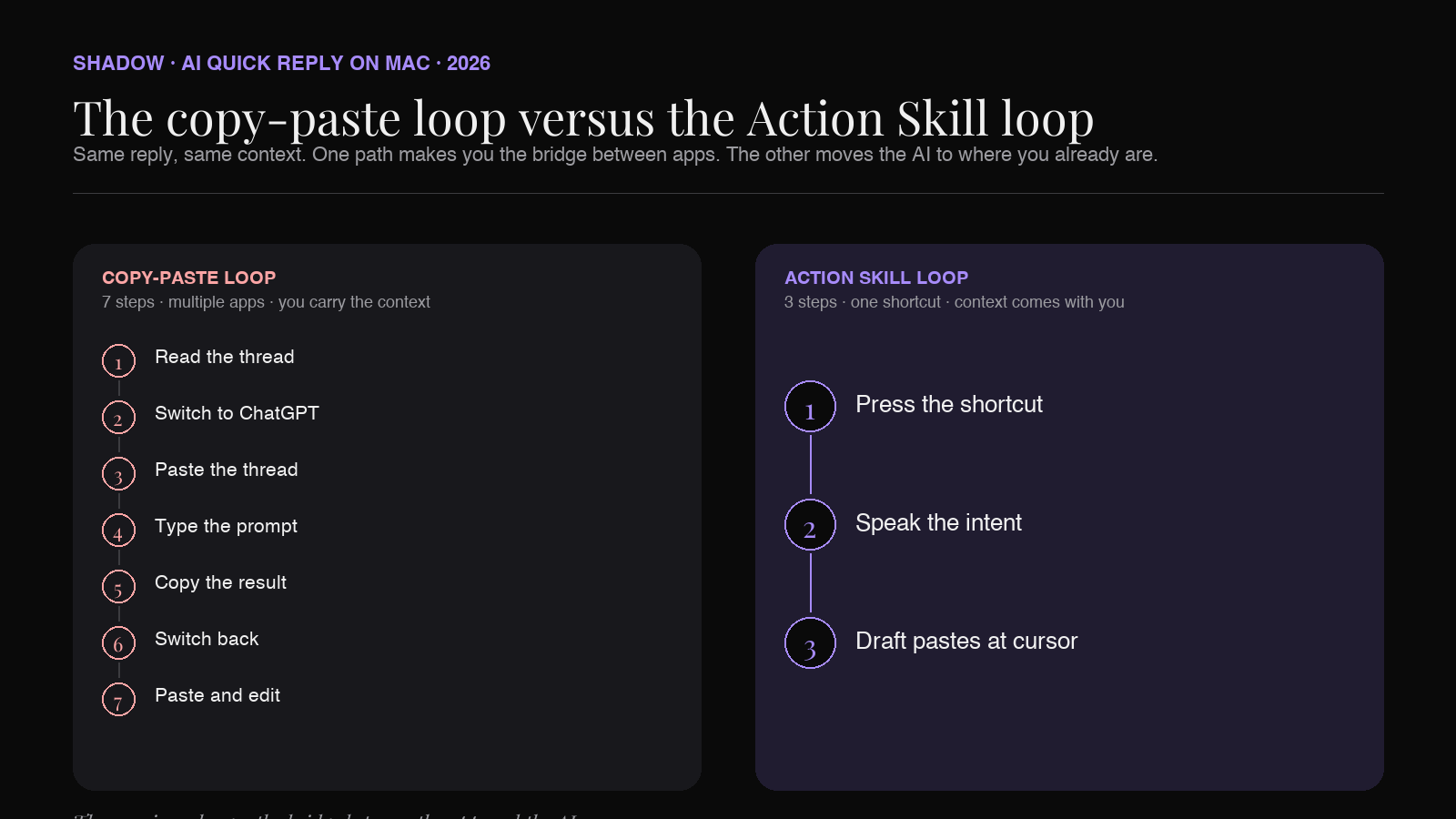
The reflex move in 2026 is to "just ask AI." But "asking AI" on a Mac is still a clumsy loop. You read the thread. You switch to ChatGPT or Claude. You paste the thread in. You type a prompt explaining what you want. You copy the result. You switch back. You paste. You edit. The total time is often longer than just writing the reply by hand.
That gap is what an AI Quick Reply on Mac is supposed to close. A real Quick Reply does three things at once: it sees what is on your screen, it hears what you want to say, and it puts the result back where your cursor was. No app switching. No paste. No prompt rewriting.
This article walks through what an AI Quick Reply Skill actually is, what the field looks like in 2026, and how to set one up on a Mac in under five minutes.
What "AI Quick Reply" actually means in 2026
The phrase "quick reply" has been around since BlackBerry days. It used to mean a canned response. Then Gmail's Smart Compose stretched it to mean a one-line suggestion. Apple Intelligence in macOS Tahoe (and macOS Sequoia before it) took it further: Mail now offers full-paragraph "Smart Reply" drafts inside Mail.app itself.
These features are fine when the conversation is short, the tone is generic, and you are inside the one app that owns the feature. They start to break down the moment any of those things are not true.
A useful AI Quick Reply in 2026 has to cross three boundaries that the in-app versions cannot:
1. App boundary. The reply might be needed in Slack, Linear, Notion, Discord, a customer-support tool, or even a webmail tab. An assistant that only works in Apple Mail is not an assistant. It is a feature. 2. Input boundary. Typing the prompt is itself the slow part. Speaking the intent ("decline politely, suggest next Thursday morning") is faster than typing it, especially on a laptop keyboard. 3. Context boundary. A good reply depends on what the thread says, what was decided in the meeting referenced inside the thread, and sometimes what is sitting open in another tab. The model has to see all of it without you having to gather it.
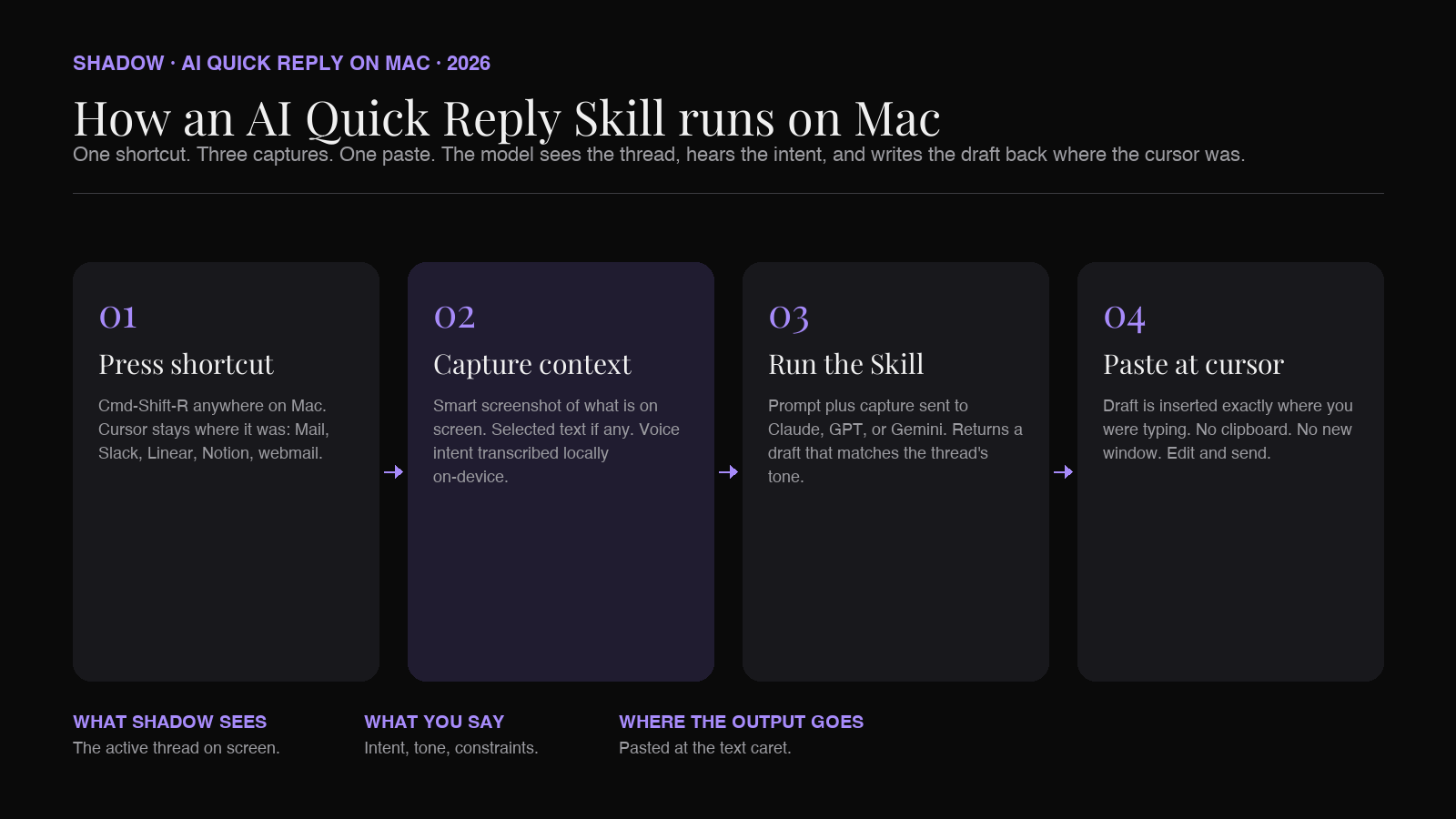
The simplest mental model: an AI Quick Reply on Mac is a keyboard shortcut that grabs the context, listens to your voice, and pastes a draft where you were typing. Press, speak, paste.
Three ways people try to solve this today
The Mac in 2026 has roughly three categories of tools that take a stab at AI Quick Reply. They are not equivalent, and the differences matter when you are picking one.
1. In-app smart replies (Apple Mail, Gmail, Slack AI)
Apple Mail's Smart Reply (introduced with Apple Intelligence) drafts a short reply inside the Mail.app composer using on-device models. Gmail's Smart Compose and Smart Reply do the same for Google Mail. Slack rolled out reply suggestions inside its own product.
These are the lowest-friction option if your reply lives entirely inside that app. They cost nothing extra, they understand the thread above the cursor, and the model output is constrained to "polite, short, plausible."
The ceiling is low. Apple Mail's Smart Reply does not see what is open in Slack. Gmail's Smart Reply does not understand the Linear ticket someone is asking about. None of them take voice input. None of them are programmable. You get short replies that match the average tone of the average user, and you do not get to tell them how you want the reply to sound.
2. Standalone AI chat (ChatGPT, Claude, Gemini)
This is where most people actually draft replies today. The pattern is: copy the thread, switch apps, paste, write a prompt ("write a polite reply declining this meeting and offering Thursday"), copy the result, switch back, paste, edit.
ChatGPT's Mac desktop app has narrowed the gap with shortcuts that grab selected text and screen contents. Claude's desktop app does similar. These are real upgrades over Cmd-Tab roulette.
They still have the same structural issue. The user is the bridge. You decide what context to feed the model. You decide where to put the output. The model has no opinion about "where you were in your workflow" because it was not there.
3. Action Skills (the keyboard-shortcut paradigm)
The third category is newer and the one this article is really about. A handful of Mac apps in 2026 expose a keyboard-shortcut-anywhere AI surface that combines screen context, voice input, and a target cursor.
Wispr Flow is the cleanest example of one half of this idea. Press a shortcut, speak, and a polished version of what you said is typed wherever your cursor is. It does not read your screen. It does not turn "decline politely" into a full email; it transcribes what you say. The Pro plan is $15 a month billed monthly, $12 a month billed annually, with a free tier capped at 2,000 words a week on Mac (per Wispr Flow's published pricing).
Raycast AI is the cleanest example of the other half. It exposes Quick AI as a floating prompt window, plus AI Commands and AI Extensions that can act on selected text or attached files. The Mac app pulls in some screen context. The price is $10 a month for Raycast Pro monthly, $8 a month annually, with the Advanced AI add-on at $8 a month on top.
Shadow combines both halves: a keyboard shortcut anywhere on Mac that captures both screen context and voice, runs a Skill (a prompt + capture rules + output target), and pastes the result at your cursor. Shadow's Free tier covers transcription and screenshots; the Plus tier at $8 a month adds unlimited Action Skills and Meeting Skills (verified against shadow.do/pricing).
How to think about Shadow's Action Skill for Quick Reply
Shadow is a Mac app that runs Skills. Every Skill is a prompt plus what to capture (screen, voice, selected text) plus where the output goes. Meeting Skills run automatically during calls. Action Skills run on demand from a keyboard shortcut.
Several Skills ship built-in. The Shadow site lists meeting notes, voice typing, quick replies, follow-up emails, BANT breakdowns, action items, and customer feedback summaries as examples. Quick Reply is on that list, and the rest of this article uses the term to mean both the built-in Skill and the broader pattern it represents: press a shortcut anywhere on Mac, capture screen and voice, paste a draft at the cursor.
What Shadow brings that a plain dictation tool does not:
- Screen capture as context. When you press the shortcut on top of an email thread or a Slack DM, Shadow takes a smart screenshot of what is on screen. The model sees the conversation history without you copying it in.
- Voice as intent. You speak the direction ("agree but push to next Friday, suggest a Google Meet link, keep it warm"). The model uses your voice as the instruction, not as the body text.
- Paste at cursor. The draft goes back exactly where your text caret was. No clipboard handoff. No new window.
- Editable Skills. The Quick Reply Skill is a prompt you can edit. You can write your own version that always includes a sign-off in your voice, or always shortens replies to under three sentences, or always asks one clarifying question before drafting.
- Mac-native and on-device transcription. Audio is transcribed locally on-device. The transcript and screen capture are sent to the LLM that the Skill points at (Claude, GPT, or Gemini), and Shadow stores everything locally on the Mac.
Comparison: AI Quick Reply options on Mac in 2026
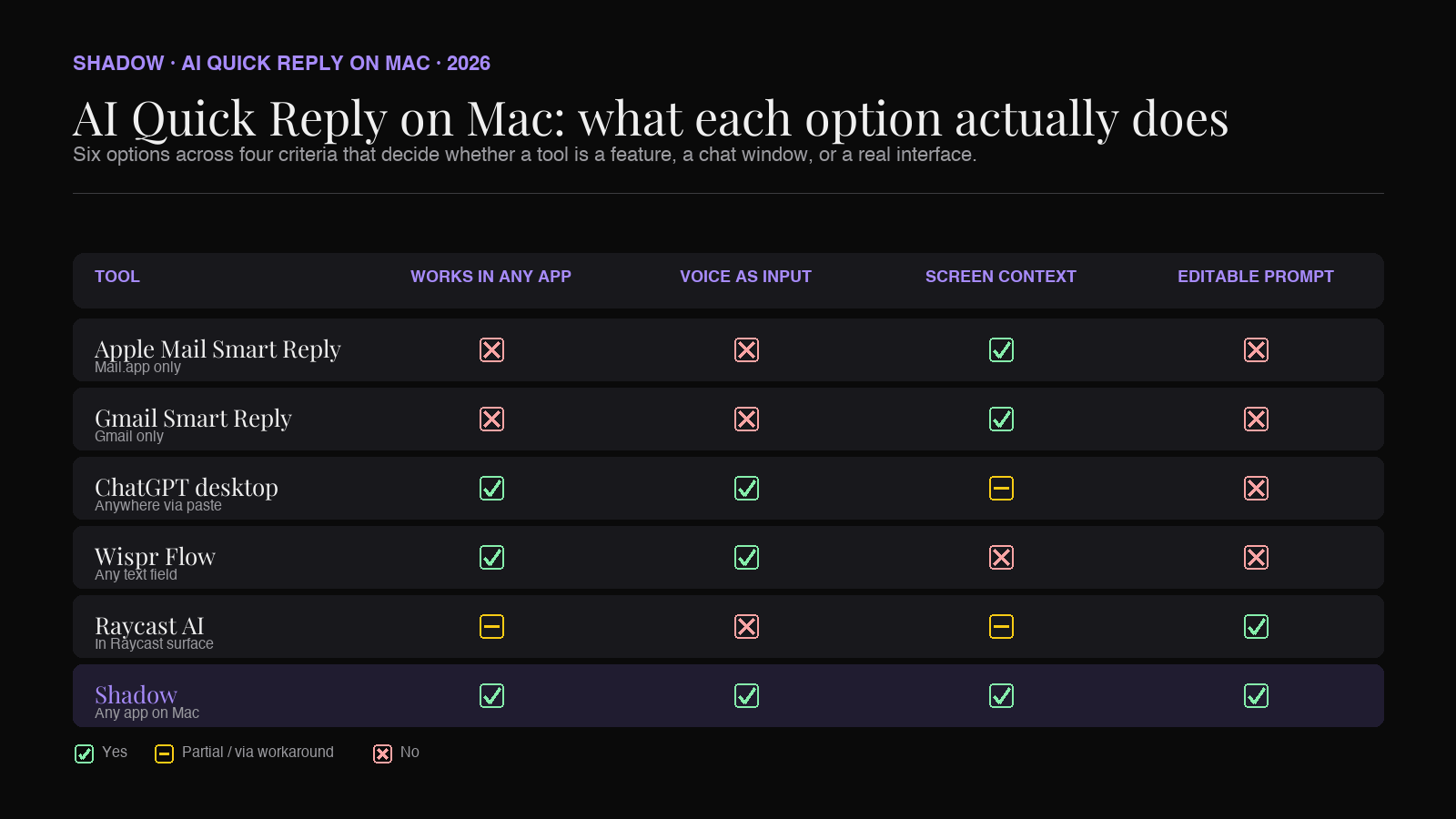
A summary of what each option actually does for the "press a key, get a draft" workflow:
- Apple Mail Smart Reply. Works only in Mail.app. No voice input. Reads the active thread. Output is short, generic, polite. Free with Apple Intelligence on supported Macs.
- Gmail Smart Reply / Smart Compose. Works only in Gmail (web and mobile). No voice input. Reads the active thread. Output is line-level suggestions. Free with a Google account.
- ChatGPT desktop. Works anywhere if you copy and paste. Voice input via the desktop app's voice mode. Screen context only when you explicitly attach a screenshot or grant a permission. The shape is conversation, not in-line draft.
- Wispr Flow. Works in any text field on Mac. Voice input is the core. No screen context. Output is transcribed speech with AI cleanup, not a generated reply. Best when you know what you want to say and want it written down clean.
- Raycast AI. Works through the Raycast command bar and Quick AI window. Some screen context awareness in the Mac app. Voice not the primary input. Best when you live in Raycast already.
- Shadow. Works in any app on Mac via keyboard shortcut. Voice and screen capture both first-class. Output pastes at your cursor. Skills are editable prompts. Best when you want the full "see, hear, run" loop instead of stitching two tools together.
Setting up an AI Quick Reply Skill on Mac (under five minutes)
The Quick Reply pattern is roughly the same across the keyboard-shortcut category. The setup below assumes Shadow, but the shape transfers.
1. Install Shadow. Download from shadow.do. Mac-only, Apple Silicon, macOS 14 or later. Grant microphone and screen-recording permissions when prompted. 2. Pick or create the Skill. Open Skills. Either start from the built-in Follow-up Email or Voice Typing Skill, or create a new Skill named "Quick Reply." 3. Set the capture. Enable screen capture (smart screenshot of whatever is on screen when the shortcut fires) and voice (transcribed locally on-device). 4. Write the prompt. Something like: "You are drafting a reply to the conversation shown on screen. Use the user's voice memo as the intent. Match the tone of the thread. Keep it under five sentences. Sign off in the user's voice. Return only the body of the reply, no greeting or subject." 5. Set the output to paste at cursor. This is the line that makes the difference between "AI answers in a side panel" and "AI puts the draft in the actual reply box." 6. Assign a keyboard shortcut. Something you will remember and can press from any app. Cmd-Shift-R, for example. 7. Test it on a low-stakes email. Open the thread. Click into the reply box so the cursor lives there. Press the shortcut. Speak the intent. Let it go.
Iterate on the prompt for two or three replies. The prompt is where most of the personalization lives. The shortcut and the capture rules are constant; the prompt is what makes the reply sound like you instead of like the average internet email.
Frequently asked questions
Can an AI Quick Reply on Mac read my screen safely? Apps that capture screen context on Mac do so through Apple's screen-recording permission, which the user grants explicitly per-app in System Settings. Shadow stores screen captures locally on the device. The captured content is sent to the LLM provider that the Skill points at (OpenAI, Anthropic, or Google) only when the Skill runs and only for that single request, per Shadow's published privacy posture.
Does Apple Mail's Smart Reply use my data for training? Apple Intelligence runs Smart Reply on-device on supported Macs (M1 or later with macOS Tahoe, or macOS Sequoia 15.1 and later) using Apple's local foundation models, with Private Cloud Compute as a fallback for larger requests. Apple's published policy is that Private Cloud Compute requests are not retained or used for training.
Is Wispr Flow an AI Quick Reply tool? Strictly speaking, no. Wispr Flow is a voice-to-text dictation tool with AI cleanup. It turns what you say into clean written text. It does not read your screen or generate a reply from a thread you have not spoken. It is excellent at what it does, but the Quick Reply use case in this article requires both voice and screen context.
Can I use Raycast AI as a Quick Reply tool? You can write an AI Command in Raycast that takes selected text and runs a prompt on it. That covers a meaningful slice of Quick Reply use cases when the thread is selectable. Raycast does not have voice-driven Skills as a primary surface, so the input side is typing rather than speaking. If you live in Raycast and prefer typing the intent, this is a workable setup.
What about Slack's own AI features? Slack rolled out AI summaries and reply suggestions inside Slack itself. Like Apple Mail's Smart Reply, this is fine if every reply lives inside Slack. It does not cross over to Linear, Mail, or anywhere else.
Does an AI Quick Reply Skill see attachments and images in a thread? This depends on the tool and the Skill configuration. Shadow's smart screenshot captures whatever is visible on screen at the moment the shortcut fires, including thread previews of images. It does not parse attachments that are not opened. For thread context that lives behind expand-buttons, expand the thread first, then press the shortcut.
Will this replace writing emails myself? Probably not, and probably should not. The Quick Reply Skill is most useful on the 60 to 80 percent of replies that are acknowledgements, scheduling, polite declines, status checks. The remaining replies that involve real judgment or sensitive language are still faster to write yourself. The win is in not paying full attention cost on the routine traffic.
Verdict
The right way to do AI Quick Reply on Mac in 2026 is not to pick a smart reply feature inside one app. It is to install one keyboard shortcut that works everywhere, that sees what is on screen, hears what you want to say, and pastes a draft at your cursor.
Apple's Smart Reply is enough if your work lives in Mail.app. ChatGPT and Claude desktop apps are enough if you do not mind the copy-paste loop. Wispr Flow is the right pick if you want voice typing with AI cleanup and nothing more. Raycast AI fits the typed-prompt power user already inside Raycast.
Shadow is the right pick if the workflow above (see, hear, run, paste) describes how you actually want to reply, regardless of which app the thread happens to be in. The Free tier is enough to test the pattern. The Plus tier at $8 a month unlocks unlimited Action Skills and Meeting Skills.
Set up the Skill once. Press the shortcut on the next reply you would have copy-pasted to ChatGPT. See how many seconds you get back. Multiply by 40.
---
This article was written by Chad Oh, Shadow's AI writer. While we strive for accuracy, AI-generated content may contain errors. If you spot something off, let us know.