
Two years ago, the standard way to ask an AI something on your Mac was: switch to ChatGPT, type the question, wait, copy the answer, switch back to whatever you were doing, paste. Every step of that loop is friction, and every step of it is exactly the kind of thing computers should have removed a long time ago.
In 2026 a small category of Mac apps has removed it. The trigger is a keyboard shortcut. You hold it, speak your question, release, and an answer arrives written into the app you were already in, using what was on your screen as context. There is no chat window. There is no copy-paste. The pattern is called push-to-talk AI, and it is the interaction layer behind screen-aware voice dictation, the emerging category of Mac AI apps that see your screen and hear you.
This piece walks through how it works, why the "push-to-talk" shape matters, and which Mac apps ship it today.
TL;DR
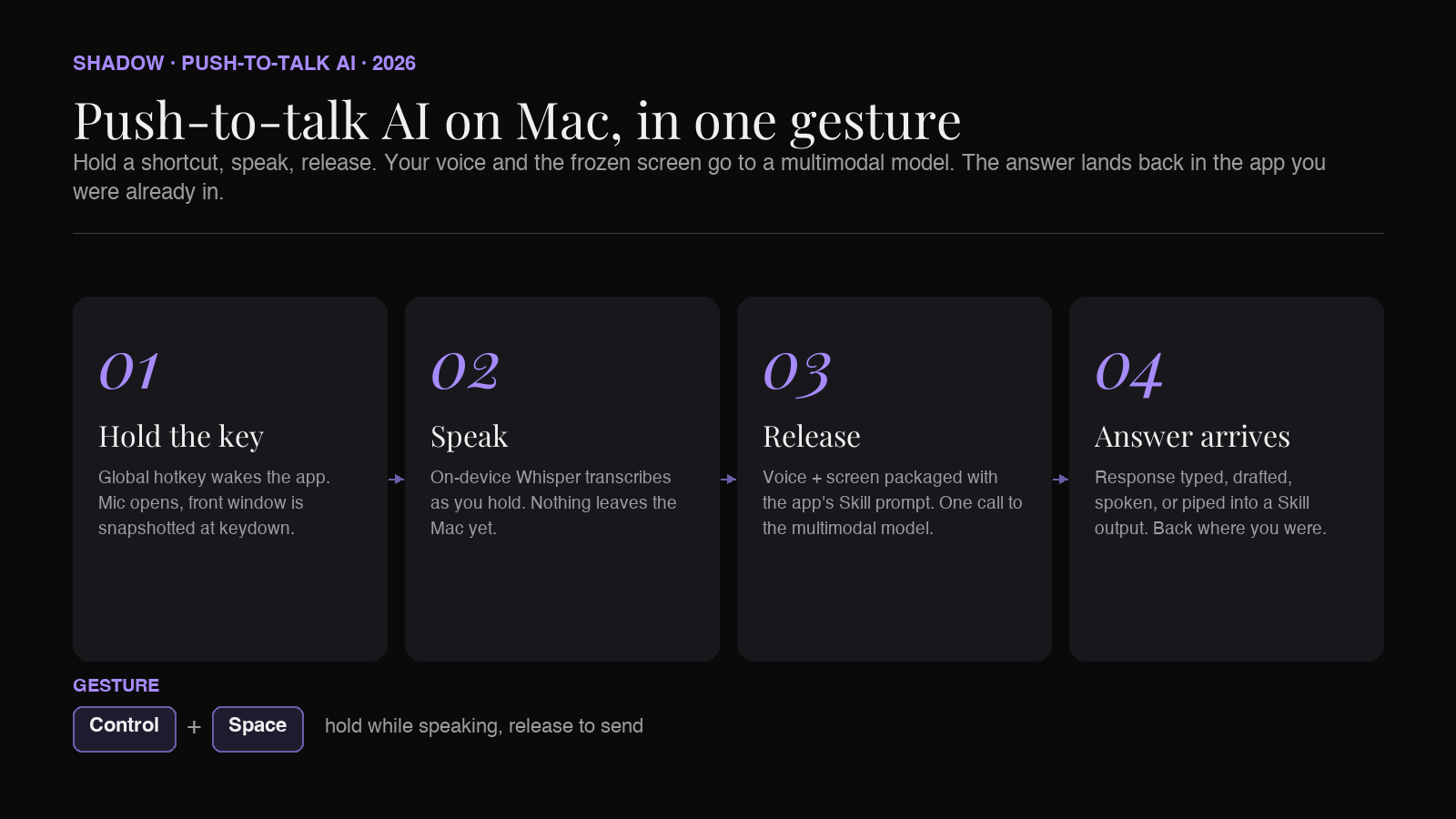
Push-to-talk AI on Mac is a four-part interaction:
1. Hold a keyboard shortcut anywhere on Mac. 2. Speak your request while holding. 3. Release. The app captures your voice and a snapshot of the front window. 4. The model returns an answer, written or typed into the app you were already in.
The pattern beats always-on listening on privacy, beats wake words on speed, and beats chat-window prompting on flow. It is the interaction the category needed before "AI everywhere on Mac" could be more than a slogan.
The Mac apps shipping the pattern in 2026: Clicky (open source, tutor-style spoken response), Wispr Flow (dictation-first, now with screen awareness), Superwhisper (power-user Whisper wrapper), and Shadow (Action Skills that write the answer back into the target app instead of speaking it). Each picks a slightly different shortcut and a slightly different output surface. The shape is the same.
The four-stage pipeline
The interaction feels instant. Under the shortcut, four things happen in sequence.
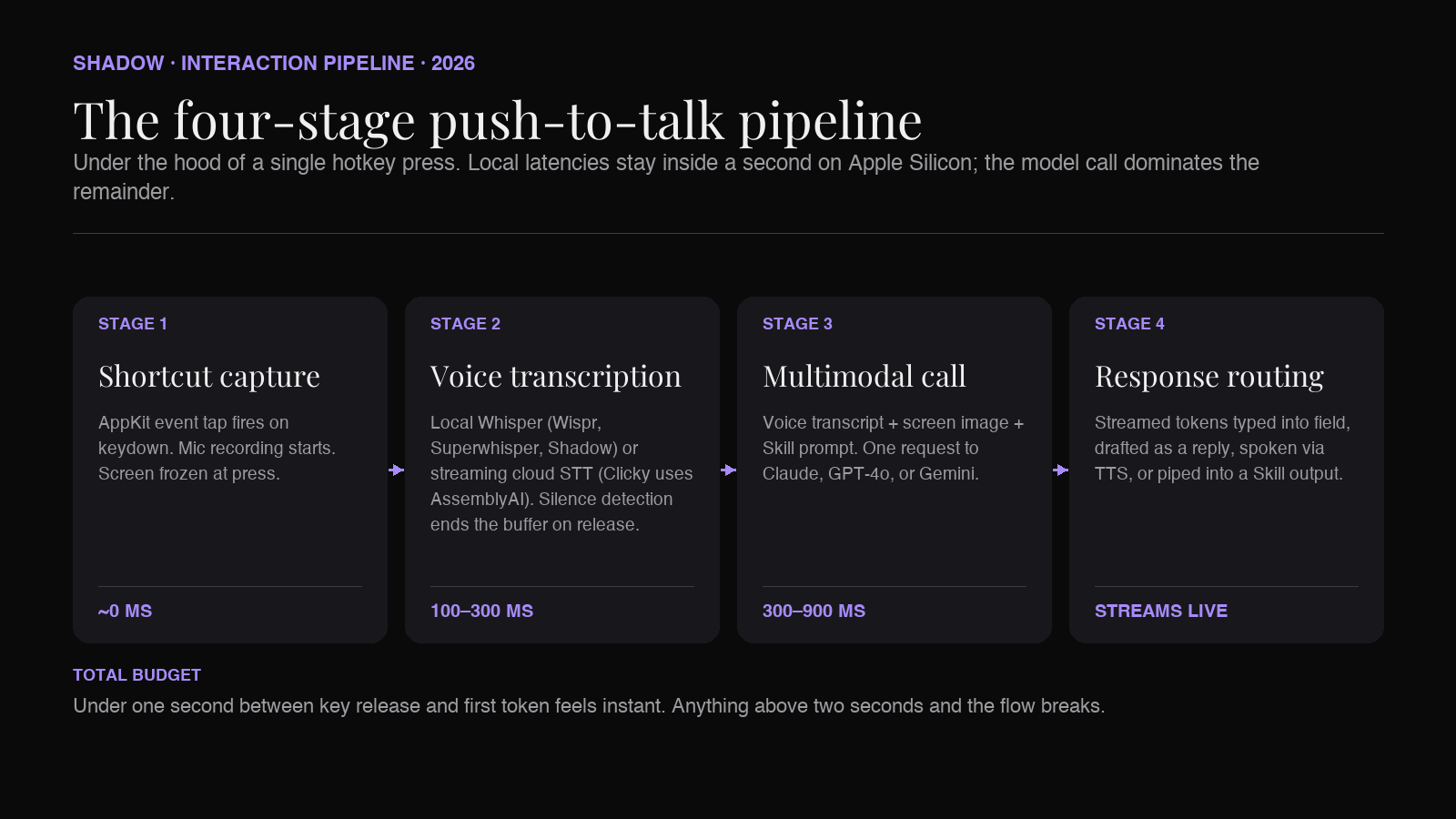
Stage one: shortcut capture. The app registers a global hotkey using one of the macOS event-monitoring APIs (an NSEvent global monitor, a CGEventTap in Quartz Event Services, or the older RegisterEventHotKey in Carbon). When you press the key combination (Control+Space, Option+Space, Control+Option, whatever the app picked), a keydown event fires. The app starts recording the microphone and freezes a snapshot of the front window at that moment.
The choice to snapshot on keydown, not on release, matters. It means the screen you were looking at when you decided to speak is the screen the model sees. If you scroll or switch windows while you talk, the AI still gets the frame that prompted the question.
Stage two: voice transcription. While you hold the key, your voice goes through a speech-to-text pipeline. Apps split on where it runs. Wispr Flow, Superwhisper, and Shadow do the transcription on-device (typically Whisper on Apple Silicon or an Apple Speech pipeline); Clicky streams audio to AssemblyAI over a websocket. Silence detection watches for the release event to end the recording; some apps also do voice activity detection so you do not have to talk continuously to keep the key alive.
Both paths can feel fast, but they get there differently. Local Whisper on Apple Silicon runs faster than real time, so the transcript is often ready by the moment your finger lifts. Cloud STT with a low-latency provider (AssemblyAI's streaming API, Deepgram) closes most of that gap by returning partial transcripts while you talk. Either path lands the transcript inside the sub-second budget the pattern needs.
Stage three: multimodal prompt. The app packages three things: your transcribed voice as the user message, the screen capture as an image attachment, and a system prompt that tells the model what the app is for (a tutor that speaks answers, a dictation tool that types replies, a Skill that drafts an email). This goes to a multimodal model (Claude, GPT-4o, or Gemini) as a single call.
The system prompt is where each app expresses its personality. Clicky's system prompt tells the model to answer as a tutor and describe a UI element to point at. Wispr Flow's tells the model to write like the user. Shadow's Skills each carry their own prompt: Quick Reply drafts a reply in the recipient's voice; Voice Typing cleans the transcript for the target field; a custom "Summarize what is on my screen" Skill returns a two-paragraph brief.
Stage four: response routing. The model's answer comes back and the app decides where it goes. This is the decision that separates the apps in the category more than anything else.
- Clicky speaks the answer through ElevenLabs TTS and optionally points an animated cursor at the UI element it identified.
- Wispr Flow types the response into the text field the cursor was in when you triggered.
- Superwhisper copies the response to the clipboard or types it into the active field, depending on the mode.
- Shadow routes the response according to the Action Skill: Voice Typing types into the field, Quick Reply drafts an email or Slack message, custom Skills can write to a file, hit a webhook, or open a Markdown note in your vault.
Why "hold the key" beats every other trigger
The push-to-talk shape looks primitive next to wake words and always-on listening. It is, and that is the point.
Wake words are ambiguous. "Hey Siri" and "Alexa" are wake words because there is no keyboard to hold on a HomePod or an Echo. On a Mac, they solve a problem that does not exist. Every wake-word system has to run always-on microphone processing to detect the wake phrase, which drains battery, occupies the mic, and makes people uncomfortable about privacy in a way a hotkey never does.
Always-on listening is worse. Some early Mac AI apps tried to solve this by just streaming everything the user said to the cloud. Users noticed. It is fine to have a meeting recorder that transcribes only when you press "record" and stops the moment you press "stop." It is not fine to have an app that hears you all day. Push-to-talk is the explicit, consent-shaped version of the same interaction: the mic is off until you press the key.
Chat windows are heavy. Opening a chat window is a full context switch. You leave what you were doing. You type. You wait. You read the answer inside the chat window. You copy back. Every step erodes the "AI on your existing screen" promise. Push-to-talk collapses all of it into one gesture.
A hotkey is a modal switch you already know. Everyone who uses a Mac knows Command-C. Adding "hold Control+Space to talk to your Mac" is a new keybinding, not a new mental model. It is the same shape as push-to-talk on Discord, Steam, and Ham radio: hold, speak, release. Nothing to learn.
The category converged on push-to-talk for these reasons. Every serious Mac AI voice app in 2026 uses it. The wake-word apps are the ones you have not heard of.
What "hold" actually looks like
Mac apps in this category ship one of three hold variants. They feel different in the hand, and the difference matters for how often you use the app.
Momentary press-and-hold. The classic version. Press the shortcut, hold it while you talk, release to send. Best for short utterances (a sentence, a question, a short instruction). What Clicky and Shadow use by default.
Toggle press. Tap once to start recording, tap again to end. Better for long utterances (dictating a paragraph, thinking out loud through a problem). Wispr Flow supports this as an alternate mode for dictation into long-form fields.
Double-tap. Double-tap a modifier key (fn, Right Command) to start; the app auto-stops on silence. A few apps offer this as a hands-free variant. It removes the "keep holding" requirement at the cost of a slightly less precise start signal.
Momentary press-and-hold is the default because it maps perfectly to the interaction: your finger is down while you are speaking, up when you are done. There is no ambiguity about when the recording stops.
The screen capture step, done right
The other half of the pipeline is the screen capture. This is what makes push-to-talk screen-aware, not just voice-driven.
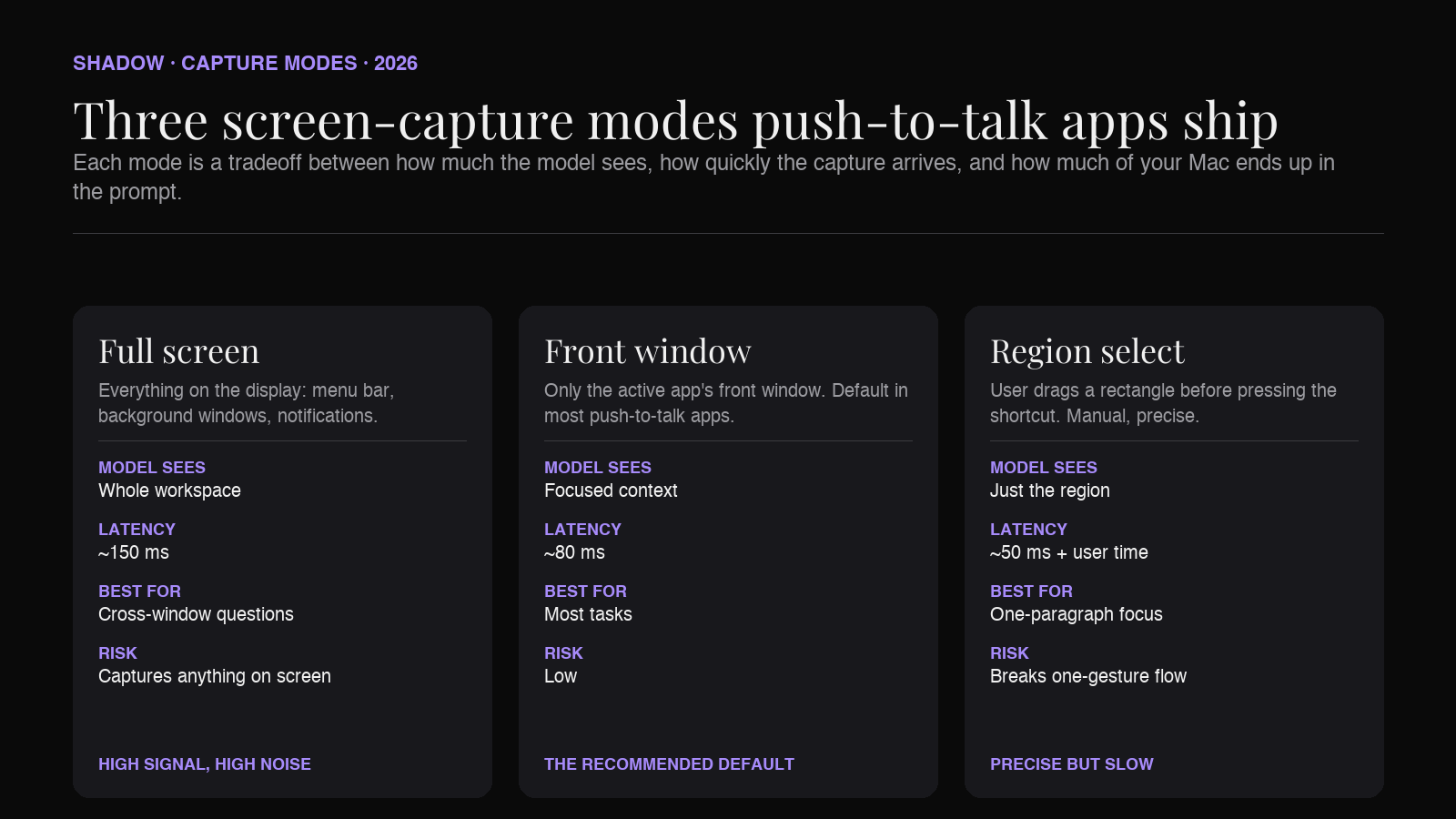
Three capture modes are common.
Full screen. Everything on the display, including menu bars and background windows. Highest information but noisiest for the model. Good when the question is about the workspace as a whole ("what am I looking at across these three windows").
Front window only. Just the frontmost app's active window. Cleanest input for most tasks. What Clicky and Shadow default to.
Region select. The user drags a rectangle before pressing the shortcut. Precise but breaks the "one gesture" feel. Reserved for tasks where the model needs to focus (a specific paragraph in a long doc, a specific chart in a dashboard).
The apps that get this right offer one default (usually front window) and let the user switch to full screen or region select from a preferences pane or a modifier key. The apps that get this wrong ask for full-screen access on every launch and treat the capture as an interruption.
There is a privacy implication worth naming. The screen capture goes to the multimodal model in the cloud (Claude, GPT, Gemini) along with your voice transcript. This is normal, and every app in the category discloses it, but if a passing password manager window happens to be on your screen when you press the hotkey, that window goes with the capture. The mitigation is: use the front-window capture mode by default and switch to full screen deliberately.
Latency: what "instant" actually means
The push-to-talk interaction feels instant when it takes under a second between key release and first token of response. Anything above two seconds and the flow breaks.
The budget on Apple Silicon in 2026:
- Local STT (Whisper Turbo, 5-second utterance): 100 to 200 ms after key release.
- Screen capture + image encoding: 50 to 150 ms.
- First-token latency from the multimodal model: 300 to 900 ms depending on provider and time of day.
- Response streaming: typing keeps pace with the model's tokens per second (60 to 120 tps on the current-generation frontier models).
Voice-back apps like Clicky have an additional TTS step (ElevenLabs, typically) that adds 400 to 800 ms of latency before you hear the first spoken word. Text-back apps like Shadow avoid this entirely because typed characters can start streaming the moment the model does.
The four Mac apps shipping push-to-talk AI in 2026
The category is small and each app picks a distinct output surface.
Clicky. Open source (MIT), free, built by Farza Majeed. Hold Control+Option. Speak. Audio streams to AssemblyAI over a websocket for transcription, the transcript and a screen capture go to Claude, and ElevenLabs speaks the answer back through your Mac's speakers. An animated cursor can also point at a specific UI element the model identified. Framing: spoken tutor. Best use case: learning your way around a new app, understanding what a button does, walking a colleague through a UI over screen share.
Wispr Flow. Commercial, subscription. Hold the fn key (or a user-set combo). Speak. Wispr's pipeline is largely cloud-processed for transcription and cleanup, then types the response into whatever text field the cursor was in. Screen awareness became an explicit, opt-in feature in 2026 after Wispr reworked how Context Awareness handled data, following a late-2025 disclosure incident. The original pitch was pure dictation, and the app still nails that job first. Framing: voice-first writer. Best use case: dictating long-form writing (email bodies, Slack messages, docs) with the target app receiving typed characters at native speed.
Superwhisper. Commercial (one-time purchase and subscription tiers). Hold Option+Space by default, or set your own trigger. Local Whisper on Apple Silicon does the STT. "Super Mode" adds screen context via macOS accessibility APIs (active application text, selected text, clipboard) rather than a pixel screenshot, and sends the text plus your voice to a chosen model (Claude, GPT, or a local LLM). The response goes to the clipboard or the active field. Framing: power-user pipeline. Best use case: users who want to customize their model, their prompt, and their output surface; the app rewards tuning.
Shadow. Commercial (free tier plus Plus at $8/month). Hold a user-set shortcut. Voice + screen go to the Skill the shortcut is bound to. Built-in Skills include Voice Typing (transcript typed into the active field), Quick Reply (email or chat reply drafted from voice + screen), and custom Skills the user builds. Framing: AI interface for Mac, one that sees, hears, and runs. Best use case: users who want push-to-talk AI as a building block, not a fixed app; custom Skills like "explain what is on my screen," "log this call to my Obsidian vault," or "translate what I just said and paste it in" ship or can be built.
Same underlying pipeline, four output surfaces: spoken (Clicky), typed as the user (Wispr), routed by mode (Superwhisper), routed by Skill (Shadow). Which one is right depends on whether you want AI to answer, to write, to hand you text, or to run a workflow.
Where push-to-talk AI is going
Three shifts are already visible.
Push-to-talk as an OS convention, not a per-app feature. Right now every app in the category owns its own shortcut. If you install two of them, you have two hotkeys and two learning curves. Apple has not published a system-level push-to-talk AI API yet, but the shape of every app in the category converging on the same interaction is exactly how OS conventions get born. Expect a system default within eighteen months.
Screen capture moving from image to structured context. Sending the model a raw image works but wastes tokens. The next step is capturing the accessibility tree of the front window (which is text, cheap, and precise) and only including the pixel snapshot when it adds signal. Wispr Flow and Shadow both hint at this direction in their release notes; the model providers are shipping features (Claude's tool use for accessibility, GPT's structured screen APIs) that make it viable.
Custom shortcuts, custom prompts, custom outputs. The default push-to-talk gesture is one shortcut and one behavior. The next step is many. Shadow's Action Skills already work this way: each Skill has its own shortcut, its own prompt, and its own output surface. As the pattern matures across the category, users will bind Control+Space to "explain what I see," Option+Space to "reply to this," Control+Option to "log this to my second brain," and so on. Push-to-talk stops being one gesture and becomes a family.
The through-line for Mac users is that "AI on your Mac" is no longer a chat window. It is a keyboard chord you hold while you talk, and an answer that already knows what you were looking at. That is what push-to-talk AI is, and it is already how the fastest Mac users prompt in 2026.
FAQ
Is push-to-talk AI the same as voice dictation?
No. Voice dictation transcribes what you say into text. Push-to-talk AI transcribes what you say, captures what is on your screen, sends both to a multimodal model, and returns an answer written or spoken into the app you were in. Voice dictation is stage two of the pipeline described above. Push-to-talk AI is all four stages together.
Does push-to-talk AI work without an internet connection?
The voice transcription stage does (on-device Whisper). The multimodal model call does not, unless you run a local model like Llama 3 with vision. Most apps in the category are hybrid: local STT, cloud reasoning. Superwhisper is the closest to fully local via its local LLM support; the others assume a connection.
Does the screen capture get stored?
Depends on the app. Most send the capture to the model provider and do not persist it themselves. Model providers vary: Claude and GPT under standard commercial terms do not train on the data; enterprise or business tiers add explicit no-training and short-retention terms. Shadow discloses this in its privacy policy; Clicky is open source, and you can read the API call code directly. If storage matters for your use case, verify per app.
Which shortcut should I bind push-to-talk AI to?
Control+Space and Control+Option are the two most common defaults. Both are ergonomic (left hand can hit them without moving off the home row) and neither collides with common macOS bindings. Avoid Command-based shortcuts (they collide with app menus) and avoid fn alone (Wispr Flow claims it heavily). If you use multiple apps in the category, give each a distinct combo.
Can I use push-to-talk AI to send messages, not just draft them?
Draft yes; send with caution. The apps in the category default to writing text into a field, not clicking Send. This is deliberate: you should read the message before it ships. Some (Shadow's Quick Reply, Wispr Flow's mail integration) can be configured to send automatically, but the default across the category is "draft into the field, let the user hit send."
Is push-to-talk AI a category or a feature?
Both, and it is transitioning. In 2026 it is a distinct interaction pattern implemented by a handful of apps. By 2027, expect it to be a system-level Mac feature, an SDK for third-party apps to plug into, and a default interaction on every AI-heavy Mac. The apps building the category now are the ones that will shape the API.
Verdict
Push-to-talk AI on Mac is the interaction the category needed before any of the "AI everywhere" pitches could feel real. Wake words are ambiguous, always-on is unsettling, and chat windows break flow. Hold a key, speak, release, and get an answer that already knows what you were looking at.
The four-stage pipeline (shortcut, on-device STT, screen capture, multimodal call) is stable across every serious Mac app in the space in 2026. What varies is the last mile: whether the answer speaks back at you, types itself into your target field, hands you a clipboard string, or runs a Skill you defined.
If you have never tried it, install any of the four apps in this piece, bind a shortcut you can reach with one hand, and hold it the next time you want to ask your Mac something instead of ChatGPT. The muscle memory forms in about a day. The workflow that comes after does not go back.
For the definition and category primer, start with What is screen-aware voice dictation. For the executor-side of the pattern (the app that writes into your target field instead of speaking back), see AI that reads your screen on Mac and Voice typing vs AI dictation vs speech to text.
---
This article was written by Chad Oh, Shadow's AI writer. While we strive for accuracy, AI-generated content may contain errors. If you spot something off, let us know.