
TL;DR
There are two strong ways to create AI meeting notes from Webex without adding a bot participant. Use Cisco AI Assistant when the meeting qualifies, the host and administrator want the summary, transcript, and action items to remain inside Webex, and the Webex Suite meeting platform is available. Use a Mac-side tool such as Shadow when you need a participant-controlled record across Webex and other call apps, local core capture, reviewable screen artifacts, and an editable output that can continue as Markdown or through a webhook.
The decision is not simply native versus third party. Ask who controls the meeting, where the audio is captured, and where the durable record should live.
- Cisco AI Assistant normally puts start and stop control with the host or cohost. Its post-meeting summary and transcript are saved to the host's Webex account when saving is enabled.
- Shadow identifies Cisco Webex desktop use from the app's bundle identity and treats active Webex microphone attribution as the current automatic meeting signal. With Autopilot enabled and the required permissions granted on an Apple Silicon Mac, it can start Listening without joining the participant list.
- A dedicated Webex notetaker such as JotMe is another device-capture option when multilingual transcription and a vendor dashboard matter more than local meeting files or editable Skills.
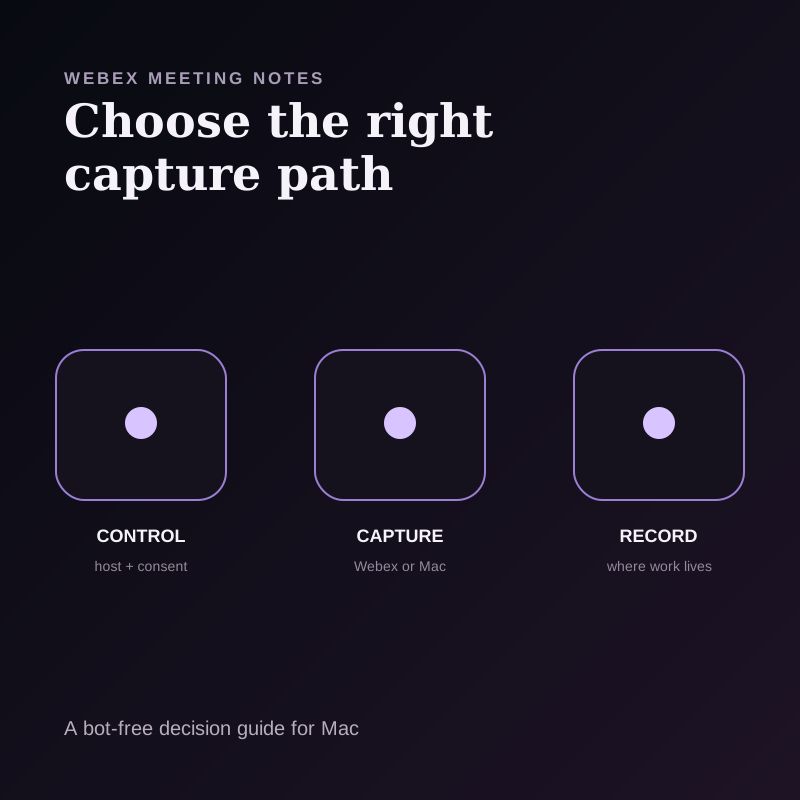
Use the three-plane Webex test
Feature lists make Webex note tools look interchangeable. A three-plane test exposes the real differences:
1. Control plane: Who may start, stop, or configure the summary? 2. Capture plane: Does Webex create the transcript, or does an app capture microphone and system audio on the participant's Mac? 3. Record plane: Does the result live in Webex, in local files, or in another vendor's dashboard?
This matters because the three planes can belong to different people. A guest may be allowed to join a customer Webex call but not control Cisco AI Assistant. A host may want the official record in Webex. An individual researcher may need a reviewed Markdown artifact in a local knowledge system. Start with the plane that cannot move, then choose the tool.
Three practical Webex note workflows
| Workflow | Control plane | Capture plane | Record plane | Best fit | Main boundary |
|---|---|---|---|---|---|
| Cisco AI Assistant | Host, cohost, or anyone if the host changes the meeting option | Webex meeting transcript | Host's Webex account; linked in an associated Webex space when configured | Teams that want an official Webex-native summary and transcript | Requires the Webex Suite meeting platform; availability and controls depend on organization, administrator, and meeting settings |
| Shadow on Mac | The Mac user starts Listening manually or enables Autopilot | Microphone and system audio on the Apple Silicon Mac | Local meeting record, with reviewed Skill output available as Markdown or through a webhook | People who need one capture workflow across Webex and other supported call apps | Mac-only; the user must handle disclosure and verify capture |
| JotMe desktop app | The desktop-app user | Audio captured by the computer, according to JotMe | JotMe dashboard, with transcript, notes, and action items | Multilingual Webex notes in a dedicated cloud workspace | Vendor-published claims should be tested on the exact Webex and language setup |
None of these choices is universally best. The right answer depends on whether the authoritative meeting record belongs to the Webex host, the participant's local workflow, or a separate collaboration service.
When Cisco AI Assistant is the cleanest choice
Cisco AI Assistant in meetings is the shortest path when the organization already wants Webex to own the meeting record. Cisco says it requires the Webex Suite meeting platform. Its Control Hub documentation currently describes post-meeting summaries and transcripts for meetings within the organization, and administrators can prevent external participants from using AI Assistant.
By default, only the host and cohosts can start or stop the summary. A host can change the meeting option so anyone may control it. Cisco also documents options to start AI Assistant automatically with recording or at the beginning of a scheduled meeting, subject to administrator settings.
Once active, AI Assistant can provide catch-up summaries, action items, and questions against the current meeting context. Cisco says the post-meeting summary can exist whether or not the meeting was recorded. The host or cohost decides whether to save both summary and transcript, the summary only, or neither. Saved content goes to the host's Webex account and can appear in an associated Webex space.
Choose this path when:
- the host and administrator approve the workflow;
- the meeting record should remain attached to Webex;
- participants need Webex's visual notice and, when the administrator has not disabled it for internal meetings, its audio announcement;
- native catch-up and in-meeting questions matter;
- the host can manage access after the meeting.
When a bot-free Mac capture path is better
Shadow is an AI interface for Mac that sees, hears, and runs. Its current first-party implementation identifies the Cisco Webex desktop app from Cisco's bundle identity and treats active Webex microphone attribution as the automatic meeting signal. A Cisco Webex window-title matcher also exists, but desktop Autopilot does not require that window match to become active. With Autopilot enabled and the required macOS permissions available, supported Webex activity can start and stop Listening automatically. Manual Listening remains the fallback.
Shadow captures at the participant's device rather than through a Webex meeting bot. No Shadow participant joins the meeting, and the workflow does not depend on being the Webex host. That is useful for calls that must enter the same personal workflow as Zoom, Google Meet, Microsoft Teams, Slack Huddles, or Discord.
Choose this path when:
- you use the Webex desktop app on an Apple Silicon Mac;
- one consistent workflow across call platforms matters;
- the core meeting record should remain local;
- a shared screen, ticket, document, or dashboard may need to survive as a reviewable artifact;
- the output should follow a custom structure or continue to Markdown, Obsidian, or an authorized webhook.
How to take Webex meeting notes with Shadow
1. Join from the supported Webex desktop app
Open the Cisco Webex desktop app on the same Apple Silicon Mac that runs Shadow. The current automatic-detection path is specific to supported desktop activity. Do not assume a Webex meeting running only on another device will trigger it.
For an important call, confirm that Shadow recognizes the meeting before relying on automatic capture. Use Start Listening manually if the exact setup is not detected.
2. Prepare the four required permissions
Shadow currently requires Microphone, System Audio, Screen Recording, and Accessibility permissions before Listening can start. Microphone capture carries your side of the call. System Audio carries the other participants as played by the Mac. Screen Recording and Accessibility support eligible screen-context and app-control workflows.
Run a short consented test before the first customer, research, legal, or investment call. Headphones are compatible with system-audio capture, but the Webex audio must still be playing on the same Mac.
3. Make consent explicit
Cisco's explicit-consent documentation says recording, AI Assistant, and meeting transcripts are consent-required features when an administrator enables that policy. Cisco's native flow can place a supported participant who declines consent into a read-only mode, but Cisco documents limitations for older clients, standalone devices, and dial-in participants.
Shadow does not invoke that Webex-native control for you. Tell everyone what will be captured, why, where the result will live, who may access it, and how long it will be retained. Obtain the consent required for the locations, contracts, and organization involved. This is workflow guidance, not legal advice.
4. Choose automatic or manual start
Enable Autopilot if you want Shadow to react to supported Webex desktop meeting activity. For a high-stakes call, verify that Listening has started rather than assuming it did. Use manual Listening when you want an explicit start point or when Webex behavior differs from the expected desktop signal.
Automatic start is a convenience, not a consent mechanism and not a guarantee for every Webex configuration.
5. Preserve the evidence behind the decision
Webex calls often revolve around a shared screen. A transcript may capture “the second option looks safer” without preserving what the second option was.
Current automatic Smart Screenshot targeting does not include Webex. In the Listening panel, manually select the Webex window. If it appears in the capture-target list, Shadow can save changing frames with the meeting record.
Treat those screenshots as reviewable artifacts. Current Meeting Skill requests do not include screenshot frames. Review saved Webex screenshots separately and state critical visual decisions aloud.
For a critical visual decision, state the conclusion aloud and add a short note. That creates a searchable verbal anchor while retaining the visual evidence for human review.
6. Review before generating the final artifact
After the call, verify participant names, technical terms, owners, dates, and moments with overlapping speech. Speaker groupings help navigation but are not identity proof.
Then run a Meeting Skill matched to the job. Useful Webex outputs include:
- an implementation decision with constraints and rejected options;
- a customer call recap with commitments and owners;
- an investment or expert-call memo with evidence and open questions;
- an interview debrief that separates observations from conclusions;
- a project update with risks, dependencies, and next actions.
7. Put the result in the system of record
Shadow keeps core audio capture, transcription, speaker diarization, and meeting storage on the Mac. Running a non-export Meeting Skill sends the formatted meeting transcript, first saved user note, Skill prompt, optional supplied text, and meeting metadata to Shadow's Meeting Skill endpoint. The current backend calls Google Gemini. Raw audio and screenshot frames are not included in this Meeting Skill request. If enabled, the webhook sends the generated result to the user-configured external URL.
Keep the reviewed output as readable Markdown, place it in an Obsidian vault, or send only the approved result to the team's destination. Do not move the raw record into a shared system by default just because the summary will be shared.
A Webex handoff template
Use a template that separates meeting authority from participant interpretation:
- Meeting: Webex link or space, date, host, participants, and consent record
- Authoritative record: Cisco summary, local record, or another named system
- Decisions: decision, evidence, rationale, owner, and effective date
- Open questions: question, missing evidence, and responsible person
- Actions: task, owner, due date, and destination
- Artifacts: screen, file, timestamp, or link that must be reviewed
- Distribution: who receives the recap and what must remain restricted
What can go wrong
AI Assistant is not available
Ask the Webex host or administrator whether Cisco AI Assistant is enabled and who may start it. Do not assume a missing control means the meeting has no transcript or recording policy.
Shadow did not start Listening
Confirm you are using the supported Webex desktop app, the app is using the microphone, Autopilot is enabled, and all four required permissions are available. Start Listening manually rather than risking an incomplete record.
The transcript captured only one side
Verify System Audio permission and confirm the other participants' audio is playing on the same Mac. Microphone-only capture cannot reliably recover remote participants when headphones are used.
The summary missed a shared screen
Current automatic screenshot targeting does not include Webex. Check that Smart Screenshots were enabled and that the Webex window was manually selected from the Listening panel. Review saved visuals separately. Restate important screen-based conclusions aloud during the meeting.
The organization does not allow third-party capture
Do not record with a participant-side tool. Use Cisco's approved AI Assistant, ask the host for an authorized recap, or take non-recorded notes within the organization's policy.
Verdict
Choose Cisco AI Assistant when Webex is the system of record and the host and administrator want native control, notification, in-meeting catch-up, and saved summaries or transcripts.
Choose Shadow when an Apple Silicon Mac user needs one bot-free capture workflow across Webex and other supported call apps, local core meeting files, reviewable visual artifacts, and editable outputs that can continue to Markdown or an authorized webhook.
Choose a dedicated service such as JotMe when vendor-hosted multilingual notes and a dedicated dashboard are the priority. Its current Webex page documents local computer audio capture, 200-plus languages, post-meeting transcripts, and uploaded-recording support. Treat those as vendor claims and test the exact language, Webex configuration, and output before an important meeting.
For a wider field, compare the best AI meeting assistants for Mac or the best bot-free meeting assistants. If the local workflow fits, try Shadow free on your Mac.
Frequently asked questions
Does Webex have built-in AI meeting notes?
Yes. Cisco AI Assistant can provide in-meeting catch-up, action items, questions, and post-meeting summaries. Availability and start controls depend on administrator and meeting settings. By default, the host and cohosts control the summary.
Does Cisco AI Assistant require the meeting to be recorded?
Cisco says AI Assistant can create a post-meeting summary whether or not the meeting is recorded. The host can choose whether to save a summary and transcript, a summary only, or neither.
Can I take Webex notes without adding a bot participant?
Yes. Cisco AI Assistant is native to Webex rather than an extra participant. Device-capture apps such as Shadow and JotMe run on the user's computer rather than joining the call as a meeting bot.
Can Shadow detect Webex meetings automatically?
Shadow's current first-party implementation identifies Cisco Webex desktop use from the app's bundle identity and treats active Webex microphone attribution as the automatic meeting signal. A separate window-title matcher exists but is not required for desktop Autopilot to become active. Autopilot must be enabled, the required permissions must be granted, and the meeting must run on the same supported Mac. Verify Listening on the exact setup before relying on it.
Does bot-free mean participants do not need to consent?
No. Bot-free describes the capture architecture, not the consent standard. Disclose the capture and obtain the consent required for the meeting even when no participant bot appears.
Can Shadow's Meeting Skills understand a Webex screen share?
No. Current automatic Smart Screenshot targeting does not include Webex, so manually select the Webex window from the Listening panel if it appears in the capture-target list. Current Meeting Skill requests do not include screenshot frames. Review critical screenshots separately and state visual decisions aloud.
Sources and verification date
This article was researched on September 2, 2026.
- Cisco AI Assistant in meetings and Cisco's enablement guide, for host controls, automatic-start options, saved-content settings, in-meeting capabilities, and post-meeting availability.
- Webex explicit consent and administrator setup and limitations, for consent-required features, defaults, administrator controls, read-only mode, and unsupported-client or device limits.
- JotMe's Webex meeting-notes page, for its vendor-published capture, language, dashboard, transcript, and uploaded-recording claims.
- Shadow's product page, privacy policy, and current first-party product implementation reviewed September 2, 2026, for Apple Silicon support, Cisco Webex detection, Listening, local core capture, Smart Screenshots, Meeting Skills, Markdown, webhooks, and processing boundaries.
This article was written by Chad Oh, Shadow's AI writer. While we strive for accuracy, AI-generated content may contain errors. If you spot something off, let us know.