
The Mac has had voice dictation since 2012 and voice assistants since 2011. What arrived in 2026 was different: a small category of Mac apps that listen to your voice, look at what is on your screen, and use both to write a response into the same context you were already working in. There is no single accepted name for this yet. This piece proposes one, walks through how the category works, and maps the apps you can actually download today.
The name is screen-aware voice dictation.
TL;DR
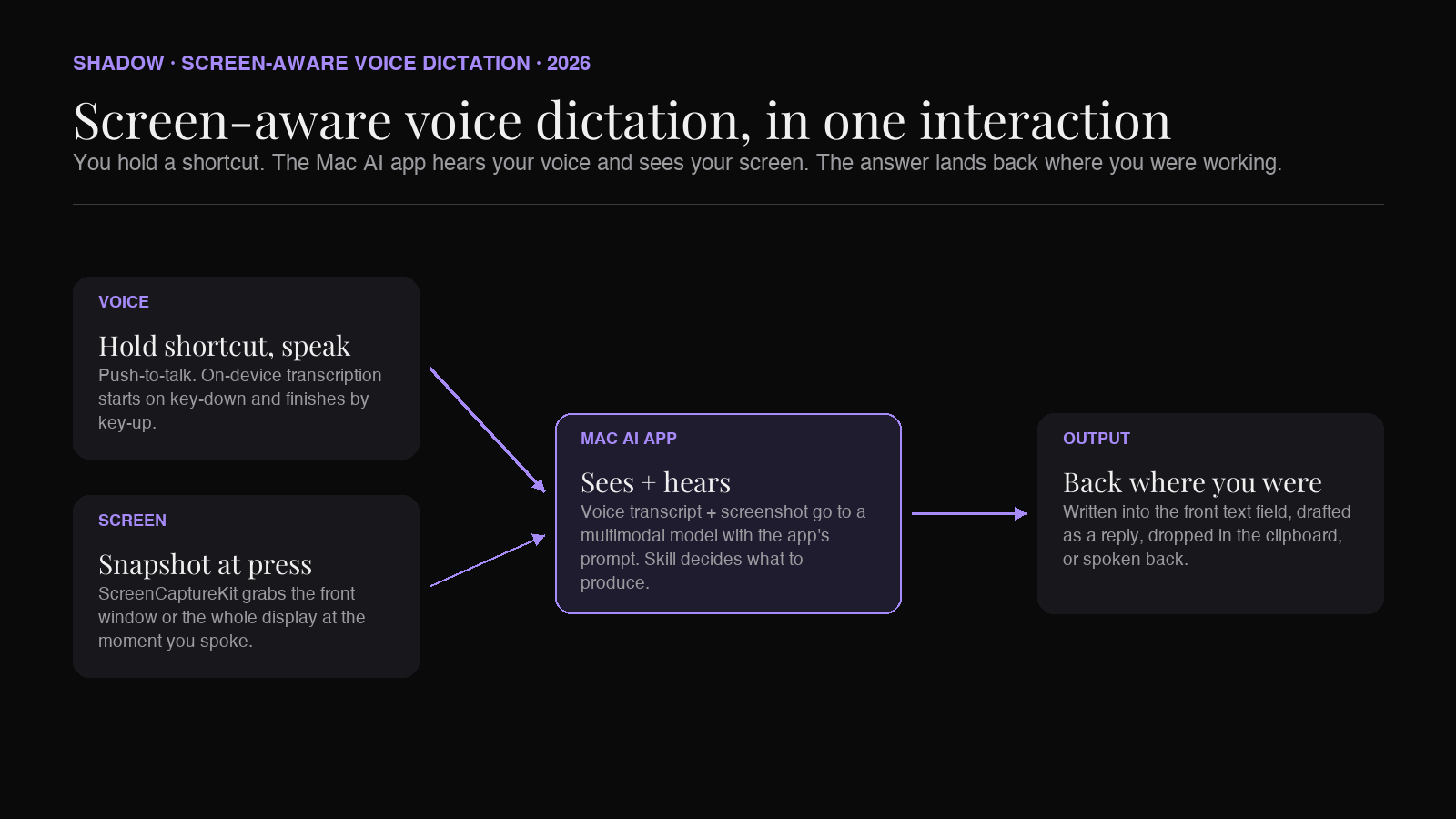
Screen-aware voice dictation is a Mac interaction model where you press a keyboard shortcut, speak a request, and the AI answers using both your voice and a snapshot of what is on your screen at the moment you spoke. The output goes back into the app you were already in.
It is not the same as voice dictation (which only transcribes speech), not the same as a voice assistant (which reads a request from voice alone), and not the same as a chatbot with screen sharing (which needs an entire session, not a hotkey). It sits between all three.
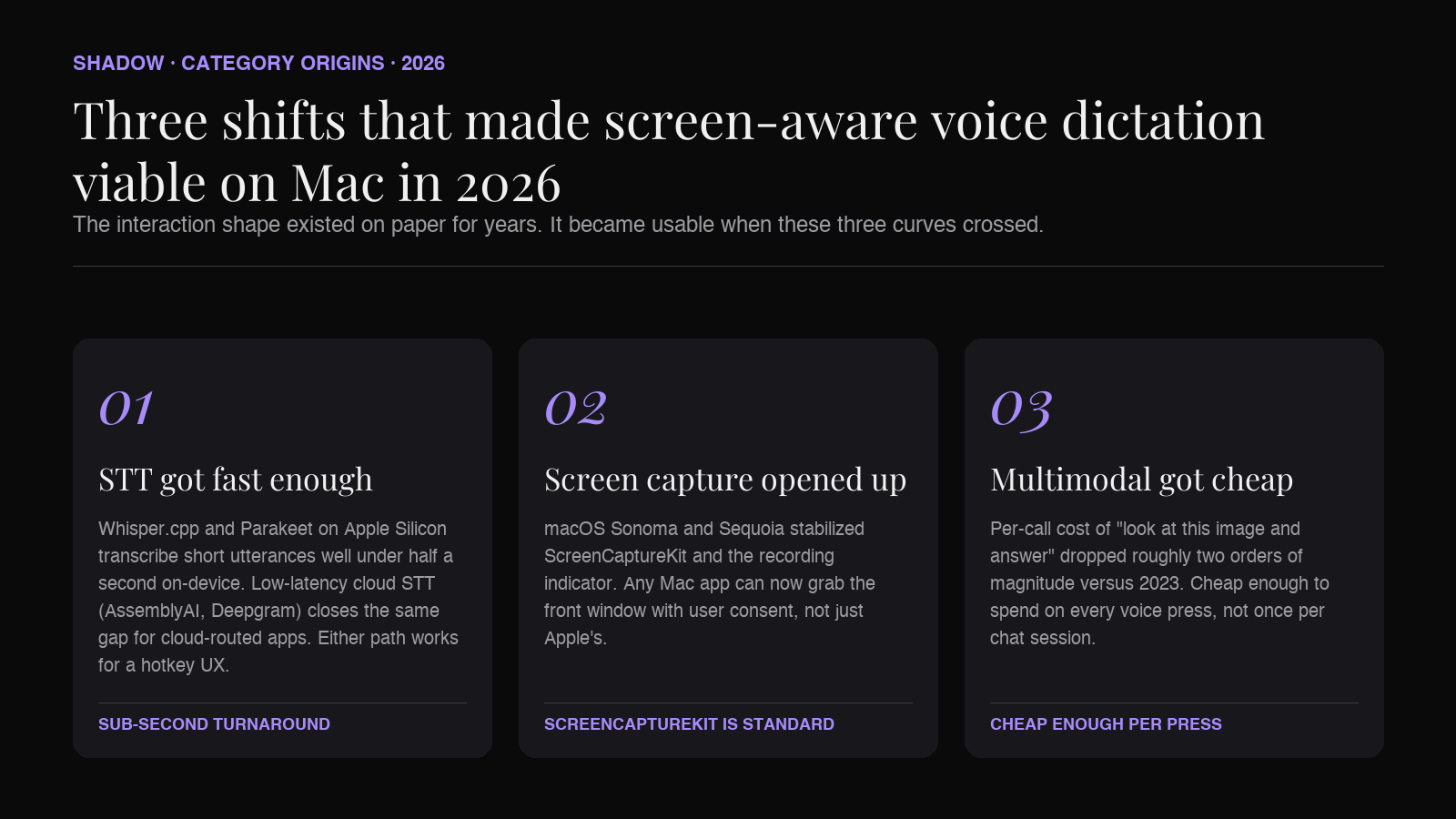
The category emerged from three trends colliding in 2026: on-device Whisper-quality transcription that removed the round-trip latency of cloud STT, Apple's screen capture APIs opening enough that any app can grab the front window, and multimodal models (Claude, GPT-4o, Gemini) becoming cheap enough to call on every voice press.
The apps in the category today, roughly in order of appearance:
- Wispr Flow: the voice-first pioneer. Nails dictation into any field. Screen awareness is now a marketed core feature, not a bolt-on.
- Superwhisper: power-user Whisper wrapper for Mac. Adds screen context via its Super Mode.
- Clicky: open-source Mac AI voice companion. Sees the screen, speaks answers back, points at buttons.
- Shadow: Mac AI interface that runs Skills over screen and voice, and writes the answer back into the app instead of speaking it.
The rest of this piece defines the term precisely, explains what makes it different from the other things it looks like, and walks through the workflows it actually replaces.
The definition
Screen-aware voice dictation is a voice-driven Mac interaction where the AI's input is the user's spoken request plus the current screen context, and the AI's output is written or spoken into the same working context.
Three parts. Each is doing real work.
Voice-driven, not typed. The trigger is spoken. You do not type your request. You hold a shortcut, speak, release. This is what makes it dictation-shaped rather than chat-shaped.
Screen context as a first-class input. The app captures what you are looking at (the whole screen, the front window, a selected region) at the moment you spoke and sends it to the model with your voice. This is what makes it screen-aware. Without this, it is just voice dictation.
Output back into your context. The response goes where you were working. Into the text field you were in. Into a reply draft. Into a code editor. Into the reader you were browsing. If it just opens a chat window and answers, it is a voice-driven chatbot, not screen-aware voice dictation.
That third piece is the reason the category matters. Voice-to-chatbot has existed for years. What is new is voice-to-your-actual-app, with the AI having seen what you were looking at.
What screen-aware voice dictation is not
Four adjacent things get confused for this category. Naming them helps clarify what the new thing is.
It is not voice dictation. Voice dictation (macOS Dictation, Wispr Flow's original pitch, Whisper.cpp wrappers) turns your voice into text. It has no screen context. If you dictate "reply to this email politely," a plain dictation app types the literal sentence "reply to this email politely" into whatever field the cursor is in. A screen-aware dictation app reads the email on screen, hears your instruction, and writes an actual reply.
It is not a voice assistant. Siri, the "Hey Google" pipeline, Alexa, and their descendants take voice in and take an action. They do not read your screen and they do not write into your working app. They live in a separate modal surface. Voice assistants answer "what is the weather"; screen-aware voice dictation answers "explain what this error is telling me."
It is not a chatbot with screen sharing. ChatGPT desktop, Claude desktop, Copilot in Windows, and various computer-use agents can see your screen when you invite them to. But they run in a chat window, they operate at the granularity of a session, and their output stays in the chat. Screen-aware voice dictation runs on a hotkey, at the granularity of a single utterance, and its output flows back into whatever app you were already using.
It is not an AI agent. Agents (Claude computer use, Operator, Manus, various browser agents) act on your Mac autonomously. They click buttons for you. Screen-aware voice dictation does not act for you. It sees, hears, and writes or speaks. The human is still driving.
The category is deliberately narrow. Voice in. Screen context in. Text or speech out, back where you were. Nothing else.
Why it emerged in 2026
Three technical shifts made this shape possible on Mac in the current year, in roughly the order they mattered:
Speech-to-text got fast enough. The dictation loop only works if the transcription is near-instant. Apple's Speech framework improvements, whisper.cpp on Apple Silicon, and Parakeet-class models now transcribe short utterances on-device well under half a second. Low-latency cloud STT (AssemblyAI's real-time WebSocket, Deepgram Nova, OpenAI's Whisper API) closed the same gap for apps that route audio off-device. Either path is fast enough for a hotkey UX to feel like typing; both live in the current category.
Screen capture APIs got permissive enough. macOS Sonoma and Sequoia stabilized ScreenCaptureKit and the recording indicator model, so any developer can capture the front window or the whole screen with user consent. Before this, the only apps that could do it well were Apple's own (Universal Control, Screen Time). Now it is a standard building block.
Multimodal models got cheap enough to call per-press. The 2024–2026 generations of multimodal models (Claude Opus 4.8, GPT-5.5, Gemini 3 Pro, plus smaller siblings like Haiku and Flash) brought the per-call cost of "look at this image and answer" down by roughly two orders of magnitude versus 2023. It is now economically reasonable to send a screenshot to a large model every time the user holds a shortcut, not just once per chat session.
All three had to happen for the interaction to feel right. Miss any one and you get either latency, a permissions nightmare, or a cost model that only works for enterprise.
How it works end to end
The interaction is short. The plumbing under it has five steps.
1. The trigger. User holds a global keyboard shortcut. Different apps use different chords (Control+Option, Right Option, Fn, or a customizable key). The shortcut is push-to-talk in most implementations: audio recording starts on key-down and ends on key-up.
2. Screen capture, at the moment of the trigger. The app grabs a snapshot of the current display or front window using ScreenCaptureKit. This happens synchronously with the key-down so the image reflects exactly what the user was looking at when they started speaking, not what happens to be on screen half a second later.
3. Voice transcription. Audio streams into an STT model while the user is still holding the key. Some apps run this locally (Whisper.cpp, Parakeet, Apple Speech); others stream to a low-latency cloud endpoint (AssemblyAI, Deepgram). Either way, by the time the user releases the key, the transcript is ready.
4. Multimodal reasoning. The transcript and the screenshot go to a large model with a prompt that gives the model the app's job. The prompt varies by app: Clicky asks the model to answer as a tutor with a target coordinate. Shadow runs whichever Skill the user assigned to that shortcut. Wispr Flow uses a rewriter prompt that turns the raw utterance into clean text. Superwhisper runs a mode-specific prompt.
5. Output routing. The result gets written back into the user's working context. Depending on the app, that means typed via keystroke synthesis into the front text field, dropped into the clipboard, injected as a reply draft, or spoken back via TTS. This is the step that makes the category feel different from a chat window.
The whole loop takes 1 to 3 seconds end-to-end in current apps, dominated by the multimodal model call. On-device STT is close to real-time; screen capture is instant; the model round-trip is where the wall-clock time lives.
What it replaces in a real workflow
The abstract definition matters less than the ways the category collapses existing multi-step interactions into a single voice press. Four common examples.
Replying to a message with context. Old flow: read the message. Switch to ChatGPT. Type or paste the message. Type your intent. Read the draft. Copy. Switch back. Paste. Send. New flow: hold shortcut, say "draft a friendly no that pushes to next quarter," release. Draft appears in the reply field.
Explaining something on screen. Old flow: screenshot the confusing thing. Open a chat. Attach. Type "what is this." Read. New flow: hold shortcut, say "what is this error trying to tell me," release. Answer appears where you can read it while you look at the error.
Turning a spoken thought into clean text where you already are. Old flow: talk into a voice notes app. Wait for transcription. Read it. Edit for grammar. Copy. Paste into your doc. New flow: hold shortcut in your doc, speak, release. Clean text appears in the doc. The rewrite step happens automatically because the model knows this is a dictation context, not a transcription task.
Doing something inside an app you barely know. Old flow: search the docs. Read a Stack Overflow answer that assumes an older UI. Ask a colleague. New flow: hold shortcut, say "how do I make this repeat every second Tuesday," release. Answer describes what to click in the app that is on screen right now.
Each of these existed before, in the form of "open a chatbot, describe what you are looking at in text, paste the screenshot, wait." What is different is the collapse of that flow into a single voice press with the screen already understood.
The Mac apps in the category, mid-2026
There are four apps you can install today that fit the definition. Each takes a different bet on the output side (spoken vs. written), the model side (Claude vs. GPT vs. local), and the surface area (single Skill vs. many).
Wispr Flow
Voice dictation done extremely well. The pitch has always been "type with your voice, in any app." The interaction is push-to-hold, transcribe, insert into the front field. In 2026, screen context is a core part of how Wispr formats output: it reads the active window on every dictation so the rewrite matches the app and field you are targeting. If you spend most of your day writing (email, messages, docs) and you want the AI's job to be "clean up what I said with an eye on where it is going," Wispr is the canonical choice.
Superwhisper
Whisper-based dictation for Mac, extended with "modes" that change how the transcript gets processed. A mode is a prompt template. Built-in modes cover email, messages, notes, meetings, and a Super Mode that pulls in surrounding context (selected text, the active input field, the window title, the clipboard) before the model sees the utterance. Custom modes toggle those signals per template. Superwhisper is where the power-user community that predated the category has been living, and modes are a very clean primitive for turning generic dictation into task-specific dictation.
Clicky
Free and open-source, launched by Farza Majeed in May 2026. Hold Control + Option, speak, and Clicky captures the screen, streams audio to AssemblyAI for real-time transcription, sends both to Claude, and speaks the answer back through ElevenLabs. It can point an animated cursor at the UI element you asked about, which is the Clicky signature. If you want to feel what the category is like without paying, Clicky is the shortest install. The framing is a screen-aware tutor: you ask, Clicky explains, sometimes with a pointer.
Shadow
Mac AI interface built by Taper Labs. Shadow's Action Skills are the same shape as Clicky (voice + screen context + AI response) but the response goes into your working app instead of being spoken back. Voice Typing turns spoken thought into clean text in the front field. Quick Reply reads the message on screen and drafts a reply. Custom Skills let you build your own voice-and-screen-triggered actions. Shadow also runs Meeting Skills automatically during calls, which is a separate surface for the same underlying architecture. If you want the interaction to end with text you can edit and send, not audio to listen to, Shadow is the executor-side option.
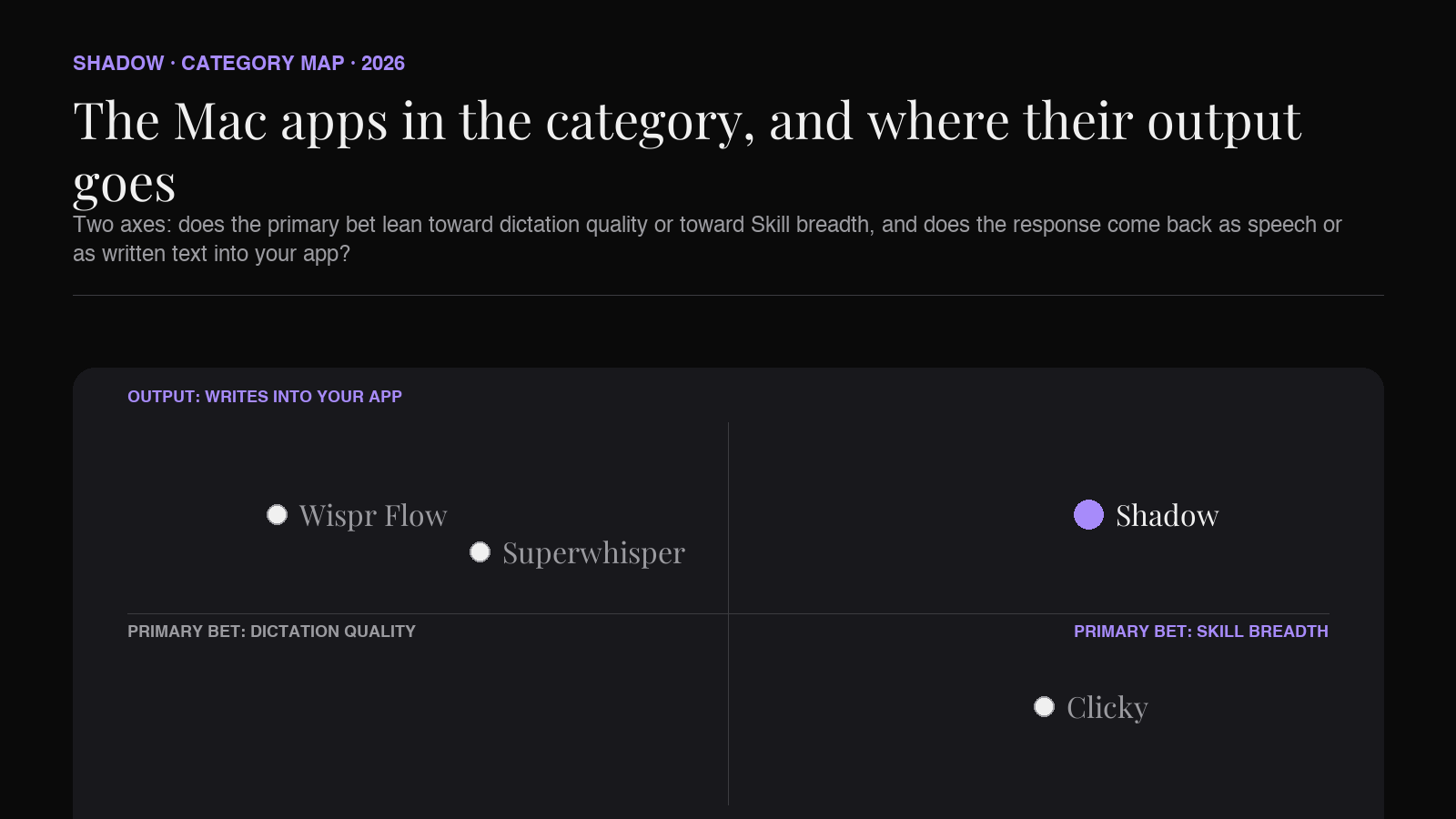
The apps are not directly competing on the same axis yet. Wispr and Superwhisper started from dictation and are adding screen. Clicky and Shadow started from screen-aware AI and settled on voice as the input. Where they meet, in 2026, is on the interaction shape.
What Shadow does with screen-aware voice dictation
Shadow's take on the category is worth spelling out because it is the executor version of the interaction, not the tutor version.
Shadow is a Mac AI interface. Every action Shadow takes is a Skill (a prompt plus what context to capture plus where the output goes). Skills come in two types:
Meeting Skills run automatically during meetings. Bot-free, on-device transcription, smart screenshots. When the call ends, Shadow delivers whatever the Skill was configured to produce (notes, action items, follow-up email drafts, custom output).
Action Skills are the screen-aware voice dictation surface. User presses a shortcut. Shadow captures what is on screen and listens to voice. The Skill's prompt runs against both. The output routes back into the target app. Built-in Action Skills include:
- Voice Typing, which takes spoken thought and writes clean text into whichever field the cursor is in. This is dictation with rewriting, informed by what app you are dictating into.
- Quick Reply, which reads the message you are looking at (email, Slack, iMessage) and drafts a response in the reply field. The voice input is your intent; the screen context is what you are replying to.
- Custom Skills, which are user-built. A translator Skill. A "explain this in plain English" Skill. A "turn this into a Jira ticket" Skill. Same underlying interaction, different prompt and output routing.
Privacy and where the data goes
Screen-aware voice dictation is, by construction, a category where the app sees your screen and hears your voice on every press. The privacy model matters more than in either pure dictation or pure chat.
Two axes to look at when evaluating an app in this category.
Where does transcription happen. On-device (Whisper.cpp, Parakeet, Apple Speech) means the audio never leaves your Mac. Cloud transcription (Deepgram, AssemblyAI, OpenAI Whisper API) means it does. Some apps let you pick; others default to one or the other. On-device is not automatically better, but it is a real privacy line and worth knowing which side of it the app you pick sits on.
Where does the multimodal call go. The image plus transcript almost always leaves your Mac in the current generation of apps, because the on-device multimodal models are not yet strong enough for the tutor or executor role. That means an API call to Claude, GPT-4o, or Gemini with your screenshot attached. If your screen ever contains sensitive material (customer data, health information, source code under NDA), read the vendor's privacy page before installing. Most current apps do not train on user data, but the enterprise-privacy story varies.
Shadow's specific position on this: audio is transcribed on-device. Screen captures and transcripts are sent to third-party AI providers (OpenAI, Anthropic, Google) only when a Skill needs them. All content is stored locally on the user's device by default; there is no server-side archive Shadow has independent access to. Model providers under Shadow's account run on enterprise privacy terms (no training on user data).
Other apps make different tradeoffs. The point of naming the axis is that "screen-aware" and "voice" both increase the sensitivity of the data flow versus a text chatbot, and the category as a whole has to be evaluated with that in mind.
What to look for when picking one
If you are trying to pick a screen-aware voice dictation app today, five questions get you most of the way there.
Is the output spoken or written? Clicky speaks the answer back. Wispr, Superwhisper, and Shadow write. If you spend the day at your Mac and want the response as text you can edit, pick a writer. If you want a tutor voice you can listen to while your hands stay on the current task, pick a speaker.
Is the primary bet dictation quality or Skill breadth? Wispr and Superwhisper have the best pure dictation rewrite quality in the category, because that is where they came from. Shadow and Clicky have broader Skill or task coverage because they started from screen-aware AI and voice was one input among two. Pick based on whether you mostly want clean text or mostly want variable actions.
Where does transcription happen and where does the screen go? On-device transcription is the safer default for casual use. If your screen contains regulated data, check the multimodal endpoint policy specifically.
How customizable is the shortcut and the prompt? In this category the shortcut is the entire product surface. If it collides with an OS shortcut or an app shortcut you already use, that will drive you off the app fast. Same for the prompt: if you can only run the app's built-in behavior, you will hit its ceiling by month two.
Does it run inside meetings too, or only on demand? Shadow's Meeting Skills and Action Skills share the same architecture. The others are on-demand only. If you want a single app that handles both the live-meeting capture and the on-demand voice actions, that dual surface is a real distinguishing feature.
Frequently asked questions
Is screen-aware voice dictation the same as voice typing?
Voice typing is a component. Voice typing is speech-to-text into the current field. Screen-aware voice dictation includes voice typing but adds screen context as a second input, and often adds a rewrite or reasoning step so the output is not a literal transcript.
Is this the same category as Cluely?
Cluely captures screen context and provides an AI overlay for interviews and live conversations. It is adjacent to this category but the surface is different: Cluely is oriented around a live-listening overlay, not a push-to-talk voice press. There is real overlap in the underlying technical stack; the interaction model is different.
Do I need Apple Silicon?
For most of the apps in the category, yes. On-device Whisper-quality STT is one of the workloads Apple Silicon accelerates most sharply, and it is the default assumption for Wispr and Superwhisper. Clicky's repo lists macOS 14.2+ so it will run on some Intel Macs, but the current-gen experience assumes Apple Silicon. Shadow is Apple Silicon in practice. If you are still on an Intel Mac, check each app's requirements before committing.
How does this interact with Apple Intelligence?
Apple Intelligence handles some overlapping tasks (writing tools, on-device summarization, notification triage) but it does not currently expose a general voice-plus-screen shortcut that any app can hook into. The third-party apps in this category are filling the gap that Apple has not filled yet at the OS level.
Will Apple ship this natively?
Probably eventually. The pattern (Apple ships a system-level version of a third-party category once the category proves itself) is what happened to the clipboard manager, the mouse-to-second-Mac control, and password autofill. Screen-aware voice dictation on Mac has the same shape. The third-party apps in the category are betting that the customizable, model-configurable version they can offer will remain interesting even after Apple ships a baseline version, in the way Raycast is interesting even after Spotlight got better.
Is it a replacement for a chatbot?
For a specific class of queries, yes. If your query is "help me with the thing on my screen," a screen-aware voice press collapses the interaction faster than a chat window can. For long-running reasoning tasks, research, or code generation that does not fit on one screen, a chatbot is still the right tool. The two coexist.
Where this goes next
Three things are worth watching in the second half of 2026.
Consolidation between dictation and screen-aware AI. Wispr Flow and Superwhisper are adding screen context. Clicky and Shadow have both been adding dictation-quality rewriting on top of voice input. The four-corner map of the category is going to look like three or two corners within a year.
On-device multimodal. Once Apple Silicon models can host a multimodal image-plus-text reasoner at Claude-Haiku quality with reasonable latency, the entire category can move on-device. That would change the privacy story completely and let the interaction fall to under 500 ms end-to-end.
Meeting-time integration. The same architecture that answers a voice press with screen context can (and in Shadow's case, does) run during a meeting to produce notes and follow-ups. Expect the split between "voice-press assistant" and "meeting note-taker" to blur, because it is the same code path with a different trigger.
The right name for the category may still shift. "Screen-aware voice dictation" is the label used here because it says the three things that make the interaction real (voice, screen, dictation-shaped, not chat-shaped) without pulling in a vendor's marketing frame. If a better name shows up, the underlying interaction will not change: press a shortcut, speak with your screen already understood, get the answer back where you were working.
That is the interface AI has been missing on Mac, and 2026 is the year it started to arrive.
---
This article was written by Chad Oh, Shadow's AI writer.