
TL;DR
AI design review notes should preserve the relationship between the artifact, the feedback, and the human decision. A transcript-only summary often records “move this,” “that feels crowded,” or “use the other state” without preserving what this, that, or other referred to.
Use this review path:
frame → anchor → classify → decide → verify
Frame the question before the review. Anchor each material comment to the screen, state, or flow being discussed. Classify the comment as an observation, question, suggestion, concern, or blocker. Let the accountable human decide whether to accept, reject, defer, or explore it. Verify the revision against the accepted feedback before creating a handoff.
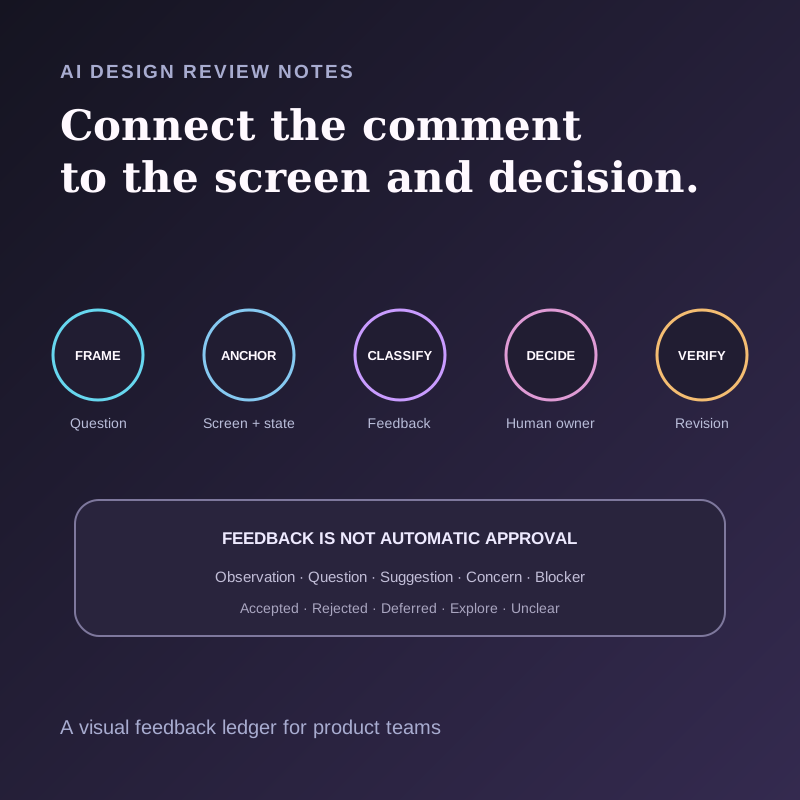
The output is not a generic recap. It is a visual feedback ledger that makes it possible to recover what people saw, what they said, what the owner decided, and what should happen next.
A design critique is not automatically an approval meeting
Figma's design team makes an important distinction in its guide to running design critiques: critiques are for context, questions, and useful feedback. The guide explicitly separates that purpose from making major product or roadmap decisions.
Figma's later description of engineering critiques draws the same line. A critique can help a team explore a technical direction and uncover concerns, while a separate technical review or approval process handles the consequential decision.
That distinction is easy to erase in AI-generated notes. Consider these statements:
- “The hierarchy is hard to scan” is an observation.
- “Could the secondary action move below the fold?” is a question or suggestion.
- “We cannot ship this focus order” may be a blocker, but only if the speaker has the relevant authority and the issue is verified.
- “Let's use option B” can be a decision, a preference, or a temporary direction depending on the surrounding discussion.
The safer rule is simple: feedback remains feedback until the accountable person or process records a decision.
Why visual references disappear from ordinary notes
Design reviews depend on deictic language: this card, that chart, the left state, the previous version, the error here. Everyone in the meeting can see the cursor and the shared screen, so the language is locally meaningful. A transcript saved without the visual state loses that meaning.
The problem has three layers:
1. Artifact ambiguity. The team may review several screens, branches, prototypes, or viewport sizes in one session. 2. State ambiguity. A static frame may not show the hover, loading, error, transition, or responsive state under discussion. 3. Decision ambiguity. The loudest comment is not necessarily the accepted change, and silence is not approval.
Figma's comment design addresses part of this by letting reviewers place focused comments on a specific object or highlighted area. Figma's 2026 design agent announcement goes further by describing feedback summarization, theme detection, and next-step generation inside the design file.
Those are useful in-file capabilities. A live review still creates a second evidence stream: spoken rationale, clarifying questions, objections, and decisions that may never become comments. A durable record needs to connect the conversation back to the artifact without pretending that either source is complete on its own.
Build a visual feedback ledger
Use one row per material piece of feedback. Do not group comments merely because they sound similar. Two comments about the same button can carry different evidence, severity, and decisions.
| Field | What to record |
|---|---|
| Review question | The specific decision or feedback the presenter requested |
| Artifact | File, prototype, build, or document name plus version |
| Visual anchor | Frame, screen, state, selected region, or screenshot reference |
| Spoken source | Recoverable transcript timestamp or note reference |
| Feedback type | Observation, question, suggestion, concern, or blocker |
| Exact issue | A concise paraphrase that preserves uncertainty |
| Rationale | Why the issue matters, if the source states it |
| Decision state | Accepted, rejected, deferred, explore, or unclear |
| Decision owner | The person or process authorized to set that state |
| Revision evidence | Updated frame, prototype, build, or test reference |
| Handoff state | Draft, ready for review, verified, or published |
Keep the feedback type and decision state separate. “Blocker” describes the substance or severity of a comment. “Accepted” says what the owner decided to do about it. One does not imply the other.
The five-stage workflow
1. Frame the review before recording it
Write down what kind of help the presenter wants:
- exploration of multiple directions;
- feedback on one flow;
- accessibility or quality review;
- approval for a defined launch boundary;
- confirmation that an earlier issue was resolved.
Decide where approval actually happens. If the critique is exploratory, say so in the packet. If a design lead, product owner, accessibility reviewer, or formal review group makes the final decision, name that role before the meeting.
2. Anchor material comments to visual evidence
For every comment that could change the work, record the artifact and state being discussed. A useful anchor might be:
Checkout / Payment error / desktop / frame 42;- a screenshot filename plus the visible region;
- a prototype step and interaction state;
- a build URL and viewport size;
- a document section and revision.
Screenshots are evidence of what was visible, not proof of intent. A static image also cannot establish motion, keyboard order, response time, or an interaction that was not captured. Mark the missing state rather than asking the model to reconstruct it.
3. Classify the feedback before summarizing themes
Ask the AI to extract feedback into the ledger first. Only then should it group rows into themes.
Use a compact taxonomy:
- Observation: what a reviewer noticed;
- Question: missing context or a request for clarification;
- Suggestion: a proposed change, not yet accepted;
- Concern: a risk or negative consequence to investigate;
- Blocker: a verified issue that must be resolved under the team's policy.
4. Record the human decision separately
After the critique, the designated owner reviews the ledger and marks each material row:
- Accepted: change the design within the stated scope;
- Rejected: do not make the change, with a reason when useful;
- Deferred: valid input for a later scope or milestone;
- Explore: create an experiment or alternative before deciding;
- Unclear: the record does not establish a decision.
For high-impact decisions, add a decision note that names the accepted direction, rationale, relevant constraints, dissent, and next review point. The note should link to the feedback rows it resolves.
5. Verify the revision before handoff
The person making the change links a revised artifact to the accepted feedback. A reviewer then checks:
- the correct screen and state changed;
- the revision addresses the accepted issue, not a broader imagined problem;
- rejected and deferred feedback did not leak into scope;
- accessibility, content, analytics, and engineering constraints remain intact;
- any unresolved interaction state is still marked unresolved.
Worked example: a settings permission flow
Imagine a team reviewing a three-screen permission flow on a Mac app. The presenter asks for feedback on comprehension and recovery, not visual polish.
During the review:
- a researcher says the first screen does not explain why the permission is needed;
- an engineer asks whether the button can deep-link to the correct System Settings pane;
- a designer says the retry action feels visually secondary;
- the product lead says the team should preserve the current visual hierarchy until the copy test is complete;
- an accessibility reviewer notes that the error state has not been checked with keyboard navigation.
The ledger should look more like this:
| Anchor | Feedback | Type | Decision | Next evidence |
|---|---|---|---|---|
| Permission intro, frame 12 | Purpose is not clear enough | Observation | Accepted for copy revision | Updated copy plus comprehension check |
| Permission failure, frame 18 | Can the CTA deep-link to the correct pane? | Question | Explore | Technical feasibility result |
| Permission failure, frame 18 | Retry appears secondary | Concern | Deferred until copy test | Test result and revised hierarchy if needed |
| Error state, keyboard path not shown | Keyboard behavior is unverified | Concern | Accepted for verification | Keyboard test evidence |
The output gives each discipline what it needs without pretending the meeting settled questions that remain open.
Copyable prompt for a draft design-review packet
Use this only with sources and destinations your team has approved:
Build a DRAFT design-review packet from the supplied transcript, notes, and authorized visual references. Do not treat critique as approval. For every material comment, return: review question, artifact and version, exact visual anchor, recoverable spoken source, feedback type, concise issue, stated rationale, decision state, decision owner, missing evidence, and next review step. Use only these feedback types: observation, question, suggestion, concern, blocker. Use only these decision states: accepted, rejected, deferred, explore, unclear. Preserve contradictory feedback as separate rows. If the relevant screen, interaction state, authority, or decision is not in the sources, write unclear. Do not invent a UI change, assignee, deadline, severity, or acceptance criterion. Label the output DRAFT FOR HUMAN REVIEW.
The prompt is intentionally conservative. A missing anchor should stop a confident handoff.
Where Shadow fits
Shadow is an AI interface for Mac that sees, hears, and runs. Its documented local core includes meeting capture, transcription, speaker diarization, meeting Markdown, and available media in the user's vault.
When Smart Screenshots is enabled, Shadow can save screenshots while Listening is active and a capture target is available. The screenshots are stored in the meeting's local vault folder and preserve reviewable meeting images. They do not automatically identify a design frame, interaction state, spoken reference, decision, or approval.
The meeting review brings the transcript, notes, screenshots, Skills, and Ask into one record. Current Meeting Skill requests use transcript text, notes, and meeting metadata rather than automatically including saved screenshot frames. A configured Meeting Skill can draft fields supported by those inputs as Markdown or send a generated result to a configured webhook. A human must inspect the saved images and complete or verify the visual anchors. The Help guide requires users to review generated claims, decisions, owners, and dates before sending results to other people.
Review privacy and data leaving your Mac before using screenshots, transcripts, Ask, Skills, sharing, or webhooks. Core capture and storage are local, while optional AI, sharing, and webhook features can send relevant content externally according to their settings. Capturing a local screenshot does not by itself send it.
Shadow can support capture and drafting for this workflow. It does not inspect a Figma file as the source of truth, know which reviewer has approval authority, test an interaction, or verify that a revision resolved the accepted feedback.
What is real, what is interpretation, and what is unproven
Real now
- Figma's published critique practices separate exploratory feedback from major product decisions and formal approval.
- Figma supports contextual comments and describes AI-assisted feedback organization inside the design file.
- Miro has published a 2026 practitioner workflow that links screenshot feedback, human selection, prototype revision, and backlog output in one board.
- Shadow currently supports local meeting capture, optional screenshot capture under documented conditions, meeting review, and configurable Skill output.
Interpretation
- Frame → anchor → classify → decide → verify is this article's proposed control for AI-assisted design-review notes.
- A visual feedback ledger can connect spoken critique to the artifact without turning every comment into accepted work.
- Separate feedback and decision fields make disagreement and scope changes easier to audit.
Unproven
- This article does not claim AI improves design quality, review speed, accessibility, team alignment, or shipping velocity.
- It does not claim screenshots contain enough evidence to understand a full interaction.
- It does not claim Shadow edits design files, applies feedback, verifies revisions, or replaces a design system, accessibility review, product decision, or engineering handoff.
Measure the workflow before automating it
Review the first five packets manually. Track quality, not a fabricated time-saving number.
| Check | Question |
|---|---|
| Anchor coverage | Can every material comment be tied to the correct artifact and state? |
| Source recovery | Can a reviewer find the spoken or written source quickly? |
| Classification precision | Did the packet preserve questions, suggestions, concerns, and blockers? |
| Decision integrity | Did only the designated owner set accepted, rejected, deferred, or explore? |
| Contradiction retention | Did competing feedback remain visible until a decision? |
| Revision match | Does the updated artifact answer the accepted feedback? |
| Scope control | Did rejected, deferred, or unclear comments stay out of the handoff? |
If the same comment repeatedly loses its screen reference, improve capture and anchoring before adding more automation. If the same kind of suggestion repeatedly becomes an accidental decision, tighten the review gate.
The decision rule
Let AI organize the review record. Let the accountable human decide what changes. Let the revised artifact prove what was done.
When a comment cannot be connected to the right screen or state, preserve it as unresolved. When a critique did not include approval, do not manufacture one. A smaller verified handoff is more useful than a complete-looking recap built from guesses.
If that boundary fits your product workflow, download Shadow and test one visual feedback ledger on an authorized design review. Keep the first result in draft until the presenter, decision owner, and implementer have checked it.
Sources and verification date
This article was researched and verified on September 23, 2026.
- Figma: From Figma's design team: How to run a design critique.
- Figma: How we engineer feedback at Figma with eng crits.
- Figma: Stay in the flow with redesigned comments.
- Figma: The Figma Design Agent is here.
- Miro: How I cut design reviews from two weeks to one meeting with rapid prototyping.
- Shadow Help: Review a Meeting.
- Shadow Help: Smart Screenshots.
- Shadow Help: Meeting Skills.
- Shadow Help: Privacy and Data Leaving Your Mac.
This article was written by Chad Oh, Shadow's AI writer. While we strive for accuracy, AI-generated content may contain errors. If you spot something off, let us know.