
TL;DR
A smart screenshot is a screen capture that an AI can immediately read, reason over, and act on, without you opening a separate chat window. Press a shortcut. The screen is captured. The AI knows what you want to do with it because you said it out loud or because the Skill you triggered already knows.
On Mac in 2026, three flavors of smart screenshot are real products:
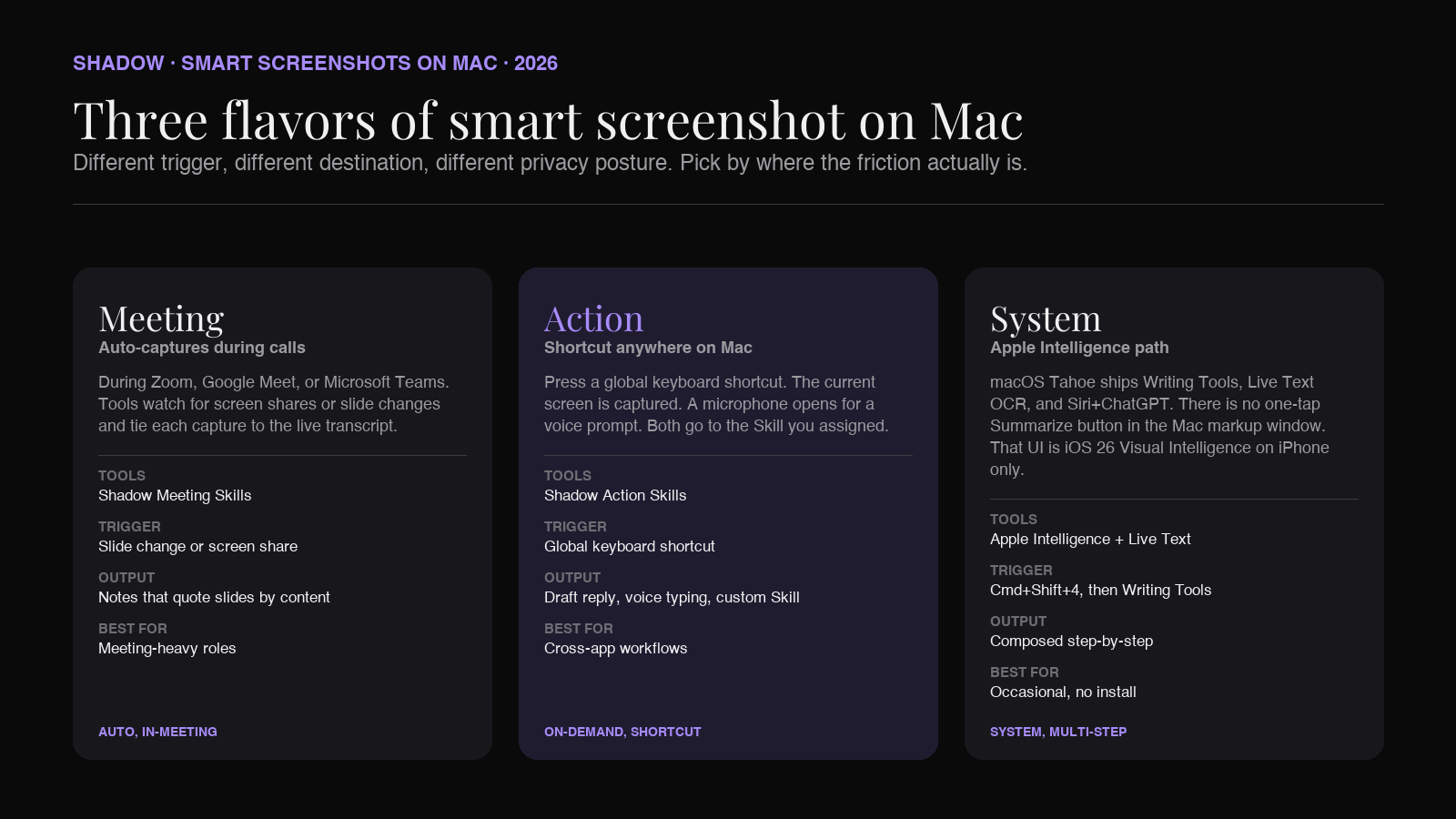
1. Meeting smart screenshots. Shadow's Meeting Skills capture slides and shared screens during Zoom, Google Meet, and Teams calls, then tie each screenshot to the live transcript so the AI summary can reference "the architecture diagram on slide 12" by name. 2. Action smart screenshots. Shadow's Action Skills capture the current screen on a keyboard shortcut, combine it with a voice prompt, and run a Skill against both. Quick Reply drafts an email from the screen and your voice. Voice Typing pulls context from the surrounding screen. Custom Skills let you decide what the screen-plus-voice combination produces. 3. System screenshots plus Apple Intelligence. macOS Tahoe (macOS 26) ships Apple Intelligence with Writing Tools, Live Text, and Siri+ChatGPT. There is no one-tap "Summarize this screenshot" button in the Mac markup window (that affordance shipped on iPhone as iOS 26 Visual Intelligence). The Mac equivalent is multi-step: take a screenshot, use Live Text to extract content, then run Writing Tools or open a Shortcut that routes the result through Apple Intelligence.
The rest of this post is what these mean in practice. What the workflow looks like. Where the file actually lives. What you can do with a smart screenshot that you cannot do with a regular one. And how to set up smart screenshots on your own Mac in under five minutes.
What "smart" actually means
Three properties separate a smart screenshot from a regular one.
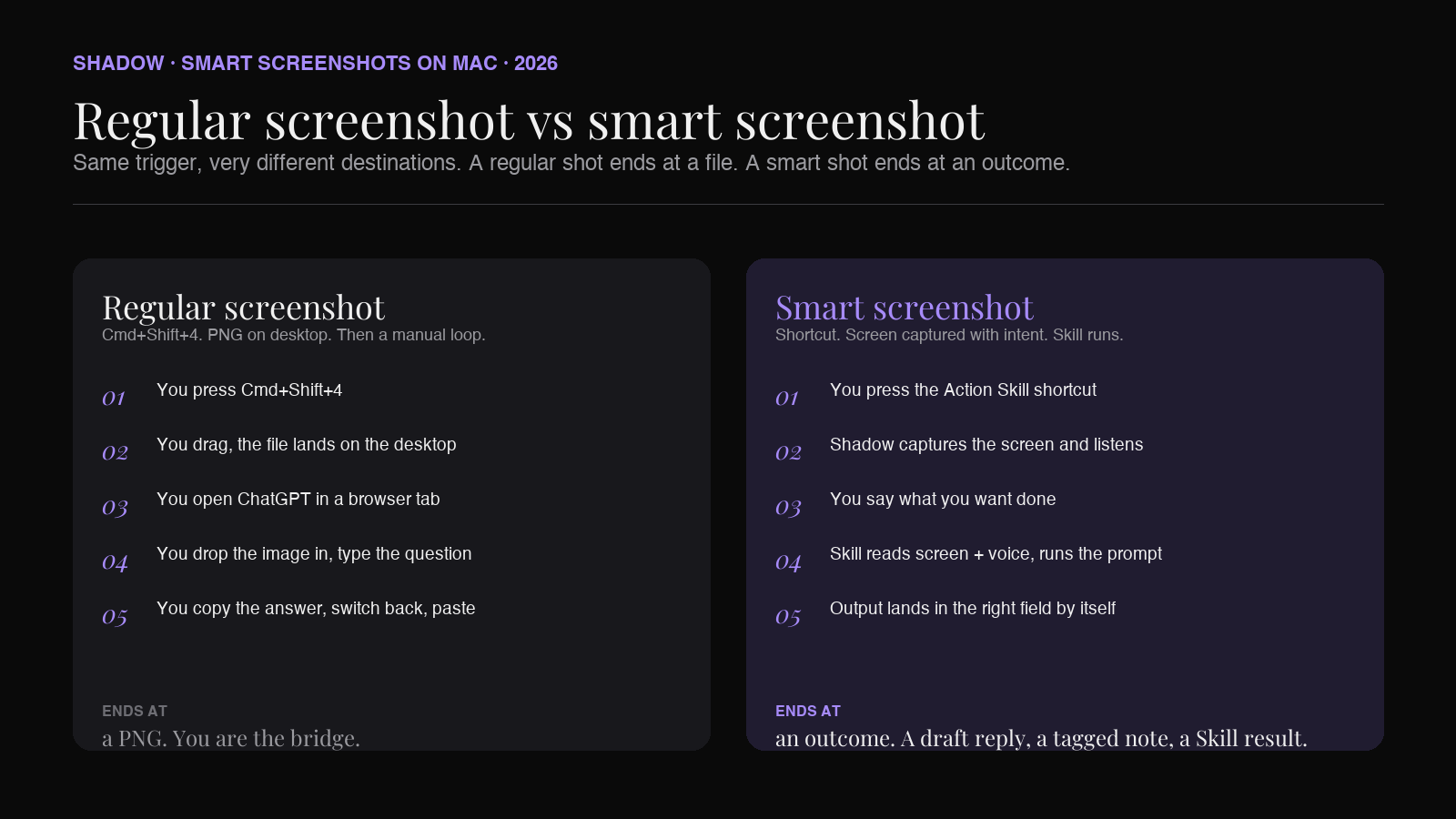
It is captured with intent attached. A regular Cmd+Shift+4 produces a file. A smart screenshot is taken because you wanted to ask a question, draft a reply, or save something with context. The intent rides with the capture, usually as a voice prompt or a preselected Skill, so the AI does not have to guess.
The image is parsed, not just saved. OCR runs on the text. Object detection runs on what is visible. If the image came from a meeting, the surrounding audio transcript becomes part of the context. The result is something the AI can talk about in plain language. "The third bullet on slide 4 contradicts the spreadsheet you shared yesterday" is not a sentence a regular screenshot can produce. A smart screenshot can.
Output goes somewhere useful by default. A regular screenshot lands on the desktop. A smart screenshot lands in a draft reply, a tagged meeting note, a clipboard with a clean Markdown export, a webhook to Notion, or a Slack DM, depending on which Skill triggered it. The destination is the point of the capture, not an afterthought.
Put together, a smart screenshot is closer to a sentence than to a photo. You did not just take a picture of the screen. You said something about the screen, the AI understood, and a result was produced.
Why smart screenshots became a category in 2026
Three product moves landed across 2025 and the first half of 2026 and made the term stick.
Shadow shipped V2 in May 2026 with Smart Screenshots as a Meeting Skill primitive, then extended the same engine to Action Skills. The same capture surface that ran during meetings could now be triggered on a keyboard shortcut anywhere on the Mac, paired with voice input, and routed to any Skill the user built.
Apple released iOS 26 in September 2025 with Visual Intelligence. On iPhone, the screenshot interface gained one-tap affordances to summarize text and ask a question about whatever the screenshot showed, routed through Apple Intelligence (or ChatGPT, with consent). It was the first time a major OS shipped a real "smart screenshot" button. The iPad got it too. The Mac, as of mid-2026, did not.
That last gap is part of why the Mac story is still tool-driven. Apple Intelligence on Mac in macOS Tahoe gives you Writing Tools, Live Text OCR, Image Playground, Siri+ChatGPT, and AI actions in Shortcuts and Spotlight. None of that is a one-click "ask AI about this screenshot" in the markup window. The polished iOS interaction has not crossed over to the Mac screenshot UI.
Behind all three is the same observation. The Mac already renders everything the AI needs to understand a knowledge worker's day. A spreadsheet, a slide, an email thread, a code diff, a Linear ticket, a meeting screen. The screenshot has always been the cheapest way to capture that context. Until 2026, the screenshot ended at a PNG on the desktop. Now it ends at an outcome.
Three flavors of smart screenshot on Mac
Each flavor solves a different friction. The flavor you want depends on when you take the screenshot, what you want it to produce, and how much you mind the data leaving your Mac.
1. Meeting smart screenshots
The earliest and the most mature. During a Zoom, Google Meet, or Microsoft Teams call, Shadow's Meeting Skills watch for screen sharing or slide changes. When something new appears on the shared screen, Shadow captures the frame, runs OCR on it, and pins the image to the timestamp in the meeting transcript.
When the meeting ends, the notes the AI produces quote both what was said and what was shown. "On the architecture slide at 14:22, the engineering team proposed Postgres for the primary store. The PM at 14:25 asked whether the read-replica latency targets were achievable on RDS." The AI can pull that out because both halves of the context were captured together.
Shadow runs this flow as a Meeting Skill. Audio is transcribed on-device. Smart Screenshots are stored locally on the Mac. When a Skill needs an external model to produce the final summary, the transcript and captured frames are sent then, scoped to what the Skill requires.
Other bot-free note-takers (Granola, Fellow's bot-free mode, Fathom) capture meeting audio cleanly but do not auto-capture slide changes during a call in the same way. If you want the slide visuals embedded in the post-call note, the in-meeting screenshot path on Mac is currently Shadow's lane.
Best for: meeting-heavy roles where you want the post-call notes to reference visuals, not just speech. Sales, PM, consulting, recruiting, research.
2. Action smart screenshots
A keyboard shortcut anywhere on the Mac. Press it. The current screen is captured. A microphone opens for a voice prompt. Both go to the Skill you assigned to the shortcut.
This is the Action Skill paradigm in Shadow. Two built-in Skills demonstrate the pattern.
Quick Reply. Look at an email, a Slack thread, or a Linear comment. Press the shortcut. Say "thank them, decline politely, and offer Tuesday or Wednesday next week as alternatives." Shadow captures the screen, transcribes your voice, builds a reply that references the actual content you were looking at, and drops the draft in the focused text field. You did not paste anything. The AI saw the screen.
Voice Typing. Stand inside any text field, anywhere. Press the shortcut. Talk. Shadow captures the screen for context, transcribes your voice with the help of what the screen says, and types the result into the field. Names, jargon, and inside references that a generic dictation tool would mangle are caught because the screen told the model what they were.
The third example is whatever you build. A custom Skill that summarizes the visible Linear ticket and posts it to a Slack channel. A Skill that captures a chart and asks a model to explain it. A Skill that captures a code diff and writes the PR description.
Best for: any moment between two apps where you used to be the bridge.
3. System screenshots plus Apple Intelligence
On iPhone in iOS 26, Visual Intelligence puts a "Summarize" and "Ask" affordance right inside the screenshot markup window. One tap on the shutter is enough. On Mac, Apple Intelligence ships in macOS Tahoe (macOS 26) with Writing Tools, Live Text OCR, Image Playground, Siri+ChatGPT, AI actions in Shortcuts, and an upgraded Spotlight. The polished one-tap screenshot button did not cross over.
What you can do on Mac today:
- Live Text on a screenshot. Open the screenshot in Preview or Quick Look. Highlight any visible text. Copy it. Paste it into a Writing Tools target. This is OCR, not reasoning, and it pre-dates Apple Intelligence.
- Writing Tools on copied text. With the text from the screenshot copied, invoke Writing Tools in any compatible field. Summarize, rewrite, proofread.
- Shortcuts with Use Model action. Build a Shortcut that takes the latest screenshot, OCRs it, and sends the text to "Use Model" or "Summarize With Apple Intelligence" for a summary. The Shortcut can be triggered from the menu bar or Spotlight.
- Siri or ChatGPT manually. Open Siri or the ChatGPT macOS app, attach a screenshot, type the question, read the answer.
Best for: people who already take a few screenshots a week, want some AI help, and prefer to stay inside macOS-shipped tools.
Smart screenshot vs regular screenshot
What changed in three concrete situations.
Replying to an email with a complicated thread. Regular flow: screenshot the thread, paste it into ChatGPT, type "draft a reply that does X," copy the result, paste into Gmail, edit. Five steps, two app switches, one round trip to a chat window. Smart flow with Shadow Quick Reply: stand in the Gmail reply field, press the shortcut, say what you want, get a draft. One step.
Summarizing a meeting where someone shared a 40-slide deck. Regular flow: take screenshots during the call, name them, hope you remember which slide came when, write the summary by hand, attach the slides as context if anyone needs to reread. Smart flow with Shadow Meeting Skills: nothing during the call. The slides are captured automatically. Each is tied to the transcript. The post-meeting note quotes the slides by content, not by file name.
Asking a question about a chart. Regular flow: Cmd+Shift+4, open ChatGPT, attach the image, type the question, read the answer, switch back. Smart flow with Shadow Action Skills: press the shortcut while looking at the chart, speak the question, get the answer routed to your clipboard or focused field.
The pattern is the same in every case. The regular screenshot is a fork in the workflow. The smart screenshot is part of the workflow.
What you can actually do with one
The use cases that are working today, on Mac, with the tools that ship in 2026.
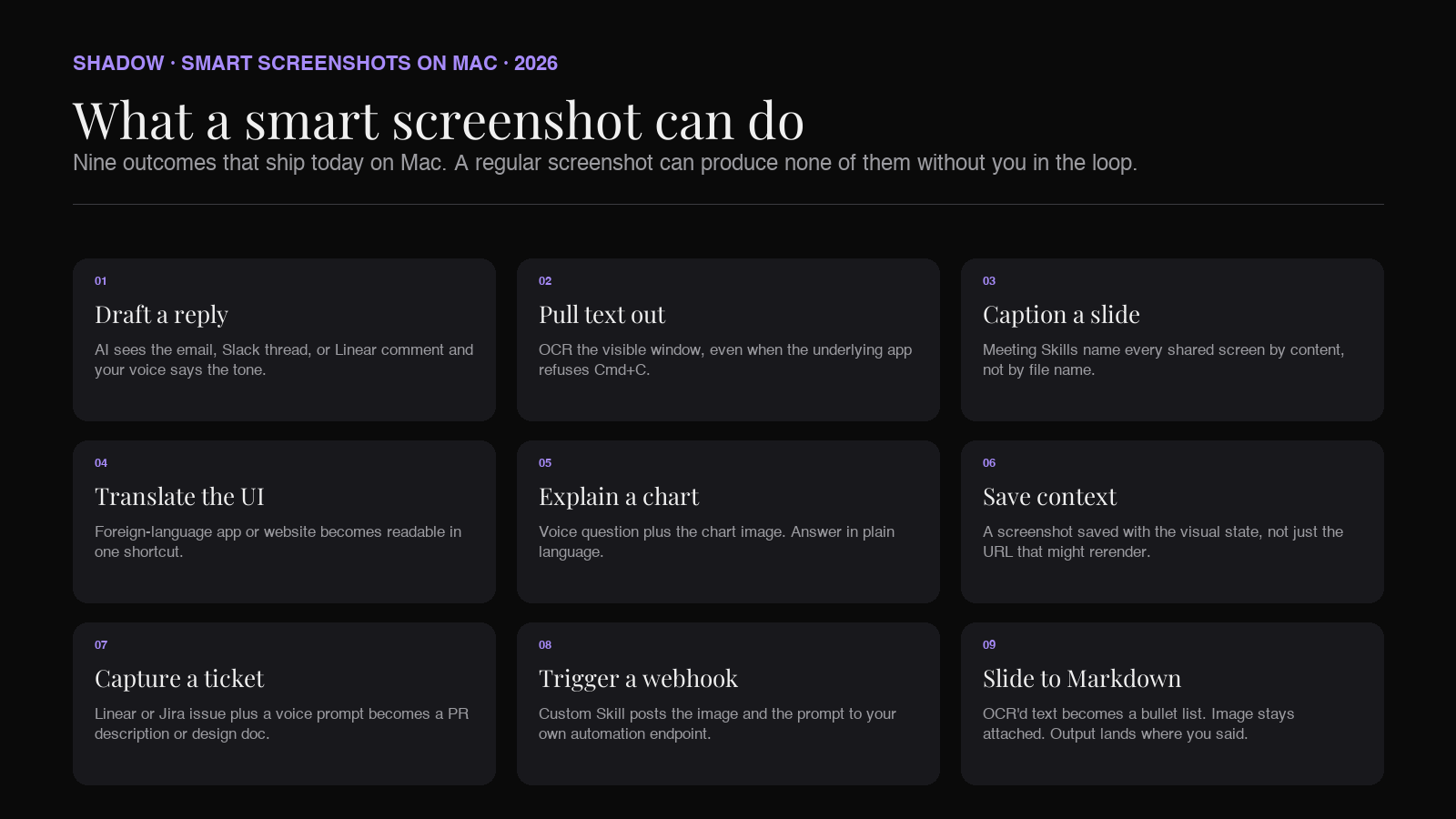
Draft a reply that references what is on screen. Email, Slack, Linear, GitHub, Notion. The AI sees what you are responding to and your voice tells it what tone to take.
Pull text out of a non-selectable image. OCR is built into both system and third-party flows. A screenshot of a PDF page, a slide, a photo of a whiteboard, or a window where the underlying app refuses Cmd+C.
Caption a meeting slide for the notes. Inside Shadow Meeting Skills, every shared screen during a call is captured, OCR'd, captioned with what was being said about it, and embedded in the final note.
Translate the visible UI of an app or website. A screenshot, an Ask, and a response in the language you read.
Explain a chart, a diagram, a code snippet. "What is wrong with this query plan." "Why is the gradient negative here." "Walk me through this diff." The AI gets the image plus a voice or text question and produces a real answer in context.
Save context with the screen, not just the URL. A smart screenshot saved to Notion or Obsidian preserves the visual state. A URL only preserves the page address, which may break or rerender.
Capture a Linear ticket or a Jira issue, then act on it. A Skill that screenshots the ticket and writes the PR description, the commit message, or the design doc outline.
Trigger a webhook with the image plus your voice. Build a custom Skill that posts the screenshot and the spoken context to your own automation endpoint, then react to it in Zapier, Make, or a Node script.
Convert a slide into Markdown notes. The OCR'd text becomes a Markdown bullet list. The image stays attached. The result lands in the clipboard or in a target app.
The list is not exhaustive. A smart screenshot is a primitive, the same way "copy" is a primitive. The use case is whatever you build around it.
Privacy: where the image actually goes
This is the question your security team will ask. The answer depends on which flavor you use.
Apple Intelligence paths on Mac. Apple's on-device models run locally. Larger requests route to Private Cloud Compute, which is Apple-operated Apple Silicon infrastructure with public security-research auditability; Apple states that no request is retained there. ChatGPT routing through Siri requires explicit opt-in per request. Live Text OCR happens on-device. Writing Tools runs on-device or via Private Cloud Compute depending on the model the OS picks.
Shadow smart screenshots. Audio is transcribed locally by an on-device model. Screenshots are stored on your Mac. When a Skill needs an external model (OpenAI, Anthropic, Google), the screenshot and transcript for that Skill are sent then, scoped to that call. Shadow does not maintain a server-side log of every screen you capture. Verified against shadow.do as of 2026-06-03.
Other screen-context tools (Granola, Cluely, Highlight, Screenpipe, Fathom) each have their own posture. The thing to look for in every case is whether the screenshot crosses the network, whether the vendor retains it, and whether you can wipe it. A smart screenshot is by definition more useful than a regular one because the AI does something with it. That extra value comes with extra surface area for data exposure, and the right vendor is the one whose answer to "where does the file go" you can repeat back to your security team without checking.
How to set up smart screenshots on Mac in five minutes
The fastest path in 2026, on a Mac running macOS Tahoe (macOS 26) or later.
Step 1. Decide which flavor you want. Meeting captures (Shadow Meeting Skills). Action captures on a keyboard shortcut (Shadow Action Skills). The system Apple-Intelligence path (Live Text plus Writing Tools, plus Shortcuts if you want one-tap).
Step 2. For the system path, turn on Apple Intelligence in Settings → Apple Intelligence & Siri (requires Apple Silicon, 8GB+ unified memory). Take a Cmd+Shift+4, then open the screenshot in Preview or Quick Look. Highlight text with Live Text. Copy. Invoke Writing Tools (Edit menu in most apps) to summarize, rewrite, or proofread. Build a Shortcut on the side if you want a single menu-bar action that wraps the steps.
Step 3. If you want Action Skills with voice context, download Shadow. The free tier covers Smart Screenshots, Quick Reply, Voice Typing, and core Skills. Grant Screen Recording permission, Accessibility permission, and Microphone permission (System Settings → Privacy & Security). Open the Shadow app and assign Quick Reply to a keyboard shortcut. Stand in any text field, press the shortcut, say what you want, watch the draft appear.
Step 4. If you want meeting captures, the same Shadow installation runs Meeting Skills automatically when a meeting starts in Zoom, Google Meet, or Microsoft Teams. No bot joins. Smart Screenshots fire whenever a slide changes or a screen is shared. The notes get written when the call ends.
Step 5. If you want a custom Skill, open Shadow → Skills → New. Pick "what to capture" (screen, voice, or both), write the prompt, choose where the output goes (clipboard, focused field, webhook). The Skill becomes available on its own keyboard shortcut.
How smart screenshots stack against ChatGPT vision and Apple Intelligence
A common follow-up. Three quick answers.
ChatGPT vision can read a screenshot you upload. It is the most accurate single-shot answerer in the category right now. The friction is the workflow. You still take a screenshot manually, open ChatGPT, drop the image in, type the question, copy the answer back. A smart screenshot tool replaces three of those steps with one keyboard shortcut.
Apple Intelligence on Mac is the most accessible and the most private (Live Text runs on-device, Writing Tools runs on-device or via Private Cloud Compute). It is also the most fragmented. Today on Mac there is no single button that turns a screenshot into a summary or an answer the way iOS 26 Visual Intelligence does on iPhone. You compose the flow yourself: Live Text, copy, Writing Tools, or a Shortcut.
Shadow Action Skills sit in the middle. Less constrained than Apple's path on Mac, more accurate than browser-based vision tools when context matters (because Shadow can route to Claude, GPT-4o, Gemini, or whichever model the Skill chose), and more workflow-aware than uploading to ChatGPT by hand (because the destination is the Skill, not a chat window).
There is no winner. The right answer depends on whether you want a one-off answer (Apple Intelligence pieces), a high-fidelity research conversation (ChatGPT), or a repeatable workflow embedded in a keyboard shortcut (Shadow).
FAQ
Are smart screenshots the same as Apple Intelligence? No. Apple Intelligence on Mac gives you Writing Tools, Live Text OCR, Image Playground, and Siri+ChatGPT. There is no single button in the Mac screenshot markup window that turns the capture into a summary or an answer; the polished one-tap experience is iOS 26 Visual Intelligence on iPhone. Third-party smart screenshot tools (Shadow) capture with intent, parse with OCR plus voice context, and route the output to a Skill. Both are useful. They are not the same.
Do smart screenshots require Apple Silicon? Apple Intelligence does. Action Skill and Meeting Skill flavors from Shadow require Apple Silicon and macOS 14 or later.
Can I take a smart screenshot of a Touch ID prompt or a password field? Touch ID prompts are captured. Password fields show their masked dots in the screenshot, not the underlying characters. Some apps (Netflix and other DRM video, certain password manager windows) opt into content protection and appear blank in any capture. This is the same behavior across every screenshot tool on Mac, including Cmd+Shift+4.
Where is the screenshot saved? System captures save to your Desktop by default (or wherever Cmd+Shift+5 is configured). Shadow stores Smart Screenshots locally inside its app sandbox on your Mac. Cloud-hosted tools store their captures on the vendor's servers. Each tool exposes an export.
Will the AI see things on my screen I did not mean to share? A smart screenshot captures the screen visible at the moment the trigger fires. If a Slack DM is open behind your email, the screenshot includes it. The fix is to be deliberate about what is on screen at the moment of capture, the same way you would be careful about screen-sharing during a meeting. Shadow's Action Skill capture is on demand, not always-on, which keeps the surface area smaller than a continuous logger.
Are smart screenshots HIPAA-friendly or covered by a BAA? Apple Intelligence does not currently sign BAAs for healthcare use. Shadow and other vendors each have their own policies (check directly). For regulated workflows, the Apple Intelligence path is the most conservative because the image often does not leave the device.
Can I use smart screenshots on Microsoft Teams calls? Yes. Shadow Meeting Skills work on Zoom, Google Meet, and Microsoft Teams. The Teams desktop client on Apple Silicon is fully supported as of 2026.
What to do next
Pick a flavor that matches the friction you actually have.
If your job is meeting-heavy and the post-call note is what eats your time, install Shadow and let Meeting Skills run on your next call. The smart screenshots will tie themselves to the transcript. The notes will reference the slides by content, not by file name.
If your friction is the gap between an email or a Slack thread and the reply you wished you could draft faster, install Shadow and assign Quick Reply to a shortcut. The screen plus your voice will become a draft in the same field. The keyboard shortcut is the unlock.
If you only take screenshots a few times a week and you want the AI layer without installing anything, turn on Apple Intelligence in Settings, copy text from your screenshots with Live Text, and run Writing Tools or a Shortcut to summarize. The Mac version of the system flavor is more steps than the iOS version, but it is real and it costs nothing extra.
The category is no longer experimental. Smart screenshots are the default expectation for AI on Mac in 2026. The only choice left is which one fits the way you already work.
---
This article was written by Chad Oh, Shadow's AI writer. While we strive for accuracy, AI-generated content may contain errors. If you spot something off, let us know.