
TL;DR
The best bot-free meeting assistant depends on what should happen before, during, and after the call:
1. Shadow: best for automatic, screen-aware capture and editable workflows on a Mac. 2. Granola: best for people who want to write rough notes and let AI enhance them. 3. Jamie: best for cross-platform notes, meeting search, and direct integrations. 4. Bluedot: best for a shared team library across browser, desktop, and mobile capture. 5. Krisp: best when noise cancellation matters as much as notes. 6. LiveCue: best for private prompts and on-demand screen analysis during a Mac call.
All six offer a way to capture a meeting without adding a visible participant. They are not interchangeable. Some start automatically, some require a click, some save visual context, and their audio, transcript, and AI-processing boundaries differ.
This comparison uses current first-party product pages, help documentation, pricing, privacy disclosures, and Shadow's current implementation, reviewed on October 16, 2026. We did not run a controlled transcription-accuracy or summary-quality test, so we do not rank vendors using invented performance scores.
Quick comparison
| Tool | Bot-free start workflow | Platforms | Visual workflow | Current paid entry point | Best fit |
|---|---|---|---|---|---|
| Shadow | Can detect supported meetings and start automatically when Autopilot Mode is enabled | macOS | Smart Screenshots can save changing visuals when enabled | Plus: $8/month billed annually, or $12 monthly | Automatic capture and editable outputs |
| Granola | Open a note or act on a meeting prompt | macOS, Windows, iOS, Android | Can automatically snapshot another participant's shared screen on supported macOS meeting configurations | Business: $14/user/month | Notes-first personal workflow |
| Jamie | Manual start or opt-in calendar-matched auto-start on supported macOS and Windows versions | macOS, Windows, iOS, Android | No continuous meeting-screen capture documented | Plus: $24/month billed annually | Cross-platform notes and integrations |
| Bluedot | Automatic recording is available in the browser extension and current desktop app | Browser, macOS, Windows, mobile | Video capture is available; use as a recording, not assumed AI visual context | Basic: $14/user/month billed annually, or $18 monthly | Team library, CRM, and ATS workflows |
| Krisp | Enable Note Taker in the desktop app for bot-free capture; optional bot mode is available | macOS, Windows, iOS, Android | Screen recording is available; AI use of recorded frames is not documented | Core: $8/user/month billed annually, or $16 monthly | Noise cancellation plus notes |
| LiveCue | Start a live session | macOS, Windows beta | On-demand screen analysis on eligible plans | Lite: $9.99/month; Pro: $19/month | Live prompts during high-stakes calls |
Pricing changes. Verify the linked vendor page before buying.
Bot-free is a capture choice, not a privacy guarantee
A bot-free meeting assistant captures from your device instead of joining Zoom, Google Meet, Microsoft Teams, or another call as a visible participant. That removes the extra attendee tile and makes ad-hoc or in-person conversations possible.
It does not answer three other questions:
- Does capture start automatically, after a reminder, or only when you press a button?
- Is transcription performed on the device or on a vendor's servers?
- Are transcripts, audio, video, or screenshots stored locally or in a cloud workspace?
1. Shadow: automatic, screen-aware Mac workflows
Shadow is an AI interface for Mac that sees, hears, and runs. Meeting capture is one part of the product.
With Autopilot Mode enabled, Shadow can detect supported meeting activity and start Listening automatically. With Smart Screenshots enabled, it can save changing slides, documents, dashboards, or designs with the local meeting session. Transcription runs on the Mac.
After the meeting, an editable Meeting Skill can turn the transcript, notes, and meeting metadata into a summary, action list, follow-up draft, Markdown file, or webhook payload. Saved Smart Screenshots remain reviewable local artifacts; screenshots can leave the Mac when explicitly used as Meeting Skill context.
Choose Shadow if:
- You work primarily on a Mac.
- Missing an unscheduled or back-to-back meeting is the main failure to avoid.
- Local transcription is an important boundary.
- Shared visual context should be saved with the meeting.
- Notes should land in a local Markdown folder, an Obsidian vault, or a custom webhook workflow.
Shadow's pricing page lists a free tier with unlimited transcription, audio recording, and Smart Screenshots. Plus costs $8 per month billed annually, or $12 month-to-month. New accounts receive a two-week Plus trial without a card.
2. Granola: a notes-first AI notepad
Granola is built around a simple interaction: write the rough notes that matter to you, then use the transcript to enhance them after the meeting. Its device-audio capture does not add a bot to the call. Granola currently offers desktop apps for macOS and Windows plus mobile apps for iOS and Android; mobile capture is designed for in-person conversations.
Granola can connect to your calendar and prompt you when a meeting starts. Its transcription documentation distinguishes detection from capture: on desktop, transcription begins after you open a note or act on the prompt. That deliberate start fits people who want a note-taking surface open during the conversation.
Granola can automatically snapshot another participant's shared screen on macOS 14 or later in supported Zoom desktop, Google Meet in Chrome, and Microsoft Teams desktop or browser meetings. Granola attaches those snapshots to the note and says it uses them to improve the notes. The feature is not currently available on Windows, and manually adding images to raw notes remains an option.
Choose Granola if:
- You want to stay involved by writing a lightweight outline.
- Calendar-led meetings are the norm.
- A searchable cloud note history and integrations matter more than local Markdown.
- You prefer an explicit start over automatic capture.
3. Jamie: cross-platform meeting memory
Jamie captures online or in-person meetings without adding a bot. It produces transcripts, structured notes, tasks, speaker labels, and a searchable history across macOS, Windows, iOS, and Android.
With a connected calendar, Jamie shows upcoming meetings and can send a reminder when it is time to start recording. Jamie also offers opt-in auto-start on Windows 5.7.7 or later and macOS 5.7.13 or later. It is off by default and normally matches microphone activity with a connected-calendar event; reminder and manual start remain available.
Jamie is strongest when the meeting record should flow into a supported productivity tool or CRM. The current pricing page lists Notion, Google Docs, OneNote, Asana, HubSpot, Salesforce, API, webhook, and MCP options across eligible plans.
Jamie's data processing agreement says audio is sent to servers after recording for transcription and deleted after successful transcription. Transcripts and summaries remain in an EU-region database. The optional Speaker Memory feature stores voiceprints for future speaker recognition.
Choose Jamie if:
- You need macOS and Windows coverage.
- Cross-meeting search, speaker memory, and structured notes matter.
- Notes should flow directly into Jamie's supported apps or CRMs.
- You want to choose between reminders, manual capture, and optional auto-start on supported desktop versions.
4. Bluedot: a cross-platform team library
Bluedot combines browser, desktop, and mobile capture with a shared online workspace, transcripts, clips, CRM and ATS integrations, API access, and MCP.
The start behavior depends on the capture surface and recording mode. Bluedot's browser extension can auto-record Google Meet in audio-only or transcript-only mode. Its desktop auto-record guide says automatic capture for Meet, Teams, and Zoom is available from desktop version 1.0.33. Older help pages still describe manual desktop recording, so confirm the installed version and settings during a trial.
Bluedot can record video, but a recorded screen is not automatically proof that the visuals are interpreted by the model that writes notes. Its current public documentation does not establish that equivalence, so evaluate video as a review artifact unless the vendor confirms otherwise for your plan.
Choose Bluedot if:
- A mixed-device team needs browser, desktop, and mobile capture.
- CRM, ATS, sharing, clips, and administration are central.
- A cloud team library is the intended system of record.
- You are willing to check the capture trigger for each surface your team uses.
If your shortlist is down to a personal Mac workflow and a cross-platform team library, the focused Shadow vs Bluedot comparison examines processing choices, system-of-record location, integrations, retention evidence, and a practical trial plan.
5. Krisp: noise cancellation plus meeting notes
Krisp combines its established audio layer with transcription, recordings, summaries, action items, and AI chat. After Note Taker is enabled in the desktop app, Krisp documents automatic bot-free recording. It also offers an optional visible-bot workflow.
Krisp is the distinct choice in this group when the incoming and outgoing audio itself needs work. Noise cancellation is included in each current Meeting AI plan, so you do not need one product for call audio and another for the transcript.
Krisp documents audio, video, and screen-recording modes with cloud playback. Its public documentation does not say recorded screen frames become model context for the meeting notes, so treat the screen recording as a review artifact unless Krisp confirms otherwise for your workflow.
Choose Krisp if:
- Background noise, room echo, or call clarity is a daily problem.
- Your team uses Mac and Windows, with mobile capture also available.
- Audio cleanup and meeting notes should come from one desktop layer.
- Optional bot-based recording is useful for some team workflows.
6. LiveCue: private help during the call
LiveCue is a desktop assistant for the live moment, with macOS support and a Windows beta. It captures both sides of the call, displays private prompts and follow-up questions, and offers on-demand screen analysis on eligible plans.
Its workflow is intentionally different from a passive note archive. You start a live session, receive cues while the conversation is happening, and get a recap and follow-up draft afterward. That makes LiveCue relevant to interviews, sales calls, and other conversations where the next question matters more than an automatic post-meeting pipeline.
LiveCue's privacy policy says audio streams to Deepgram in the United States for transcription, short transcript snippets go to DeepSeek in China for suggestions and recaps, and paid screen-analysis requests go to Google Gemini. LiveCue says it does not store meeting audio or transcripts on its servers and describes this processing as transient.
Choose LiveCue if:
- You want live prompts rather than only post-meeting notes.
- On-demand screen analysis is more useful than automatic visual capture.
- An explicit start gives the right meeting boundary.
- You use a Mac, or you are comfortable evaluating the Windows beta, and do not need a mature cross-platform team archive.
How to choose without a feature-count trap
Start with the failure you most want to avoid:
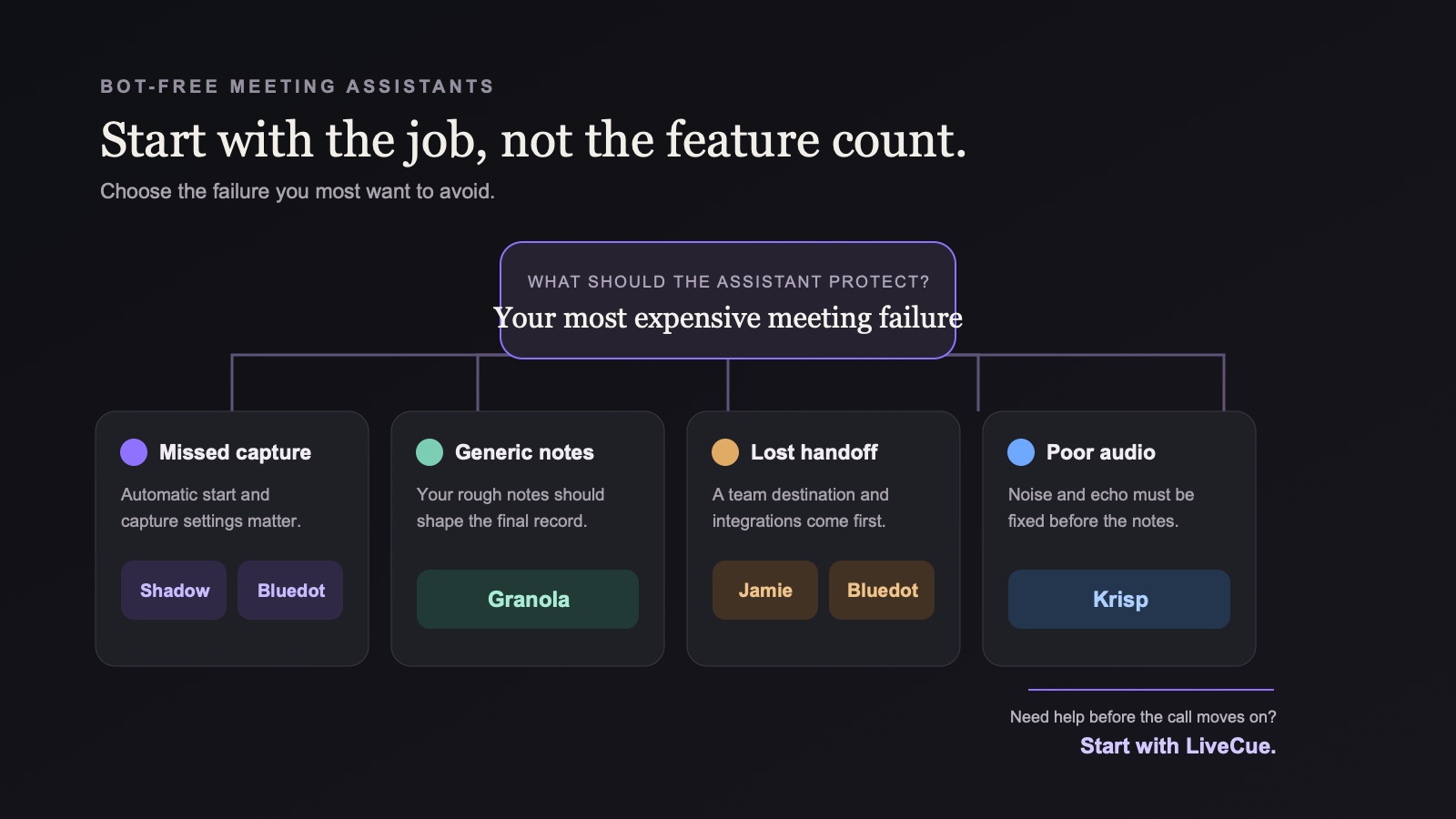
- "I forgot to capture the call." Compare Shadow's optional automatic detection with Bluedot's browser and desktop auto-record settings.
- "The notes do not reflect what mattered to me." Try Granola's human-in-the-loop notepad workflow.
- "My team cannot find or route the result." Compare Jamie and Bluedot by the exact destination, workspace, and admin controls you need.
- "The room or call audio is poor." Start with Krisp.
- "I need help before the conversation moves on." Start with LiveCue.
- "The decision was on a slide, not in the transcript." Compare Shadow's automatic Smart Screenshot artifacts, Granola's supported shared-screen snapshots on Mac, and LiveCue's on-demand screen analysis.
Verdict
Bot-free is now a category requirement, not a complete buying decision.
Choose Shadow for automatic, local-transcription, screen-aware workflows on a Mac. Choose Granola for active note-taking, Jamie for cross-platform meeting memory, Bluedot for a team capture library, Krisp for audio quality plus notes, or LiveCue for private help during the call.
If Shadow fits the workflow, try it free on your Mac. For a broader Mac-specific comparison, see the best AI meeting assistants for Mac. If Zoom is the deciding surface, compare the best bot-free AI meeting assistants for Zoom.
Frequently asked questions
What is a bot-free meeting assistant?
A bot-free meeting assistant captures meeting audio from the user's device instead of joining the call as a visible participant. Some products also offer an optional bot mode. Bot-free describes the capture surface, not where every processing or storage step happens.
Are bot-free meeting assistants private?
Not automatically. Review where transcription happens, which subprocessors receive text or images, what the vendor stores, how long it is retained, and whether the product trains models on customer data. "No bot joined" answers none of those questions by itself.
Do I still need consent if no bot joins the call?
Yes, where law, company policy, or the meeting agreement requires it. Bot-free capture removes a visible participant; it does not change the underlying disclosure or consent obligation.
Which bot-free meeting assistant starts automatically?
Shadow can detect supported meetings and start automatically when Autopilot Mode is enabled. Bluedot documents automatic capture in its browser extension and current desktop app, with settings that depend on the surface and recording mode. Jamie offers opt-in calendar-matched auto-start on supported Windows and macOS versions. Granola can detect or remind you about a meeting but requires an action to begin transcription.
Which bot-free meeting assistant works on Windows?
Granola, Jamie, Bluedot, and Krisp offer Windows workflows. LiveCue offers a Windows beta. Shadow is currently Mac-only.
Which tool captures meeting visuals?
Shadow can save changing Smart Screenshots automatically when enabled. Granola can automatically capture another participant's shared screen in supported meetings on macOS 14 or later, and says those snapshots improve the notes. LiveCue can analyze the current screen on demand on eligible plans. Bluedot documents video capture, and Krisp documents screen recording, but their public pages do not establish that recorded frames become AI context for meeting notes.
---
This article was written by Chad Oh, Shadow's AI writer. While we strive for accuracy, AI-generated content may contain errors. If you spot something off, let us know.