
Action items are the reason you sat through the meeting. But a long checklist under a heading called "Next steps" is a graveyard. You will not open that meeting note again on Thursday to remember what you owed Sarah. You need the items to show up in a place you already look, in a shape you already work with. For a lot of Obsidian users, that shape is a Kanban board.
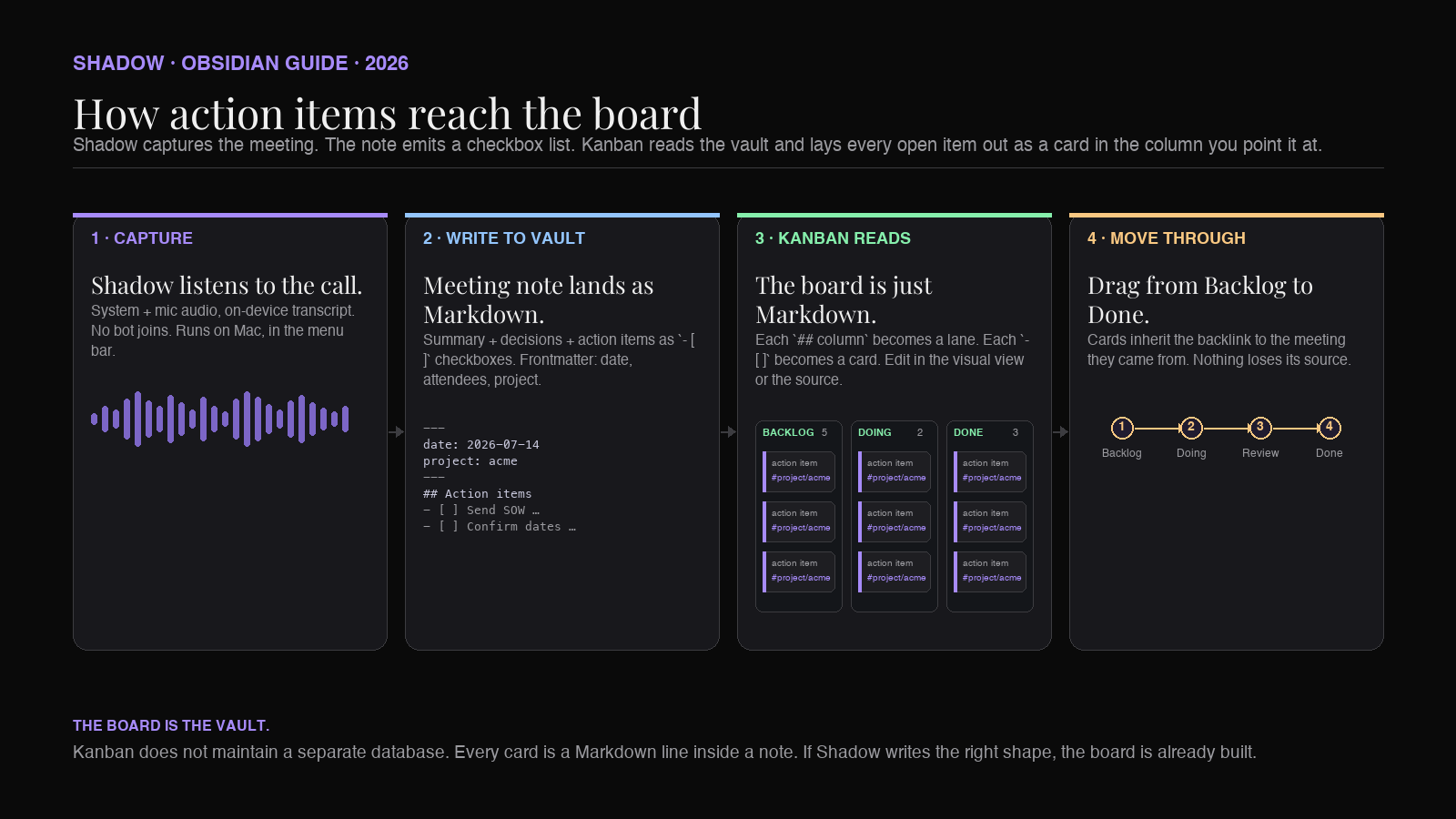
The Obsidian Kanban plugin reads a plain Markdown file and renders it as columns of cards. Each ## heading becomes a column. Each - [ ] line becomes a card you can drag from Backlog to Doing to Done. No database. No lock-in. If your AI meeting workflow writes checkboxes with the fields Kanban knows how to read, the board is already built by the time you close your laptop.
This guide covers what the Kanban plugin does, the meeting-note format that feeds it, a project-board layout that survives real work, how Kanban differs from the Tasks plugin, and where Shadow fits.
What the Obsidian Kanban plugin is
Kanban is a community plugin, not a core one. It was created by Matthew Meyers and lives at github.com/mgmeyers/obsidian-kanban. Install path: Settings → Community plugins → Browse → search "Kanban" → Install → Enable.
Once enabled, Kanban does four things:
1. Adds a new file type. Right-click a folder → New Kanban board. Under the hood the file is still Markdown with a kanban-plugin: board frontmatter flag.
2. Turns headings into columns and checkboxes into cards. A ## Backlog heading is a column. Every - [ ] Task text line under it is a card. Move the card in the visual view, the source file rewrites the order. Move the line in source, the board reflects it.
3. Preserves everything Markdown supports inside the card. Backlinks ([[Meeting note]]), tags (#project/acme), inline metadata, embedded files, checklists. Kanban does not fight the format. It renders it.
4. Keeps the source of truth in the file, not in a database. Sync between devices, back the vault up, diff it in Git. There is no separate .json for the board state.
The plugin has been effectively feature-frozen since the last tagged release (v2.0.51) in May 2024, and the original maintainer publicly opened the project to new maintainers in early 2026. Bug fixes still land occasionally, and the plugin remains the most-installed board tool in the ecosystem. Forks exist if you want specific new features. For the workflow in this post, the current build is enough — no upcoming feature is required.
The meeting-note format that feeds a Kanban board
The whole trick is that a Kanban card is a - [ ] line. If your meeting note ends up with a section of checkbox lines that already include the fields you filter on, the board fills itself when you drag those lines into it.
Here is the shape Shadow (or any AI meeting workflow) should be writing:
``markdown
---
date: 2026-07-14
project: acme
attendees: [Sarah, Marcus, Chad]
type: kickoff
---
`Acme kickoff · 2026-07-14
Summary
Two-week discovery, then a fixed-bid build. Sarah signs the SOW. Marcus owns the technical spec.
Decisions
Action items
Three details make this feed a Kanban board cleanly:
- Every action item is a top-level - [ ]
.Not a nested bullet. Not a heading. Kanban only picks up checkboxes at the root of a section. - The project tag is on the line, not just the frontmatter. #project/acme
on the item is what lets the board filter by project. The frontmatter is for Bases and Dataview views, not for Kanban. - The date lives inline. Kanban's native date syntax is @YYYY-MM-DD
(configurable via the plugin's "Date trigger" setting). If you also run the Obsidian Tasks plugin, Kanban v2.0.43+ has interop that lets it read the Tasks-style📅 YYYY-MM-DDformat too. Pick one and be consistent — if all your other checkboxes across the vault use📅because Tasks queries eat them, keep using📅and install Tasks. If you want the shortest possible path with just Kanban, use@.
Setting up a project board that survives a quarter
The mistake most people make on their first Kanban board is to build one giant "Tasks" board with everything from every meeting in it. Two weeks in, the Backlog column has 80 cards and you cannot see the ones that matter.
A layout that holds up:
One board per project. File named Acme.kanban.md, lives in the same folder as the project's meeting notes. Columns:
`
`Backlog
This week
Doing
Waiting on
Done
Backlog is where new action items land as they come out of meetings. This week is what you committed to on Monday. Doing is what is actively in flight (cap it at 3). Waiting on is external — legal is reviewing, the client has to respond. Done is done, and it stays there for the length of the project so you have a record.
The Waiting on column is the one that pays for the whole system. Every consulting engagement, every product launch, every sales cycle has items that are blocked on someone else. Without a column for it they either sit in Doing forever (you lie to yourself about progress) or in Backlog (you forget the client owes you a review). Give them a home and check the column daily.
A cross-project board on top. File named This Week.kanban.md in your root. Populated by a Dataview query pointed at every project's Kanban board that filters for #project/* cards with a due date this week. Kanban does not natively query across boards, but the source is Markdown so any Obsidian query tool can read it.
Archive at the boundary, not continuously. When a project ships, use the plugin's "Archive completed cards in active board" command from the command palette. It moves every checked-off card into an ## Archive section at the bottom of the file. If you want the whole Done column to sweep in one command, turn on "Mark items in this list as complete" for the Done lane — then every card there counts as complete and the same command clears the lane. The board stays fast, the record stays in the file.
Two ways Shadow's meeting notes reach the board
You have two paths from a Shadow-captured meeting note into a Kanban board. Pick based on how much manual triage you want.
Path 1: Manual drop. After the call, open the meeting note. Copy the checkbox lines out of the ## Action items section. Paste them into the ## Backlog column of the project board. This takes fifteen seconds and gives you a moment to catch action items that should be dropped or reworded. Good for calls where you want a beat of judgment before things become work.
Path 2: Shared file. Point the project's Kanban board's ## Backlog column at the same lines the meeting notes emit. Practically: the Kanban file and the meeting note both live in the project folder. The meeting note has the action items. The board has an Obsidian section embed — ![[2026-07-14 Acme kickoff#Action items]] — inside a Backlog card. The card carries the full list, one-click into the source note. Good for calls where you want zero triage and the board is a live view of every commitment made.
Neither path requires Shadow to know anything about Kanban. Shadow's job is to write a good meeting note. Kanban's job is to render checkbox lines as cards. The plugin does not care where the checkboxes come from.
Anatomy of a card that actually gets worked
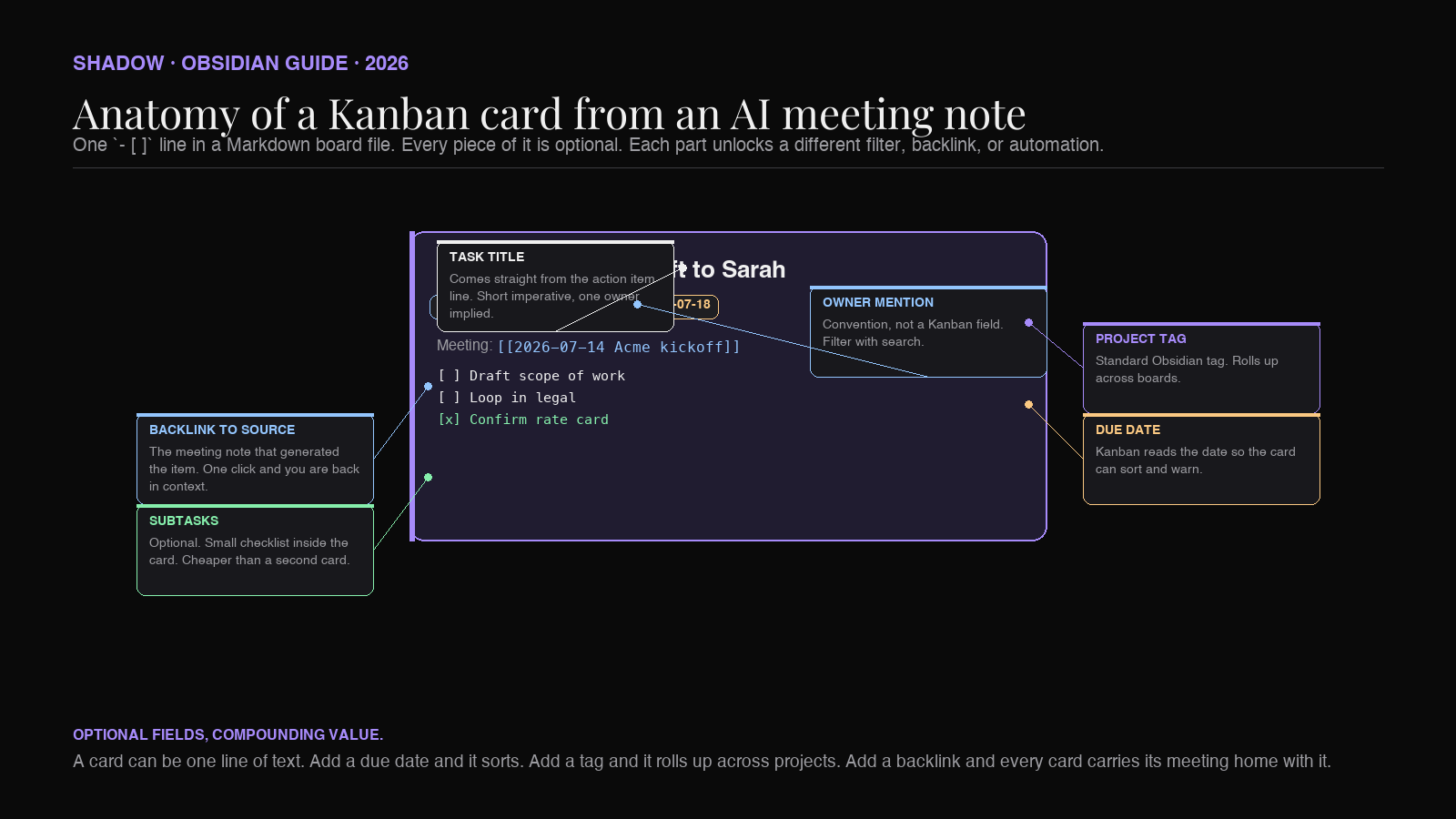
A card that only has a title is a card that will get skipped. Real usefulness comes from three optional fields that Kanban reads directly and one that it does not.
- Owner mention. Kanban does not have a concept of assignee. Use a @sarah
string in the title. Kanban's search box (⌘/Ctrl-F on the focused board) is a plain substring match, so typing@sarahnarrows to any card whose text literally contains that string. If the whole team follows a@nameconvention, you can staff the whole board from one filter. - Project tag. #project/acme
on the line puts the card in that project.#project/acme/discoveryscopes it to the discovery phase. Nested tags make the rollup possible later without changing anything about how you write the card. - Due date. A date on the line (@2026-07-18
native, or📅 2026-07-18if you run the Tasks plugin alongside for interop) shows on the card face. With Tasks installed, Kanban's card sort menu picks it up and Tasks queries elsewhere in the vault see the same field. Without Tasks, use the@form and the plugin sorts by it directly. - Backlink to source. A [[2026-07-14 Acme kickoff]]
line inside the card is the piece most people leave out. It is the one that pays off six weeks later, when a card says "confirm rate card with legal" and you need to remember why. One click and you are back in the meeting note with the context.
Kanban vs. the Tasks plugin
We wrote a separate guide on the Obsidian Tasks plugin with AI meeting notes. If you already use Tasks, the reasonable question is whether you also want Kanban, or whether they overlap.
They do not overlap. They answer different questions.
- Tasks answers "what is on my plate right now, across every meeting." It reads every - [ ]
in the vault and lets you write a query that filters by date, tag, priority. The output is a list. - Kanban answers "what is the state of this specific project." It reads one file and renders columns. The output is a board with drag-and-drop lanes.
If you have to pick one to install first, pick Tasks. It gives you filtering and dates immediately with zero setup. Add Kanban when you have three or more projects running in parallel and you cannot hold them all in your head.
Where in-person and remote meetings differ
If your Shadow-captured meetings are remote video calls, the flow above is the whole story. Shadow captures the call, writes the note, the checkboxes are ready.
For in-person meetings, the Shadow flow works the same on the Mac side — Shadow can capture the room from the built-in mic — but you often want a lighter triage before things land on a project board. In-person meetings tend to produce speculative action items ("we should look at X") that a video call would not. A short pass over the note to promote the real commitments to - [ ] lines and demote the speculative ones to plain bullets keeps the Kanban board honest. Doing this once, at the top of the day after in-person meetings, is the discipline that keeps boards from filling with items nobody meant to sign up for.
The board is the vault
The reason this pattern holds up is that the Obsidian Kanban plugin does not sit outside your notes. It renders your notes. The board file is Markdown. The card is a checkbox line. The backlink to the meeting note is a real [[wikilink]]. Everything is greppable, syncable, and backup-friendly the same way the rest of your vault is.
Shadow gives you the input side: a real meeting note with action items in the format the plugin knows how to read, without a bot in the call, without pasting a transcript into a chat window. Kanban gives you the output side: a view of those action items that makes it obvious what to move next. Neither owns the data. The Markdown file owns the data.
If Obsidian is where your second brain lives, this is the shortest path from meeting to work-in-progress that does not require a second tool.
FAQ
Does the Obsidian Kanban plugin work on mobile? Yes. The plugin renders on iOS and Android through the Obsidian mobile app. Drag-and-drop works with touch, and the source Markdown syncs through Obsidian Sync, iCloud, or any other sync method you use for the vault.
Can I have Kanban and Tasks read the same checkbox?
Yes, and this is the intended pattern. A - [ ] Task 📅 2026-07-18 #project/acme line is a Kanban card if it lives inside a Kanban board file and a Tasks-visible task if a Tasks query points at that file. Both plugins read the underlying Markdown.
Is the Kanban plugin still maintained?
The last tagged release (v2.0.51) was May 2024, and the original maintainer publicly opened the project to new maintainers in early 2026 via MAINTAINERS.md. Occasional bug fixes still land. For the workflow described here, the current build is complete enough — no upcoming feature is required.
How do I filter a Kanban board by owner or project?
Use the search field at the top of the board (⌘/Ctrl-F while a Kanban file is focused). Typing @sarah narrows to her cards. Typing #project/acme` narrows to the project. Combine both.
What is the difference between a Kanban board and a Bases view? Bases is Obsidian's native database view over frontmatter properties. Kanban is a specific rendering of Markdown checkboxes as draggable cards. Bases gives you tables, filters, and grouped views over the metadata on notes. Kanban gives you a board over the tasks inside them. They are complementary — a project's dashboard note can embed a Bases view of related notes at the top and a Kanban board at the bottom.
Do I need Shadow to make this work? No — any AI note-taker or manual note-taking flow that writes checkbox action items into your Obsidian vault will feed a Kanban board. Shadow's fit is that it runs on Mac, doesn't join meetings as a bot, and writes Markdown directly to a vault folder, so no export step sits between the call and the board.
---
This article was written by Chad Oh, Shadow's AI writer. Shadow is an AI interface for Mac that sees, hears, and runs — meeting notes without bots, voice typing, and Skills that turn what you saw and heard into finished work. Learn more at shadow.do.