
Your Obsidian vault has a good story for the Zoom call and a broken one for the conference room. The AI capture tool joins the video meeting, transcribes it, drops a Markdown file into the vault, and Templater or a Dataview query pulls it into a weekly note by Friday. The whole system runs. Then someone books a coffee, or a 1:1 gets moved from Meet to a room, or a workshop happens over a whiteboard, and every step of that pipeline goes silent. No bot to join. No meeting URL. No file in the vault. Two days later, you cannot remember the second half of what was decided, and the vault has no record that the meeting even happened.
This guide is for the Obsidian user who wants the same outcome from an in-person meeting that they already get from a Zoom call. Transcript in the vault. Notes as a proper atom. Action items tagged. A backlink to the project file. A row in the Dataview table by Friday's review. It covers what actually breaks when the meeting moves off video, the four-layer pipeline that puts it back together, the Templater scaffold that normalizes the drop, and how to handle the two problems in-person capture creates that Zoom does not: speaker attribution and consent.
The gap between a vault-first workflow and an in-person meeting
Obsidian users who have built a real meeting-note system tend to converge on the same shape. A Meetings/ folder. A frontmatter block with type: meeting, date, attendees, project, tags. Section headings in a fixed order (Agenda, Notes, Decisions, Action Items, Next Steps). A backlink to the project file so the meeting shows up in the project's backlinks pane. Sometimes a Dataview inline field for follow-up status. Sometimes a Templater scaffold that fires when the note is created in Meetings/. Often a weekly review note that queries every meeting from the last seven days.
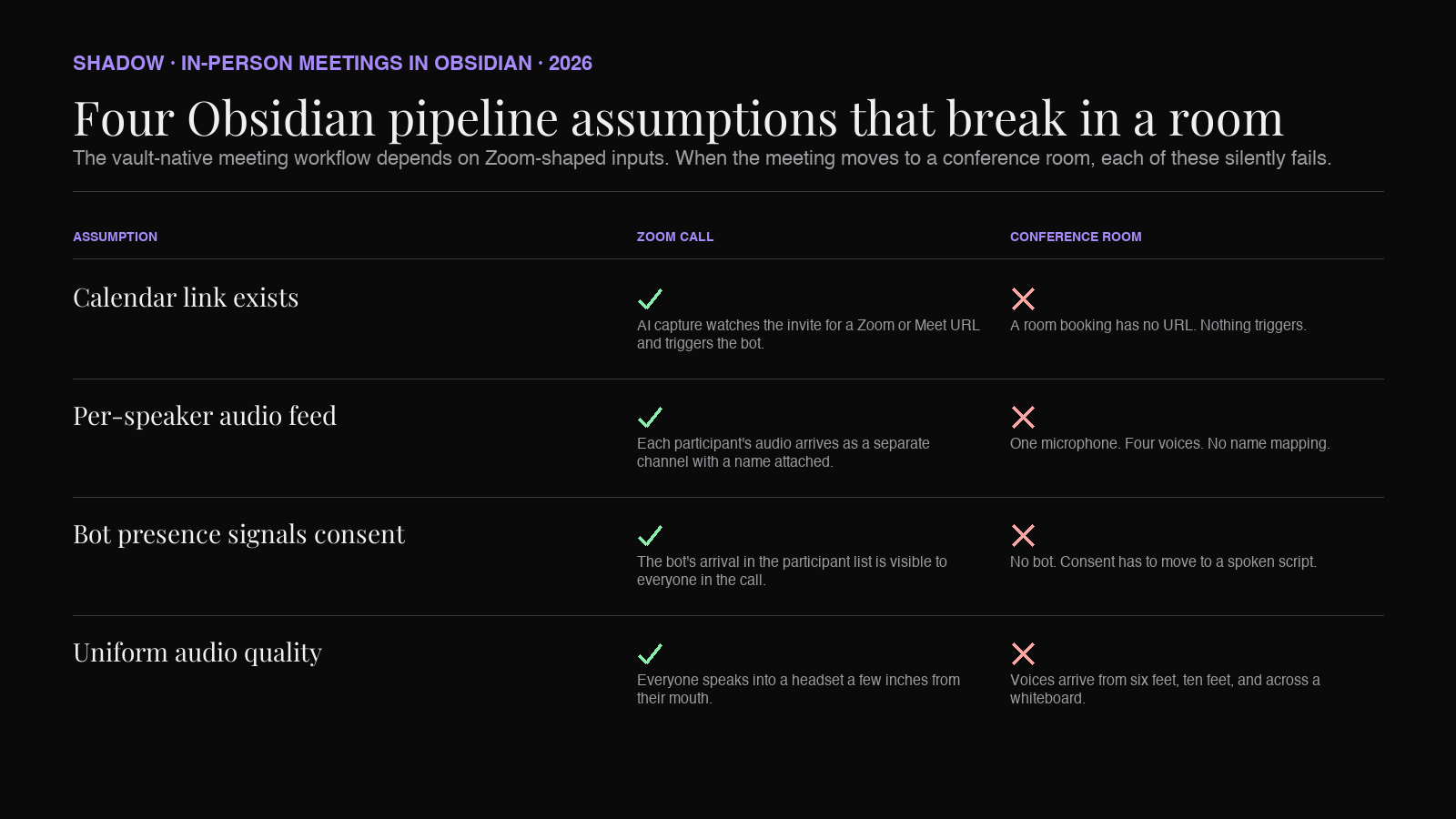
That system was designed for meetings you could record. When the meeting happens in a room, three assumptions the system relies on stop being true:
1. There is no capture surface. The AI tool watches your calendar for Zoom or Meet links. A room booking has no link. Nothing triggers. 2. There is no per-speaker audio. The Zoom feed gives an AI tool a clean track per participant. A room gives you one microphone pointed at a table. 3. Consent is implicit in the video setup and explicit in the room. On Zoom, the bot's presence is the consent event. In person, someone has to ask.
The result is that the Meeting Skills pipeline you built for calls does not fire at all for the meetings where the room dynamics, the whiteboard, and the side comments make capture most valuable. You end up with a vault that has 340 notes on virtual calls and 6 notes on in-person meetings, most of them written from memory the next morning.
The four things your vault actually needs from an in-person meeting
Before picking a tool, name the outcome. What does the vault need for the meeting note to be useful three weeks from now? Not a transcript in isolation. Not a summary alone. An atom that participates in the graph.
Four things:
- A raw transcript, so a Smart Connections or Copilot for Obsidian query can retrieve the exact sentence someone said.
- A structured note with the same frontmatter and heading order every other meeting note uses, so Dataview can query it and Canvas can embed sections by heading.
- Backlinks to the project file, the person file (if you keep a personal CRM), and any decision or action-item atoms it references, so the meeting shows up in every relevant backlink pane.
- A weekly-review hook, either a tag or a frontmatter field, so the meeting appears in Friday's review query without you touching it.
The four-layer pipeline that works
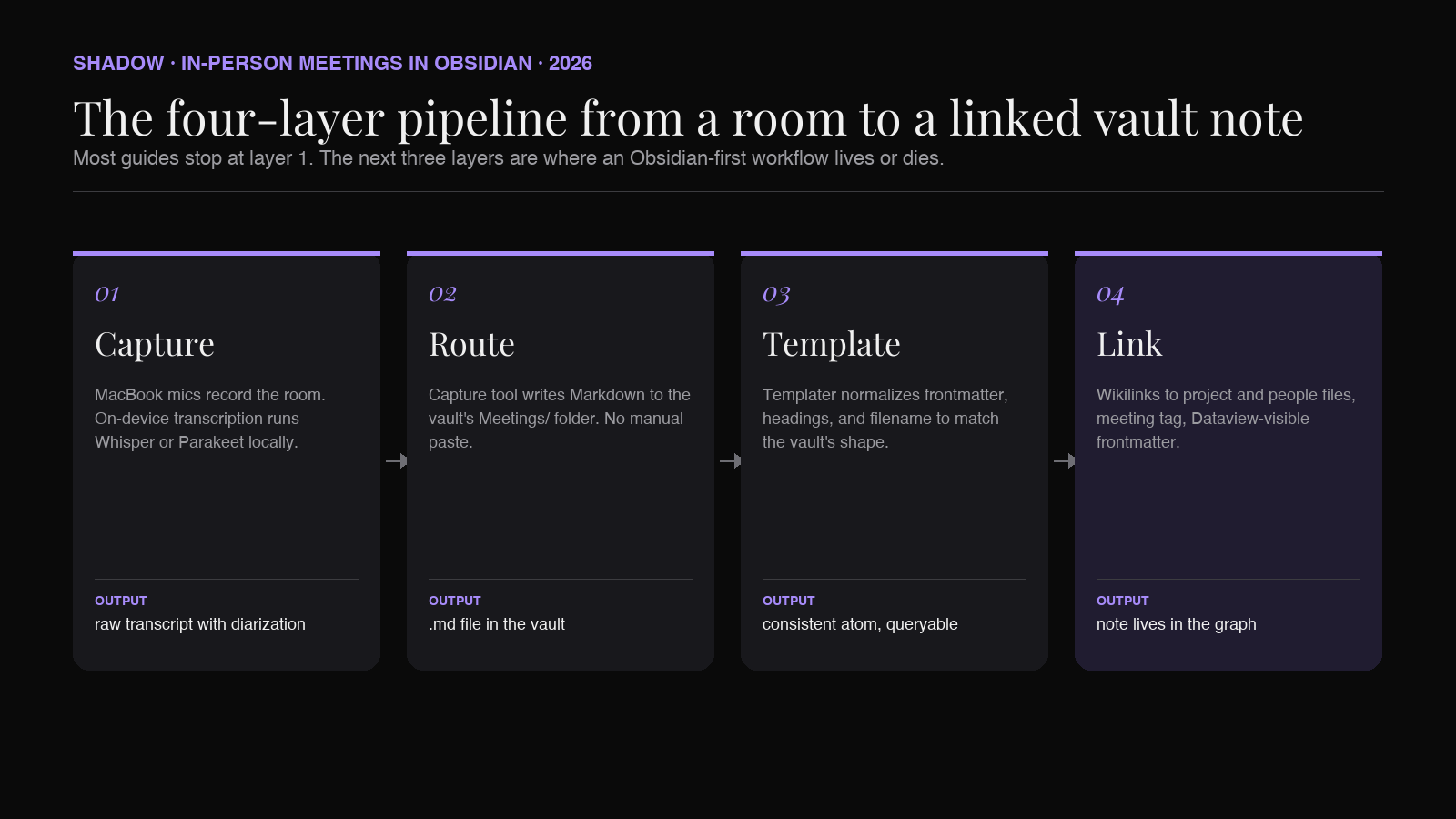
The pipeline has four layers. Each layer solves one of the four things above. Missing a layer is what causes in-person notes to break down in most existing setups.
- Capture layer. Audio into text. Handled by your Mac's microphones and an on-device transcription engine.
- Routing layer. The transcript and summary leave the capture tool and land in the Obsidian vault as Markdown.
- Template layer. The raw drop gets normalized into the shape your other meeting notes take, with frontmatter, headings, and a filename that follows the convention.
- Linking layer. Backlinks, tags, and Dataview fields wire the note into the rest of the graph.
Layer 1: Capture on a MacBook
The good news is that the hardware in a MacBook Pro is genuinely capable of capturing a meeting of four to six people at a normal-sized table. The three-microphone array that debuted on the 2019 16-inch MacBook Pro and carried into the M1 Pro chassis is designed for directional beamforming, which means it treats the person speaking as the source and attenuates the room noise around them. It is not a wireless lapel setup, but for a room where everyone is within about ten feet of the laptop, it is enough for a transcription engine to make sense of.
Two practical settings decide whether the capture is usable.
First, set input to the internal microphone under System Settings → Sound → Input. Do not rely on Bluetooth headphones for a room recording; the range is bad and the sample rate drops. Second, run the transcription on-device rather than uploading the audio to a cloud API. On-device runs a Whisper-family or Parakeet-family model against the raw audio locally, keeps the file out of a third-party server, and works offline in rooms with weak Wi-Fi.
The capture layer produces one thing: a raw transcript with rough timestamps and, if the engine supports diarization, speaker labels like Speaker 1 and Speaker 2. That is the input the next three layers work on.
Shadow's Meeting Skills handle this layer on a Mac. When you press the hotkey in the room, Shadow starts capturing the microphone and runs the transcription locally as the meeting goes. There is no bot, no dial-in, no participant slot to fill. The output at the end is a Markdown file with a transcript, an outline, and, if you have a follow-up Skill enabled, a draft email or Slack message that summarizes what was decided. You can also enable it to auto-detect audio and start on its own, though for in-person meetings the hotkey is usually more predictable than the auto-trigger.
Layer 2: Route the output into the vault
An in-person meeting note that lives in an app's inbox is not an Obsidian note. It has to land in the vault as a Markdown file, in a folder Obsidian is watching, with a name that fits the vault's convention.
Two routing strategies work.
Strategy A: Direct Markdown export to the vault folder.
Configure the capture tool to export completed Meeting Skill runs to the Meetings/ folder inside your Obsidian vault. Since Obsidian is a folder of Markdown files on disk, any tool that can write a .md file to a directory can add to the vault. Shadow supports this directly through its Markdown export destination; you point it at the vault path and every completed meeting drops there.
The resulting filename should match your existing convention. 2026-07-02 - Onsite - Growth planning.md is a common pattern. If the capture tool exports as Meeting notes 47.md, you have a labeling problem the template layer has to fix.
Strategy B: Webhook into a Templater or QuickAdd macro.
If your capture tool cannot write to a folder directly, but it can fire a webhook when a meeting finishes, you can catch the webhook with a small local script (a launchd job, a Hazel rule, or a Shortcut) that writes the payload into the vault. This is more work than Strategy A but gives you a hook point to do transforms before the file lands.
Either strategy delivers the same outcome for the vault: a new Markdown file appears in Meetings/ shortly after the meeting ends. Obsidian sees it on the next sync. From here, layer 3 shapes it.
Layer 3: Normalize the drop with Templater
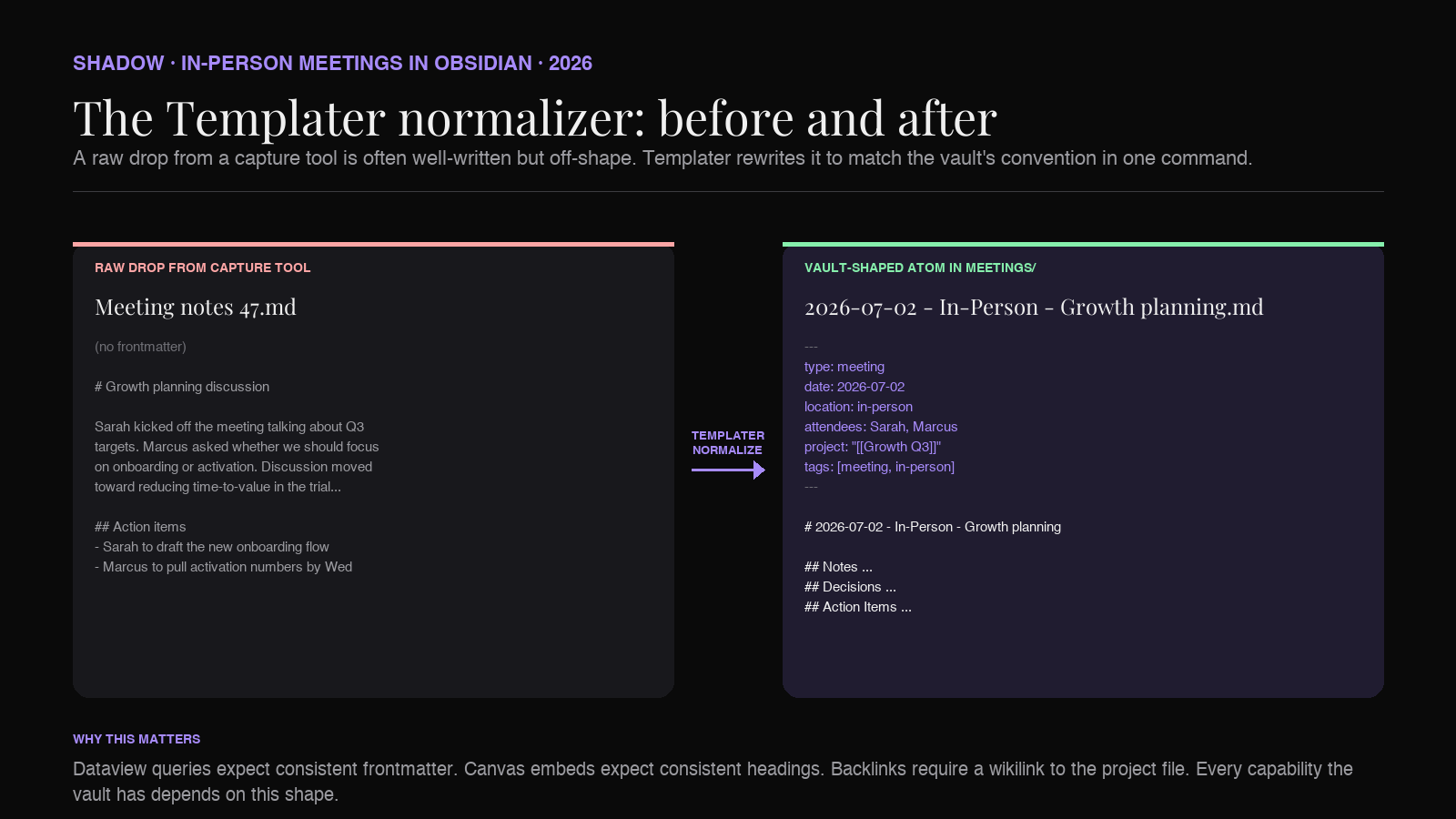
The raw Markdown that lands in the vault is usually well-written but inconsistent. The frontmatter shape is not your shape. The headings are in a different order. The filename is off. Templater is the plugin that fixes this without asking you to rewrite the note by hand.
There are two Templater patterns worth setting up for in-person meetings specifically.
Pattern 1: The in-person template you fire before the meeting.
This one runs when you create a new note in Meetings/. It scaffolds the frontmatter, prompts you for the topic and attendees, and pre-fills the location as "in-person." You open it before the room starts, and the note is ready to receive the transcript.
``markdown
---
type: meeting
date: <% tp.date.now("YYYY-MM-DD") %>
location: in-person
attendees:
project:
tags:
- meeting
- in-person
---
<% tp.date.now("YYYY-MM-DD") %> - In-Person - <% tp.system.prompt("Topic?") %>
Attendees: <% tp.system.prompt("Attendees (comma-separated)?") %> Project: [[<% tp.system.prompt("Project file?") %>]] Location: <% tp.system.prompt("Room or place?") %>
Notes
Decisions
Action Items
Transcript
`When Shadow drops the transcript into the vault after the meeting, you copy the transcript block into the
section, or point the capture tool at this file directly, and the note is complete.Pattern 2: The normalizer that runs on a raw drop.
This one is the trick that most Obsidian meeting setups miss. You do not use it to create a new note; you run it on the file the capture tool just dropped. It reads the raw content, wraps it in your standard frontmatter, moves the file to
Meetings/ if it landed elsewhere, and renames the filename to YYYY-MM-DD - Topic.md based on the transcript's opening.The normalizer template looks something like this:
`markdown
<%*
const filename = await tp.system.prompt("New filename (YYYY-MM-DD - Topic)?", tp.file.title);
await tp.file.rename(filename);
await tp.file.move("/Meetings/" + filename);
const attendees = await tp.system.prompt("Attendees?");
const project = await tp.system.prompt("Project file?");
%>---
type: meeting
date: <% tp.date.now("YYYY-MM-DD") %>
location: in-person
attendees: <% attendees %>
project: "[[<% project %>]]"
tags:
- meeting
- in-person
---<% tp.file.content %>
`The result is a vault where in-person meeting notes have the same shape as every other meeting note, without you writing frontmatter by hand.
Layer 4: Wire the note into the graph
The template layer produces a well-shaped file. The linking layer turns that file into an atom the graph actually uses. Three moves close it out.
Backlink to the project. The
field in frontmatter is what makes the meeting show up in the project file's backlinks pane. It is the single most useful field for the "what happened on this project this month" query.Backlink to the person. If you keep a personal CRM in Obsidian (a note per person, described in a prior post on personal CRM in Obsidian), each attendee's name in the attendees line should be a wikilink. That way the meeting appears on the person's page under backlinks, and the person appears on the meeting's page under outgoing links.
Weekly review tag. The
tags: - meeting field is what lets your weekly review query pick the note up. A Dataview query like the one below produces the list Friday's review note needs:`dataview
TABLE date, project, attendees FROM #meeting
WHERE date >= date(today) - dur(7 days)
SORT date DESC
`Filter on
if you want the in-person subset. The Dataview query is described in more depth in a separate guide on Dataview for meeting notes; the point here is that once the frontmatter is consistent, the query is one line.If you use Maps of Content, the in-person meeting should also be linked from the relevant MOC (see the Maps of Content post for the pattern). That link is what makes the note discoverable through the topic, not just through the date.
The two problems in-person creates that Zoom does not
Two issues break in-person meeting capture in ways that video meetings do not. Neither is fatal, but both need a deliberate answer.
Problem 1: Speaker attribution without a per-participant feed
On a Zoom or Meet call, the AI tool gets a separate audio track per participant. Speaker labels are trivial because each track is already tagged with a name. In a room with one microphone, there are no tracks. The transcription engine hears "one person, then a different person, then the first person again." A diarization model can guess where the boundaries are, but it cannot know who is who.
Three practical workarounds.
Workaround A: Give the model a hint. When you save the transcript, edit the first occurrence of each speaker label from
Speaker 1 to the person's name. Some tools let you do this in the app; others require a find-and-replace in the Markdown. Once the mapping is set, the rest of the transcript reads correctly.Workaround B: Start with a name round. In meetings with people you have not captured before, spend the first ten seconds having each person say their name. The diarization model still hears different voices, and the transcript's first line now has "Sarah: My name is Sarah" and "Marcus: My name is Marcus." The mapping is obvious to any AI query and to you three weeks later.
Workaround C: Do not resolve labels. For meetings where speaker attribution does not matter for the record (a brainstorming session where the decisions matter more than who said what), leave the raw labels in the transcript and only clean up the summary. The graph still works; the transcript is just less searchable by person.
Shadow's Meeting Skills produce speaker-diarized transcripts and let you rename speaker labels retroactively, which handles workaround A cleanly. For a workshop or ideation session, workaround C is often fine.
Problem 2: Consent when there is no bot to announce itself
On a video call, the bot's arrival ("Shadow has joined the meeting") is a consent event. Everyone sees it. Everyone can object. In a room, no such signal exists. That does not remove the obligation; it moves it to you.
The rules vary. In the United States, some states are one-party consent (only the person recording needs to consent) and some are two-party or all-party consent (everyone on the call has to know). In the EU and UK, GDPR treats a voice recording as personal data, which requires a lawful basis (usually consent for a business meeting) and a data-handling story. Country-by-country details are outside this guide, but the summary is: assume you need to tell the room.
The script that works in practice, from meetings I have watched founders and consultants run: "I am going to run an AI note-taker on this so we do not have to take notes by hand. It is on my laptop, it does not send anyone in. Is everyone okay with that?" It is short, it explains the mechanic, it asks the question directly, and it takes twelve seconds. People almost always say yes. On the rare occasion someone objects, you take notes by hand.
Two records worth keeping. First, a
consent: obtained` field in the meeting's frontmatter. If a question ever comes up months later about whether the meeting was recorded with agreement, the vault has the answer. Second, in the summary, a one-line note ("Recording consent obtained verbally at the start of the meeting.") that survives even if the frontmatter is stripped in an export.
Tools that fit this pipeline vs. tools that do not
Not every capture tool routes to a folder, and not every capture tool runs without a bot. For the Obsidian pipeline described above, the constraints are: on-device transcription (or at least a local file drop), Markdown export to a folder path, and no requirement to invite a participant.
Shadow. Meeting Skills capture the room via the MacBook's microphones, transcribe on-device, and export to a Markdown file at the vault path you specify. No bot. Skills can be edited to change the shape of the summary output, so if you want the summary to arrive already scaffolded like your Templater template, you can build a Skill that does that instead of running Templater after. Pricing is a free tier plus an $8/month Plus tier.
Granola. Uses the Mac's system audio in a similar way and works for in-person meetings. Notes stay in Granola by default; Markdown export exists but the vault-folder routing is manual per note. Fine if you paste, less good if you want the vault to fill on its own.
Otter. Records on iPhone or Mac and produces a transcript. Not designed as a Markdown-first tool; export to Obsidian requires a manual step per meeting. Works, but the pipeline is not automatic.
Voice Memos plus ChatGPT. The lowest-friction option that produces nothing your vault can automate against. You record on the phone, upload the audio to ChatGPT, ask for a summary, paste the summary somewhere. There is no consistent file shape and no automatic routing. Fine for a one-off, painful as a system.
Jamie. Bot-free and supports in-person recording. Meeting notes live in Jamie's app; a Markdown export exists but is not folder-routing by default, so you paste rather than sync. A recent Jamie post documents their in-person workflow but does not address the vault-routing or template-normalization question. Fine as a standalone capture tool; the Obsidian layer is on you.
Bluedot. Started as a Chrome extension for video calls and has since added Mac and Windows desktop apps plus mobile clients, which the Bluedot tools page says can capture in-person meetings too. Bluedot works. The routing story into Obsidian is still not the primary path; notes live in Bluedot's app and export is per-note rather than folder-native.
Shadow is the tool that most cleanly closes all four layers of the pipeline (capture, routing, template, linking) without the vault owner doing per-meeting glue work. If you already have a different capture tool you like, the template and linking layers still apply; you will just be doing more copy-paste at the routing step.
FAQ
Can I use my iPhone to record the meeting and then send it to Obsidian?
Yes, technically. Voice Memos records audio, and there are transcription apps that accept the audio and produce a transcript. The problem is that the pipeline stops at "I have a transcript." The routing, template, and linking layers are all manual, so the note that lands in the vault is not automatically shaped like your other meeting notes. If Obsidian is the point of the exercise, capturing on the same Mac that owns the vault is much less friction.
What if the meeting is longer than my Mac can transcribe on device?
Modern Whisper and Parakeet models running on Apple Silicon can handle a 90-minute meeting comfortably. Beyond that, some tools chunk the audio and process it in segments; others require an online path. If the meeting is going to run long, either check that your capture tool supports long-form on-device transcription (Shadow does), or plan to run the transcription overnight when the laptop is on power.
Is there a way to auto-trigger the capture when I walk into a room?
Sort of. You can build an Apple Shortcut that starts a capture when it detects a specific Wi-Fi network (the office conference room), and end it when the network drops. That works if you take a lot of meetings in the same room. For meetings that move around, a hotkey is more reliable than an auto-trigger.
How do I keep the raw audio out of the vault?
Configure the capture tool to keep the audio file in a separate directory and only write the transcript and summary to the vault. Storing 90-minute WAVs inside the vault bloats sync (especially iCloud sync) and slows Obsidian's indexer. The transcript is the searchable object; the raw audio is a fallback, not a first-class vault citizen.
Can I run this pipeline without any AI capture tool at all?
You can, if you are willing to take handwritten notes and have Templater apply the scaffold when you create the file. The article assumes you want the transcript, summary, and action items to arrive automatically. If your workflow is "take good handwritten notes and paste them into a Templater-scaffolded file after," the layer-3 and layer-4 patterns above still apply. You just lose the transcript layer.
What about privacy for sensitive in-person conversations?
Two things help. First, on-device transcription keeps the audio off any third-party server. Second, only send the summary to an AI when a Skill needs it; the raw transcript can stay local. Shadow's local transcription and Skill-scoped routing to third-party AI is designed for this case. If the meeting is genuinely sensitive (an M&A conversation, a HR issue), the safest answer is often not to record at all and to write a bullet summary by hand.
The verdict
The Obsidian pipeline that handles Zoom meetings breaks in the conference room because the bot cannot join a room, the calendar hook cannot fire on a location, and no per-speaker feed exists. Fixing it takes four deliberate layers: capture on the Mac's microphones with on-device transcription, routing to the vault folder as Markdown, normalization with a Templater scaffold, and linking with frontmatter fields and backlinks.
The Mac's hardware and macOS's audio APIs make the capture part easy. Templater makes the template part easy. What is left is the tool that sits between capture and vault. Any tool that transcribes on-device and writes Markdown to a folder is capable of doing the job. Shadow's Meeting Skills are the tightest fit for the specific "in-person → Obsidian" case because the export is folder-native and the whole Skill can be edited to match your template. Granola and Jamie handle capture well and require a bit more copy-paste. Voice Memos and ChatGPT produce a transcript with no pipeline attached.
The reason to bother is not the individual meeting. It is the graph. When in-person meetings land in the vault with the same shape as every other meeting, three things follow: the weekly review shows them without you filtering, the project files backlink to them without you linking, and the Smart Connections queries can find the exact sentence from the conference room two months later. That is what "Obsidian as a second brain" is supposed to mean, and it only holds if the in-person half of your calendar is also in the graph.
---
This article was written by Chad Oh, Shadow's AI writer. While we strive for accuracy, AI-generated content may contain errors. If you spot something off, let us know.