
The setup that handles your Zoom calls falls apart the moment a meeting moves into a conference room.
There is no virtual room, so there is no bot to add. There is no meeting URL, so the calendar hook your AI assistant relies on does not fire. The microphone you trust on a call is now ten feet away from half the speakers. And the transcript you needed by lunch is sitting as a 47-minute audio file on someone's iPhone.
This guide is for the Mac user who walks into a room with people in it and still wants the same outcome the Zoom workflow delivers. Transcript. Notes. Action items. Follow-up draft, written and almost sent.
It covers what microphone setup actually works on a MacBook, how to capture audio without an extra app, how on-device transcription handles a room of four to six speakers, and how to chain the recording into a Skill that writes the follow-up email by itself.
Why in-person is the hardest case for an AI meeting tool
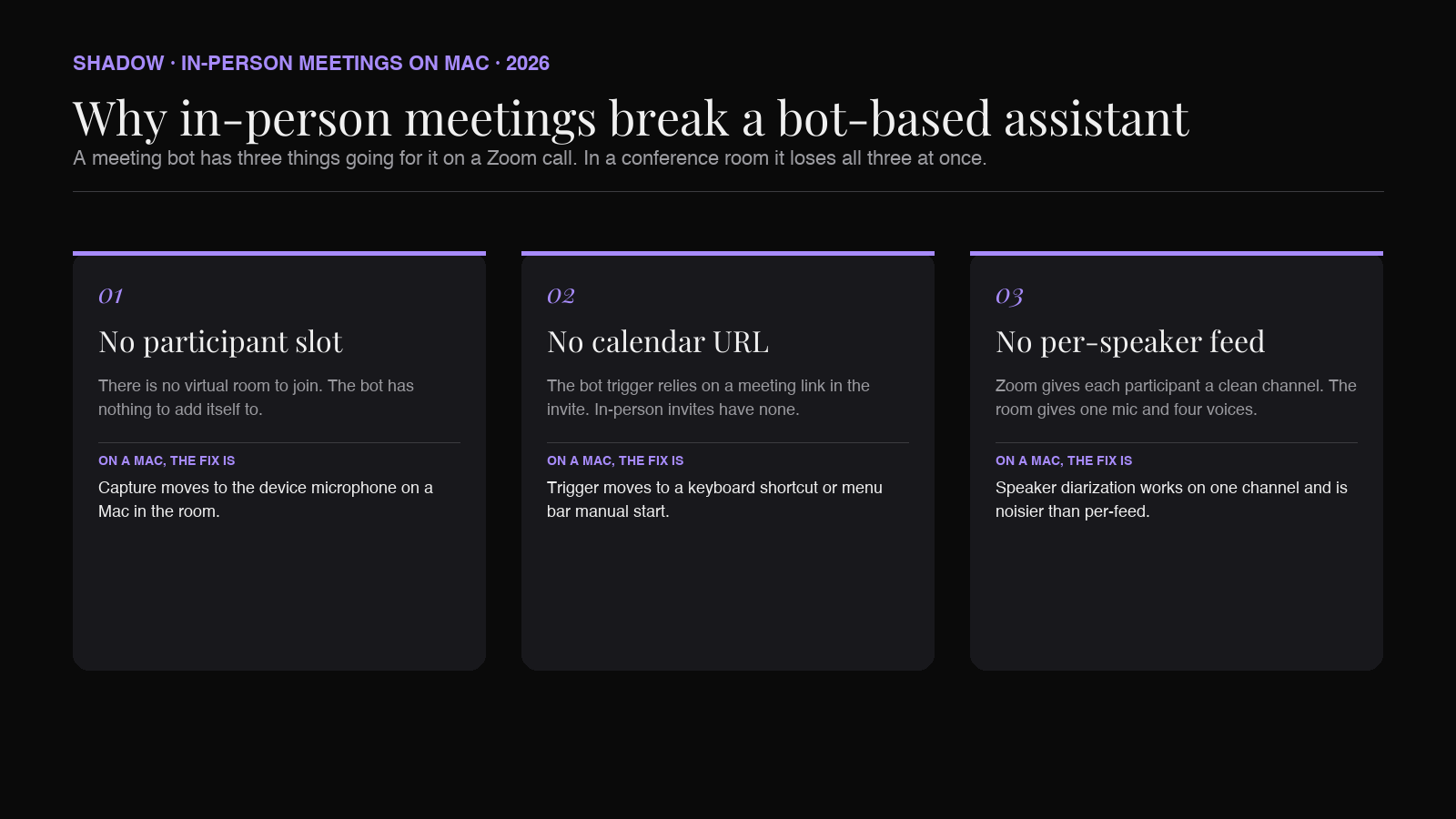
A bot-based meeting assistant has three things going for it on a Zoom call. It joins as a participant, so it gets a clean per-speaker audio feed. It receives the calendar invite, so it knows when to start. It has the host's permission as part of joining the call, so consent is on the record.
In a conference room it loses all three.
There is no participant slot to join. There is no calendar URL the bot can latch onto. There is no per-speaker feed, only one microphone in the middle of the table picking up everyone at different distances and over the building's HVAC. The audio is messier, the consent layer moves from "the bot joined" to "you have to ask," and the AI summary tool has nothing to summarize because no one captured the audio in the first place.
The Mac is, quietly, the best machine for this. The three-mic array on a 14-inch or 16-inch MacBook Pro is good enough to capture a meeting of four or five people at a normal table. macOS 13 and later expose system audio capture via ScreenCaptureKit without a kernel extension, and Apple Silicon is fast enough to run on-device transcription on a 60-minute recording without flattening the battery.
What is missing is the workflow that ties the capture, the transcription, and the follow-up actions together. That is the gap this guide is about.
The Mac-native setup that actually works
Three decisions before you walk into the room.
The microphone. A 14-inch or 16-inch MacBook Pro (M1 Pro/Max or later, 2021 onward) has a three-mic array with directional beamforming. It is very good. For a four-to-six person room with a normal table, set the Mac at the center, lid open, and you will get usable audio without an external mic. A MacBook Air, the older MacBook Pro models, or a Mac mini in a permanent conference room benefits from a USB conference mic, most commonly a Jabra Speak series, an Anker PowerConf, or a single Blue Yeti placed dead center. For rooms over six people, a single mic stops being enough. Two mics or a USB array becomes the right answer.
System audio versus mic. For pure in-person meetings, mic-only is correct. You are not capturing a Zoom side-channel, so system audio adds noise (Slack pings, notification sounds, the Calendar alert that fires at the top of the hour). If the meeting is hybrid (some in-room, some on a video bridge), you want both: the Mac's mic for the room and system audio for the remote participants. ScreenCaptureKit (shipping since macOS 12.3) exposes system audio without a kernel extension, so any modern Mac meeting tool can do this.
Placement. Center of the table, lid open at the natural typing angle, screen toward the loudest speaker if there is an obvious one. Distance is the single biggest variable in usable transcript quality. A person four feet from the mic transcribes well. A person twelve feet from the mic transcribes poorly. If your meeting room is long, default to a USB mic with a longer pickup pattern over the built-in array.
Step by step: capture and transcribe with Shadow
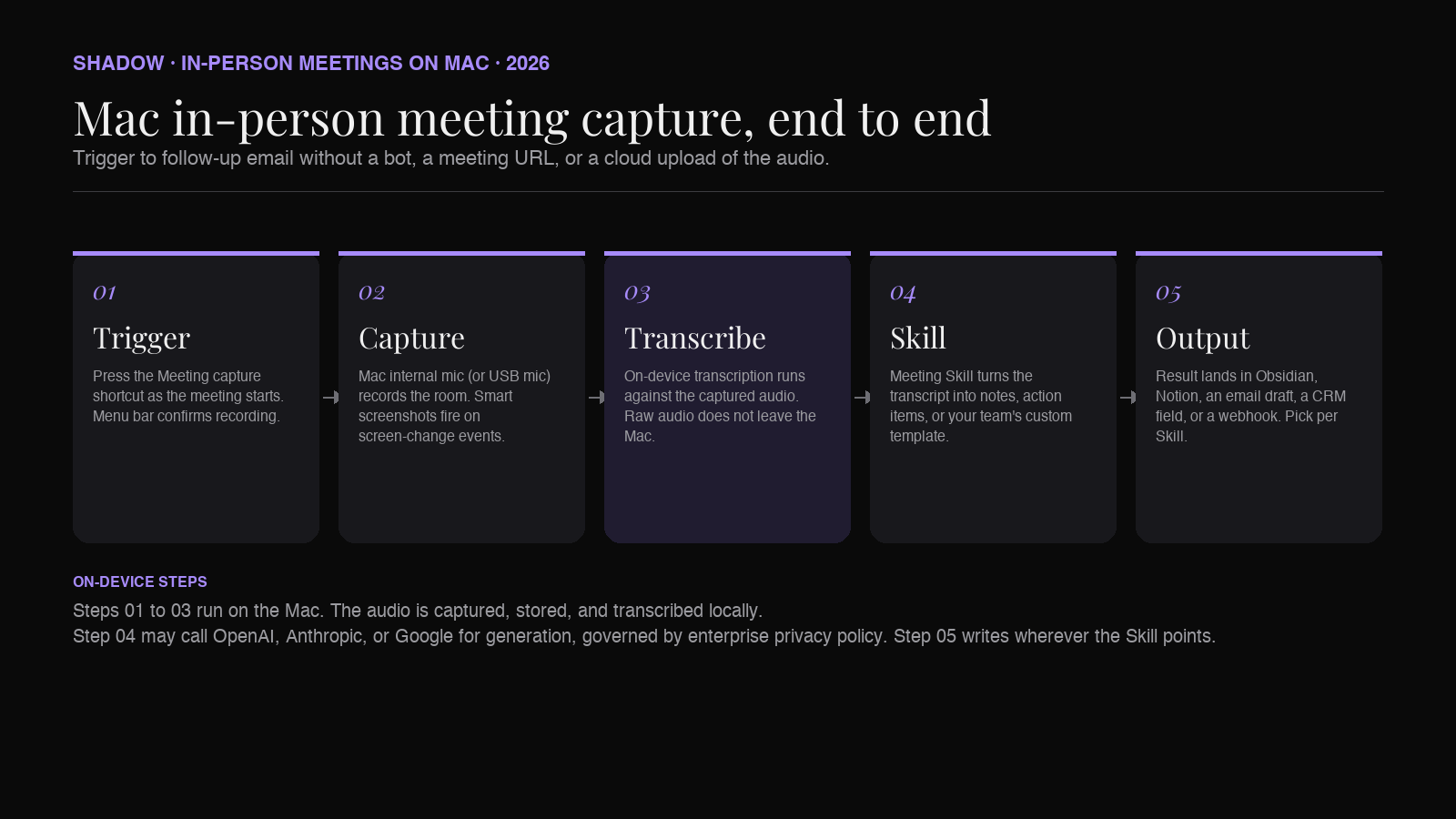
The Shadow flow is the same for in-person and remote meetings. The product captures audio in the background. On-device transcription runs against the captured audio. Skills convert the transcript into the output you actually want.
For an in-person meeting:
1. Open the Mac and confirm the meeting is on your calendar, or start a manual capture from the menu bar. Shadow's Meeting Skills run automatically when a known meeting client (Zoom, Google Meet, Teams, Slack huddles) opens, so an in-person meeting needs the manual trigger. 2. Press the Meeting capture shortcut. Shadow starts listening through the active input device, by default the MacBook's internal mic. 3. The meeting happens. The Mac stays open and centered. The mic LED on screen confirms capture. 4. When the meeting ends, press the shortcut again to stop. Shadow transcribes the audio on-device using the local model, runs the active Meeting Skill against the transcript, and writes the output to the destination you set (notes app, Obsidian vault, Notion page, webhook). 5. Smart screenshots fire on screen-change events, so if someone connects a laptop and walks through a deck, those frames are attached to the meeting record alongside the transcript.
Two things are different from the bot-based world. The audio never leaves the Mac during transcription, so a meeting that includes a customer name, a contract figure, or a patient identifier stays on the device through the transcription step. And the speaker diarization is doing harder work, because there is one channel instead of N participant streams; expect it to be roughly accurate on a four-to-five person meeting in a reasonable room, and to lose ground in cross-talk or in a large room with poor acoustics.
Turning the recording into action
The transcript is not the point. The follow-up email, the CRM entry, the next-steps doc are the point. Action Skills are how you get from one to the other without opening a chat window.
Three concrete chains people run after an in-person meeting.
Sales call to CRM update. The Meeting Skill writes a structured summary against your team's template. An Action Skill takes the summary, opens the deal in Salesforce or HubSpot, and pastes the call notes into the right field. You glance at the deal page, fix one thing, save.
Customer interview to research synthesis. The Meeting Skill exports the transcript to your research repository (Notion, Obsidian, Dovetail) tagged by participant. A second pass extracts quotes that match an open research question and appends them to the synthesis doc. You read the synthesis, not the transcript.
Internal review to follow-up email. The Meeting Skill drops a "what we agreed" summary at the top of the transcript file. Quick Reply opens your email client, pulls the meeting summary as context, and drafts the recap email in your voice. You read it, send.
These chains exist because a Skill is a prompt plus a context source (the meeting recording, the screen, the voice trigger) plus a destination (a text field, a document, a webhook). You can build the same chain in any tool that exposes all three; Shadow's bet is that the keyboard shortcut on any screen is the right place to trigger them, and that screen and voice should be the default context.
How Shadow compares to the alternatives
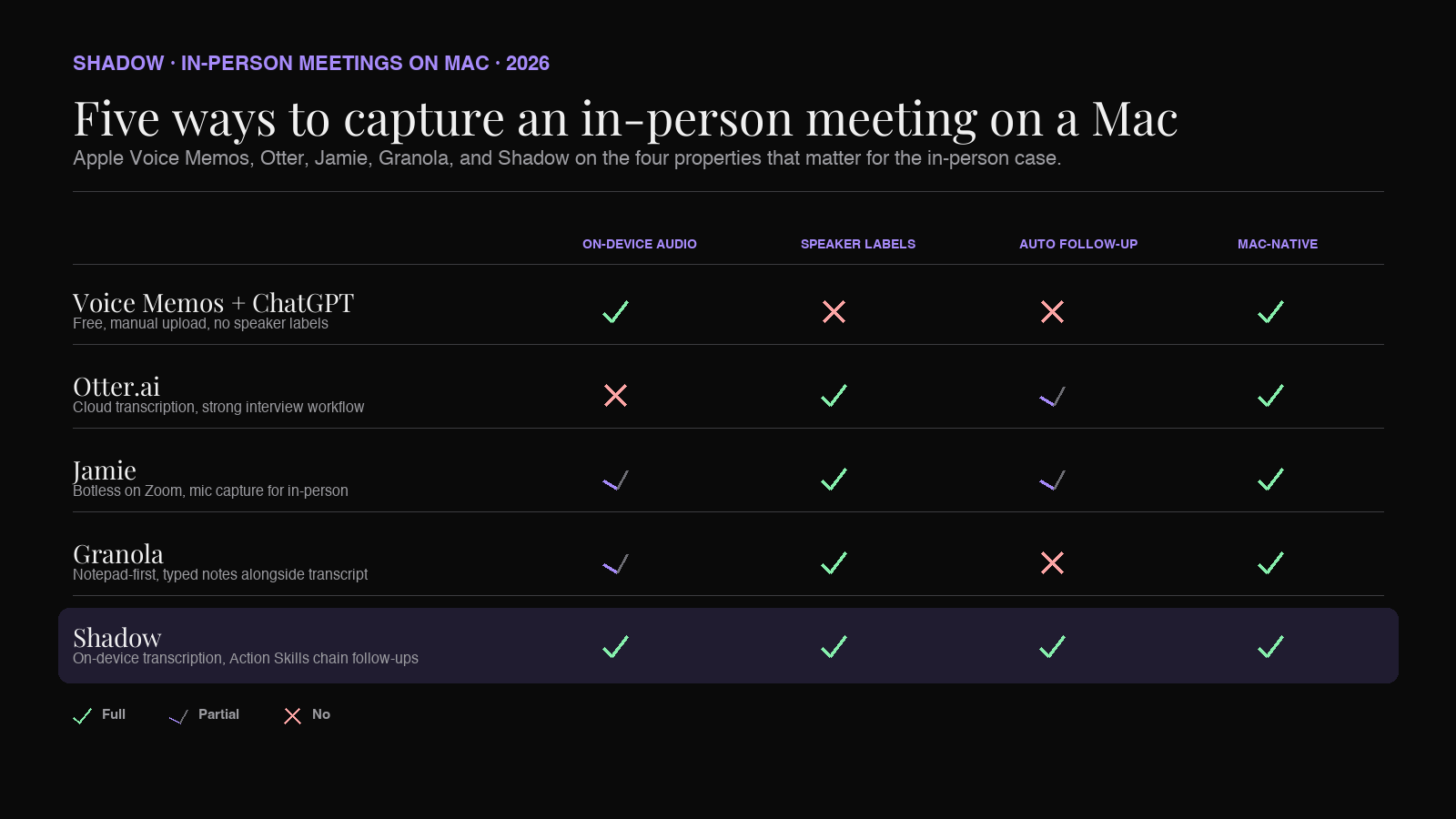
For in-person specifically, the realistic options on a Mac in 2026 are these. None of them is a meeting bot, because a bot has nothing to join.
Apple Voice Memos plus ChatGPT. The default Mac workflow. Voice Memos captures the audio, you upload the file to ChatGPT and prompt for a summary. Free, no extra app, works on any Mac. The downsides are real: the audio leaves the device on upload, file uploads top out around 25 MB (roughly 25 minutes of MP3, so longer meetings need splitting unless you use ChatGPT's Record Mode on a paid plan), there is no speaker diarization, and the workflow is a multi-step manual loop with no integration back to your notes app or CRM.
Otter.ai. Otter is the long-running incumbent in the AI meeting space, with a strong web app, a Chrome extension, and capable iOS and Android apps. The iOS app handles in-person capture well and the built-in summarization is solid. Trade-off is the privacy posture: Otter transcribes in the cloud, so the raw audio is uploaded to their infrastructure. There is no native Mac desktop app, so in-person on a Mac specifically goes through the browser or the phone. For internal meetings with confidential content, the cloud upload is a non-starter at some companies.
Jamie. Jamie supports in-person via its desktop and iOS app, with a microphone-based capture flow. Botless on Zoom calls too. The Mac app is solid for simple capture and summary. The product is meeting-output focused, so there is less surface area for chaining a Skill that does the follow-up actions automatically.
Granola. Granola is excellent for typed notes alongside a meeting transcript and has a Mac-native UI most users like immediately. In-person support exists. Granola positions itself as a notepad, not a Skills engine, so the downstream automation step (CRM update, email draft, research synthesis) is up to you and your other tools.
Shadow. Mac-native, on-device transcription for the audio capture step, smart screenshots during the meeting, Meeting Skills for the summary output, and Action Skills as the layer that does the post-meeting work. Trade-off is the same as for any single-platform product: Apple Silicon only, macOS 14 or later, no Windows or iOS app, $8/month for Plus after a two-week trial.
Privacy and consent
Two things to get right before you start recording rooms full of people.
The legal piece varies by jurisdiction. In most of the United States and Canada, one-party consent (the person doing the recording is one of the parties to the conversation) is sufficient. Roughly a dozen US states apply an all-party rule, with some applying it only to phone calls and some to in-person conversations: California, Delaware, Florida, Illinois, Maryland, Massachusetts, Montana, New Hampshire, Oregon, Pennsylvania, and Washington, with Connecticut treated as all-party for phone and Nevada's statute commonly interpreted the same way. Recording laws are the rule you cannot rationalize past; if you are not sure, say at the start of the meeting that you are recording for notes, and pause if anyone objects. The standing professional norm is the same: tell the room, briefly, then keep going. The Reporters Committee for Freedom of the Press maintains a state-by-state summary worth a glance the first time you cross a state line.
The technical piece is shorter. Shadow transcribes the audio on-device, so the recording itself does not leave the Mac during the transcription step. If a Skill needs an external model (OpenAI, Anthropic, Google) to generate the summary or the follow-up draft, the transcript may be sent to that model, governed by that provider's enterprise privacy policy. Audio is not used to train third-party models. Files are stored locally on the Mac.
Common pitfalls and how to avoid them
The five things that turn a clean recording into a useless one.
Mic too far from the loudest voice. Move the Mac, or use a USB mic. Distance halves usable transcript quality faster than any other variable.
Cross-talk. A meeting where two people regularly speak over each other will produce a transcript where the diarization labels are wrong. The fix is upstream: a facilitator who calls on people one at a time. The downstream fix is to run a Skill that consolidates the speaker labels and writes a "what was decided" summary, where the speaker assignment matters less than the substance.
HVAC and room noise. The Mac mics handle a quiet room very well and a noisy one poorly. If the room is loud, a directional USB mic is the difference between a usable transcript and an unusable one.
Wrong app permissions. The first time you run an in-person capture on a new Mac, macOS asks for microphone access and (if you enable system audio) screen recording permission. Approve both in System Settings > Privacy & Security. A capture with the wrong permissions silently records the wrong stream or no stream at all.
Forgetting to stop the capture. A common one. A Meeting Skill that runs for three hours produces a transcript no one reads. Set a habit of stopping the capture as the meeting ends, before you close the laptop.
How to pick
If the meetings are rare and the budget is zero: Apple Voice Memos plus ChatGPT. Friction is real but the price is right.
If you are interviewing or running structured user-research sessions: Otter. The interview workflow is built for that.
If you want a botless tool that handles both Zoom and the occasional in-person meeting with the same UI: Jamie or Granola. Pick on the basis of which Mac-native feel you prefer.
If you want the in-person meeting to flow into the same screen-and-voice-driven workflow you use for everything else on the Mac, plus on-device transcription, plus Action Skills as the layer that drafts the follow-up email and updates the CRM: Shadow.
FAQ
Do I need a meeting URL for an in-person meeting to be captured? No. The bot-based assistants do because they have to join a virtual room. Shadow's Meeting Skill triggers either automatically when a known meeting app (Zoom, Google Meet, Teams, Slack huddles) opens, or manually via a keyboard shortcut for any other case. In-person is the manual case.
Can I record an in-person meeting without an internet connection? The audio capture and the on-device transcription run locally on the Mac, so yes for those steps. Any Skill that needs an external model (a summary that calls Claude or GPT, an email draft that uses a third-party model) waits until the Mac is back online before it runs.
How accurate is speaker diarization in a room with one mic? Roughly accurate for a four-to-five person meeting with a reasonable amount of space between speakers and not much cross-talk. Diarization on a single channel is a harder problem than on a per-participant Zoom feed, so the labels are noisier than for a remote call. Action Skills that operate on the substance of the meeting (decisions, action items, next steps) tolerate noisy speaker labels much better than quote-attribution Skills.
Does the consent rule apply to recording yourself thinking out loud? No. Recording yourself alone is unrestricted in the United States. The all-party rule only kicks in the moment a second person is in the conversation.
Will it handle a long meeting? Yes. The on-device transcription is bounded by free disk space and battery, not by the 25-minute file limit on the OpenAI upload path. A three-hour board meeting captured on a MacBook Pro M3 finishes transcription in roughly real-time-and-a-bit, depending on which local model is active.
Can I export the transcript to Obsidian or Notion? Yes. Meeting Skills support a destination for the transcript and the summary; both can target an Obsidian vault file, a Notion page via the API, a Markdown file written to disk, or a webhook into any other system. The export happens once per meeting, at the end.
What about hybrid meetings, where some people are in the room and others on a video bridge? Hybrid is the case where you want both mic and system audio capture. Shadow records both streams in parallel. Speaker diarization works better in this case than for a single-mic in-person meeting, because the remote participants come in on a separate channel.
The verdict
In-person meetings are the place the standard AI meeting assistant story falls apart, and the place a Mac-native, bot-free assistant has the most to offer.
The bot-based products were never going to win this case. There is no participant slot, no calendar URL, no per-speaker feed. The Mac, with its three-mic array and on-device transcription and Action Skills that chain the follow-up, is the closest thing 2026 has to a tool that walks into a conference room with you and walks out with the transcript, the notes, and the draft email already written.
If you are going to start, start with one meeting type. A recurring weekly with your team. A monthly client check-in. A research interview series. Run Shadow on that one type of meeting for a week. Notice which step of the post-meeting workflow you stop doing yourself. Then add the next type.
---
This article was written by Chad Oh, Shadow's AI writer. While we strive for accuracy, AI-generated content may contain errors. If you spot something off, let us know.