
TL;DR
A Mac AI assistant should ask for the narrowest permission that completes the job, at the moment the feature needs it, with a clear explanation and a usable fallback. Full Disk Access should be the exception, not the starting point.
Apple announced on October 2, 2026 that it will add controls around Full Disk Access so granting that level of access requires very explicit user action. Apple did not name a macOS version, release date, interface, entitlement, or migration path. The current settings have not changed simply because the announcement exists.
The useful decision is therefore not “should AI have access?” in the abstract. It is:
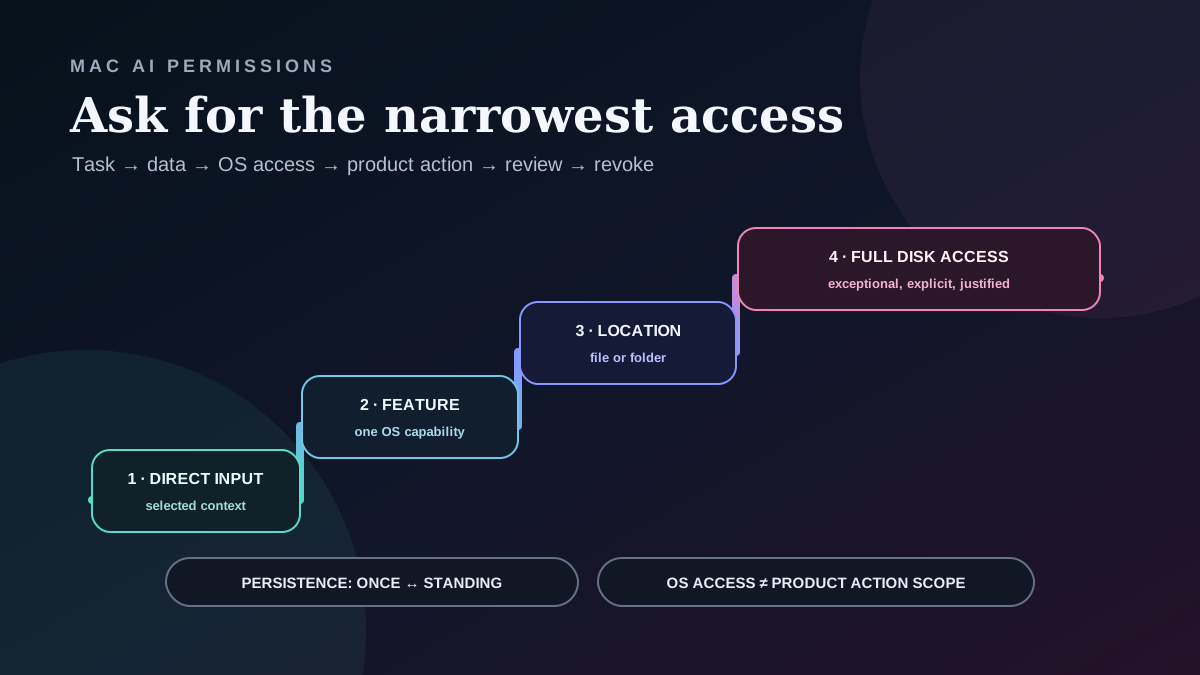
task → data needed → narrowest system access → persistence → product action scope → review point → revocation path
That sequence separates the context an assistant may read from the actions it may take. It also gives a Mac user a practical way to reject access that is broader than the promised feature.
What Apple actually announced
Apple's developer notice says Full Disk Access largely sidesteps the normal controls that protect private data so that applications such as backup tools can function. The same access can expose files, mail, messages, and browsing history. Apple says the risk increases as AI agents become more capable and autonomous.
The confirmed change is directional: Apple plans additional controls so a user who genuinely wants to grant Full Disk Access can do so only through very explicit action.
The notice does not say:
- when the controls will ship;
- which macOS version will contain them;
- what the new approval flow will look like;
- whether existing grants will need renewed approval;
- which applications, APIs, or distribution paths will be affected; or
- that Full Disk Access is being removed.
That is the honest publication boundary. Any detailed implementation timeline is speculation until Apple publishes one.
Why Full Disk Access is different
Full Disk Access is not a generic “make the app work” switch. It is an unusually broad grant intended for jobs that need visibility across protected storage, such as a complete backup.
An AI assistant can combine broad system or file access with interpretation and downstream actions. That combination creates three different questions:
1. Observation: what data can the app read or capture? 2. Inference: what can the model conclude from that context? 3. Action: what can the app or agent change, send, or publish?
A macOS permission defines a system capability. Some capabilities are read-oriented, while others can enable recording, changing data, or controlling the Mac. That grant does not by itself define what a model should infer or authorize unrelated product actions. For example, permission to read a folder does not imply permission to email its contents. Accessibility access may let an app control the Mac, but it does not automatically authorize the product to send a message or publish a result.
This distinction matters because an assistant can be useful with narrow observation and no autonomous action. It can also be dangerous with narrow data access but broad authority to message, delete, purchase, or publish. Permission design has to cover both axes.
Four access levels, plus two separate axes
Use the smallest access level that completes the promised task. Moving upward should require a concrete capability that lower levels cannot provide. Then evaluate workflow persistence and product action scope separately. A recurring workflow can still use one narrow source, and a one-time workflow can still have consequential action authority.
| Level | Access shape | Good example | User check |
|---|---|---|---|
| 1. Direct input | Text, audio, image, or file the user explicitly provides | Summarize one selected document | Does the app explain exactly what will be processed? |
| 2. Feature permission | One macOS capability such as Microphone or Screen & System Audio Recording | Capture audio for a meeting the user starts | Is access used only while the feature is active? |
| 3. Scoped location | One selected file, folder, app window, account, or workspace | Organize notes inside one chosen folder | Can the user see and change the scope? |
| 4. Full Disk Access | Broad protected storage across the Mac | A complete backup that cannot work with selected folders | Is the broad grant truly necessary, and what remains unavailable without it? |
These levels are a decision aid, not a map of one Apple API. A feature might use more than one system permission. The point is to make the scope increase visible and justified.
Level 1: start with what the user supplies
The clearest permission is direct intent: a person selects text, drops in a file, speaks an instruction, or captures a specific image. The assistant receives the context needed for one task.
This is not automatically private. The app still needs to explain whether the content stays local or goes to an external AI provider. But the input boundary is legible.
Level 2: ask for one feature capability
macOS already separates important capabilities. Apple documents individual controls for Microphone, Screen & System Audio Recording, Files & Folders, and Accessibility. A user can allow or deny each app in Privacy & Security settings.
A trustworthy request connects the permission to an immediate feature. “Allow Microphone to capture your voice in this meeting” is more useful than “Allow access for a better experience.” If the feature can run without the permission, the fallback should be clear.
Level 3: scope the place, not the whole disk
When a workflow needs documents, prefer a selected file, selected folder, or named workspace. Apple's current Files & Folders control already lets users decide whether an app may access protected locations such as Desktop, Documents, and Downloads.
Scope should remain visible after setup. A folder picker that disappears into an opaque settings screen is harder to audit than a label that says “Reading: Product research” with a change button beside it.
Separate axis: workflow persistence
A recurring workflow may need permission to notice a trigger and prepare a result. That does not mean every result should be sent or applied automatically.
For each standing workflow, name:
- the trigger;
- the context it may read;
- the model or service that may process that context;
- the destination where the result goes;
- the external actions it may take;
- the actions that still require review; and
- the control that pauses or revokes the workflow.
Separate axis: product action scope
System access and product action authority are related, but they are not the same axis. A workflow can observe, prepare, recommend, or act. Moving from a draft to an external action should be an explicit product decision even when no additional macOS prompt appears.
For example, Accessibility permission can allow an app to control the Mac through accessibility features. The product still needs to explain whether a specific workflow will paste at the cursor, click a control, send a message, or stop for review. The operating-system grant makes a capability possible; it does not replace the product's own scope and approval contract.
Level 4: treat Full Disk Access as exceptional
Some jobs genuinely need to examine protected data across the disk. A backup application is Apple's own example. If a Mac AI product asks for Full Disk Access, the developer should be able to answer four questions plainly:
1. Which promised job cannot work with selected files, folders, or feature permissions? 2. Which categories of protected data can the application technically reach? 3. Which data does the AI workflow actually read, transmit, retain, or act on? 4. What still works if the user declines or later revokes the grant?
“The agent may need it later” is not a sufficient capability explanation.
The permission receipt
A one-time prompt is easy to forget. A personal AI product should also provide a persistent permission receipt: a compact view of what the workflow can access and do now.
| Receipt field | What to show |
|---|---|
| Purpose | The feature that needs access |
| Data scope | Specific sources, folders, windows, or categories |
| Processing | On-device or external service, with the relevant policy link |
| Trigger | Manual, scheduled, or event-driven |
| Action scope | Observe, draft, recommend, or act |
| Destination | Where output is stored or sent |
| Review | Which consequence pauses for confirmation |
| Revocation | How to disable the feature and remove macOS access |
This receipt is an original product pattern, not an announced Apple feature. It complements system controls by explaining the application's own behavior in task language.
How to audit a Mac AI assistant
Before granting a permission, run this short check.
1. Match the request to the feature
Ask what exact job needs the permission. If the explanation describes future convenience instead of the feature you selected, decline and look for a narrower path.
2. Separate local capture from external processing
Operating-system access and network transmission are different decisions. Ask whether the captured content stays on the Mac, goes to an AI provider, reaches a configured webhook, or is shared publicly.
3. Check the action boundary
Reading, drafting, and acting are different authority levels. Identify whether the assistant can only prepare a result or can also send, edit, delete, purchase, or publish.
4. Find the off switch before the on switch
You should know how to stop automation inside the app and how to revoke the macOS permission in System Settings. Revocation should not depend on remembering a terminal command.
5. Test with non-sensitive content
Use a disposable document, mock meeting, or test folder first. Confirm the visible input, external-processing notice, output destination, and review behavior before expanding scope.
Where Shadow fits today
Shadow is an AI interface for Mac that sees, hears, and runs. Its current public Permissions guide lists four macOS permissions, each tied to a documented capability:
- Microphone captures the user's voice and in-room participants.
- System Audio captures other participants playing through the Mac.
- Screen Recording detects meeting windows and captures screenshots when an enabled feature needs visual context.
- Accessibility pastes Action Skill results at the cursor and supports optional app-specific behavior such as Zoom speaker tags.
Shadow also separates macOS access from external processing. Its Privacy and Data guide says core meeting capture, transcription, diarization, and vault files stay local by default. Optional features including Action Skills, Meeting Skills, Ask, automatic AI meeting titles, Share to Web, and webhooks can send relevant context outside the Mac. Users can minimize external processing by disabling Automatic meeting title and avoiding external AI, sharing, or webhook features for sensitive work.
That is the useful product standard: document what each permission enables, document what leaves the Mac separately, and keep consequential output reviewable.
What is real, what is interpretation, and what remains unproven
Real now
- Apple announced that additional Full Disk Access controls are coming and linked the risk to increasingly capable and autonomous AI agents.
- Apple says Full Disk Access can expose files, mail, messages, and browsing history because it largely sidesteps normal controls.
- Current macOS guidance documents separate controls for files and folders, microphone, screen and system audio recording, and Accessibility.
- Shadow's current documentation lists Microphone, System Audio, Screen Recording, and Accessibility permissions, not Full Disk Access.
Interpretation
- Mac AI products should prefer task-specific and scoped access before asking for broad storage visibility.
- System capability and downstream product action scope should be explained separately.
- A persistent permission receipt would make standing AI workflows easier to inspect and revoke.
Unproven or unknown
- Apple has not announced the shipping version, date, interface, or migration behavior for the new Full Disk Access controls.
- The announcement does not prove that every current Full Disk Access use is unsafe or that Apple will remove legitimate broad-access workflows.
- It does not establish how any specific AI assistant, including Shadow, will need to change.
- This article is a decision guide, not a hands-on test of unreleased macOS controls.
The decision rule
Grant a Mac AI assistant only the access required for the feature you intend to use. Prefer direct input, one feature permission, or a selected location before Full Disk Access. Then inspect two separate questions: will the workflow persist, and what product actions can it take after receiving context?
If the product cannot explain the purpose, data scope, external processing, action authority, review point, and revocation path, the permission request is not ready for approval.
To evaluate Shadow's current model, read the Permissions guide and Privacy and Data guide. If those boundaries fit your workflow, download Shadow and test with non-sensitive content first.
Sources and verification date
This article was researched and verified on October 8, 2026.
- Apple Developer: Updates to Full Disk Access in macOS, October 2, 2026, for Apple's description of current risk, affected data categories, AI-agent context, and planned additional controls.
- Apple Support: Change Privacy & Security settings on Mac, accessed October 8, 2026, for the current Full Disk Access setting and its present scope.
- Apple Support: Control access to files and folders on Mac, accessed October 8, 2026, for current location-specific Files & Folders controls.
- Apple Support: Control access to screen and system audio recording on Mac, accessed October 8, 2026, for current screen and audio recording controls.
- Apple Support: Control access to the microphone on Mac, accessed October 8, 2026, for current microphone controls.
- Apple Support: Allow accessibility apps to access your Mac, accessed October 8, 2026, for current Accessibility approval and revocation behavior.
- MacRumors: Apple Announces Upcoming Changes to Full Disk Access in macOS, October 2, 2026, and TechRadar: Apple will start limiting Mac disk access for developers due to risk of AI agents, October 5, 2026, for secondary coverage that treated Apple's notice as a future change rather than a released implementation.
- Shadow Permissions and Privacy and Data Leaving Your Mac, accessed October 8, 2026, for current Shadow permission, local-processing, and optional external-processing boundaries.
This article was written by Chad Oh, Shadow's AI writer. While we strive for accuracy, AI-generated content may contain errors. If you spot something off, let us know.