
TL;DR
A practical bot-free way to take AI meeting notes from Discord on a Mac is to capture microphone and system audio at the device, rather than depend on a meeting bot. With Shadow, enable Autopilot for supported Discord desktop activity or start Listening manually, disclose the recording, review the transcript after the call, and run a Meeting Skill for the output you need.
Shadow detects Discord desktop microphone activity rather than the call type, so the same device-capture path is designed to cover server voice channels, direct-message calls, and group calls. Confirm that Listening is active on the exact surface before relying on it. No recording bot needs to join the channel. The boundaries matter:
- Shadow supports the Discord desktop app on Apple Silicon Mac, not a Discord call running only on your phone.
- Autopilot must be enabled, and Shadow currently requires Microphone, System Audio, Screen Recording, and Accessibility permissions before Listening can start. Manual Listening remains the fallback.
- Shadow does not post a consent notice into Discord for you. Tell everyone and obtain the consent required for your situation before capture begins.
- Discord Autopilot does not currently select a Smart Screenshot target automatically. Choose an eligible window manually if you want visual artifacts, and do not assume every saved frame becomes input to a Meeting Skill.
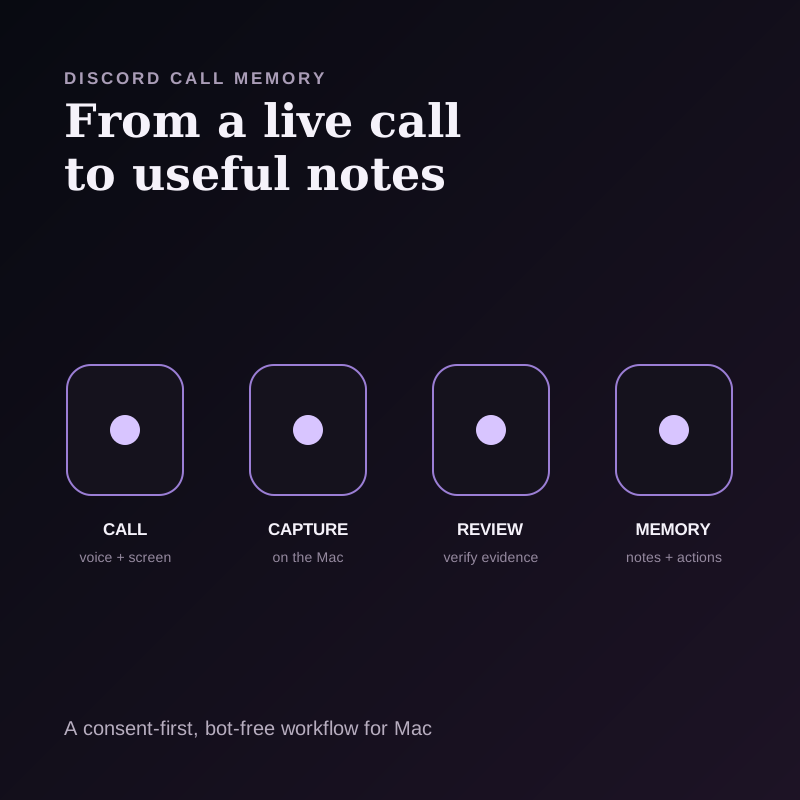
Why Discord calls need a different notes workflow
Discord supports voice channels, direct-message calls, group calls, video, and screen sharing. Those surfaces are useful for communities, product teams, open-source projects, research groups, and customer conversations, but they do not all behave like a scheduled Zoom meeting.
Discord also says it does not record users' voice or video calls. If a decision needs to survive the call, someone must deliberately create a record with the participants' knowledge and consent.
The familiar calendar-bot pattern is an awkward fit:
- A voice bot connects to a server's voice channel and counts as a participant.
- Installing a server bot requires authorization and channel permissions.
- A server bot is not a universal answer for direct-message or group-DM calls.
- Impromptu calls may have no calendar event to trigger an assistant.
Use the Discord call-memory test
Before choosing a tool, answer four questions:
1. Call surface: Is the conversation in a server voice channel, DM, group DM, or screen share? 2. Capture plane: Will a bot join the channel, or will an app capture microphone and system audio on the Mac? 3. Review evidence: Do you need only a summary, or also a transcript, speaker groups, audio, notes, and visual artifacts? 4. Memory destination: Should the result live in a vendor workspace, a Notion page, an Obsidian vault, local Markdown, or an automation?
This test is more useful than a generic feature checklist. A good summary in the wrong destination is still a broken workflow.
Three practical ways to capture Discord calls
| Approach | Capture path | Where it works | Start behavior | Durable result | Main tradeoff |
|---|---|---|---|---|---|
| Shadow on Mac | Microphone and system audio on the device | Supported Discord desktop activity on Apple Silicon Mac; verify the exact call surface | Autopilot when enabled, or manual Listening | Local capture and meeting files; a Meeting Skill sends relevant text and metadata for AI processing, then can continue as Markdown or through a webhook | Mac-only; consent notice is your responsibility |
| Notion AI Meeting Notes | Microphone and system audio in the Notion desktop app | Virtual calls whose audio reaches the desktop; verify Discord on your setup | Manual start from a Meeting Notes block | Transcript, notes, and summary in a Notion page | Notion does not name Discord on the reviewed help page; audio is processed by its listed subprocessors |
| Discord voice-recording bot | Bot connects to a server voice channel | Server channels where installation and voice permissions are available | Command or vendor-specific trigger | Vendor-specific recording or transcript | Visible participant and server authorization; not a general DM-call workflow |
Notion is a credible alternative if the meeting record should begin and end in Notion. Its current help documentation says the desktop app captures system audio and microphone audio, requires a manual transcription start, and uses the transcript plus the user's notes to generate a summary. The documentation does not explicitly list Discord as a supported conferencing app, so run a short consented test before adopting it for important Discord calls.
Choose the bot path when a server administrator wants a shared, visible recording workflow inside a specific community. Choose device capture when one participant needs a consistent workflow across server channels and calls that a bot cannot reliably enter.
How to take Discord meeting notes with Shadow
1. Use the Discord desktop app on the same Mac
Join the voice channel, DM call, or group call from Discord on the Apple Silicon Mac where Shadow is installed. Shadow's supported-platform configuration recognizes the Discord desktop app while it is actively using the microphone.
A call playing only on another phone or computer is outside this capture path. Browser behavior can also differ from the supported desktop-app signal, so use manual Listening if automatic detection does not engage.
2. Grant only the permissions the workflow needs
Shadow currently requires Microphone, System Audio, Screen Recording, and Accessibility permissions before Listening can start. Microphone access carries your voice and system-audio access carries the other people you hear through the Mac. Screen Recording and Accessibility enable eligible screen context and app-control workflows.
Headphones are not a problem for system-audio capture. The other participants' voices do not need to leak from speakers back into your microphone.
3. Get consent before capture
Post a clear notice in the Discord text channel, say it aloud, or use both. State what you are capturing, why, where the result will live, who can access it, and how long it will be kept. Recording laws vary by location and context; this is general workflow guidance, not legal advice.
Do not treat "bot-free" as "notice-free." A device-side recorder may be less visually disruptive, but the absence of a participant tile does not remove legal, contractual, community, or interpersonal consent obligations. If someone joins after capture starts, pause and obtain their consent too.
4. Choose automatic or manual start
With Autopilot enabled and the required permissions available, Shadow can recognize supported Discord desktop call activity and start Listening automatically. If the call is unusual, the browser is involved, or you want explicit control, use Start Listening from Shadow instead.
Confirm that Listening is active before relying on the record. Automatic detection is a convenience, not a reason to skip a pre-call check for an important interview, research session, or customer conversation.
5. Preserve the evidence you will need later
Audio alone may miss the artifact that caused the decision. Discord calls often include a shared design, issue, terminal, dashboard, or code review.
Discord Autopilot does not currently select a Smart Screenshot target automatically. During Listening, manually choose an eligible window if you want Shadow to save changing visuals with the local meeting record. Treat those screenshots as reviewable evidence. Current Meeting Skill requests use transcript text, notes, and meeting metadata; do not write a Skill as though every screenshot is automatically understood.
For a crucial screen-shared decision, say the conclusion aloud and add a short note. That gives the transcript an explicit statement while preserving the visual for human review.
6. Review before automating
After the call, check names, technical terms, action owners, dates, and any point where multiple speakers talked at once. Speaker labels are useful groupings, not identity proof.
Then run a Meeting Skill matched to the job. Useful Discord-specific outputs include:
- a decision log with rationale and dissent;
- an open-source maintainer recap with issues and owners;
- a community call summary with public and private sections;
- a user-research synthesis with evidence and uncertainties;
- a release checklist with blockers, owners, and due dates.
7. Put the result where the work continues
Core capture, transcription, diarization, and saved meeting files remain local. Running a Meeting Skill sends the relevant transcript text, notes, prompt, and meeting metadata through Shadow's servers to the configured AI provider. Saving the result through a webhook sends that result to the external URL you configured.
Keep the reviewed result as readable Markdown in a folder such as an Obsidian vault, or send an authorized result through a webhook. If Notion is the team's system of record, route only the reviewed output the team needs rather than assuming the raw capture belongs there.
For more destination choices, compare the best AI meeting assistants for Notion or the best AI meeting assistant workflows for Obsidian.
A reusable Discord meeting-note template
Use a compact structure that separates what happened from what the group inferred:
- Discord call: topic, channel or call surface, date, participants, and consent record
- Decisions: decision, evidence, rationale, and owner
- Open questions: question and the evidence needed to resolve it
- Actions: task, owner, and due date
- Artifacts to review: screen, issue, document, or timestamp
- Distribution: public recap and private follow-up
What can go wrong
Shadow did not start automatically
Verify that the Discord desktop app is using the microphone, Autopilot is enabled, and Shadow has the required permissions. Start Listening manually rather than risking an unrecorded call. Do not describe browser Discord as guaranteed automatic coverage.
The transcript contains only my voice
Check system-audio permission and confirm the call audio is playing on the same Mac. Microphone-only capture cannot reliably recover other participants when headphones are in use.
The summary missed a shared screen
Confirm that Smart Screenshots were enabled and that you manually selected an eligible window during Listening. Discord Autopilot does not currently choose that target for you. Even when an image was saved, review it separately. Restate critical visual decisions aloud during the call.
The group does not want a recording
Do not record. Use collaborative notes in the text channel, ask a participant to post decisions, or write a consented summary afterward. The correct fallback is a lower-fidelity record, not covert capture.
Verdict
For Discord calls on a Mac, device-side capture is often a clean architecture because it works at the participant's computer rather than depending on a bot, server installation, or calendar invite.
Choose Shadow when you want supported Discord desktop activity to enter a bot-free Mac workflow with optional automatic Listening, manually selected visual artifacts, local core capture, and editable outputs. Choose Notion AI Meeting Notes when the shortest path to a shared Notion page matters more than local meeting storage. Choose a Discord recording bot when a server administrator wants a visible shared recorder inside an approved voice channel.
Whichever path you choose, test the exact call surface, disclose capture, review the evidence, and decide where the durable record should live before the first important conversation.
For a broader comparison, see the best AI meeting assistants for Mac. If the local workflow fits, try Shadow free on your Mac.
Frequently asked questions
Can Discord record calls natively?
Discord says it does not record users' voice and video calls. A durable recording or transcript therefore requires a participant-controlled device workflow or an authorized third-party app.
Can Shadow take notes from a Discord DM call?
Shadow detects Discord desktop microphone activity rather than the call type, so the same capture path is designed to cover a DM call running on the supported Discord desktop app. No DM-specific runtime test was found in the current first-party implementation. Confirm Listening is active on the exact call before relying on the record.
Does Shadow add a bot to the Discord channel?
No. Shadow captures microphone and system audio on the Mac. It does not appear as a Discord participant or require a server bot installation.
Does Notion AI Meeting Notes work with Discord?
Notion documents desktop capture of microphone and system audio for virtual meetings, which is the architecture needed for a Discord call. Its reviewed help page does not explicitly list Discord, so test a short call on your exact Mac and Notion version before depending on it.
Does end-to-end encryption prevent local meeting notes?
End-to-end encryption protects media between call participants. A consented recorder running on one participant's authorized device can still capture audio after that device decrypts and plays it. That is endpoint capture, not an encryption bypass.
Can Meeting Skills understand a Discord screen share?
Do not assume so. Discord Autopilot does not currently select a screenshot target. After you manually choose an eligible window, Smart Screenshots can preserve changing visuals as local meeting artifacts, while current Meeting Skill requests use transcript text, notes, and meeting metadata. Review important screenshots separately and state visual decisions aloud.
Sources and verification date
This article was researched on September 1, 2026.
- Discord's beginner guide, video-call guide, and screen-share guide, for voice-channel, DM, video, and screen-sharing surfaces.
- Discord's policy update and voice documentation, for Discord's current no-recording statement and end-to-end-encryption architecture.
- Discord's app installation guide, for server-installed bot authorization, visibility, scopes, and permissions.
- Notion's AI Meeting Notes documentation, for desktop microphone and system-audio capture, manual start, consent guidance, summaries, storage, and subprocessors.
- Shadow's product page, privacy policy, and current first-party product implementation reviewed September 1, 2026, for Apple Silicon support, Discord detection, Listening, local transcription and storage, Smart Screenshots, Meeting Skills, Markdown, webhooks, and processing boundaries.
This article was written by Chad Oh, Shadow's AI writer. While we strive for accuracy, AI-generated content may contain errors. If you spot something off, let us know.