
Most meetings leave a visual trail. Someone sketches a boxes-and-arrows architecture in the shared window. A pricing tier lands on a whiteboard with three options and a circle around the one you picked. A user flow gets drawn on a napkin and photographed. The AI meeting note that comes out afterward captures the transcript and the action items and quietly loses everything visual. Six weeks later you remember the drawing, not the paragraph, and you cannot find either.
The Obsidian Excalidraw plugin is the piece that closes that gap without leaving the vault. Excalidraw scenes live as Markdown files in the same folders as your notes. They accept embeds, respond to wikilinks, and cross-reference the meeting they came from. Point an AI meeting workflow at that plugin and the drawing is a first-class citizen of the note, not an attachment that fell off the edge of the room.
This guide covers what the Excalidraw plugin actually is, why AI meeting notes go visual-blind, three whiteboard patterns that pay off in a real vault, how Shadow's smart screenshots slot into an Excalidraw scene, and the plugin settings and companion tools that matter.
What Excalidraw inside Obsidian actually is
Excalidraw on its own is a browser-based whiteboarding tool with a hand-drawn look. It has arrows, boxes, freeform ink, sticky notes, and a text tool. The Obsidian community plugin, maintained by Zsolt Viczián, wraps that engine and hosts it inside the vault.
The important part is the file model. When you create an Excalidraw drawing in Obsidian, the plugin writes an .excalidraw.md file to the vault. That file has YAML frontmatter, a Markdown body, and an embedded JSON block that carries the drawing itself. Because the file is Markdown, the drawing shows up in Obsidian's search, in the graph view, in Dataview queries, and in your Git history. Because the drawing lives inside a Markdown file, you can also embed real Markdown notes as elements inside the scene. You can wikilink a project page, drop an image, and paste in a code block that Obsidian will actually render.
That gives you three properties at once. The drawing is a document, so it participates in the note system. The drawing is a scene, so you can arrange notes on it spatially. The drawing is a Markdown file, so it syncs and versions like everything else in the vault. This is why Excalidraw beats a screenshot pasted into a note or a link to a Figma frame. Screenshots go stale. Figma links log you out. An Excalidraw scene stays live and stays in the vault.
The plugin also ships two features that matter for meeting workflow. Scripts (community-authored, one-click) let you convert a scene to an image link, insert a text element for every heading in a note, or fold a scene back into the parent note. Excalidraw Automate is a scripting layer that lets other plugins push shapes into the scene programmatically, which is how AI-generated diagrams get in the door.
![Diagram showing what lives in an Excalidraw scene inside Obsidian. A central Excalidraw canvas holds four kinds of elements: a hand-drawn shape group labeled "shapes and arrows", an embedded Markdown note card labeled "[[Acme kickoff]]", an inserted image labeled "smart screenshot", and a text tile labeled "sticky note". Arrows point outward to labels explaining that all four live inside a single .excalidraw.md file that Obsidian treats as a normal Markdown note.](/blog-images/obsidian-excalidraw-ai-meeting-whiteboards-2026/excalidraw-anatomy.png)
Why AI meeting notes lose the visual layer
The default output of every AI meeting assistant is prose. A title, a summary paragraph, a bulleted decision list, an action item block, sometimes a transcript at the bottom. All of it in text.
That output cannot represent the drawing on the whiteboard. It can describe the drawing in a sentence ("we sketched three onboarding paths"), but the description is lossy. If someone asks you a week later which path had the fewest handoffs, the sentence does not answer. The drawing did. The drawing is now gone.
Three failure patterns show up over and over.
The screen share disappears. The AI assistant recorded the audio and generated notes. It never captured a snapshot of the shared architecture diagram at minute twelve when the trade-off was on screen. A generic "shared architecture reviewed" line replaces a picture that would have decided the argument.
The whiteboard photo lives in the wrong place. Someone took a phone photo of the physical whiteboard and posted it in Slack. The meeting note references "the whiteboard we discussed" and the photo is one folder over in Google Drive, or gone. The picture and the note do not point at each other.
The visual thinking never enters the vault. You reviewed a Figma frame during the call. The frame is on Figma. The note is in Obsidian. The Figma link expires or the file gets renamed or someone loses access. The meeting note is now a paragraph about a picture that no longer exists.
None of these are the AI assistant's fault. They are the boundary between "words the assistant produced" and "shapes the meeting produced." Excalidraw is where you erase the boundary.
Three whiteboard patterns that pay off
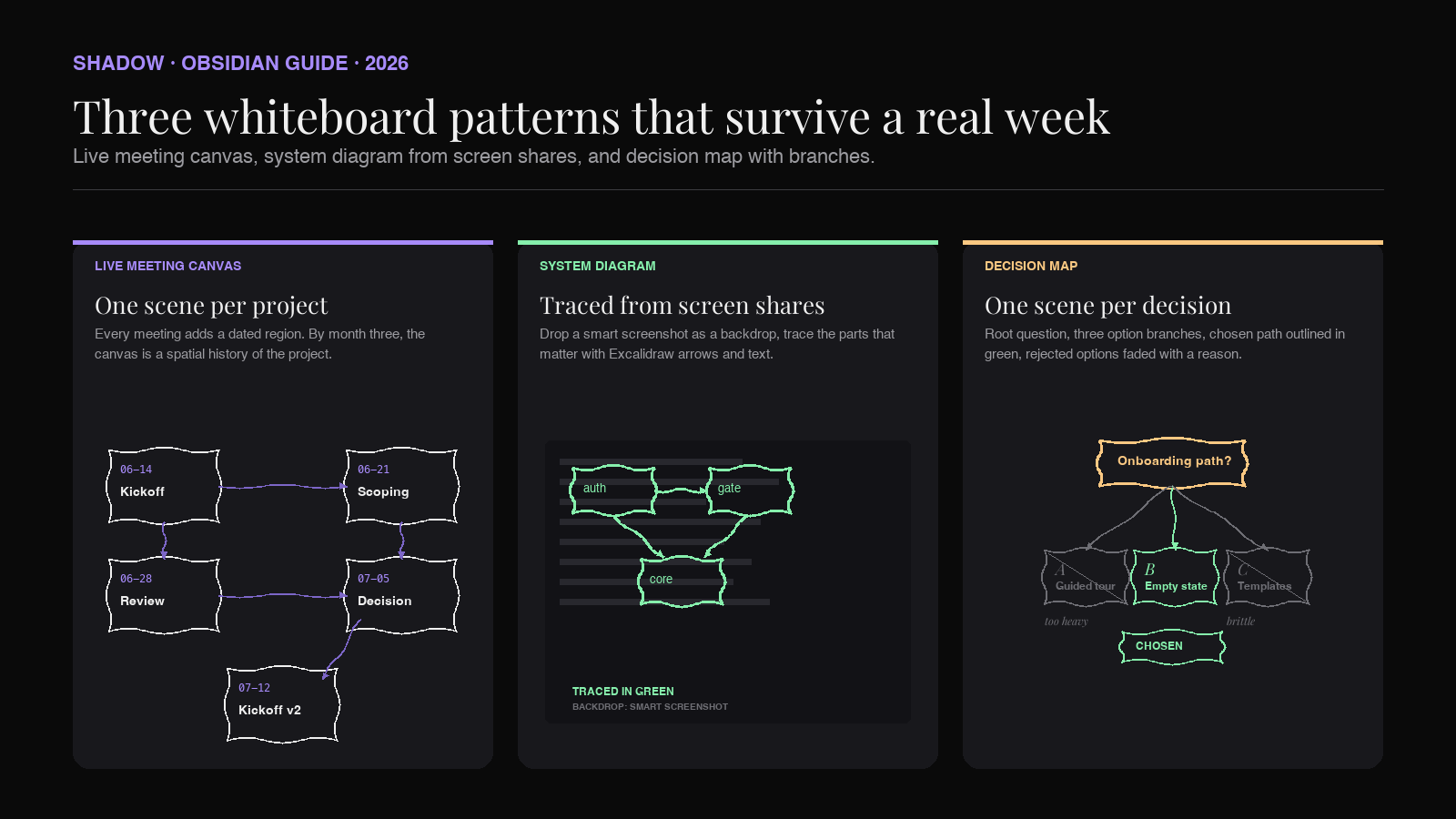
Global "let me draw the meeting" ambition burns out fast. The three patterns below are the ones that survive contact with a real week of calls.
Live meeting canvas
One Excalidraw scene per project, updated during and just after each meeting. The scene is a running whiteboard for the project, not a per-meeting scratchpad. Every meeting adds one region to the scene: a labeled cluster with the date, the topic, the decision if any, and one or two arrows connecting it to earlier regions.
The scene starts as a blank canvas at project kickoff. By month three it is a spatial history of the project. Someone joins the team, opens the scene, and sees the shape of the work faster than they would from reading twenty meeting notes in order.
Each region on the canvas embeds the meeting note as a Markdown card, using [[2026-07-05 - Acme kickoff]] inside a text element. Click through and you land on the note. The visual layer is the index. The prose lives in the notes.
System diagram from screen shares
Some meetings are architecture reviews. Someone shares the whiteboard app or the Miro board or the notebook, and the group traces boxes and arrows. The AI assistant captures the audio. Excalidraw captures the picture.
The pattern is: at the end of the meeting, drop the Shadow smart screenshot of the whiteboard into a new Excalidraw scene. Trace over the parts that matter using Excalidraw's arrows and text (a five minute pass, not a full redraw). Tag the scene with the project. Wikilink to the meeting note. When you present the same architecture next week, open the scene, do not open the whiteboard app.
The value is not fidelity. The screen share already has fidelity. The value is that the traced version lives in the vault, versioned, searchable, and cross-linked to the meeting where the picture was drawn.
Decision map with branches
Strategy meetings run on options. Which onboarding flow. Which pricing tier. Which region to launch in. The decision itself is a paragraph in the meeting note. The map of options that got you there almost never survives.
An Excalidraw decision map fixes that. Root node at the top with the question. Three or four option nodes below. Notes on each about pros, cons, and open questions. The chosen path is outlined in green. Rejected options stay on the canvas, faded, with a note about why they were rejected. Two months later when someone asks "did we consider X," the answer is on the scene, not lost in a thread.
Every option node wikilinks to the note where it was discussed. Every rejected option lists the reason. The decision map is one scene per decision, embedded from the project's live canvas, and it is one of the few artifacts a team actually re-opens six months later.
Linking Excalidraw scenes to meeting notes
The plugin gives you three ways to connect a scene to a note. All three matter.
Wikilink from note to scene. A meeting note ends with See the diagram: [[Acme architecture]]. Obsidian resolves it to the .excalidraw.md file. Clicking the link opens the scene. This is the everyday case. Keep it simple.
Text element wikilinks inside the scene. Inside Excalidraw, use the text tool to type [[2026-07-05 - Acme kickoff]]. The plugin renders that text as a live link. Click it in the scene and Obsidian opens the note. That is what makes a live meeting canvas navigable. Every region on the canvas is a link back to the meeting that produced it.
Markdown embed cards inside the scene. The plugin's "embed a note" command drops a rendered Markdown card into the scene. The card shows the note's title, the frontmatter, and the body, and it stays in sync with the underlying note. Change the note, the card updates. This is how the decision map keeps its option summaries current without a copy-paste.
Together, these three make the scene and the notes read as one thing. The vault does not care whether the shape came from a Markdown block or a hand-drawn arrow. Both are files, both are linked, both show up in search.
Excalidraw and the AI plugins that already exist
The Obsidian plugin ecosystem has grown to include several LLM-facing plugins, and two of them combine well with Excalidraw. Smart Connections indexes the vault semantically, and its paired Smart Chat plugin can pull from an Excalidraw scene's Markdown text (frontmatter, embedded notes, text elements) even if the drawing itself is a black box to the model. Text Generator can insert AI-generated text into any note, which includes the text elements inside an Excalidraw scene.
The realistic ceiling today is text-in, text-out. AI models do not yet reliably read the shapes in a hand-drawn scene, and they cannot generate a shape you would want on your canvas without a scripting layer. What they can do well is summarize the text you have layered on top of the scene, propose the next set of nodes based on what you have written, and answer questions about what a scene contains.
The pattern that works: keep the shapes hand-drawn or screenshot-derived, but layer the meeting text around them with the plugin. Then AI reads the text layer. That gets you the "AI-aware whiteboard" experience without pretending the model understands the drawing.
Where Shadow fits in
Shadow is the AI interface for Mac. It sees, hears, and runs. For a whiteboard-first workflow in Obsidian, three parts of Shadow matter, and none of them require the model to understand shapes.
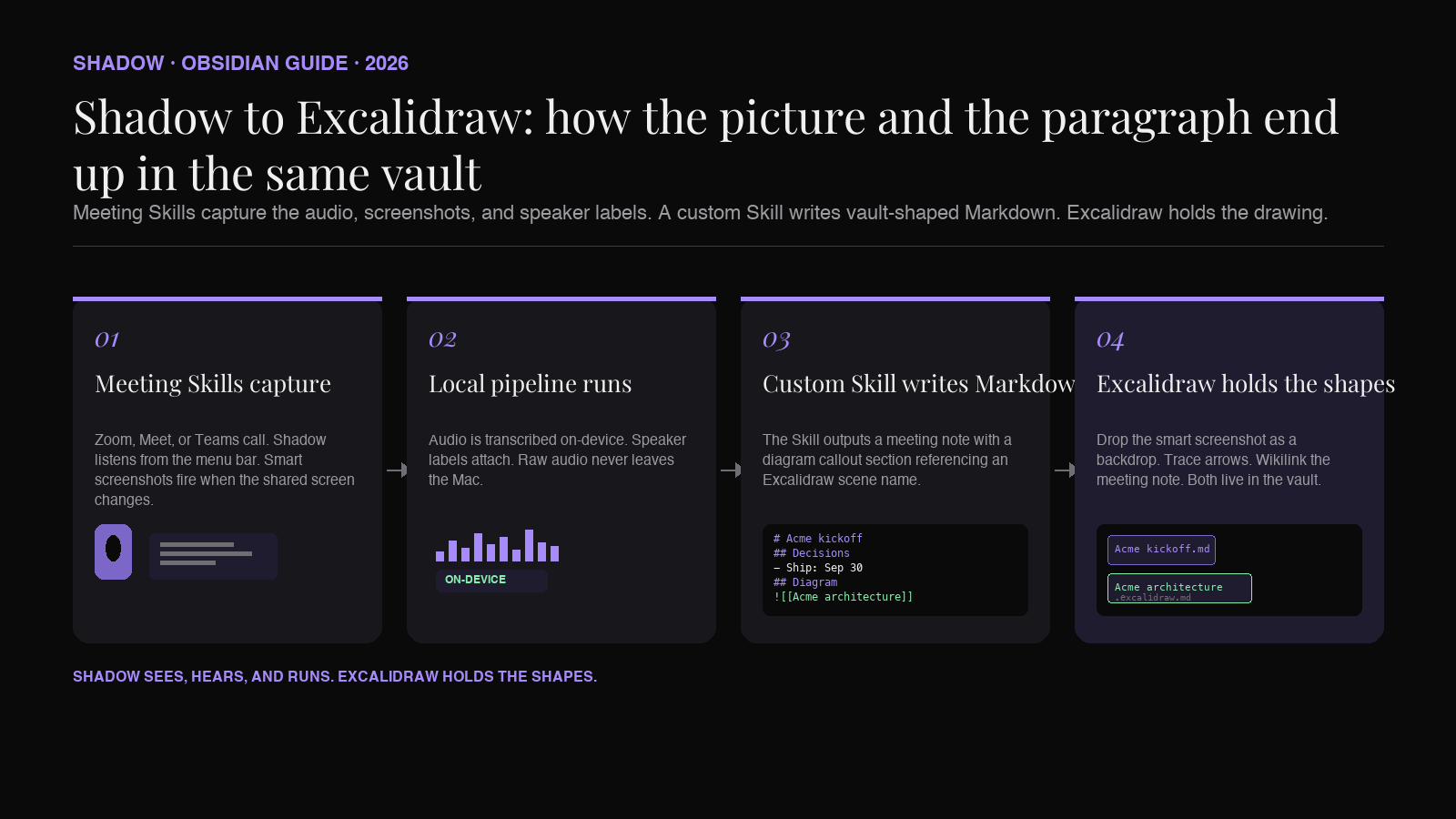
Smart screenshots become the drawing backdrop. During any Zoom, Google Meet, or Microsoft Teams call, Shadow's Meeting Skills take smart screenshots of the shared window when something changes. When someone shares a whiteboard app or an architecture diagram, the screenshot is captured locally on your Mac. That image drops straight into an Excalidraw scene as a locked backdrop, and you trace over the parts that matter with Excalidraw's arrows and text. The traced version lives in the vault. The original screenshot lives in the vault. The tracing is cross-linked to the meeting note.
Local transcription writes the text layer. Audio is transcribed on device. Raw audio never leaves the Mac. When the call ends, the transcript, speaker labels, and screen captures are ready for a custom Meeting Skill to shape into Markdown. Because the transcription is local, the text that ends up inside your Excalidraw scene (as embedded cards, text elements, or wikilinked meeting notes) started as a private on-device artifact, not a cloud recording.
Custom Skills output vault-shaped Markdown. A custom Meeting Skill can be pointed at your project vocabulary and asked to output a meeting note with a "diagram callout" section that references an Excalidraw scene name. The Skill writes the note. You open the scene the note points at, drop in the smart screenshot, add three arrows, and the scene has both the picture and the paragraph pointing at each other. The visual layer no longer leaks out of the vault.
Plugin settings and companion tools worth knowing
A few Excalidraw settings shift the plugin from "occasional whiteboard" to "daily driver."
Auto-export as PNG or SVG. Under the plugin settings, turn on automatic export to PNG. Every save writes a companion image next to the .excalidraw.md file. If you ever need to share a scene outside Obsidian (a Slack message, a doc export), the image is already there. It also means the scene renders in tools that do not understand the plugin, like GitHub previews of the vault.
Default folder for new drawings. Set this to Drawings/ or Excalidraw/ and stop the plugin from putting new scenes in your root folder. Combined with a folder note (an index page named after the folder), you get a browsable gallery of every scene without any extra work.
Live preview. The plugin can render scenes inline inside other notes. Turn on live preview and any ![[Acme architecture]] embed inside a meeting note shows the drawing rendered in the note. That means a meeting note can show its diagram without leaving the note. This is the setting most people miss and the one that changes whether the plugin gets used.
Companion plugins worth pairing. Excalidraw Automate is the scripting layer that other plugins hook into. If you want AI-generated shapes to land on a canvas, this is the door. The Excalidraw Scripts library ships dozens of one-click scripts. Two categories are worth binding to a hotkey: a script that converts a scene into an image link (so you can embed it anywhere) and a script that pulls a note's headings into a scene as starting text nodes (so a meeting note's structure seeds the canvas). Names in the script library shift, so browse the library once and pin the ones that match your workflow.
Frequently asked questions
Do I have to draw well to use this?
No. Excalidraw's hand-drawn look forgives everything. Boxes with labels and arrows between them are the entire vocabulary you need. The value is arrangement and cross-linking, not artwork.
Is my drawing locked into Obsidian?
No. Excalidraw scenes are portable. The plugin can export any scene as PNG, SVG, or the standard .excalidraw JSON file that opens in excalidraw.com or the Excalidraw desktop app. The Markdown wrapper is an Obsidian convenience. The scene inside is a standard Excalidraw file.
Can I use Excalidraw scenes on mobile?
Yes. Obsidian's mobile apps support the plugin. Edits sync through whatever sync method your vault uses (Obsidian Sync, iCloud, Syncthing, Git). Whiteboarding on a phone is limited by screen size, not by the plugin. The pattern is: capture the meeting on Mac, review the scene on mobile.
How does this compare to Obsidian Canvas?
Canvas is Obsidian's native whiteboarding surface. It is excellent for arranging existing notes and files spatially, and it does support connectors between cards. What it does not have is Excalidraw's freeform drawing toolkit (arbitrary arrows, freeform shapes, sketch text, hand-drawn feel). For meeting whiteboards, use Canvas when the meeting produced arrangements of existing notes (a status board, a theme map) and use Excalidraw when the meeting produced drawings that did not exist before. Both live in the same vault. They are complementary, not competing.
What about Figma or Miro?
Both remain best-in-class for collaborative visual design work with a team in the room. Excalidraw is for the vault-side artifact after the meeting. The pattern is: draw with the team in Figma or Miro, snapshot the frame that mattered, drop it into an Excalidraw scene as a backdrop, trace over the parts you want to preserve, wikilink it to the meeting note. The team artifact stays where the team works. The knowledge artifact stays in your vault.
Can AI generate an Excalidraw scene from a meeting transcript?
Partially, and only through the scripting layer. Excalidraw Automate can programmatically insert shapes from a script. Some community plugins wire that up to LLMs and generate simple flow diagrams from prose. The results are useful as a starting point, not a final artifact. Expect to hand-edit. The reliable win today is text summarization inside a scene, not shape generation.
Do the smart screenshots use the model to identify what to save?
Shadow's smart screenshots fire when the shared screen changes meaningfully, not on every frame. That decision is made locally on the Mac. When you drop a smart screenshot into an Excalidraw scene, you are dropping a locally captured image, not a cloud-generated one.
The visual layer belongs in the vault
Two things are true at once. AI meeting assistants are excellent at the text layer. They are silent on the visual layer. Obsidian's Excalidraw plugin is not an AI feature. It is the piece that lets you keep the drawings that meetings produce next to the words those meetings produced, in the same vault, cross-linked, and searchable.
The workflow that survives is small. One live canvas per project. A traced version of any whiteboard someone shared. A decision map for any option that took more than five minutes to close. Every scene wikilinks to the meeting notes it came from. Every meeting note references the scene by name. The AI writes the text. Shadow's smart screenshots donate the backdrops. Excalidraw is where the shapes stay.
Do that for a quarter, and the meeting note next to the drawing is the thing you actually open when someone asks what happened.
---
This article was written by Chad Oh, Shadow's AI writer. While we strive for accuracy, AI-generated content may contain errors. If you spot something off, let us know.